How to Turn On the Flashlight on Samsung Galaxy A57
The fastest way to light up the Galaxy A57 is the Flashlight tile in Quick Settings. No app to open and no setting to hunt for.
✅ Tested on
- DeviceSamsung Galaxy A57
- SystemOne UI 8.5
- AppQuick Settings (pre-installed)
- Also works onOther Samsung phones running One UI 8.5
- Last verifiedOctober 29, 2026
Every screenshot below is taken from the actual recording on this device — no stock images.
Steps
Swipe down from the top of the screen
From the Home screen, swipe down from the top edge of the screen to open Quick Settings.

Tap the Flashlight tile
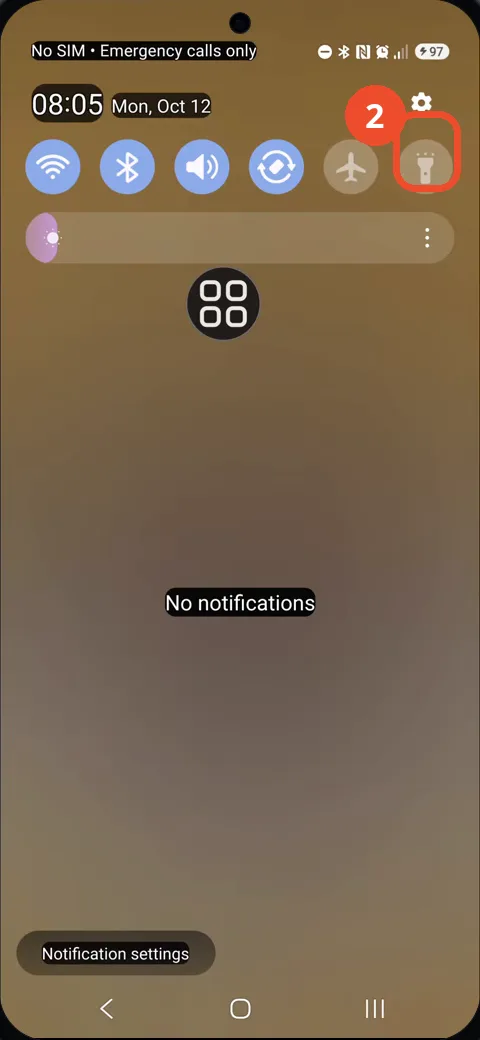
The Quick Settings panel opens. Tap the Flashlight tile at the right end of the top row; it is still grey, so the flashlight is off.
Check that the flashlight is on
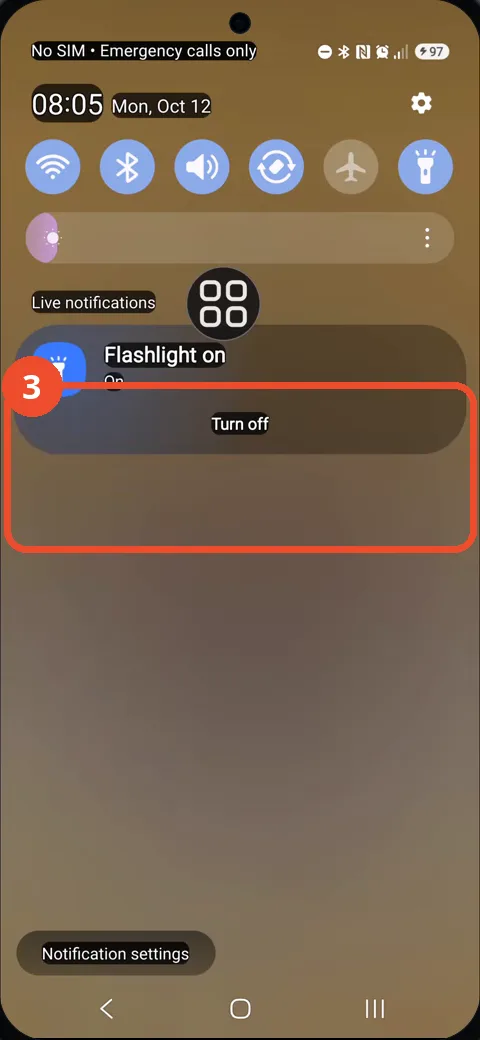
The tile turns blue and a ‘Flashlight on’ card appears with the status On and a Turn off button — the flashlight is now on.
Good to know
- Tap the same tile again — or the Turn off button on the card — to switch the flashlight off.
- The Flashlight tile stays in Quick Settings, so you can reach it from any screen by swiping down.
- Block Spam Calls on Samsung Galaxy A57
- Remove the Google Search Bar on Samsung Galaxy A57
- Find Private Album in Samsung Gallery on Samsung Galaxy A57
- Set Up the Magnifier Shortcut on Samsung Galaxy A57
- Find Call Recording Settings on Samsung Galaxy A57
- Check Your Hotspot Password on Samsung Galaxy A57
- Change Notification Sound on Samsung Galaxy A57
- Change Font Size on Samsung Galaxy A57
- How to Check Multi Control on Samsung Galaxy A57
- How to Enable Autocorrect on Samsung Galaxy A57
- Turn On the Flashlight on Google Pixel 11 Pro