How to Open the Power Menu with the Side Button on Samsung Galaxy A57
On the Galaxy A57 the side button long press may open the digital assistant instead of the power menu. This guide changes that one setting, so pressing and holding the side button opens the power menu.
- DeviceSamsung Galaxy A57
- SystemOne UI 8.5
- AppSettings
- Also works onOther Samsung Galaxy phones running One UI 8.5
- Last verifiedOctober 31, 2026
Every screenshot below is taken from the actual recording on this device — no stock images.
Steps
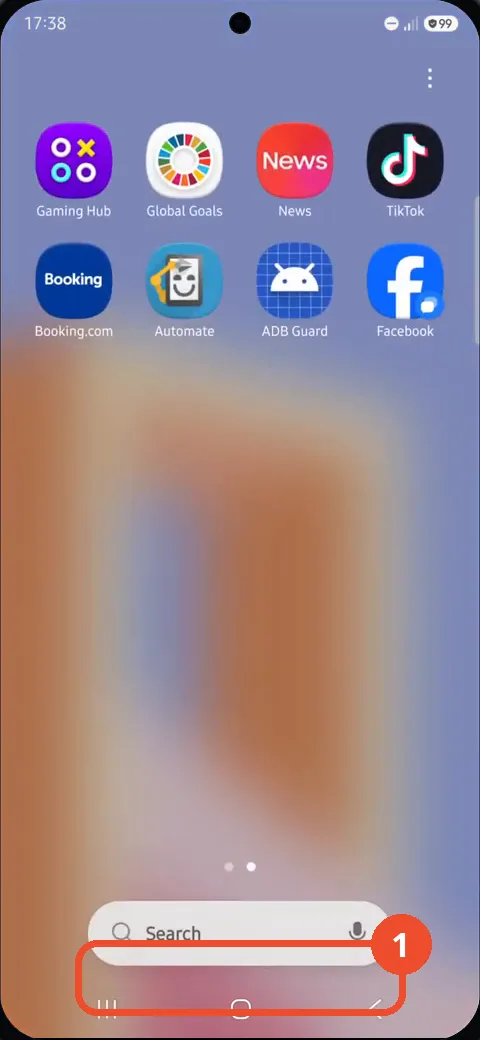
Open the app screen and tap Search
Swipe up from the Home screen to open the app screen, then tap the Search bar at the bottom. The search screen opens with suggested apps.
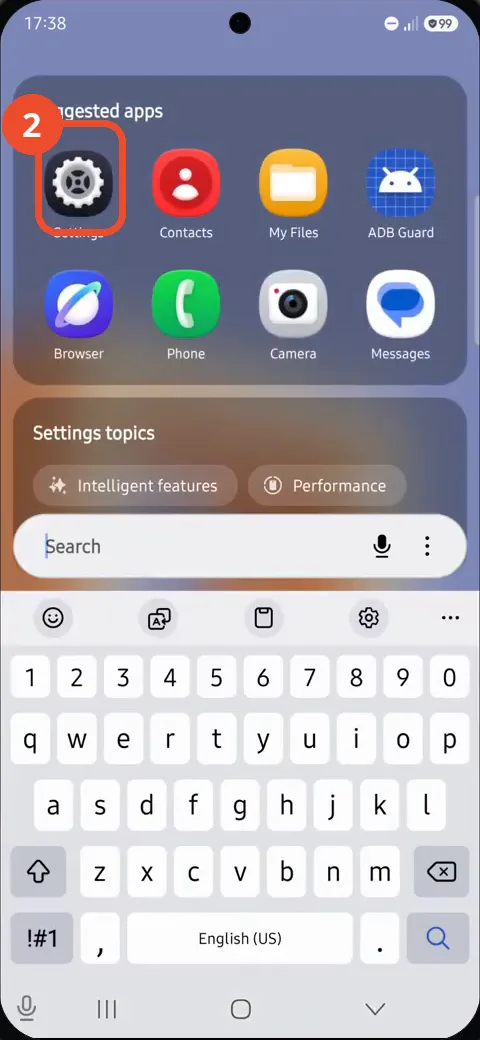
Open Settings from the suggested apps
On the search screen, tap the Settings gear icon in the Suggested apps row at the top. The main Settings screen opens.
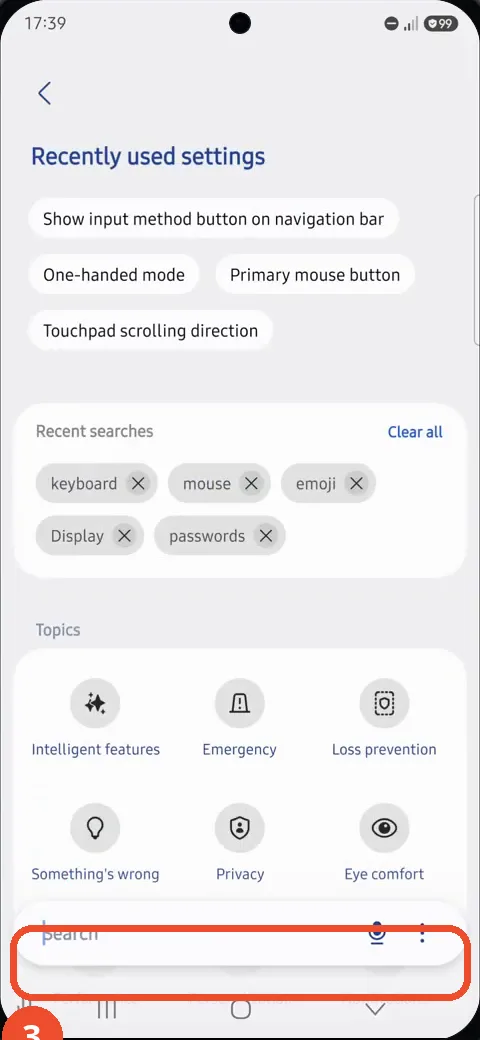
Tap the Settings search field
In Settings, tap the Search field at the bottom of the screen. The settings search screen opens with the keyboard.
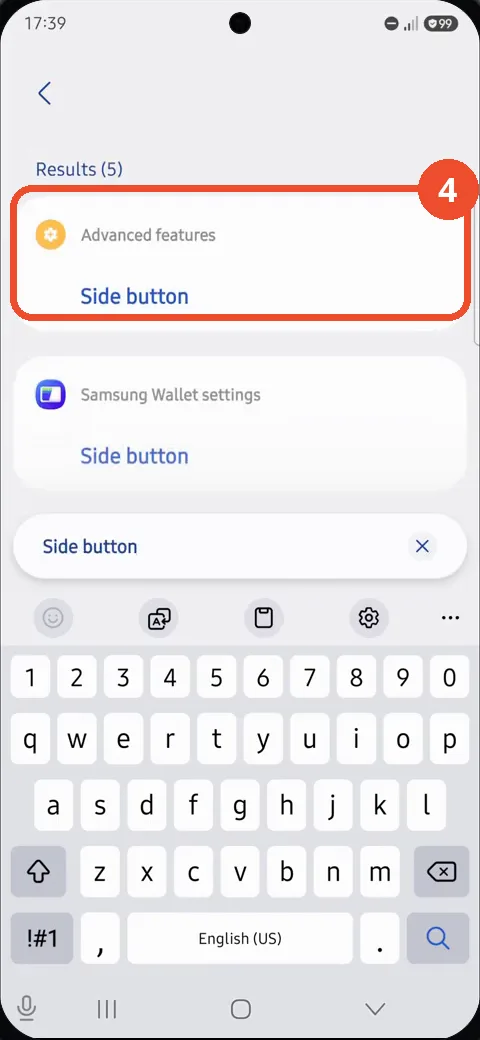
Search for side button and tap the result
Type side button. In the results, tap the Side button entry listed under Advanced features. The Side button settings open.
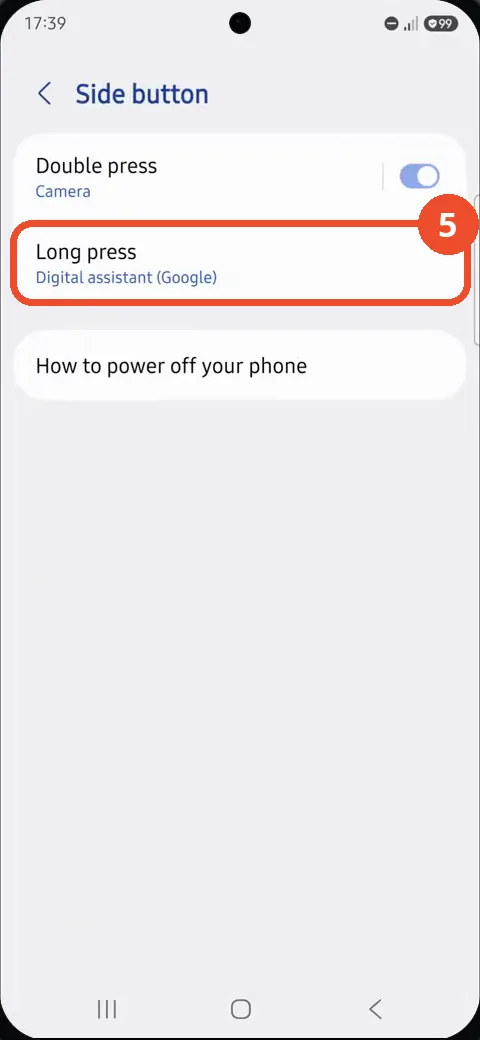
Tap Long press
On the Side button screen, find Long press. It currently reads Digital assistant (Google). Tap the Long press row to change it.
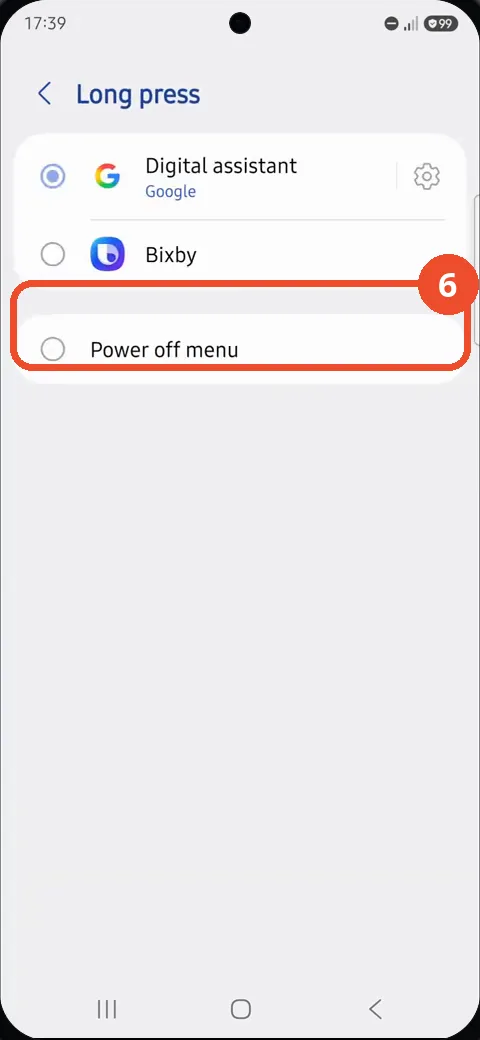
Select Power off menu
On the Long press screen, select the Power off menu option. Its radio button fills, replacing Digital assistant as the long-press action.
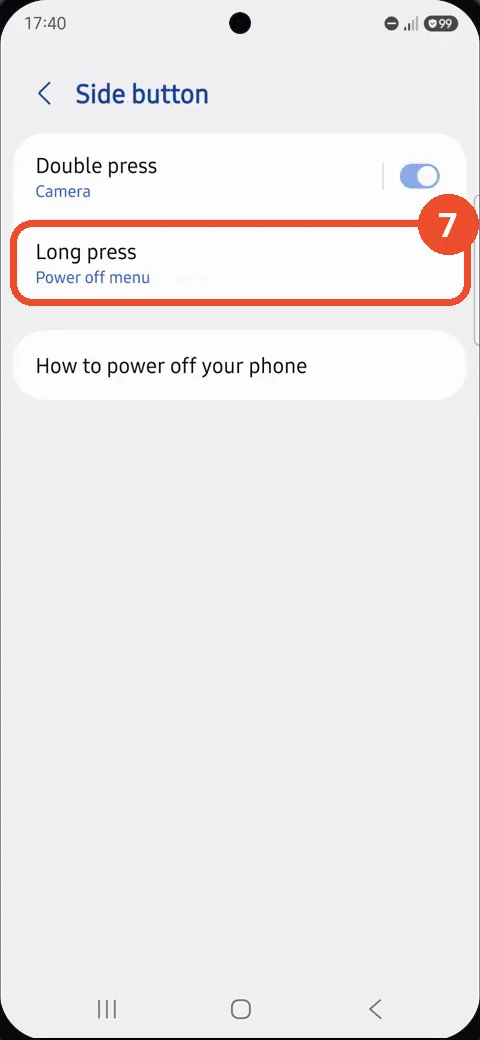
Confirm the side button now opens the power menu
Go back to the Side button screen. Long press now reads Power off menu, so pressing and holding the side button opens the power menu.
Good to know
- Before the change, this phone had Long press set to Digital assistant (Google); Double press stays set to Camera and is not touched here.
- The other long-press choices on this screen are Digital assistant and Bixby; only Power off menu brings up the power menu.
- The recording ends on the Side button settings screen confirming the new choice; it does not itself show the power menu opening.
- Remove the Google Search Bar on Samsung Galaxy A57
- Find Private Album in Samsung Gallery on Samsung Galaxy A57
- Set Up the Magnifier Shortcut on Samsung Galaxy A57
- Find Call Recording Settings on Samsung Galaxy A57
- Check Your Hotspot Password on Samsung Galaxy A57
- Change Notification Sound on Samsung Galaxy A57
- Change Font Size on Samsung Galaxy A57
- Check Multi Control on Samsung Galaxy A57
- How to Enable Autocorrect on Samsung Galaxy A57
- How to Turn On the Flashlight on Samsung Galaxy A57
- How to Change Keyboard Layout on Samsung Galaxy A57
- How to Change the Lock Screen Clock Style on Samsung Galaxy A57
- How to Check and Enable NFC on Samsung Galaxy A57
- How to Change Your Ringtone on Samsung Galaxy A57
- How to Block Spam Calls on Samsung Galaxy A57