How to Find Private Album in Samsung Gallery on Samsung Galaxy A57
Samsung Gallery has a built-in Private album for keeping selected photos and videos out of the regular Gallery view — but it is not in the Albums list where most people look for it. On the Galaxy A57 with One UI 8.5, it hides in Gallery’s bottom Menu tab. Here is the exact route, recorded on the device.
- DeviceSamsung Galaxy A57
- SystemOne UI 8.5 (Android 16)
- AppSamsung Gallery (pre-installed)
- Also works onOther Samsung phones running One UI 8.5
- Last verifiedOctober 27, 2026
Every screenshot below is taken from the actual recording on this device — no stock images.
Before you start
- Private album is part of the pre-installed Samsung Gallery app — nothing to install.
- Depending on your lock settings, Gallery may ask you to verify with fingerprint or PIN before the album opens.
- In this recording the Private album is empty, so no files were moved or hidden while filming.
Steps
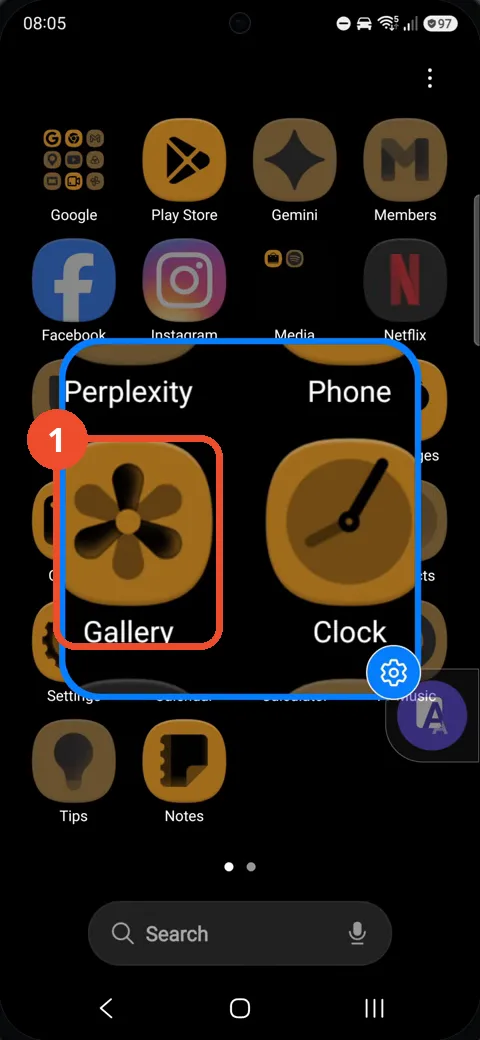
Open Gallery
Swipe to the app page that has Gallery and tap it. Gallery opens on the Pictures view.
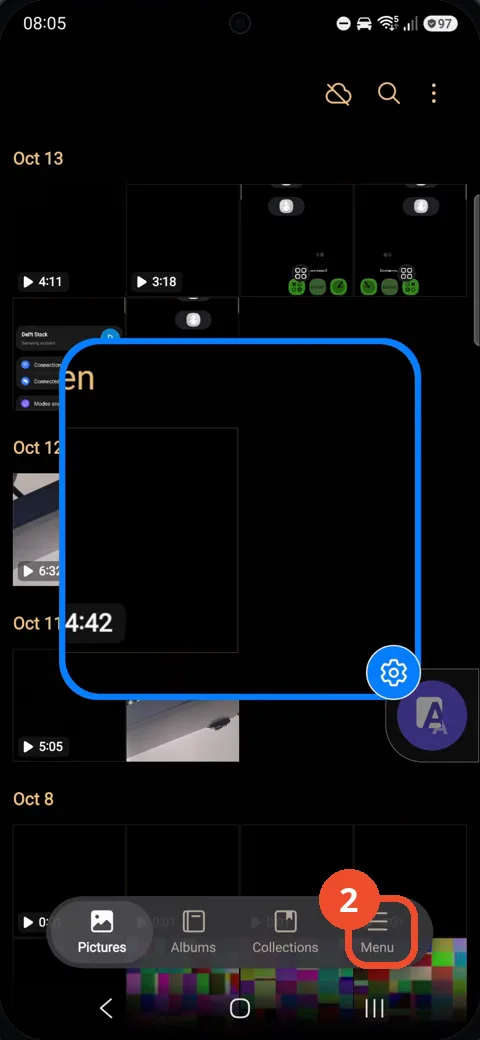
Tap Menu at the bottom of Gallery
At the bottom of Gallery there are four tabs: Pictures, Albums, Collections and Menu. Tap Menu on the right.
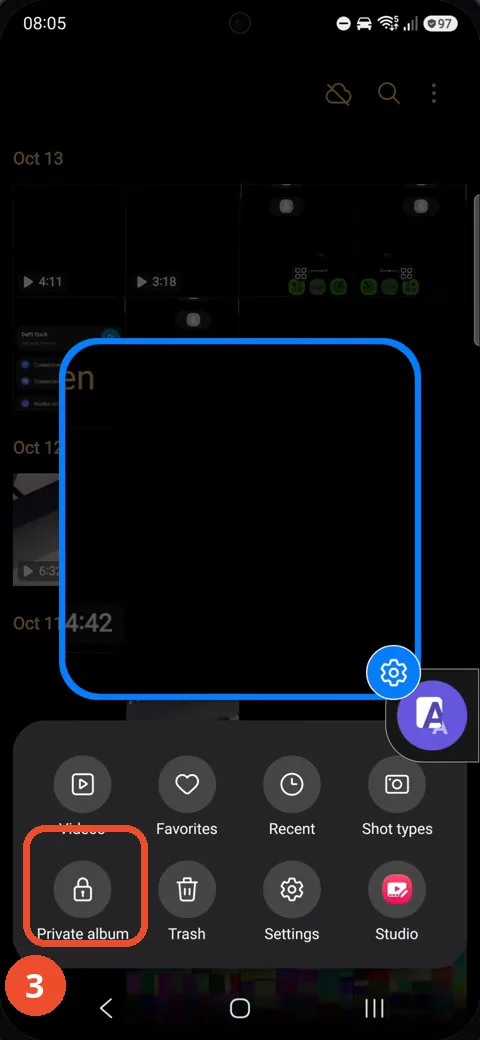
Tap Private album
The Menu panel shows Private album with a lock icon, next to Videos, Favorites, Recent, Trash and Settings. Tap Private album.
See the opened Private album
Private album opens. On this phone it is empty — in dark mode the empty album is a plain black page with no items in it. Anything you move into Private album will appear here, and stays out of the regular Pictures and Albums views.
If you cannot find Private album
- Look in the bottom Menu tab, not the ⋮ (More options) menu at the top of Gallery — the recording shows it is not in there.
- Make sure you are in Samsung Gallery. Google Photos has no Private album; its equivalent is called Locked folder.
- Update Gallery in the Galaxy Store if the Menu panel looks different — older versions place the entry differently.