How to Find an App on Samsung Galaxy A57 with One UI 8.5
Lost an app in the drawer? Search the drawer by name and the match appears without opening anything.
✅ Tested on
- DeviceSamsung Galaxy A57
- SystemOne UI 8.5
- AppOne UI Home
- Also works onOther Samsung phones running One UI 8.5
- Last verifiedNovember 9, 2026
Every screenshot below is taken from the actual recording on this device — no stock images.
Steps
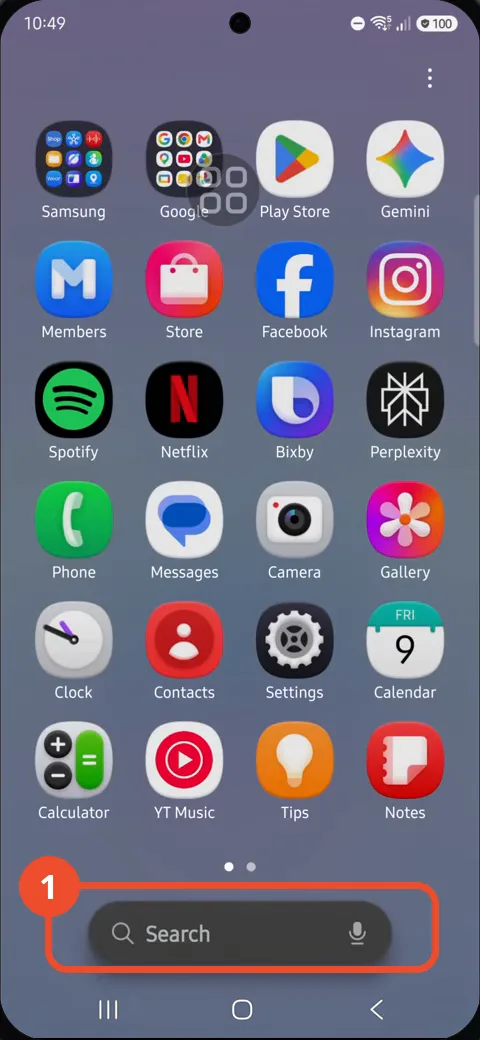
Swipe up to open the app drawer
Swipe up from the Home screen to open the app drawer. The Search bar sits at the bottom.
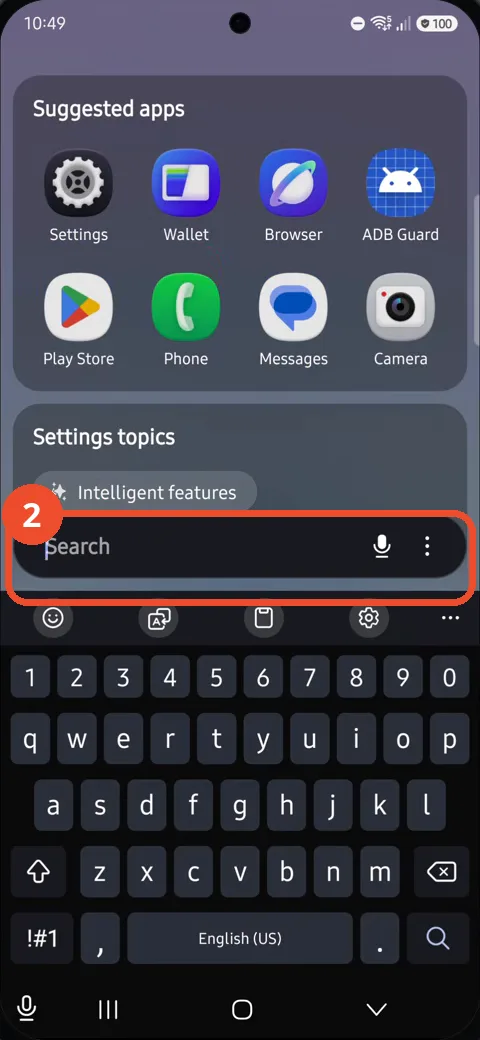
Tap Search and type the app name
Tap the Search bar at the bottom of the drawer, then type the app name — here, “Settings”. The keyboard opens and suggestions appear.
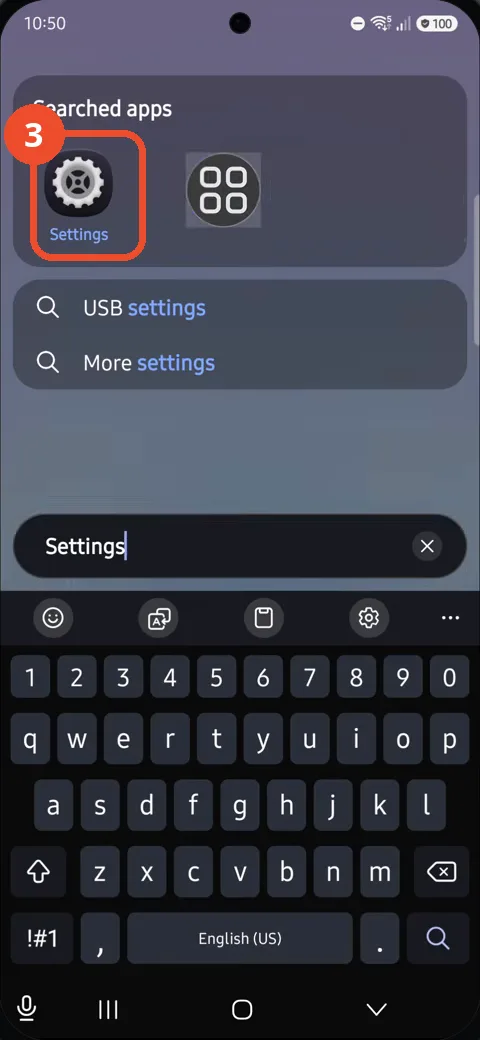
Check that Settings appears under Searched apps
Settings shows up under Searched apps at the top, with its gear icon.
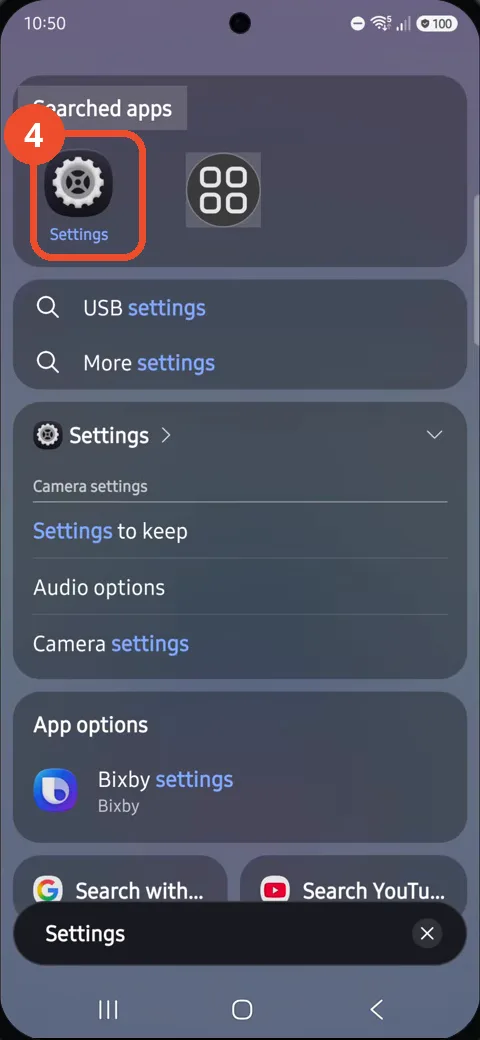
Press Back to hide the keyboard
Press Back. The keyboard slides away and the Settings result stays visible on screen — the app is found, still unopened.
Good to know
- This only finds the app — the video never taps the Settings icon, so the app stays unopened. Tap the icon in the results to open it.
- Tapping Search first shows Suggested apps and Settings topics; typing filters the list down to Searched apps.
- The search also matches settings pages (USB settings, More settings) — the app itself is the icon under Searched apps.
- Pressing Back hides the keyboard and leaves the results on screen, so you can keep reading them.
- Remove the Google Search Bar on Samsung Galaxy A57
- Find Private Album in Samsung Gallery on Samsung Galaxy A57
- Set Up the Magnifier Shortcut on Samsung Galaxy A57
- Find Call Recording Settings on Samsung Galaxy A57
- Check Your Hotspot Password on Samsung Galaxy A57
- Change Notification Sound on Samsung Galaxy A57
- Change Font Size on Samsung Galaxy A57
- Check Multi Control on Samsung Galaxy A57
- How to Enable Autocorrect on Samsung Galaxy A57
- How to Turn On the Flashlight on Samsung Galaxy A57
- How to Change Keyboard Layout on Samsung Galaxy A57
- How to Change the Lock Screen Clock Style on Samsung Galaxy A57
- How to Check and Enable NFC on Samsung Galaxy A57
- How to Change Your Ringtone on Samsung Galaxy A57
- How to Open the Power Menu with the Side Button on Samsung Galaxy A57
- How to Block Calls from Unknown Numbers on Samsung Galaxy A57
- How to Change Font Style on Samsung Galaxy A57
- How to Check the First Used Date on Samsung Galaxy A57 with One UI 8.5
- How to Enable Autofill Codes by SMS on Samsung Galaxy A57 with One UI 8.5
- How to Find the Default Launcher Setting on Samsung Galaxy A57 with One UI 8.5
- How to Change App Icon Size on Samsung Galaxy A57 with One UI 8.5
- How to Turn Touch Feedback On or Off on Samsung Galaxy A57 with One UI 8.5
- How to Find the Swipe-Down Notification Setting on Samsung Galaxy A57 with One UI 8.5
- How to Block Spam Calls on Samsung Galaxy A57
- How to Enable Motion Photo on Samsung Galaxy A57 with One UI 8.5
- How to Change Screen Brightness on Samsung Galaxy A57 with One UI 8.5
- How to Draw on Photos in Samsung Gallery on Samsung Galaxy A57 with One UI 8.5
- How to Choose the Game Booster Shortcut Bar on Samsung Galaxy A57 with One UI 8.5
- How to Manage Messages Bubbles on Samsung Galaxy A57 with One UI 8.5
- How to Use the Magnification Shortcut on Samsung Galaxy A57 with One UI 8.5
- How to Turn on Sound Mode on Samsung Galaxy A57 with One UI 8.5
- How to Use Accessibility Shortcuts on Samsung Galaxy A57 with One UI 8.5
- How to Check Battery Health on Samsung Galaxy A57 with One UI 8.5
- How to Enable Floating Windows on Samsung Galaxy A57 with One UI 8.5
- How to Change Display Size on Samsung Galaxy A57 with One UI 8.5
- How to Enable Silent Mode on Samsung Galaxy A57 with One UI 8.5
- How to Check Call Screening on Samsung Galaxy A57 with One UI 8.5
- How to Choose Automatic System Update Downloads on Samsung Galaxy A57 with One UI 8.5
- How to Enable Dark Mode on Samsung Galaxy A57 with One UI 8.5
- How to Force Stop an App on Samsung Galaxy A57 with One UI 8.5
- How to Change the Home Screen Grid on Samsung Galaxy A57 with One UI 8.5