How to Enable Dolby Atmos on Samsung Galaxy A57 with One UI 8.5
Dolby Atmos lives under Sound quality and effects. Search Settings for it, open the page, and turn the switch on — Auto is selected by default.
- DeviceSamsung Galaxy A57
- SystemOne UI 8.5
- AppSettings
- Also works onOther Samsung phones running One UI 8.5
- Last verifiedNovember 12, 2026
Every screenshot below is taken from the actual recording on this device — no stock images.
Steps
Open Settings from the app drawer
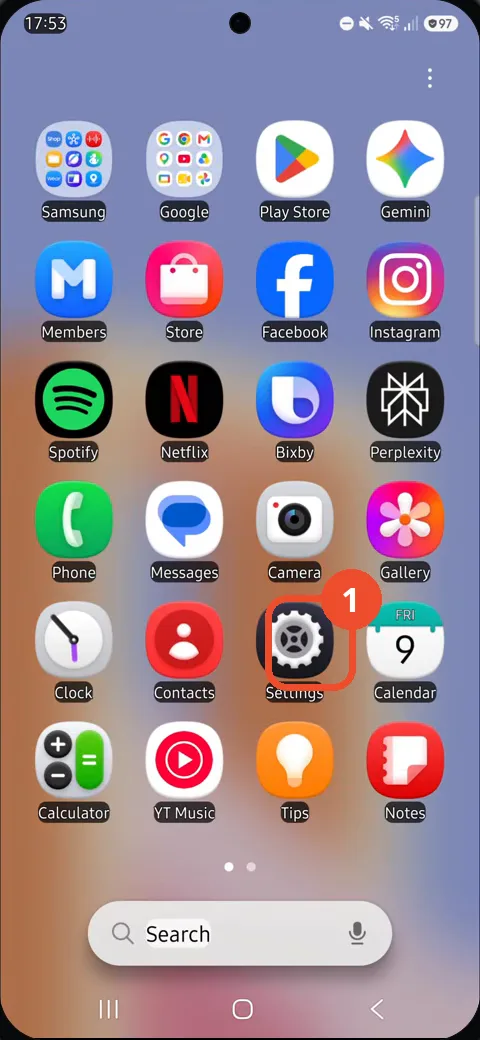
Swipe up to open the app drawer, then tap the Settings gear icon.
Tap the Search field in Settings
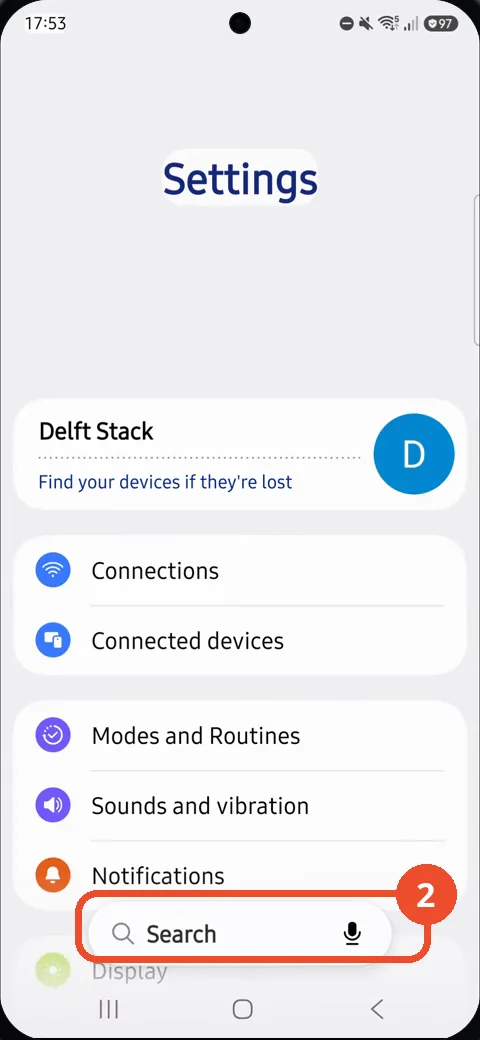
At the bottom of the Settings page, tap the Search field.
Type Dolby Atmos
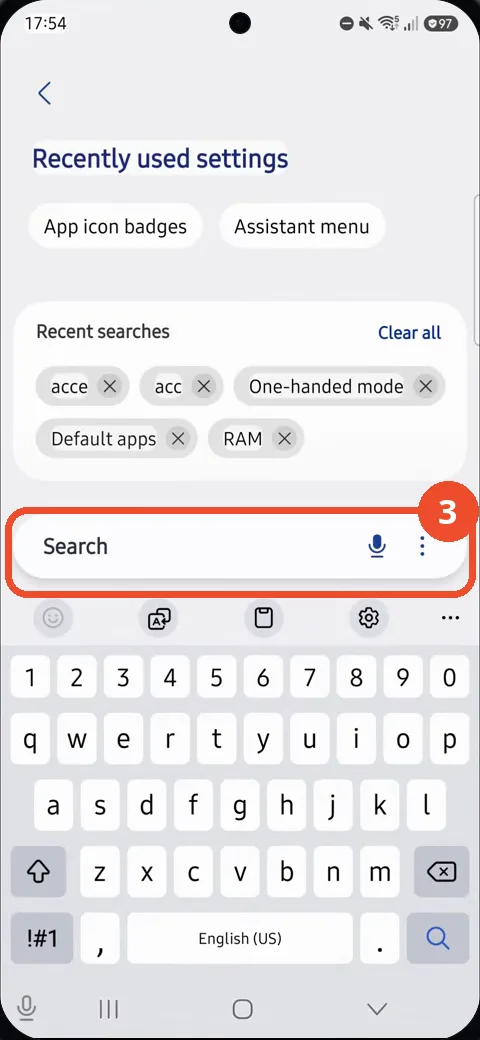
With the keyboard open, type Dolby Atmos in the search field.
Tap the Dolby Atmos result
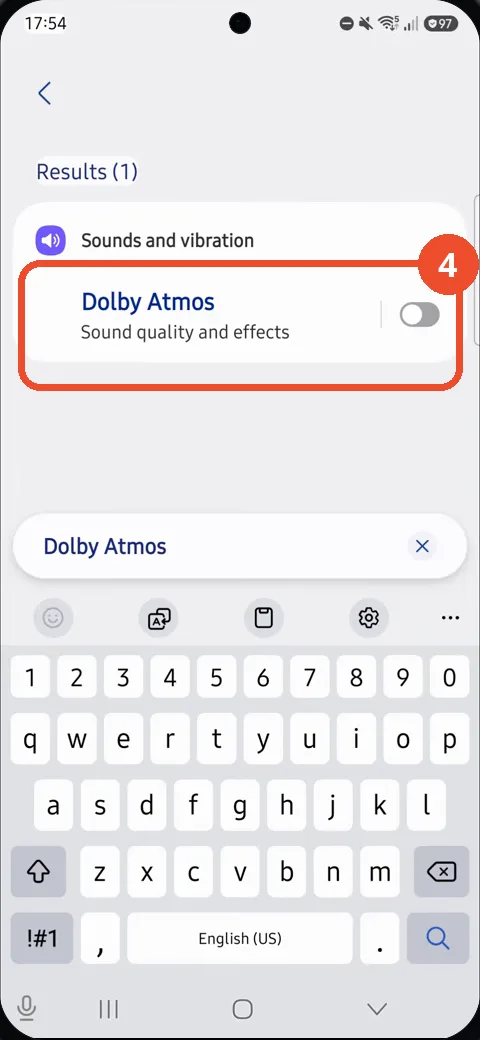
One result appears: Dolby Atmos under Sound quality and effects. Tap the row to open it — not the switch on the row itself.
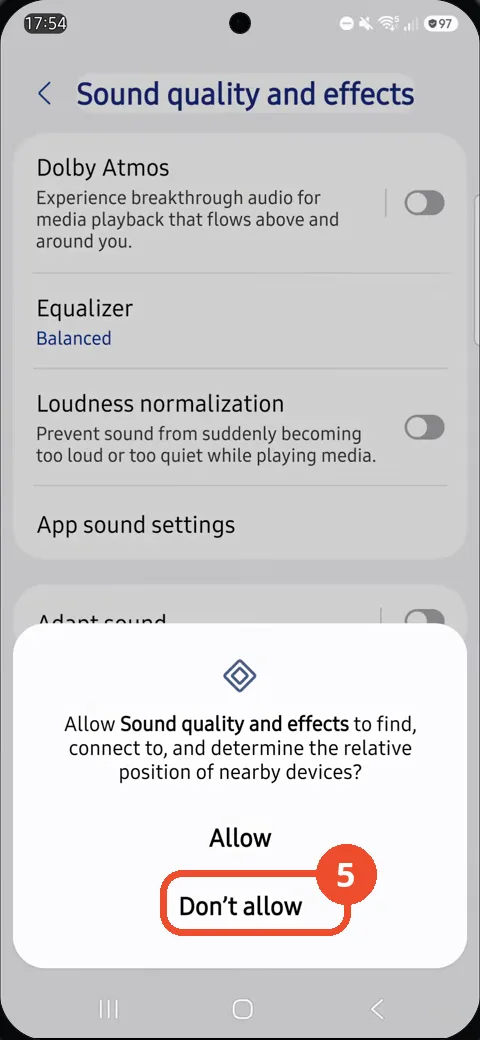
Dismiss the nearby-devices prompt
A prompt asks whether Sound quality and effects can find nearby devices. Tap Don’t allow to dismiss it — the setting works without nearby-device access.
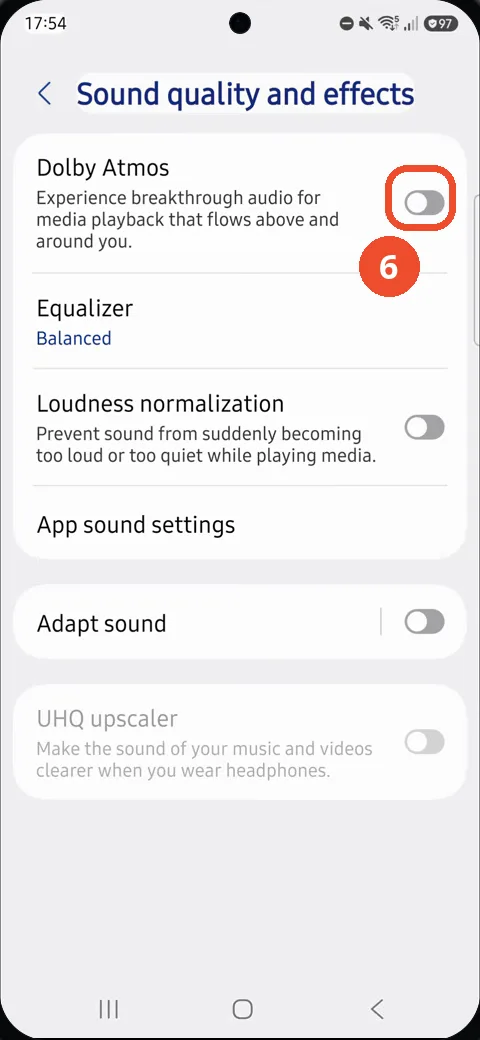
Turn on the Dolby Atmos switch
On the Sound quality and effects page, tap the Dolby Atmos switch to turn it on.
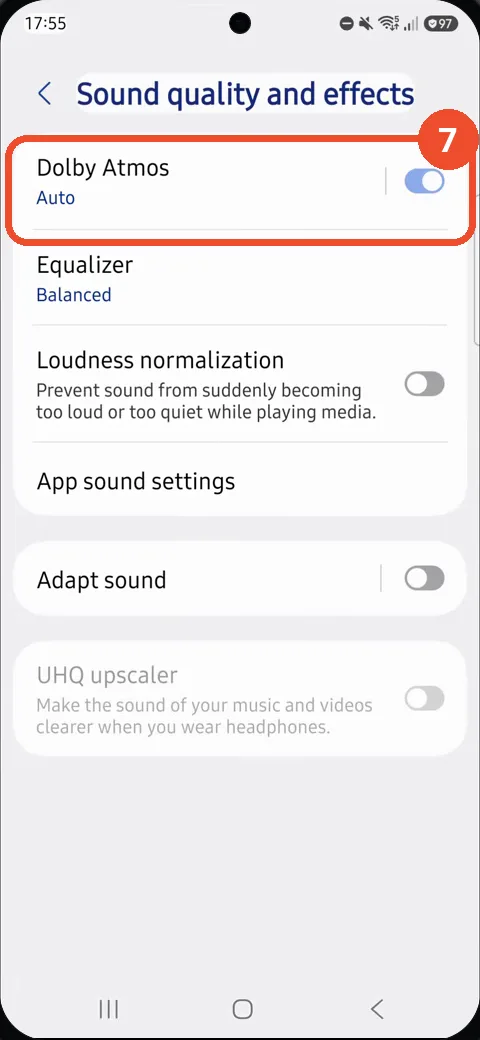
Tap Dolby Atmos to see the sound modes
With Dolby Atmos on and Auto shown underneath, tap the Dolby Atmos row to open its modes.
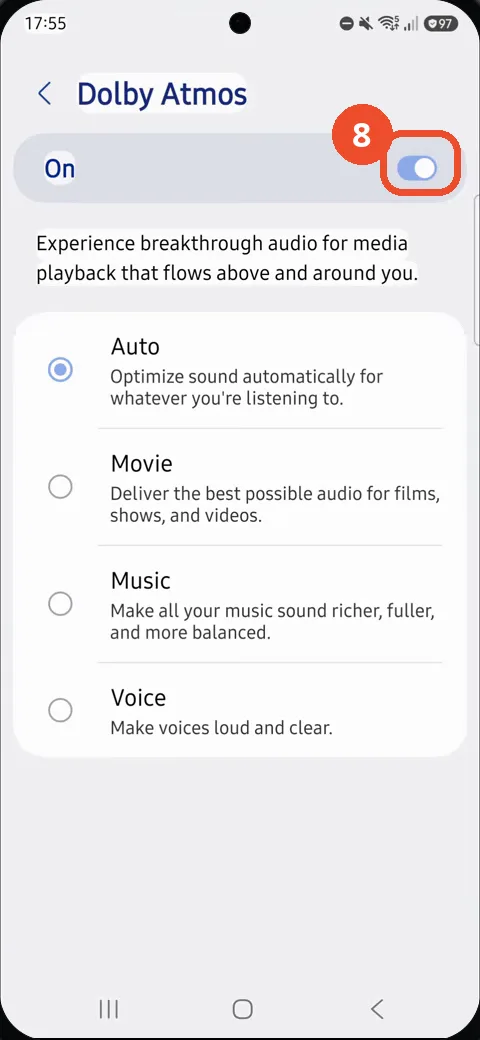
Check Dolby Atmos is on with Auto selected
The Dolby Atmos page shows the switch On and Auto selected — Movie, Music and Voice are the other modes.
Good to know
- Dolby Atmos turns on with Auto selected — Auto optimises the sound for whatever is playing. Movie, Music and Voice are the other modes.
- Opening Sound quality and effects asks for nearby-device permission. Either option dismisses the prompt; Dolby Atmos works the same either way.
- The recording starts with the notification shade pulled down (no notifications, No SIM); that is not part of the task — the steps start at Settings.
- Remove the Google Search Bar on Samsung Galaxy A57
- Find Private Album in Samsung Gallery on Samsung Galaxy A57
- Set Up the Magnifier Shortcut on Samsung Galaxy A57
- Find Call Recording Settings on Samsung Galaxy A57
- Check Your Hotspot Password on Samsung Galaxy A57
- Change Notification Sound on Samsung Galaxy A57
- Change Font Size on Samsung Galaxy A57
- Check Multi Control on Samsung Galaxy A57
- How to Enable Autocorrect on Samsung Galaxy A57
- How to Turn On the Flashlight on Samsung Galaxy A57
- How to Change Keyboard Layout on Samsung Galaxy A57
- How to Change the Lock Screen Clock Style on Samsung Galaxy A57
- How to Check and Enable NFC on Samsung Galaxy A57
- How to Change Your Ringtone on Samsung Galaxy A57
- How to Open the Power Menu with the Side Button on Samsung Galaxy A57
- How to Block Calls from Unknown Numbers on Samsung Galaxy A57
- How to Change Font Style on Samsung Galaxy A57
- How to Check the First Used Date on Samsung Galaxy A57 with One UI 8.5
- How to Enable Autofill Codes by SMS on Samsung Galaxy A57 with One UI 8.5
- How to Find the Default Launcher Setting on Samsung Galaxy A57 with One UI 8.5
- How to Change App Icon Size on Samsung Galaxy A57 with One UI 8.5
- How to Turn Touch Feedback On or Off on Samsung Galaxy A57 with One UI 8.5
- How to Find the Swipe-Down Notification Setting on Samsung Galaxy A57 with One UI 8.5
- How to Block Spam Calls on Samsung Galaxy A57
- How to Enable Motion Photo on Samsung Galaxy A57 with One UI 8.5
- How to Change Screen Brightness on Samsung Galaxy A57 with One UI 8.5
- How to Draw on Photos in Samsung Gallery on Samsung Galaxy A57 with One UI 8.5
- How to Choose the Game Booster Shortcut Bar on Samsung Galaxy A57 with One UI 8.5
- How to Manage Messages Bubbles on Samsung Galaxy A57 with One UI 8.5
- How to Use the Magnification Shortcut on Samsung Galaxy A57 with One UI 8.5
- How to Turn on Sound Mode on Samsung Galaxy A57 with One UI 8.5
- How to Use Accessibility Shortcuts on Samsung Galaxy A57 with One UI 8.5
- How to Check Battery Health on Samsung Galaxy A57 with One UI 8.5
- How to Enable Floating Windows on Samsung Galaxy A57 with One UI 8.5
- How to Change Display Size on Samsung Galaxy A57 with One UI 8.5
- How to Enable Silent Mode on Samsung Galaxy A57 with One UI 8.5
- How to Check Call Screening on Samsung Galaxy A57 with One UI 8.5
- How to Choose Automatic System Update Downloads on Samsung Galaxy A57 with One UI 8.5
- How to Enable Dark Mode on Samsung Galaxy A57 with One UI 8.5
- How to Force Stop an App on Samsung Galaxy A57 with One UI 8.5
- How to Find an App on Samsung Galaxy A57 with One UI 8.5
- How to View Downloads on Samsung Galaxy A57 with One UI 8.5
- How to Find PIN Setup Options on Samsung Galaxy A57 with One UI 8.5
- How to Find Predictive Text in Samsung Keyboard Settings on Samsung Galaxy A57 with One UI 8.5
- How to Change the Home Screen Grid on Samsung Galaxy A57 with One UI 8.5
- How to Close All Tabs in Samsung Internet on Samsung Galaxy A57 with One UI 8.5
- How to Find the Manual Time Settings on Samsung Galaxy A57 with One UI 8.5