How to Check Multi Control on Samsung Galaxy A57
Multi control lets one keyboard and mouse move between this phone, a Galaxy tablet and a Galaxy PC — you can type, copy and drag files across their screens. This guide only checks whether it is switched on: on this phone it is already On, and nothing is changed. The recording was made with dark mode on, and the Samsung account email at the bottom of the last screenshot is blurred for privacy.
- DeviceSamsung Galaxy A57
- SystemOne UI 8.5 (Android 16)
- AppSamsung Settings (pre-installed)
- Also works onOther Samsung phones running One UI 8.5
- Last verifiedOctober 28, 2026
Every screenshot below is taken from the actual recording on this device — no stock images.
Before you start
- Multi control only works between Galaxy devices signed in to the same Samsung account and connected to the same Wi-Fi network.
- Checking the switch changes nothing — you can look and back out safely.
Steps
Open Settings
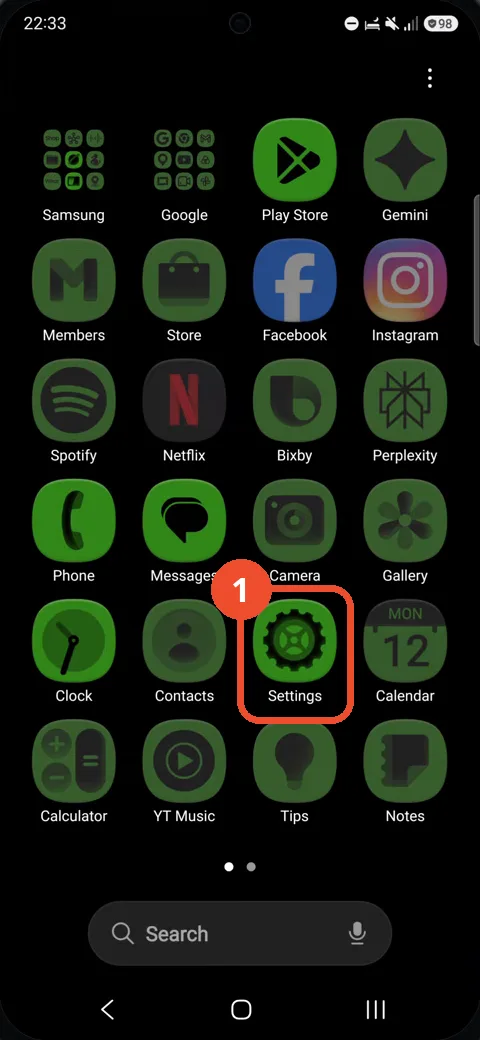
Swipe up to open the app drawer and tap Settings.
Tap Connected devices
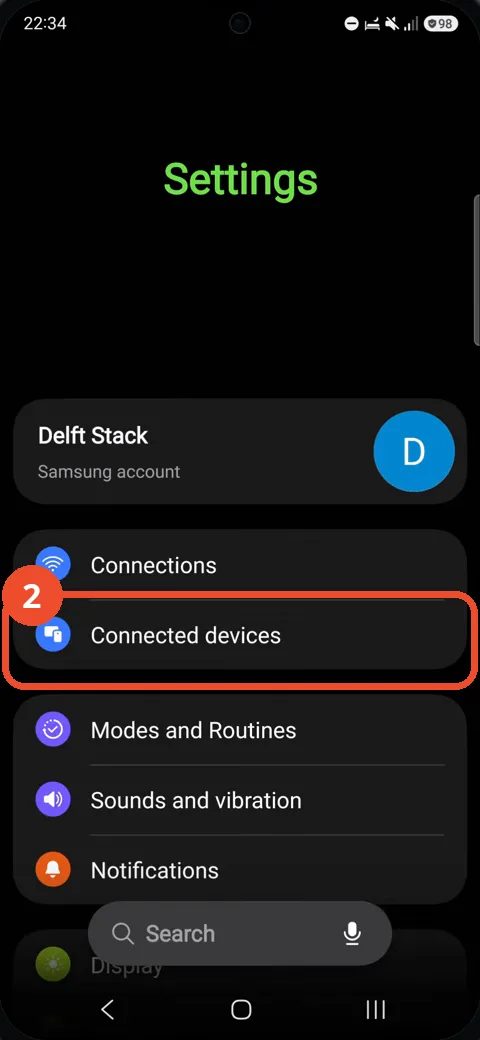
In Settings, tap Connected devices.
Tap Multi control
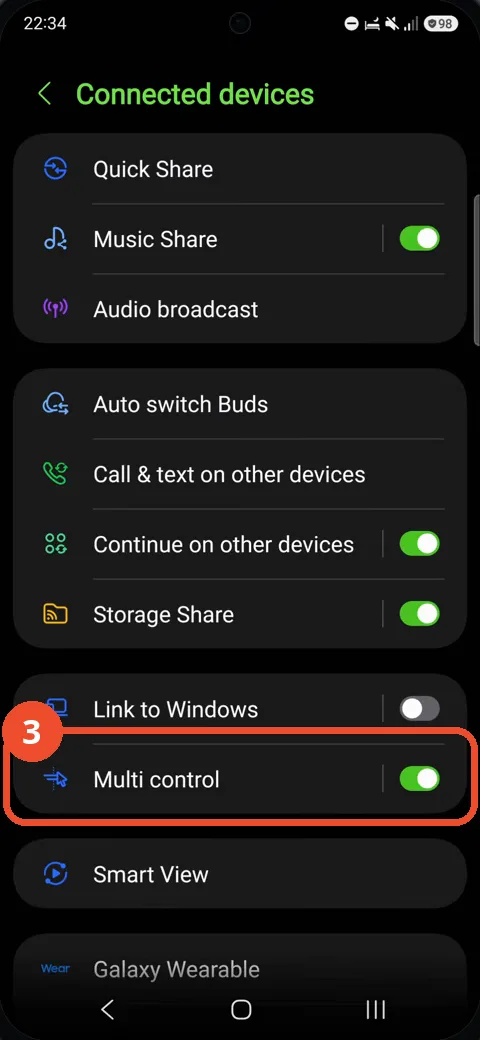
In the Connected devices list, tap Multi control — its switch already shows green in the list on this phone.
Check Multi control is On
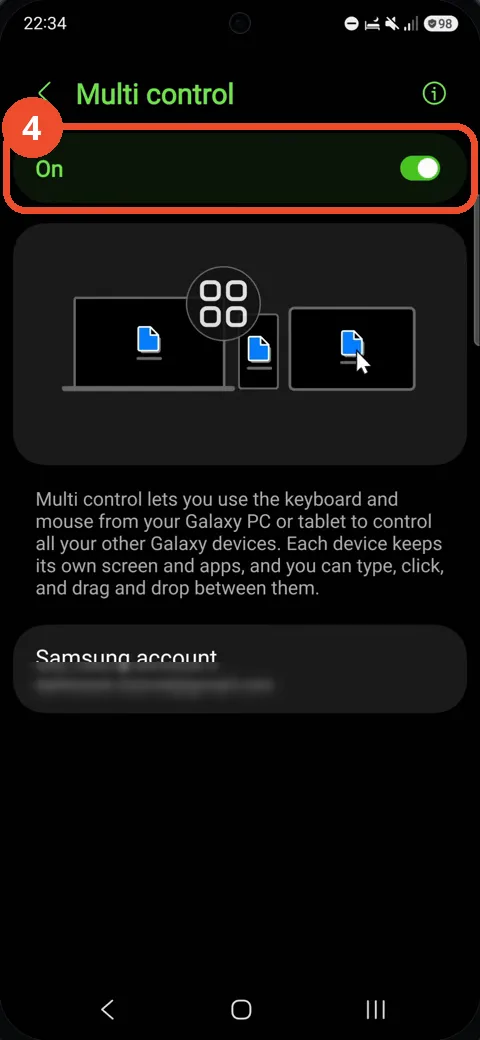
The Multi control page opens with the switch On — the feature is active on this phone. The bottom of the page shows the Samsung account your other Galaxy devices must share; that email address is blurred in this screenshot.
Good to know
- If the switch is Off here, tap it once to turn Multi control on — each device you want to use it with needs the same switch on in its own settings.
- The phone, tablet and PC must be on the same Wi-Fi network and the same Samsung account; if a device does not appear, one of those two does not match.
- Block Spam Calls on Samsung Galaxy A57
- Remove the Google Search Bar on Samsung Galaxy A57
- Find Private Album in Samsung Gallery on Samsung Galaxy A57
- Set Up the Magnifier Shortcut on Samsung Galaxy A57
- Find Call Recording Settings on Samsung Galaxy A57
- Check Your Hotspot Password on Samsung Galaxy A57
- Change Notification Sound on Samsung Galaxy A57
- Change Font Size on Samsung Galaxy A57