How to Check Your Hotspot Password on Samsung Galaxy A57
Someone asking “what’s your hotspot password?” does not mean you have to turn the hotspot on and dig around while it runs. On the Galaxy A57 the current password is printed on the Mobile Hotspot page in Settings, readable at any time — the hotspot stayed off the whole time in this recording.
}}- DeviceSamsung Galaxy A57
- SystemOne UI 8.5 (Android 16)
- AppSettings (pre-installed)
- Also works onOther Samsung phones running One UI 8.5
- Last verifiedOctober 27, 2026
Every screenshot below is taken from the actual recording on this device — no stock images.
Before you start
- You do not need mobile data or an active hotspot for this: the page shows the saved password even with the hotspot switch Off.
- The same page also shows the Network name other devices should look for, and the Band (2.4 GHz here).
Steps
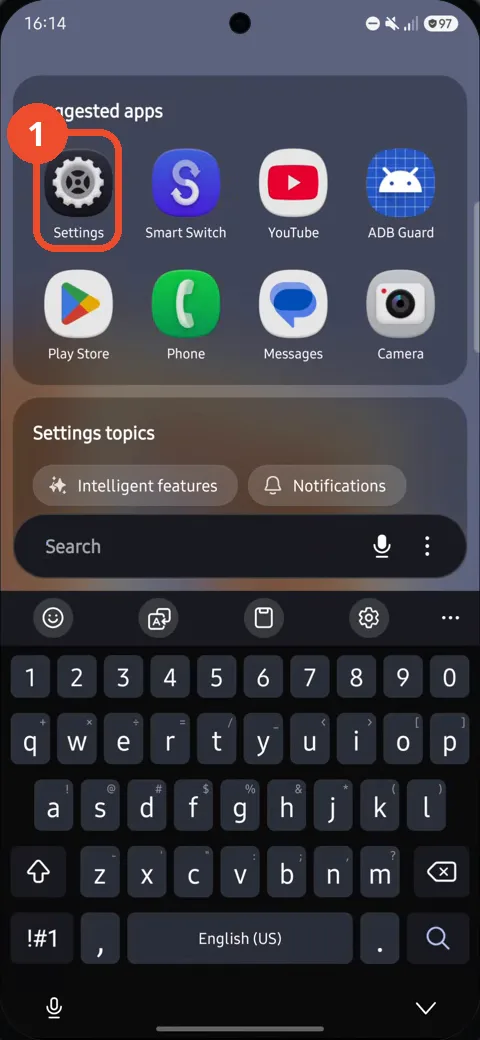
Swipe up and tap Settings
Swipe up to open the apps screen and tap Settings in the Suggested apps.
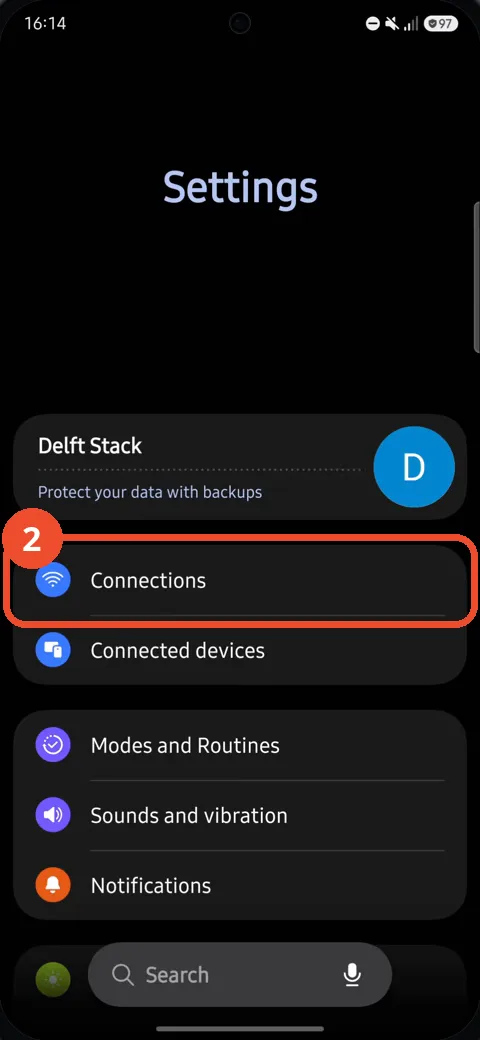
Tap Connections
In the Settings list, tap Connections — the entry with the Wi-Fi icon.
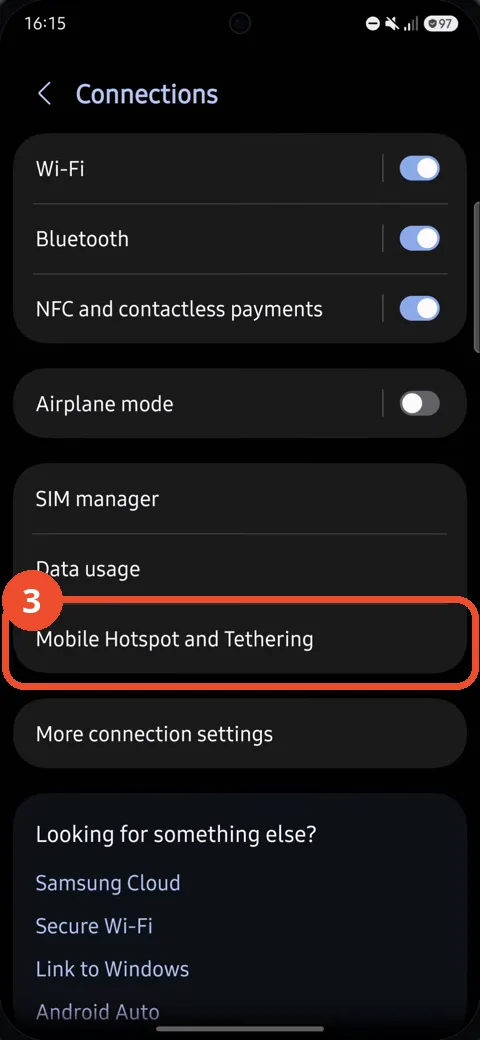
Tap Mobile Hotspot and Tethering
On the Connections page, tap Mobile Hotspot and Tethering.
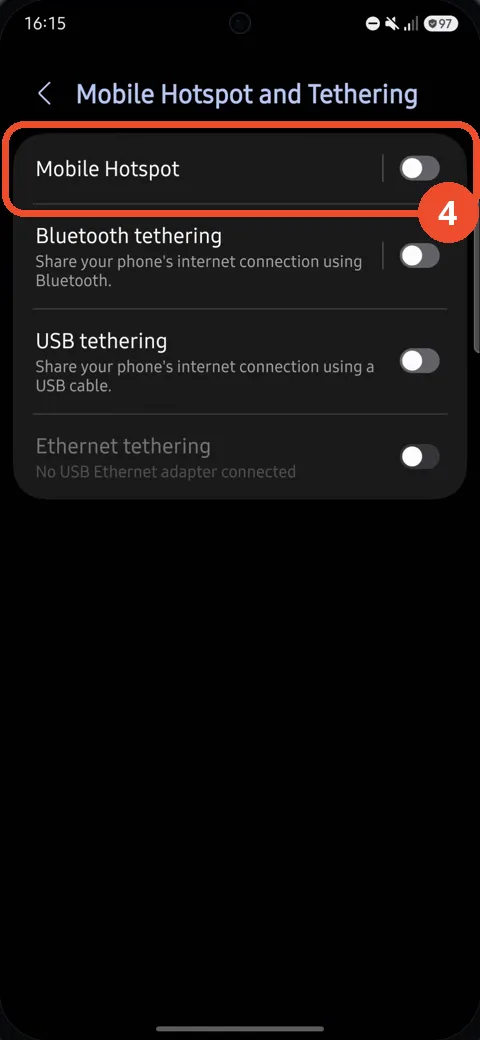
Tap Mobile Hotspot
Tap Mobile Hotspot at the top of the page (the row itself, not the switch on the right).
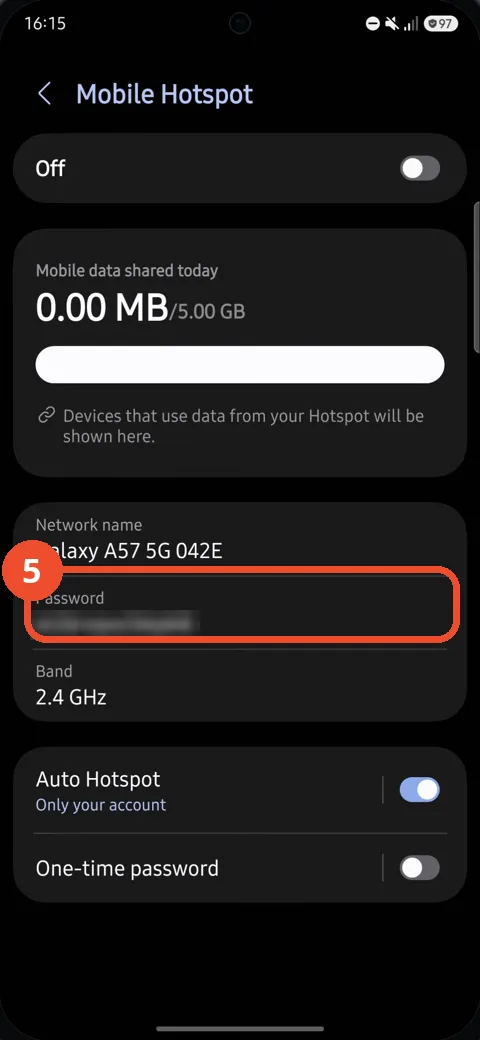
Read the password under Password
Your current hotspot password is printed under Password, below the Network name. Anyone joining your hotspot needs exactly these two: the network name and this password.
If you can’t find Mobile Hotspot
- It is not a separate app — the route is always Settings → Connections → Mobile Hotspot and Tethering on this phone.
- Menu names can differ slightly by carrier and region; if your Connections page looks different, use the Search field at the bottom of Settings and search for Mobile Hotspot.
- The password is only hidden while you type a new one — on this page it is shown in plain text, so anyone holding your unlocked phone can read it too.