How to Change the Notification Sound on Samsung Galaxy A57
The Galaxy A57’s default notification sound is set in one place: Sounds and vibration. In the recording it changes from Brightline to Alpha — tapping a sound in the list both previews it and selects it, so the whole job takes under a minute.
- DeviceSamsung Galaxy A57
- SystemOne UI 8.5 (Android 16)
- AppSamsung Settings (pre-installed)
- Also works onOther Samsung phones running One UI 8.5
- Last verifiedOctober 28, 2026
Every screenshot below is taken from the actual recording on this device — no stock images.
Steps
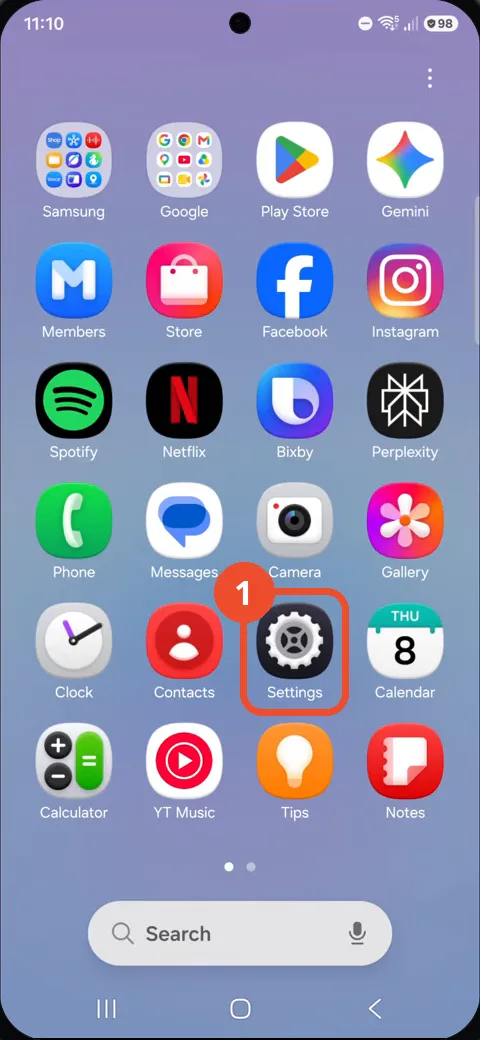
Open Settings
Swipe up to open the app drawer and tap Settings.
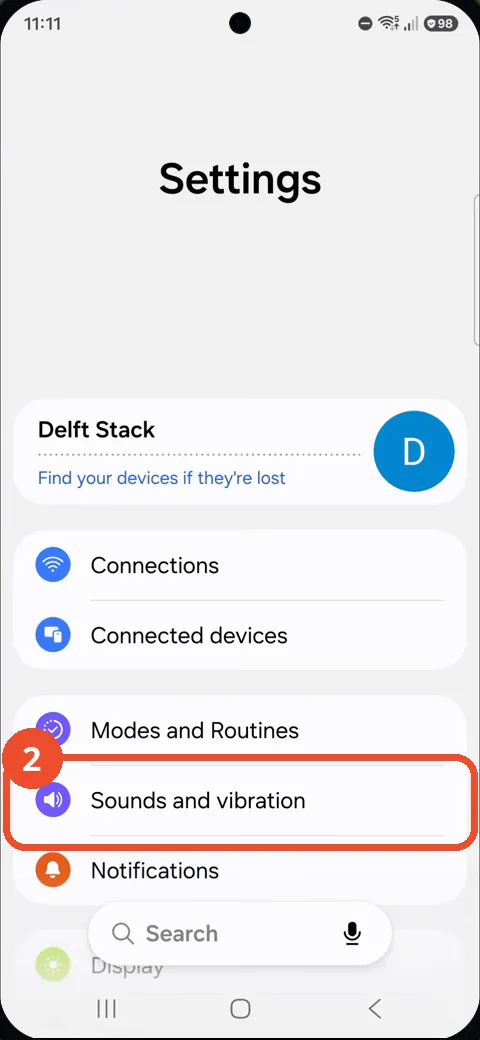
Tap Sounds and vibration
In Settings, tap Sounds and vibration.
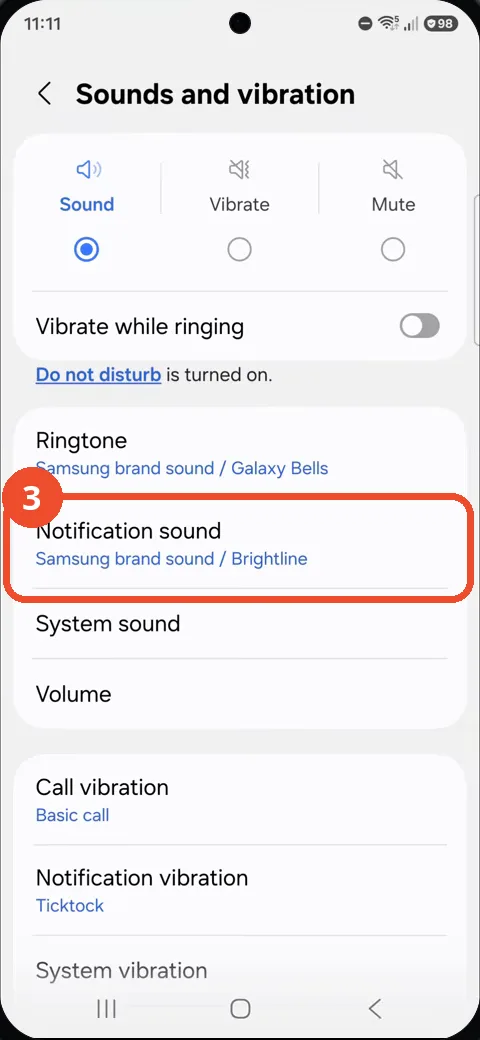
Tap Notification sound
Tap Notification sound. The line underneath shows the current sound — Samsung brand sound / Brightline on this phone.
Tap Alpha
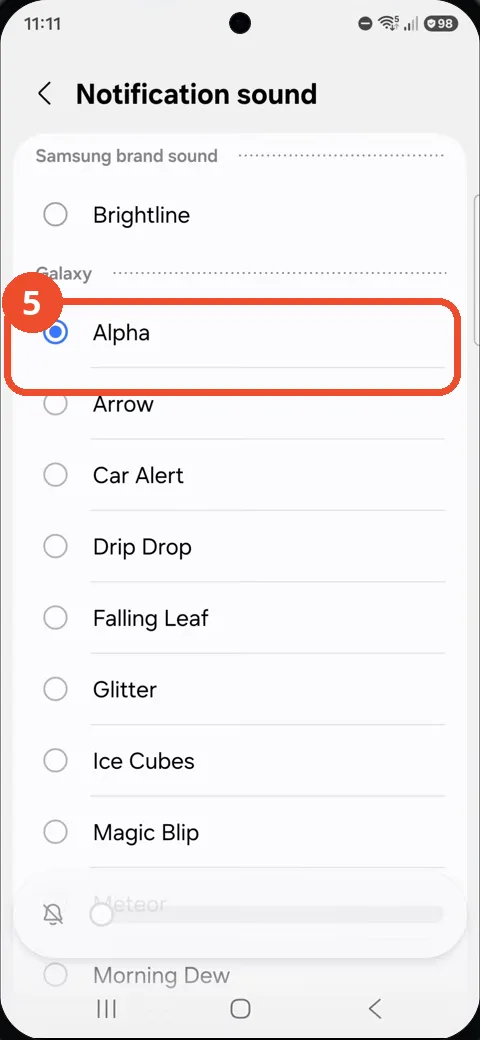
In the list, tap Alpha. The list mixes Samsung brand sounds (Brightline is one) with the Galaxy sounds underneath, and each tap plays the sound so you can hear it before deciding.
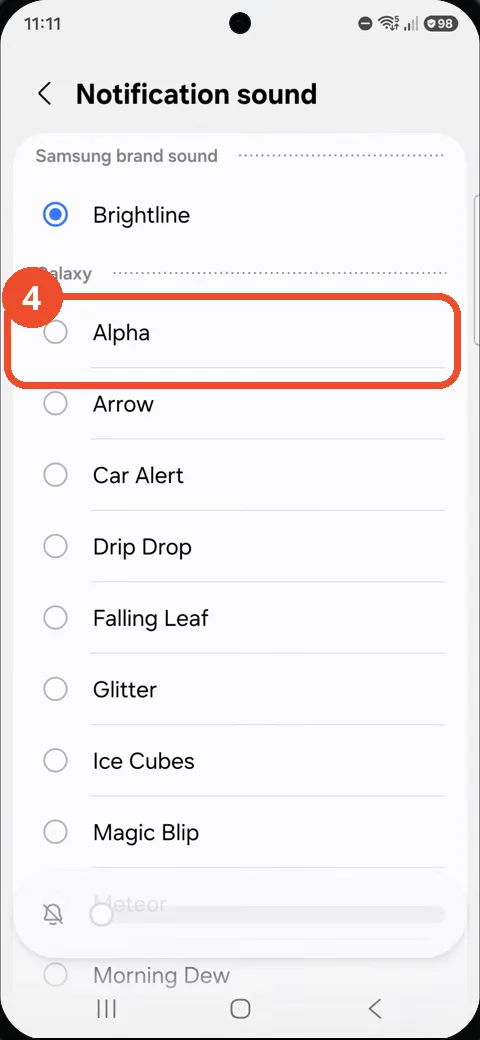
Check Alpha is selected
Alpha now carries the filled radio button — it is the new notification sound, and it applies immediately.
Good to know
- This is the default notification sound. Apps that ship their own sound, or that you have given a custom sound per conversation, keep theirs.
- The ringtone for calls is the Ringtone row on the same Sounds and vibration page — changing one does not change the other.
- Block Spam Calls on Samsung Galaxy A57
- Remove the Google Search Bar on Samsung Galaxy A57
- Find Private Album in Samsung Gallery on Samsung Galaxy A57
- Set Up the Magnifier Shortcut on Samsung Galaxy A57
- Find Call Recording Settings on Samsung Galaxy A57
- Check Your Hotspot Password on Samsung Galaxy A57
- Change Font Size on Samsung Galaxy A57
- Check Multi Control on Samsung Galaxy A57