How to Change the Lock Screen Clock Style on Samsung Galaxy A57
The Samsung lock screen clock can use a different font from the rest of the phone. This guide opens the lock screen editor from Settings and picks a new clock font, previewing it live.
- DeviceSamsung Galaxy A57
- SystemOne UI 8.5
- AppSettings
- Also works onOther Samsung Galaxy phones running One UI 8.5
- Last verifiedOctober 30, 2026
Every screenshot below is taken from the actual recording on this device — no stock images.
Steps
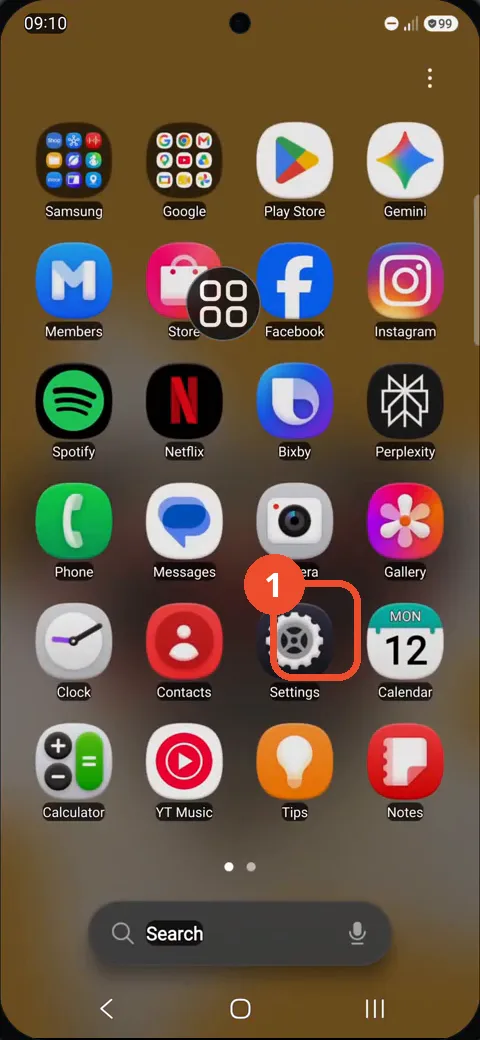
Open Settings from the apps screen
Swipe up to open the apps screen, then tap the Settings gear icon. The Settings screen opens.
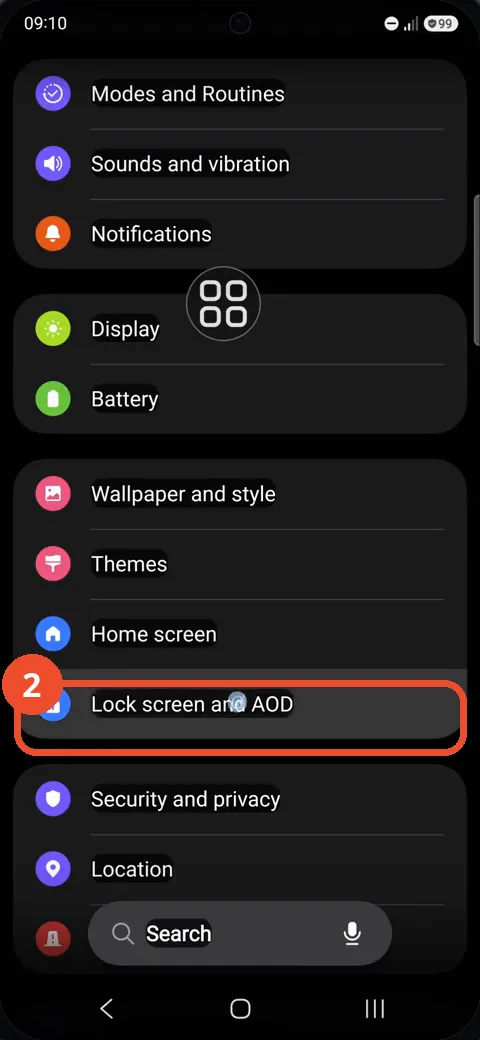
Open Lock screen and AOD
Scroll down in Settings and tap Lock screen and AOD. Its settings page opens.
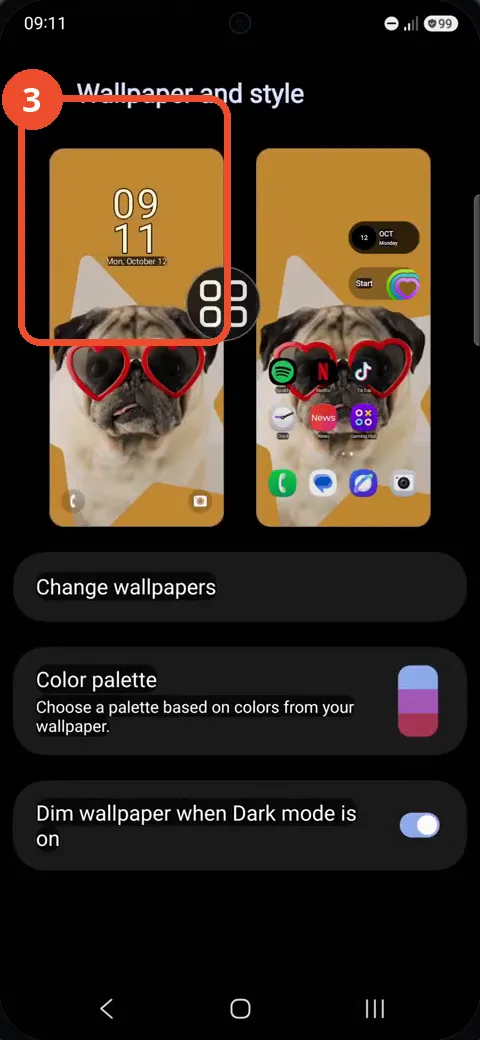
Open Wallpaper and style and tap the lock screen preview
Go back to Settings, open Wallpaper and style, and tap the lock screen preview on the left. The full-screen lock screen editor opens.
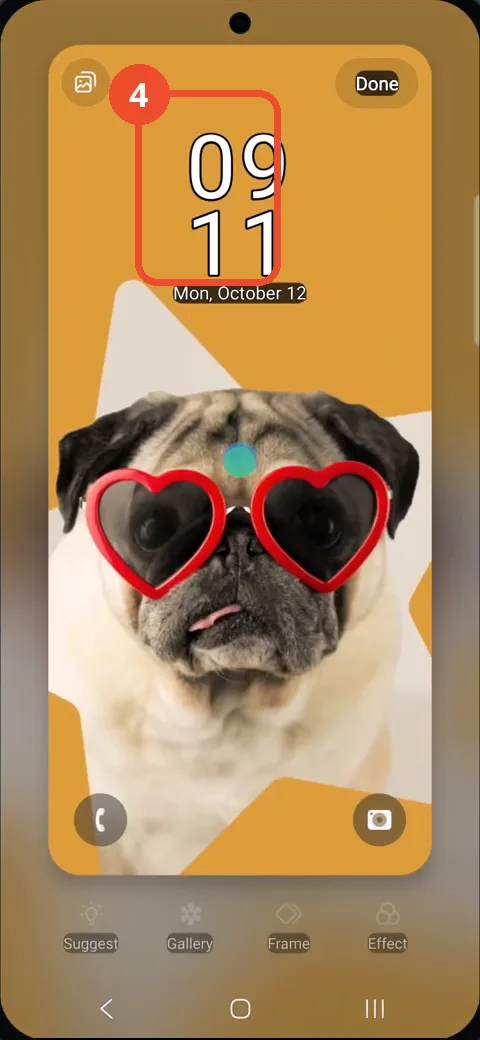
Tap the clock
In the editor, tap the clock at the top of the preview. The clock editing panel opens at the bottom.
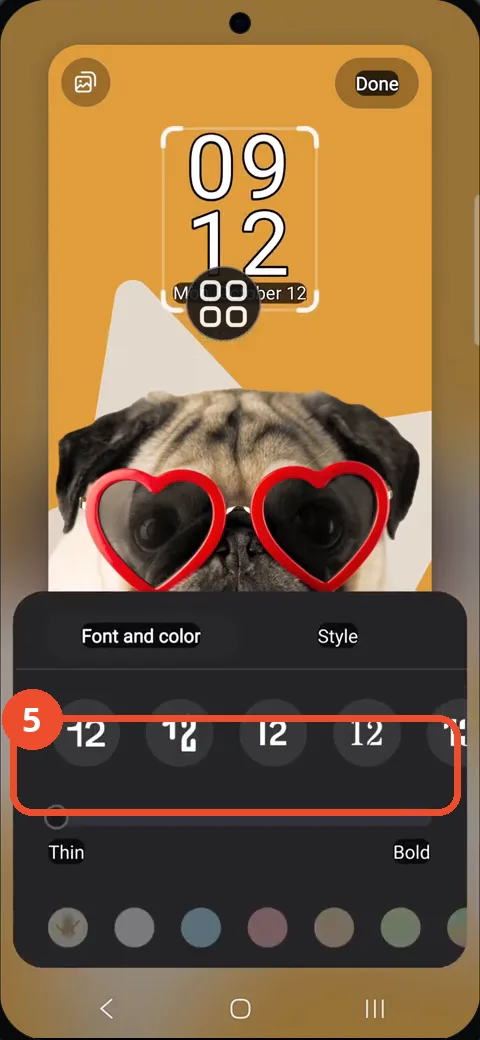
Choose a font style
In the Font and color panel, pick a font style from the row of previews. The clock preview updates as you choose.
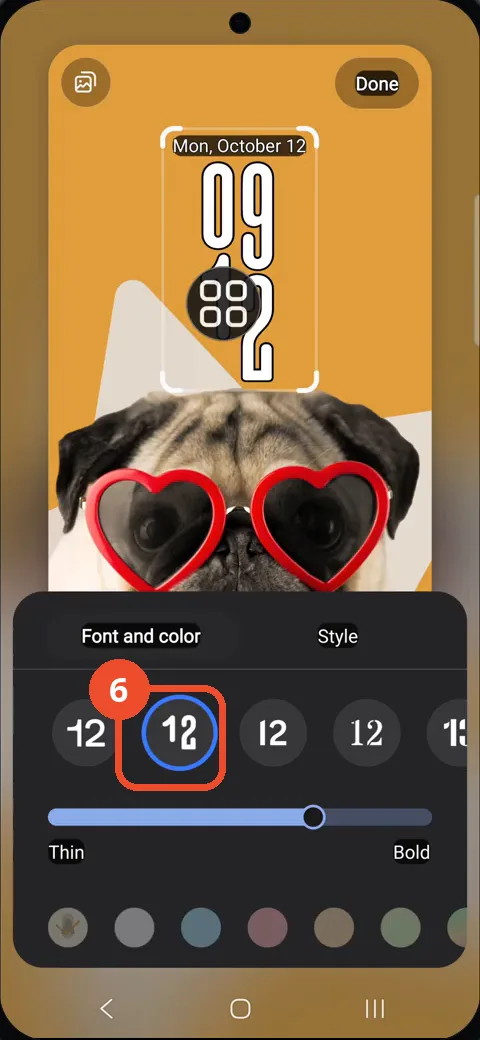
Confirm Font 2 is selected
The second font is circled as selected and the lock screen clock preview uses it. Tap Done at the top right to keep the change.
Good to know
- The font panel also has a Thin-to-Bold slider and color dots for the clock.
- Tap Done at the top right to keep your changes.
- The editor previews the new font on your actual lock screen wallpaper.
- Remove the Google Search Bar on Samsung Galaxy A57
- Find Private Album in Samsung Gallery on Samsung Galaxy A57
- Set Up the Magnifier Shortcut on Samsung Galaxy A57
- Find Call Recording Settings on Samsung Galaxy A57
- Check Your Hotspot Password on Samsung Galaxy A57
- Change Notification Sound on Samsung Galaxy A57
- Change Font Size on Samsung Galaxy A57
- Check Multi Control on Samsung Galaxy A57
- How to Enable Autocorrect on Samsung Galaxy A57
- How to Turn On the Flashlight on Samsung Galaxy A57
- How to Change Keyboard Layout on Samsung Galaxy A57
- Block Spam Calls on Samsung Galaxy A57