How to Change Keyboard Layout on Samsung Galaxy A57
Samsung Keyboard offers four layouts for English (US), from full Qwerty to a compact 3 x 4 keypad. They all live under Languages and types in the keyboard settings.
- DeviceSamsung Galaxy A57
- SystemOne UI 8.5
- AppSamsung Settings (pre-installed)
- Also works onOther Samsung phones running One UI 8.5
- Last verifiedOctober 29, 2026
Every screenshot below is taken from the actual recording on this device — no stock images.
Steps
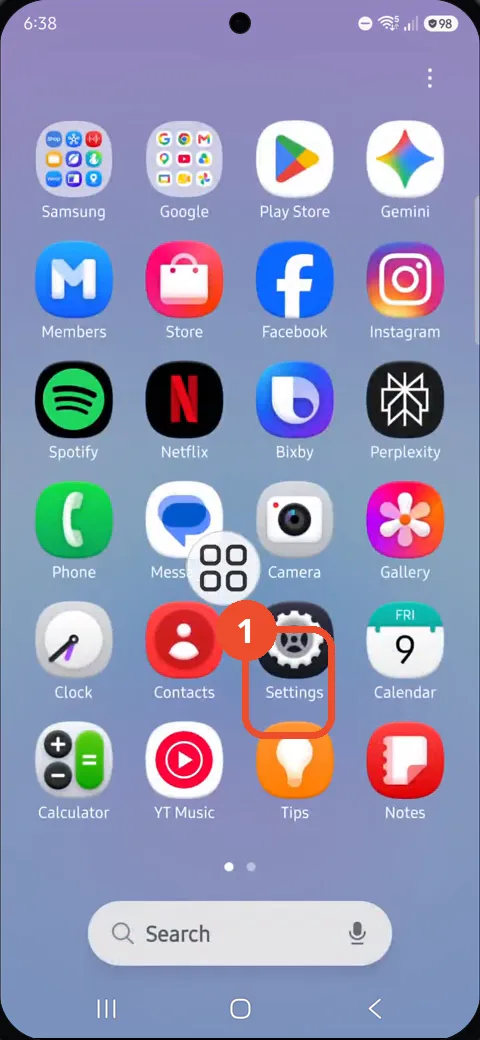
Open the apps screen and tap Settings
Open the apps screen and tap the Settings gear in the grid.
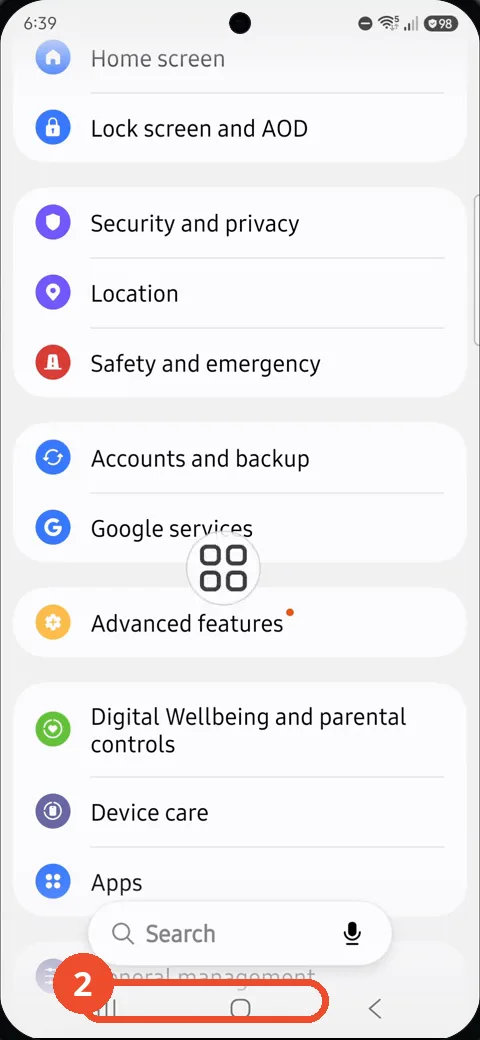
Scroll down and tap General management
Scroll down the Settings list until General management appears at the very bottom, then tap it.
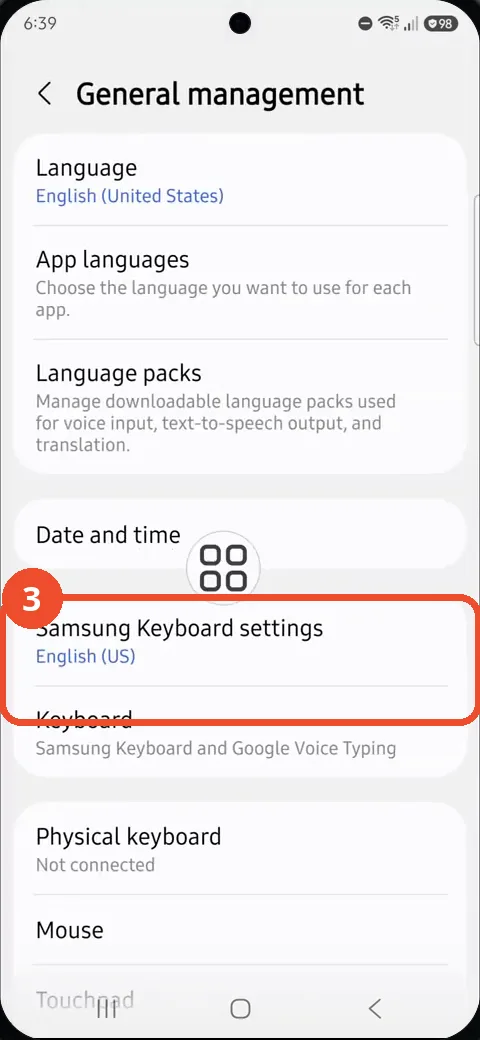
Tap Samsung Keyboard settings
On the General management page, tap Samsung Keyboard settings, which shows English (US) underneath.
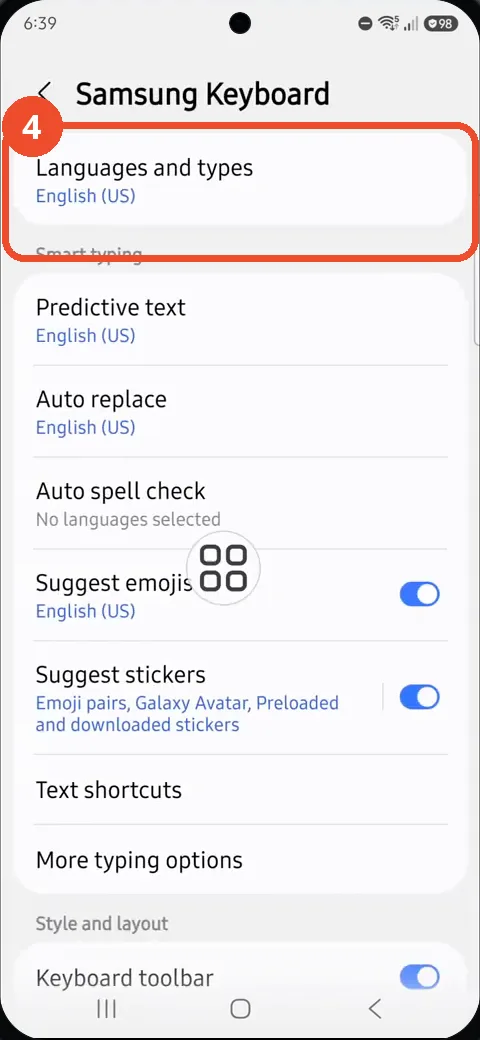
Tap Languages and types
On the Samsung Keyboard page, tap Languages and types at the top; it shows English (US) underneath.
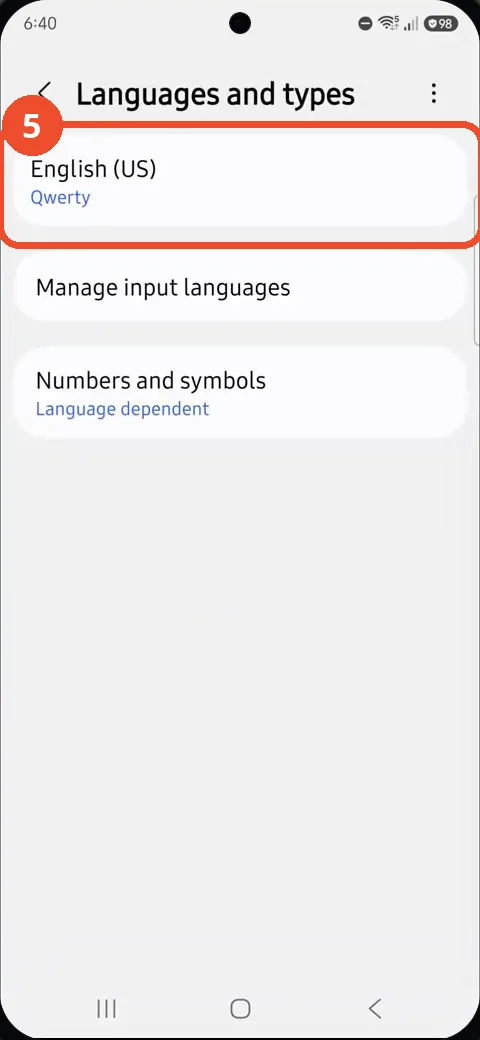
Tap English (US)
On the Languages and types page, tap English (US), which currently shows Qwerty underneath.
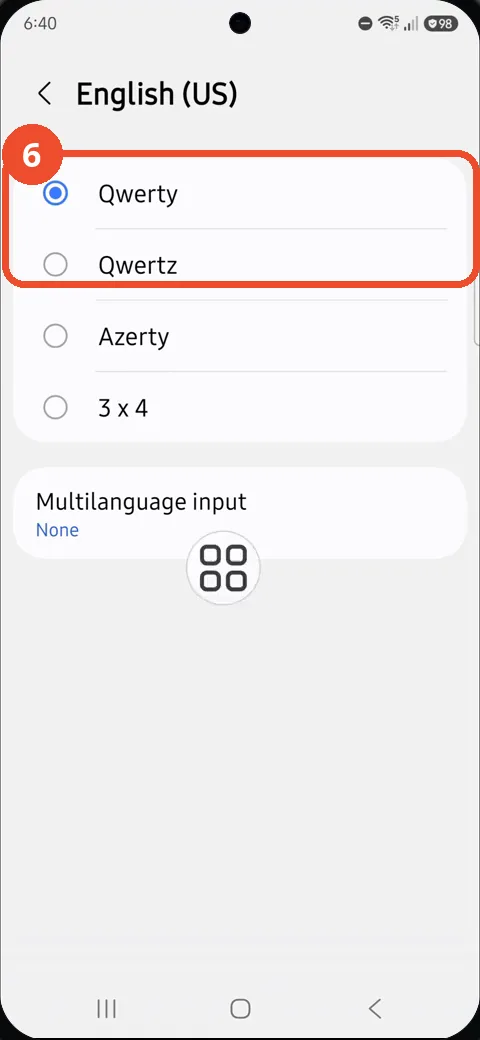
Choose a layout
The layout list offers Qwerty, Qwertz, Azerty and 3 x 4. The recording leaves Qwerty selected, shown by its filled radio; tap Qwertz, Azerty or 3 x 4 to switch to that layout instead.
Good to know
- The layout choice is per language: English (US) has its own list, and other input languages have their own.
- 3 x 4 is the compact keypad layout; Qwertz and Azerty match German and French keyboard orders.
- Block Spam Calls on Samsung Galaxy A57
- Remove the Google Search Bar on Samsung Galaxy A57
- Find Private Album in Samsung Gallery on Samsung Galaxy A57
- Set Up the Magnifier Shortcut on Samsung Galaxy A57
- Find Call Recording Settings on Samsung Galaxy A57
- Check Your Hotspot Password on Samsung Galaxy A57
- Change Notification Sound on Samsung Galaxy A57
- Change Font Size on Samsung Galaxy A57
- How to Check Multi Control on Samsung Galaxy A57
- How to Enable Autocorrect on Samsung Galaxy A57
- How to Turn On the Flashlight on Samsung Galaxy A57