How to Change the Home Screen Grid on Samsung Galaxy A57 with One UI 8.5
A roomier Home screen starts with the grid. Switch it from 5x6 to 4x6 in Home screen settings and the icons get more breathing room.
- DeviceSamsung Galaxy A57
- SystemOne UI 8.5
- AppOne UI Home
- Also works onOther Samsung phones running One UI 8.5
- Last verifiedNovember 9, 2026
Every screenshot below is taken from the actual recording on this device — no stock images.
Steps
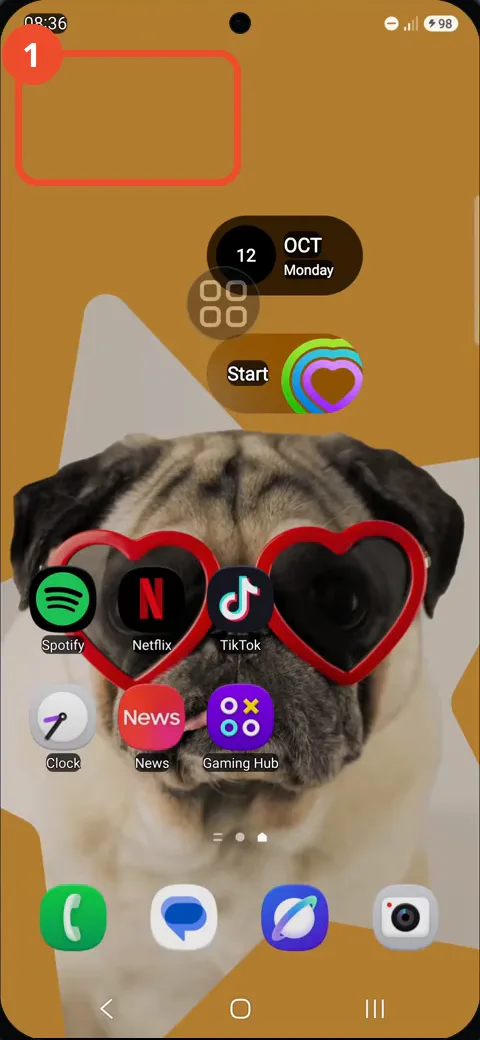
Press and hold an empty area on the Home screen
Press and hold an empty patch of the Home screen — the mustard wallpaper at the top, away from any icon — until the Home screen options appear.
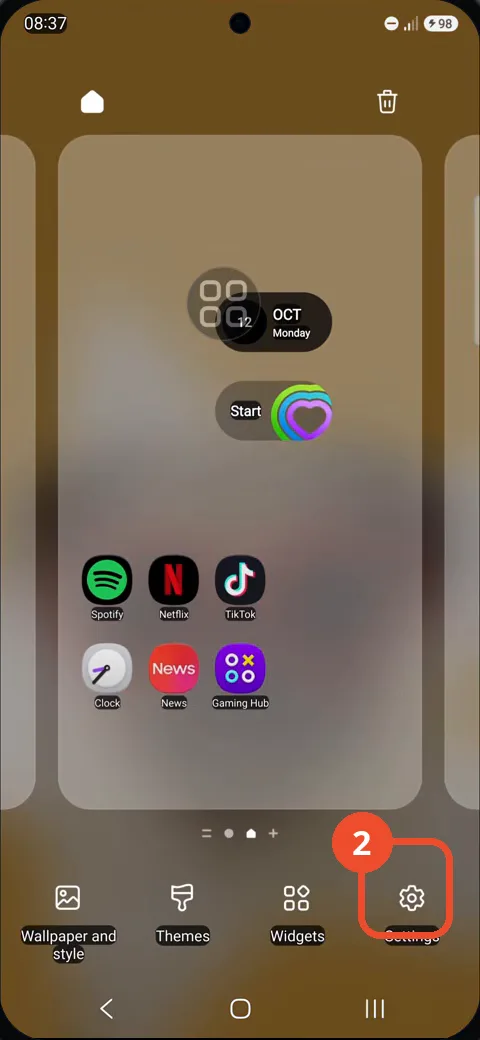
Tap Settings
In the Home screen options bar at the bottom, tap Settings (the gear icon on the right).
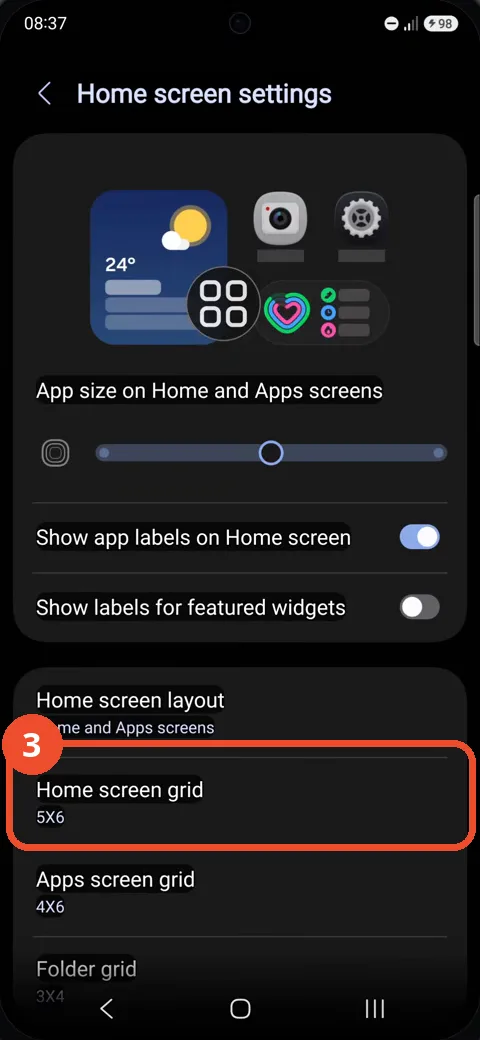
Tap Home screen grid
On the Home screen settings page, tap Home screen grid. It currently reads 5X6.
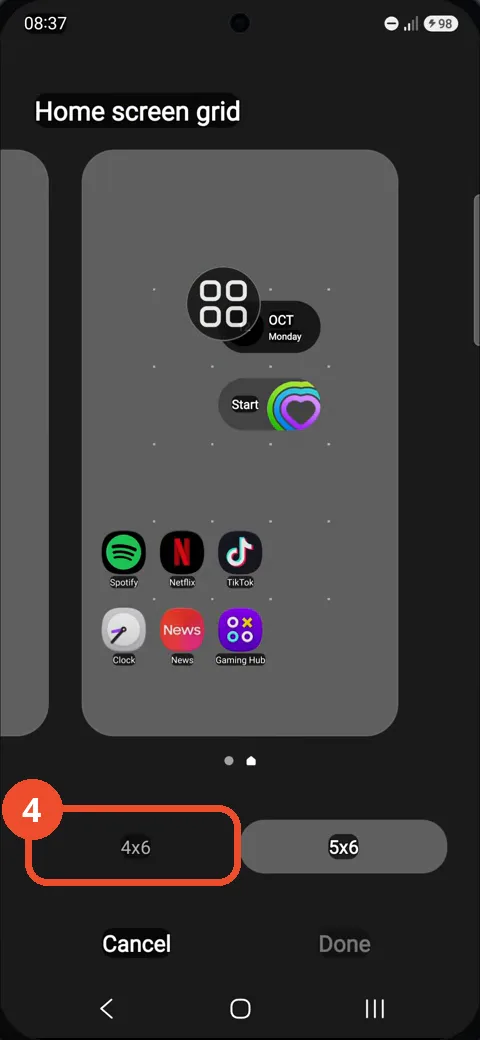
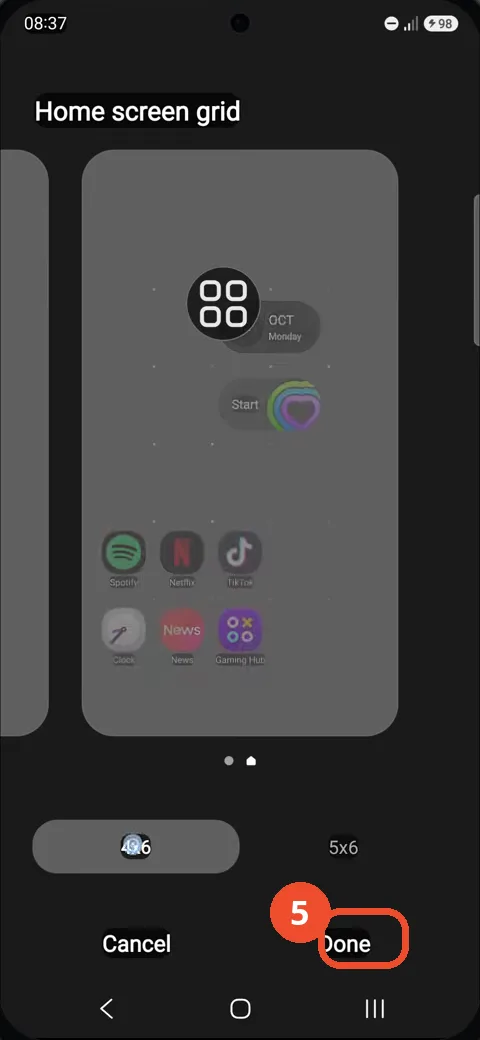
Select 4x6
On the Home screen grid page, tap 4x6 on the left. The preview shows the roomier layout; 5x6 is still selected until you tap.
Tap Done
With 4x6 selected, tap Done at the bottom right to apply the new grid.
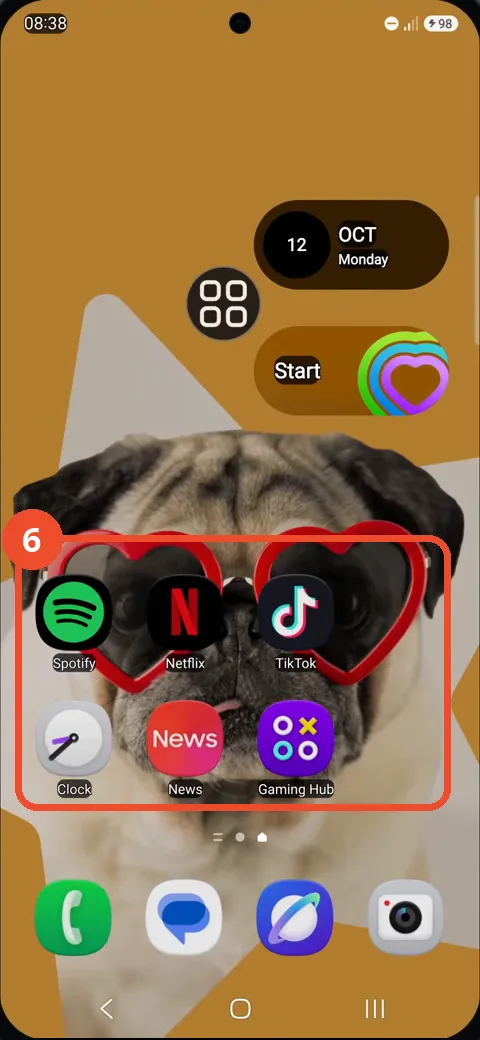
Check the Home screen with the new grid
You are back on the Home screen, now using the 4x6 grid. The apps sit in the same places, with more space around them.
Good to know
- The grid changes from 5X6 to 4X6 — fewer columns, so the icons get more room. With only six apps placed on this Home screen, the visible change is small: the widgets shift slightly and the app rows stay put.
- The Apps screen grid (already 4X6) and the Folder grid are separate settings and are not changed here.
- Tap Done to apply the new grid. Leaving with Cancel discards the change.
- The same Home screen settings page also holds the app-size slider, app labels, and the Home screen layout.
- Remove the Google Search Bar on Samsung Galaxy A57
- Find Private Album in Samsung Gallery on Samsung Galaxy A57
- Set Up the Magnifier Shortcut on Samsung Galaxy A57
- Find Call Recording Settings on Samsung Galaxy A57
- Check Your Hotspot Password on Samsung Galaxy A57
- Change Notification Sound on Samsung Galaxy A57
- Change Font Size on Samsung Galaxy A57
- Check Multi Control on Samsung Galaxy A57
- How to Enable Autocorrect on Samsung Galaxy A57
- How to Turn On the Flashlight on Samsung Galaxy A57
- How to Change Keyboard Layout on Samsung Galaxy A57
- How to Change the Lock Screen Clock Style on Samsung Galaxy A57
- How to Check and Enable NFC on Samsung Galaxy A57
- How to Change Your Ringtone on Samsung Galaxy A57
- How to Open the Power Menu with the Side Button on Samsung Galaxy A57
- How to Block Calls from Unknown Numbers on Samsung Galaxy A57
- How to Change Font Style on Samsung Galaxy A57
- How to Check the First Used Date on Samsung Galaxy A57 with One UI 8.5
- How to Enable Autofill Codes by SMS on Samsung Galaxy A57 with One UI 8.5
- How to Find the Default Launcher Setting on Samsung Galaxy A57 with One UI 8.5
- How to Change App Icon Size on Samsung Galaxy A57 with One UI 8.5
- How to Turn Touch Feedback On or Off on Samsung Galaxy A57 with One UI 8.5
- How to Find the Swipe-Down Notification Setting on Samsung Galaxy A57 with One UI 8.5
- How to Block Spam Calls on Samsung Galaxy A57
- How to Enable Motion Photo on Samsung Galaxy A57 with One UI 8.5
- How to Change Screen Brightness on Samsung Galaxy A57 with One UI 8.5
- How to Draw on Photos in Samsung Gallery on Samsung Galaxy A57 with One UI 8.5
- How to Choose the Game Booster Shortcut Bar on Samsung Galaxy A57 with One UI 8.5
- How to Manage Messages Bubbles on Samsung Galaxy A57 with One UI 8.5
- How to Use the Magnification Shortcut on Samsung Galaxy A57 with One UI 8.5
- How to Turn on Sound Mode on Samsung Galaxy A57 with One UI 8.5
- How to Use Accessibility Shortcuts on Samsung Galaxy A57 with One UI 8.5
- How to Check Battery Health on Samsung Galaxy A57 with One UI 8.5
- How to Enable Floating Windows on Samsung Galaxy A57 with One UI 8.5
- How to Change Display Size on Samsung Galaxy A57 with One UI 8.5
- How to Enable Silent Mode on Samsung Galaxy A57 with One UI 8.5
- How to Check Call Screening on Samsung Galaxy A57 with One UI 8.5
- How to Choose Automatic System Update Downloads on Samsung Galaxy A57 with One UI 8.5
- How to Enable Dark Mode on Samsung Galaxy A57 with One UI 8.5
- How to Force Stop an App on Samsung Galaxy A57 with One UI 8.5
- How to Find an App on Samsung Galaxy A57 with One UI 8.5