How to Change Haptic Feedback Intensity on Samsung Galaxy A57 with One UI 8.5
Haptic feedback is the vibration you feel when you tap the screen. Its strength lives on the Vibration intensity page: open Settings, then Sounds and vibration, then Vibration intensity, and move the System slider.
- DeviceSamsung Galaxy A57
- SystemOne UI 8.5
- AppSettings
- Also works onOther Samsung Galaxy phones running One UI 8.5
- Last verifiedNovember 25, 2026
Every screenshot below is taken from the actual recording on this device — no stock images.
Steps
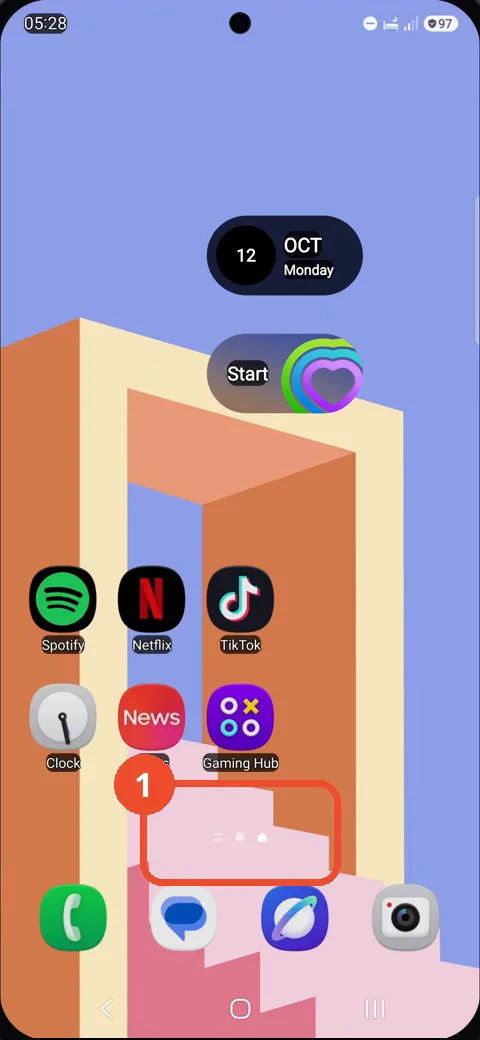
Swipe up to open the app drawer
On the Home screen, swipe up from the bottom of the screen to open the app drawer.
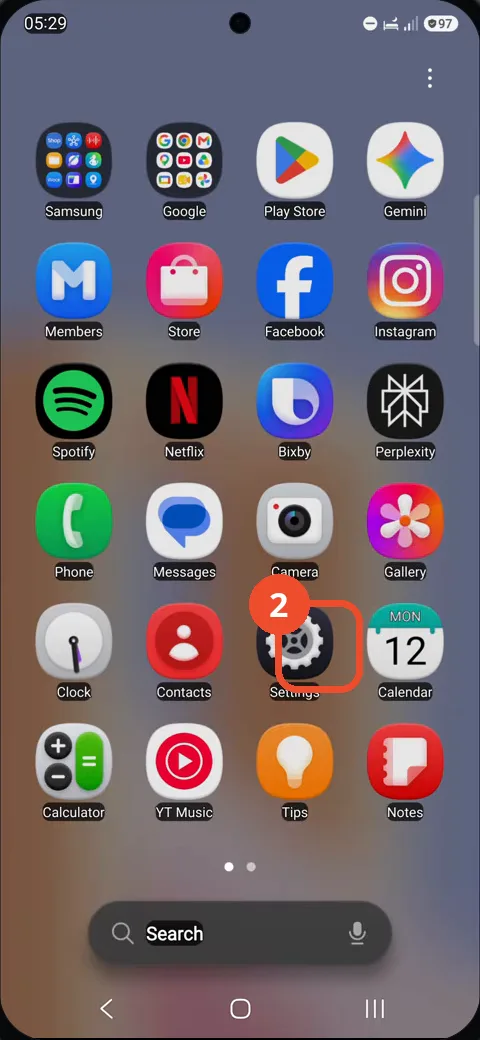
Tap Settings
In the app drawer, tap the Settings app.
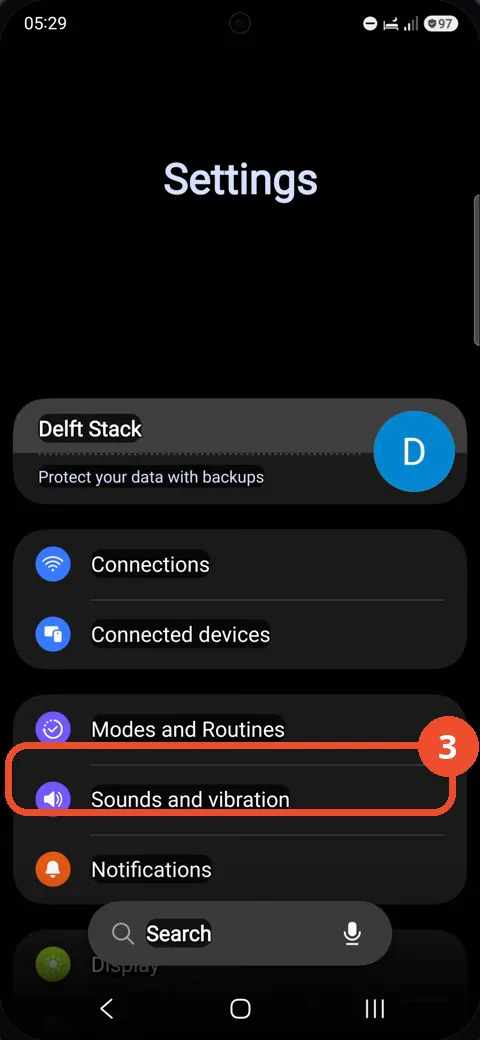
Tap Sounds and vibration
On the Settings screen, tap Sounds and vibration.
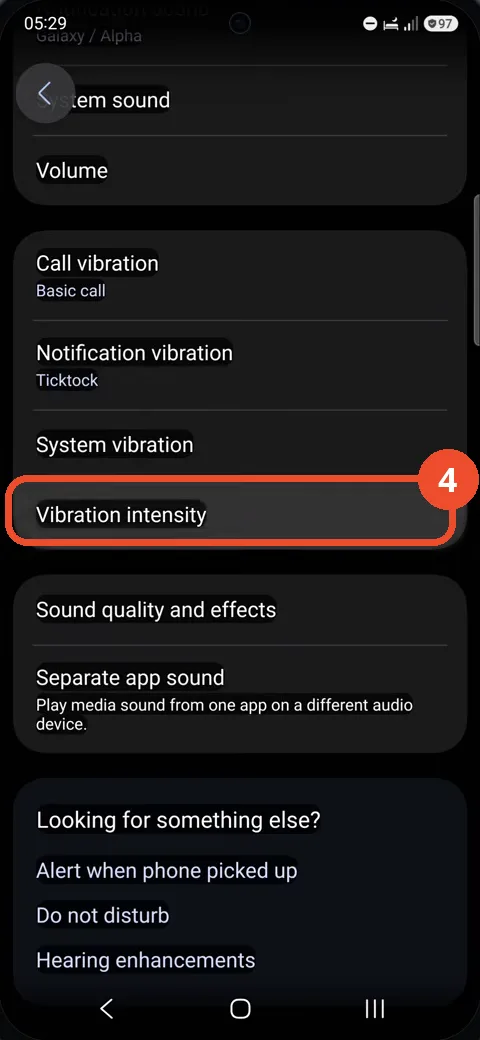
Tap Vibration intensity
Scroll down the Sounds and vibration page and tap Vibration intensity.
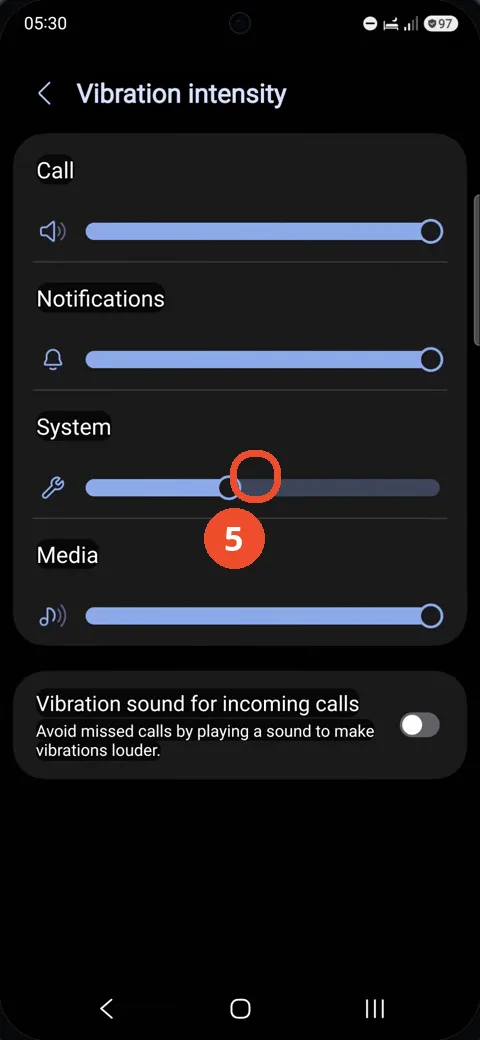
Move the System slider one step to the right
On the Vibration intensity page, move the System slider one step to the right.
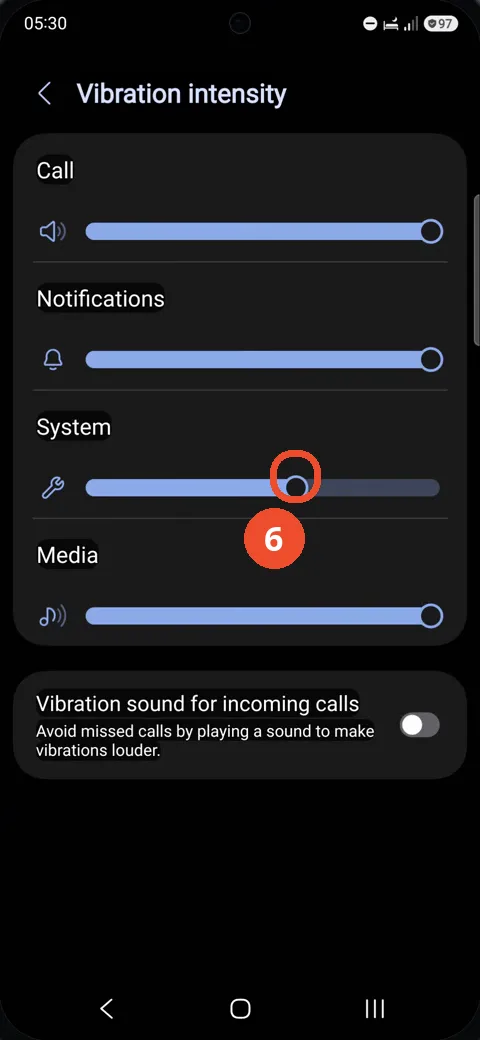
Check the System slider is one step higher
The System slider knob now sits one step further right - system vibration is stronger.
Good to know
- This changes the strength of the vibration, not whether vibration is on. To switch touch vibration off entirely, use the Touch interactions switch on the System vibration page - see How to Turn Touch Feedback On or Off on Samsung Galaxy A57 with One UI 8.5.
- The narration says the System slider goes from 2 to 3. The slider shows no numbers on screen - the change is visible as the knob moving one step to the right.
- Call, Notifications and Media have their own sliders on the same page, so you can set each one separately.
- The “Vibration sound for incoming calls” switch at the bottom is a separate setting and is left off in this recording.
- Remove the Google Search Bar on Samsung Galaxy A57
- Find Private Album in Samsung Gallery on Samsung Galaxy A57
- Set Up the Magnifier Shortcut on Samsung Galaxy A57
- Find Call Recording Settings on Samsung Galaxy A57
- Check Your Hotspot Password on Samsung Galaxy A57
- Change Notification Sound on Samsung Galaxy A57
- Change Font Size on Samsung Galaxy A57
- Check Multi Control on Samsung Galaxy A57
- How to Enable Autocorrect on Samsung Galaxy A57
- How to Turn On the Flashlight on Samsung Galaxy A57
- How to Change Keyboard Layout on Samsung Galaxy A57
- How to Change the Lock Screen Clock Style on Samsung Galaxy A57
- How to Check and Enable NFC on Samsung Galaxy A57
- How to Change Your Ringtone on Samsung Galaxy A57
- How to Open the Power Menu with the Side Button on Samsung Galaxy A57
- How to Block Calls from Unknown Numbers on Samsung Galaxy A57
- How to Change Font Style on Samsung Galaxy A57
- How to Check the First Used Date on Samsung Galaxy A57 with One UI 8.5
- How to Enable Autofill Codes by SMS on Samsung Galaxy A57 with One UI 8.5
- How to Find the Default Launcher Setting on Samsung Galaxy A57 with One UI 8.5
- How to Change App Icon Size on Samsung Galaxy A57 with One UI 8.5
- How to Turn Touch Feedback On or Off on Samsung Galaxy A57 with One UI 8.5
- How to Find the Swipe-Down Notification Setting on Samsung Galaxy A57 with One UI 8.5
- How to Block Spam Calls on Samsung Galaxy A57
- How to Enable Motion Photo on Samsung Galaxy A57 with One UI 8.5
- How to Change Screen Brightness on Samsung Galaxy A57 with One UI 8.5
- How to Draw on Photos in Samsung Gallery on Samsung Galaxy A57 with One UI 8.5
- How to Choose the Game Booster Shortcut Bar on Samsung Galaxy A57 with One UI 8.5
- How to Manage Messages Bubbles on Samsung Galaxy A57 with One UI 8.5
- How to Use the Magnification Shortcut on Samsung Galaxy A57 with One UI 8.5
- How to Turn on Sound Mode on Samsung Galaxy A57 with One UI 8.5
- How to Use Accessibility Shortcuts on Samsung Galaxy A57 with One UI 8.5
- How to Check Battery Health on Samsung Galaxy A57 with One UI 8.5
- How to Enable Floating Windows on Samsung Galaxy A57 with One UI 8.5
- How to Change Display Size on Samsung Galaxy A57 with One UI 8.5
- How to Enable Silent Mode on Samsung Galaxy A57 with One UI 8.5
- How to Check Call Screening on Samsung Galaxy A57 with One UI 8.5
- How to Choose Automatic System Update Downloads on Samsung Galaxy A57 with One UI 8.5
- How to Enable Dark Mode on Samsung Galaxy A57 with One UI 8.5
- How to Force Stop an App on Samsung Galaxy A57 with One UI 8.5
- How to Find an App on Samsung Galaxy A57 with One UI 8.5
- How to View Downloads on Samsung Galaxy A57 with One UI 8.5
- How to Find PIN Setup Options on Samsung Galaxy A57 with One UI 8.5
- How to Find Predictive Text in Samsung Keyboard Settings on Samsung Galaxy A57 with One UI 8.5
- How to Close All Tabs in Samsung Internet on Samsung Galaxy A57 with One UI 8.5
- How to Find the Manual Time Settings on Samsung Galaxy A57 with One UI 8.5
- How to Enable Dolby Atmos on Samsung Galaxy A57 with One UI 8.5
- How to Add Lock Screen Text on Samsung Galaxy A57 with One UI 8.5
- How to Connect Samsung Galaxy A57 to Wi-Fi on One UI 8.5
- How to Turn On Reduce Animations on Samsung Galaxy A57 with One UI 8.5
- How to Change the Home Screen Grid on Samsung Galaxy A57 with One UI 8.5
- How to Zoom with Camera Volume Buttons on Samsung Galaxy A57 with One UI 8.5
- How to Manage Password Autofill Settings on Samsung Galaxy A57 with One UI 8.5
- How to Find Mobile Hotspot Settings on Samsung Galaxy A57 with One UI 8.5
- How to Enable Dual Messenger on Samsung Galaxy A57 with One UI 8.5
- How to Turn Off RCS Chats on Samsung Galaxy A57 with One UI 8.5
- How to Find Home Button Order Options on Samsung Galaxy A57 with One UI 8.5
- How to Add a Photo to a Contact on Samsung Galaxy A57 with One UI 8.5
- How to Manage App Notifications on Samsung Galaxy A57 with One UI 8.5
- How to Find Downloads on Samsung Galaxy A57 with One UI 8.5
- How to Enable Remote Lock on Samsung Galaxy A57 with One UI 8.5
- How to Find the Camera Grid Lines Setting on Samsung Galaxy A57 with One UI 8.5
- How to Set Up Android Auto on Samsung Galaxy A57 with One UI 8.5
- How to Change App Icon Colors with Your Wallpaper on Samsung Galaxy A57 with One UI 8.5
- How to Check Emoji Suggestions on Samsung Galaxy A57 with One UI 8.5
- How to Find the Theme Setting in Google Messages on Samsung Galaxy A57 with One UI 8.5
- How to Disable Roaming Clock on Samsung Galaxy A57 with One UI 8.5
- How to Change Your Samsung Galaxy A57 Device Name with One UI 8.5
- How to Fix Screen Rotation Not Working on Samsung Galaxy A57 with One UI 8.5
- How to Open Camera Settings on Samsung Galaxy A57 with One UI 8.5
- How to Update Apps on Samsung Galaxy A57 with One UI 8.5
- How to Change Touch Sounds on Samsung Galaxy A57 with One UI 8.5
- How to Set a Ringtone for a Contact on Samsung Galaxy A57 with One UI 8.5
- How to Check the Android Security Patch Level on Samsung Galaxy A57 with One UI 8.5
- How to Find Google Lens on Samsung Galaxy A57 with One UI 8.5
- How to Use 50 MP Mode on Samsung Galaxy A57 with One UI 8.5
- How to Show the Date on Samsung Galaxy A57 with One UI 8.5
- How to Check and Unblock a Contact on Samsung Galaxy A57 with One UI 8.5
- How to Find Bluetooth Received Files on Samsung Galaxy A57 with One UI 8.5
- How to View Legal and Regulatory Information on Samsung Galaxy A57 with One UI 8.5
Guide complete
Every step above comes from the original recording, with a screenshot for each step. Want more like this? Browse all Samsung Galaxy A57 guides.