How to Change Font Size on Samsung Galaxy A57
If the text on the Galaxy A57 feels small, the fix is a single slider in Display settings. It takes effect everywhere at once — Settings, messages, apps — and the recording moves it one step larger, which is the change most people actually want.
✅ Tested on
- DeviceSamsung Galaxy A57
- SystemOne UI 8.5 (Android 16)
- AppSamsung Settings (pre-installed)
- Also works onOther Samsung phones running One UI 8.5
- Last verifiedOctober 28, 2026
Every screenshot below is taken from the actual recording on this device — no stock images.
Steps
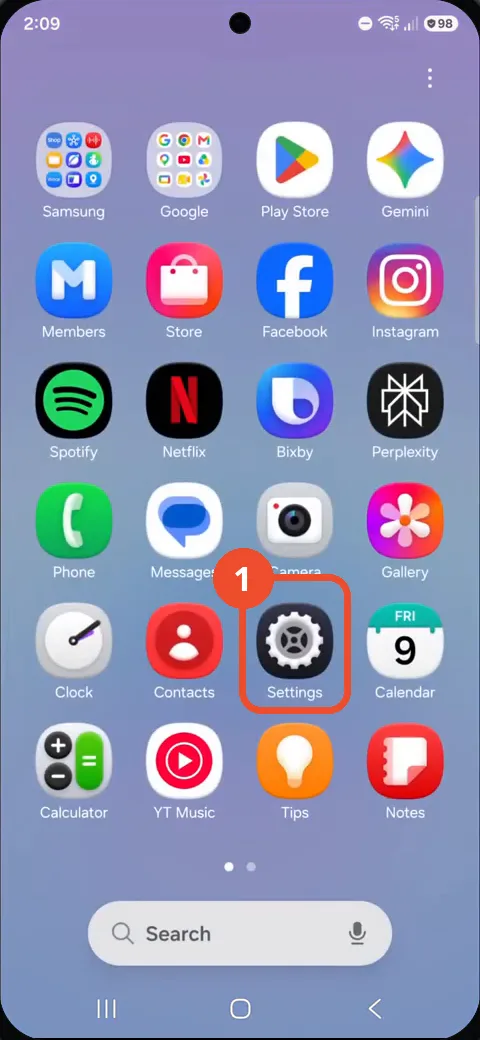
Open Settings
Swipe up to open the app drawer and tap Settings.
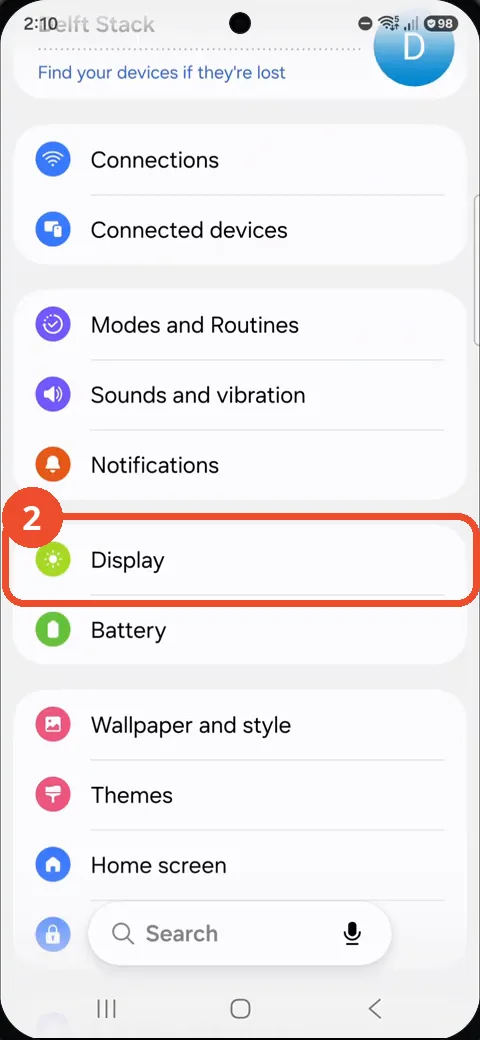
Tap Display
In Settings, tap Display.
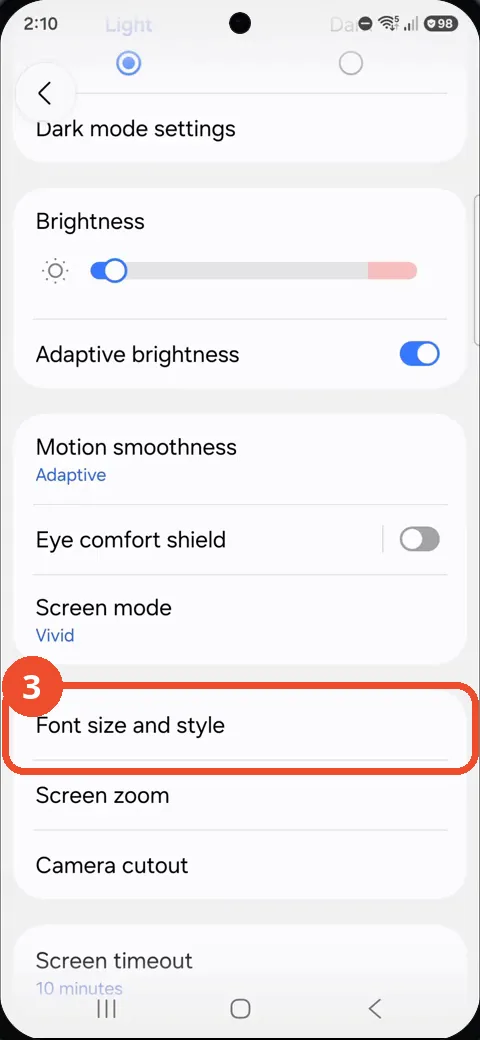
Tap Font size and style
On the Display page, scroll down and tap Font size and style.
Drag the slider one step larger
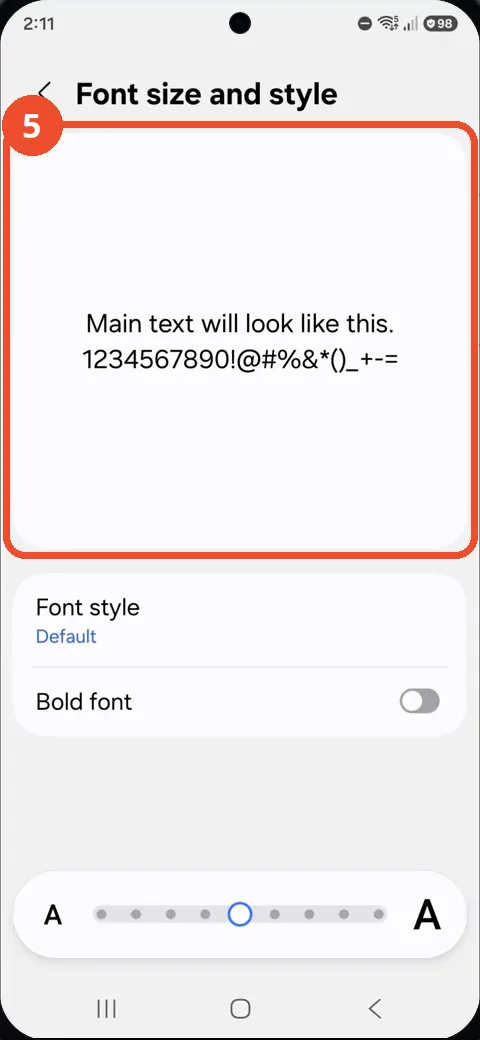
Drag the font size slider at the bottom one notch toward the larger A on the right.
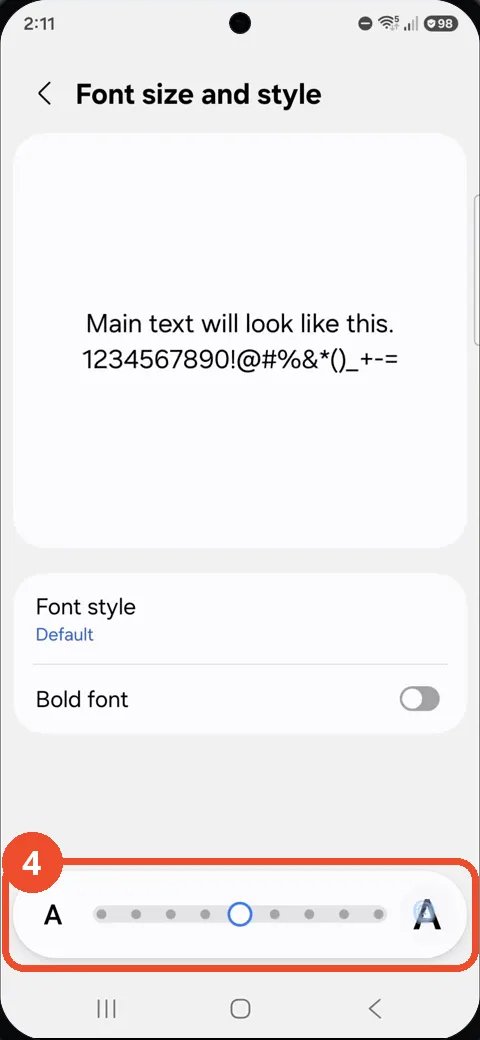
Check the preview
The preview card at the top — Main text will look like this — shows the new size as you drag. The change applies immediately; there is nothing to save and no restart.
Good to know
- Bold font is a separate switch on the same page — combined with one slider step it makes text markedly easier to read.
- Font size only scales text. Screen zoom (also under Display) scales icons and layout elements as well, if you want everything bigger.
- Block Spam Calls on Samsung Galaxy A57
- Remove the Google Search Bar on Samsung Galaxy A57
- Find Private Album in Samsung Gallery on Samsung Galaxy A57
- Set Up the Magnifier Shortcut on Samsung Galaxy A57
- Find Call Recording Settings on Samsung Galaxy A57
- Check Your Hotspot Password on Samsung Galaxy A57
- Change Notification Sound on Samsung Galaxy A57
- Check Multi Control on Samsung Galaxy A57