How to Change App Icon Size on Samsung Galaxy A57 with One UI 8.5
App icon size is a Home screen setting, not a system display setting. Long-press the Home screen, open its Settings, and the App size slider sits at the top of the page.
- DeviceSamsung Galaxy A57
- SystemOne UI 8.5
- AppHome screen settings
- Also works onOther Samsung Galaxy phones running One UI 8.5
- Last verifiedNovember 2, 2026
Every screenshot below is taken from the actual recording on this device — no stock images.
Steps
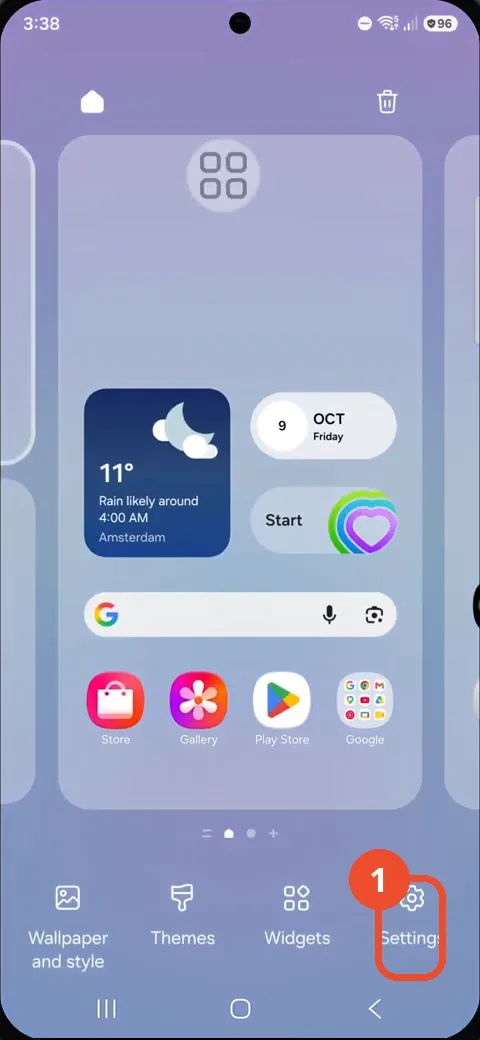
Long-press and tap Settings
Touch and hold an empty area of the Home screen, then tap Settings in the edit menu at the bottom right.
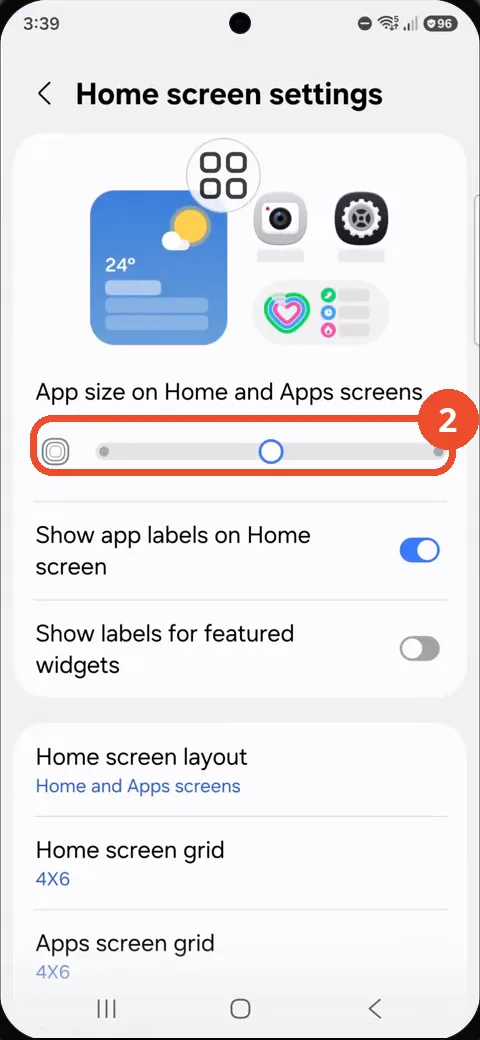
Find the App size slider
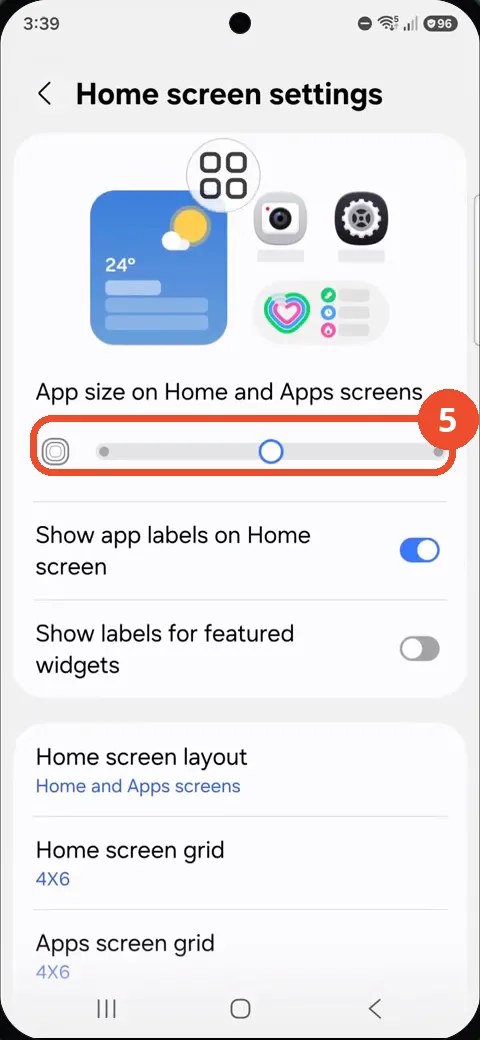
The Home screen settings page opens. At the top, ‘App size on Home and Apps screens’ has a slider for changing app icon size.
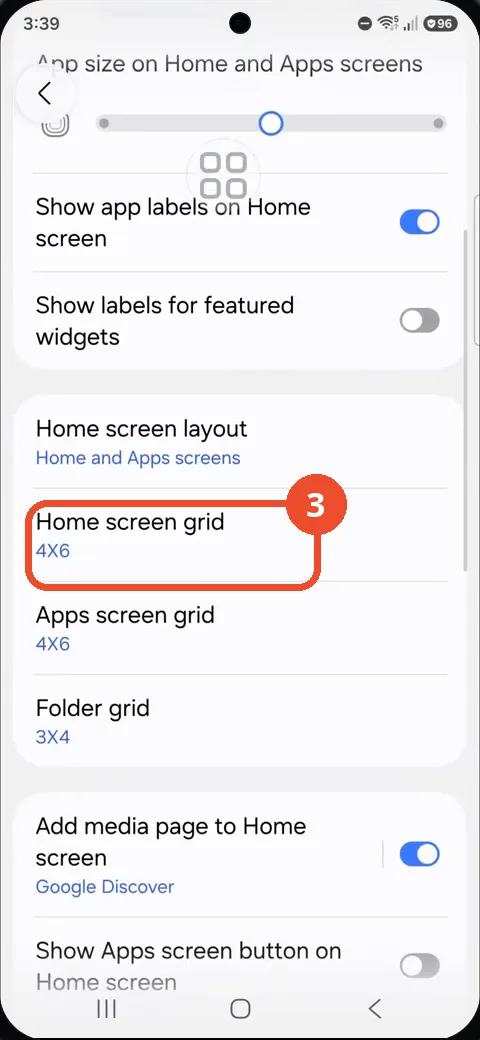
Scroll through the settings
Scroll down to see the other Home screen options, such as the Home screen grid (4X6) and the Apps screen grid.
Check the slider position
Scroll back to the top: the App size slider is the control for icon size. The walkthrough leaves it at its shown position.
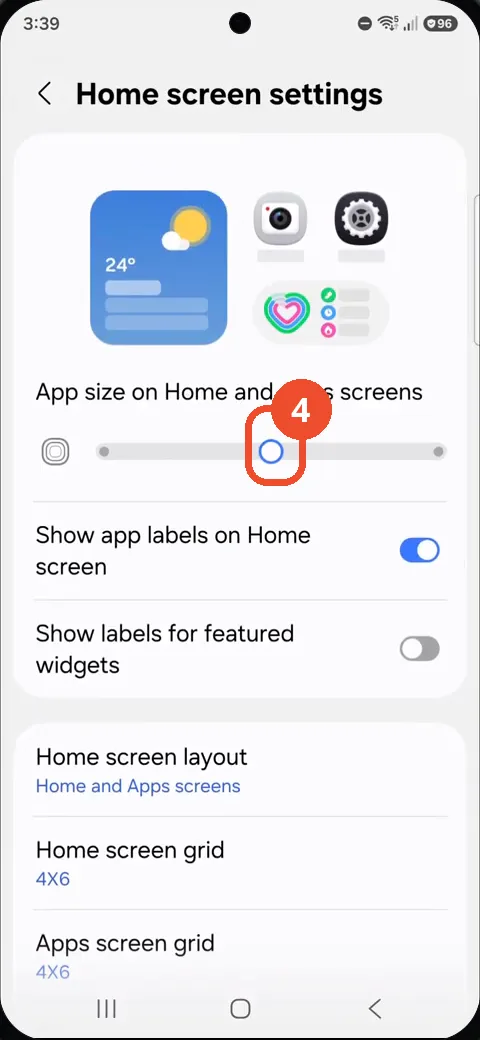
Confirm where the control lives
The page still shows the App size slider at the top — that is where app icon size is adjusted.
Good to know
- The walkthrough locates the control but leaves the slider at its shown position, so the guide shows where to adjust icon size rather than a change being applied.
- The slider is labelled ‘App size on Home and Apps screens’ and sits above the Show app labels toggles.
- The same page also holds the Home screen layout and grid size options.
- Remove the Google Search Bar on Samsung Galaxy A57
- Find Private Album in Samsung Gallery on Samsung Galaxy A57
- Set Up the Magnifier Shortcut on Samsung Galaxy A57
- Find Call Recording Settings on Samsung Galaxy A57
- Check Your Hotspot Password on Samsung Galaxy A57
- Change Notification Sound on Samsung Galaxy A57
- Change Font Size on Samsung Galaxy A57
- Check Multi Control on Samsung Galaxy A57
- How to Enable Autocorrect on Samsung Galaxy A57
- How to Turn On the Flashlight on Samsung Galaxy A57
- How to Change Keyboard Layout on Samsung Galaxy A57
- How to Change the Lock Screen Clock Style on Samsung Galaxy A57
- How to Check and Enable NFC on Samsung Galaxy A57
- How to Change Your Ringtone on Samsung Galaxy A57
- How to Open the Power Menu with the Side Button on Samsung Galaxy A57
- How to Block Calls from Unknown Numbers on Samsung Galaxy A57
- How to Change Font Style on Samsung Galaxy A57
- How to Check the First Used Date on Samsung Galaxy A57 with One UI 8.5
- How to Enable Autofill Codes by SMS on Samsung Galaxy A57 with One UI 8.5
- How to Find the Default Launcher Setting on Samsung Galaxy A57 with One UI 8.5
- How to Block Spam Calls on Samsung Galaxy A57