How to Block Calls from Unknown Numbers on Samsung Galaxy A57
Unknown callers can be silenced from the Phone app itself. This guide opens Call settings, finds Block numbers, and switches on blocking for calls from unknown numbers.
- DeviceSamsung Galaxy A57
- SystemOne UI 8.5
- AppPhone
- Also works onOther Samsung Galaxy phones running One UI 8.5
- Last verifiedOctober 31, 2026
Every screenshot below is taken from the actual recording on this device — no stock images.
Steps
Open the Phone app
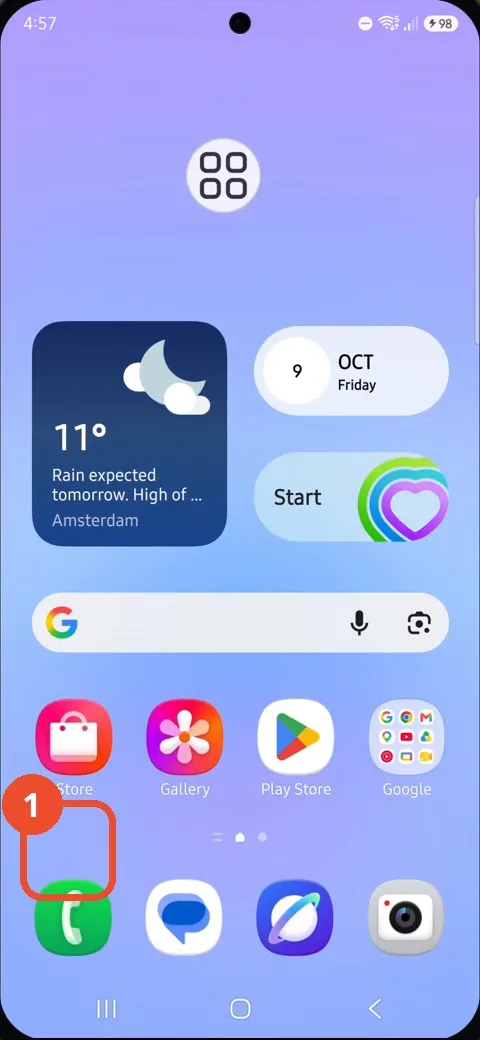
On the Home screen, tap the green Phone icon in the dock at the bottom left. The Phone keypad opens.
Tap the three-dot menu
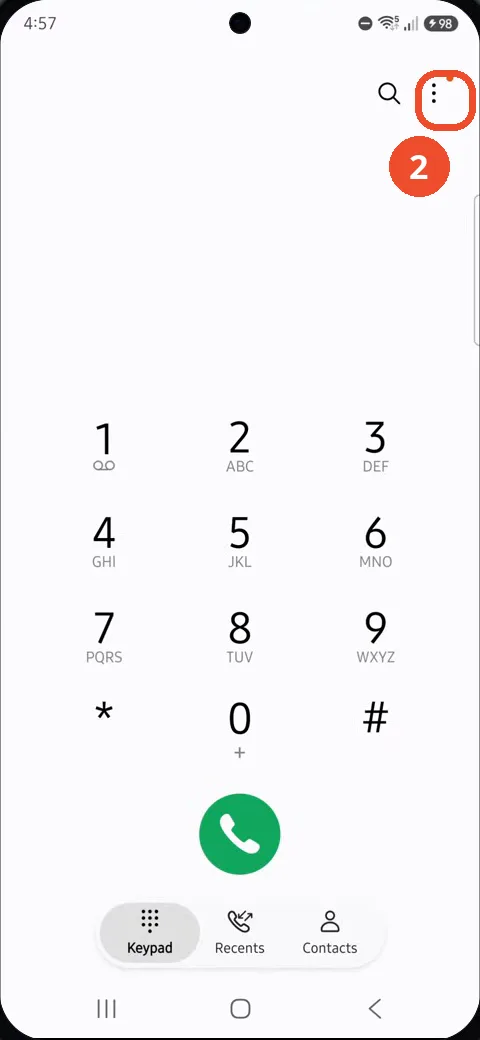
On the keypad screen, tap the three-dot menu icon at the top right. A small menu opens.
Tap Settings in the menu
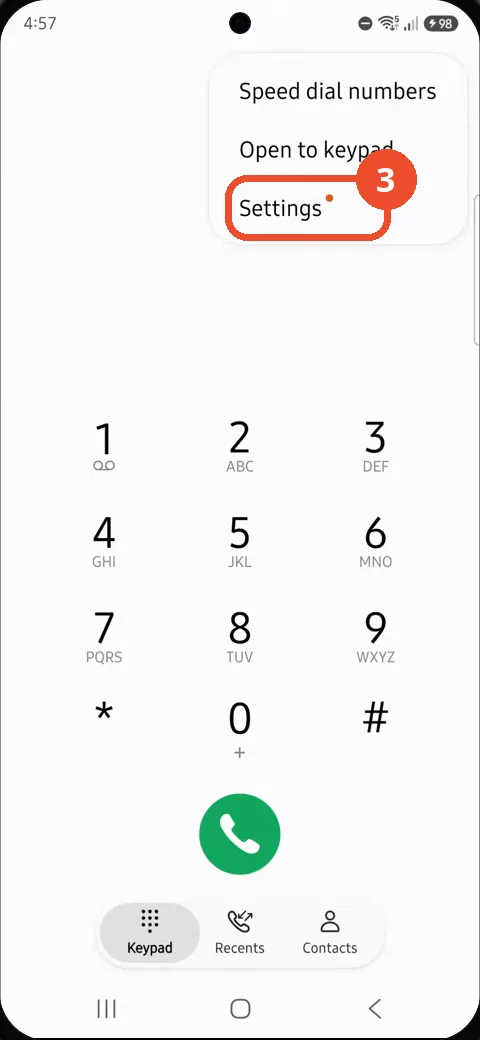
In the menu, tap Settings, the last entry. The Call settings screen opens.
Tap Block numbers
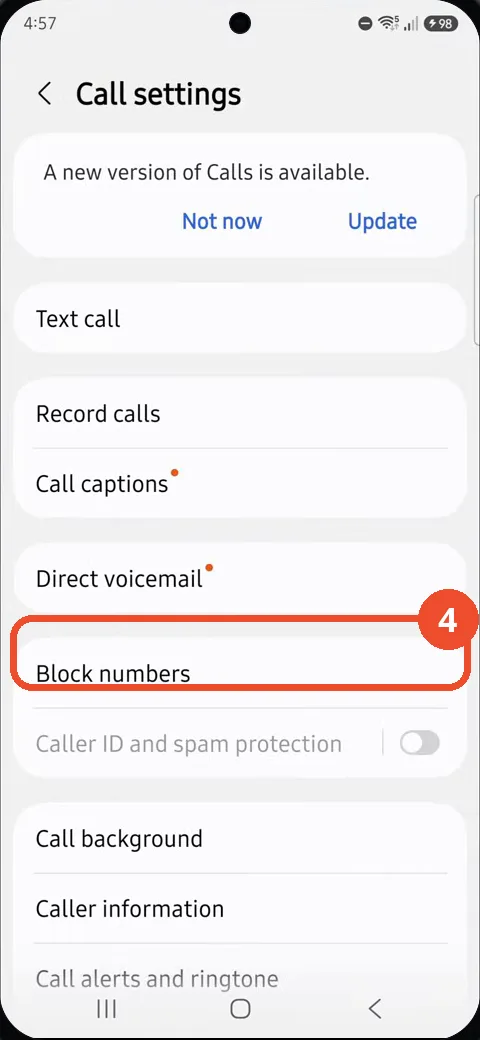
On the Call settings screen, scroll to Block numbers and tap it. The Block numbers screen opens.
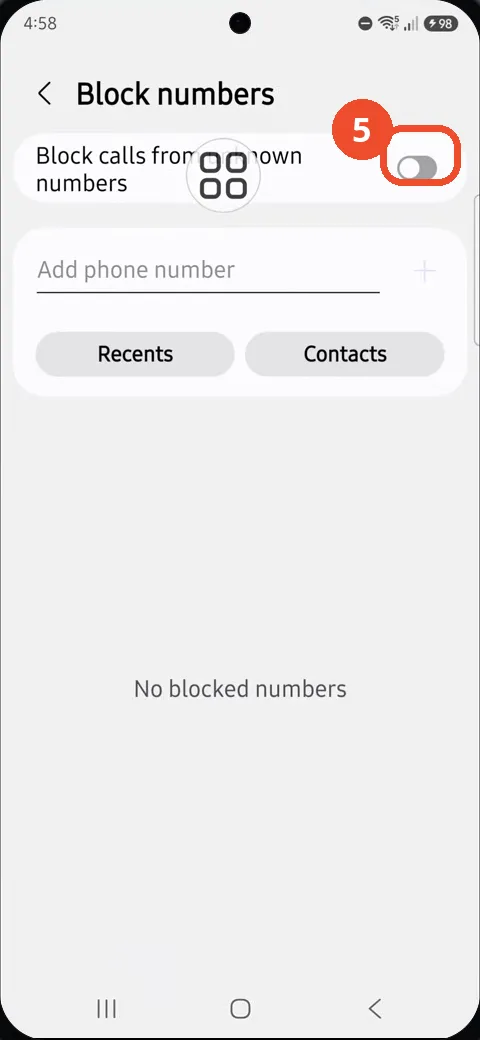
Switch on Block calls from unknown numbers
On the Block numbers screen, tap the switch at the right of Block calls from unknown numbers. It is off at first; tapping it turns the block on.
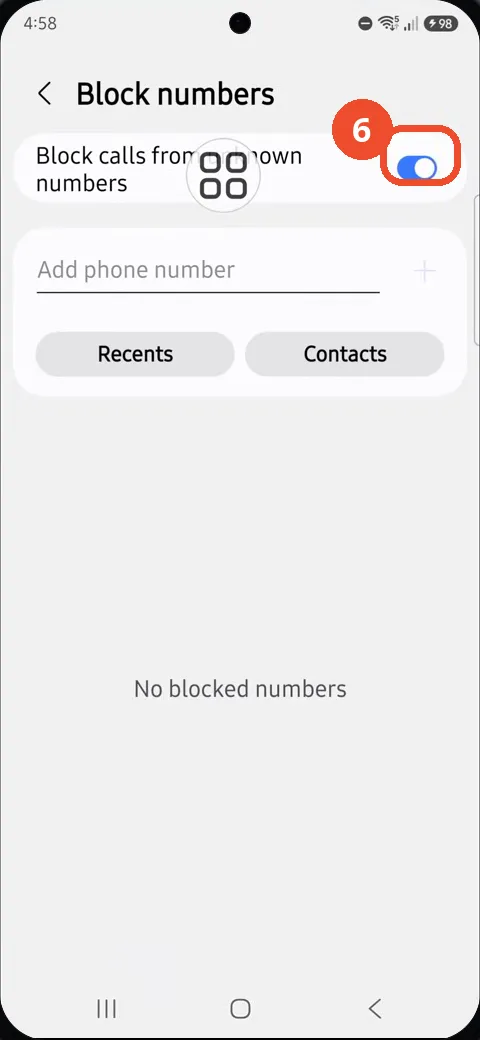
Confirm unknown-number blocking is on
The switch is now blue and on. Calls from unknown numbers are blocked, while the list below still reads No blocked numbers because no individual number was added.
Good to know
- This switch only blocks calls from numbers that are not shown or not in your contacts as unknown; it does not block individual numbers, which are added separately on the same screen.
- The Block numbers screen also offers Add phone number, Recents and Contacts for blocking specific numbers, none of which this recording uses.
- The list below the switch reads No blocked numbers here, because no individual number has been added; the unknown-numbers switch works independently of that list.
- Remove the Google Search Bar on Samsung Galaxy A57
- Find Private Album in Samsung Gallery on Samsung Galaxy A57
- Set Up the Magnifier Shortcut on Samsung Galaxy A57
- Find Call Recording Settings on Samsung Galaxy A57
- Check Your Hotspot Password on Samsung Galaxy A57
- Change Notification Sound on Samsung Galaxy A57
- Change Font Size on Samsung Galaxy A57
- Check Multi Control on Samsung Galaxy A57
- How to Enable Autocorrect on Samsung Galaxy A57
- How to Turn On the Flashlight on Samsung Galaxy A57
- How to Change Keyboard Layout on Samsung Galaxy A57
- How to Change the Lock Screen Clock Style on Samsung Galaxy A57
- How to Check and Enable NFC on Samsung Galaxy A57
- How to Change Your Ringtone on Samsung Galaxy A57
- How to Block Spam Calls on Samsung Galaxy A57
- How to Open the Power Menu with the Side Button on Samsung Galaxy A57