How to Add Lock Screen Text on Samsung Galaxy A57 with One UI 8.5
The Galaxy A57 shows a custom phrase on the lock screen through Contact information: Settings, Lock screen and AOD, then Contact information. The recording adds “Have a nice day” and saves it.
- DeviceSamsung Galaxy A57
- SystemOne UI 8.5
- AppSettings
- Also works onOther Samsung Galaxy phones running One UI 8.5
- Last verifiedNovember 13, 2026
Every screenshot below is taken from the actual recording on this device — no stock images.
Steps
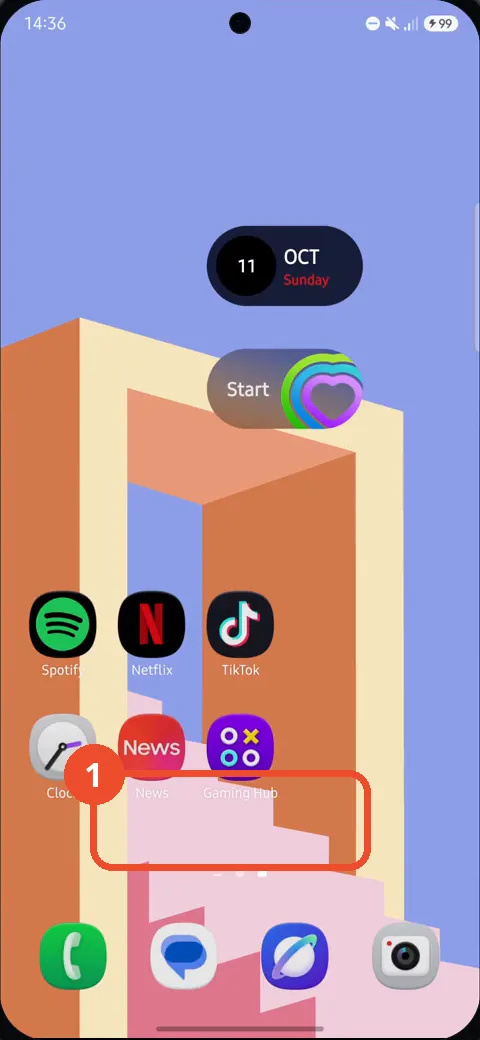
Swipe up to open the app drawer
Swipe up from the Home screen to open the app drawer.
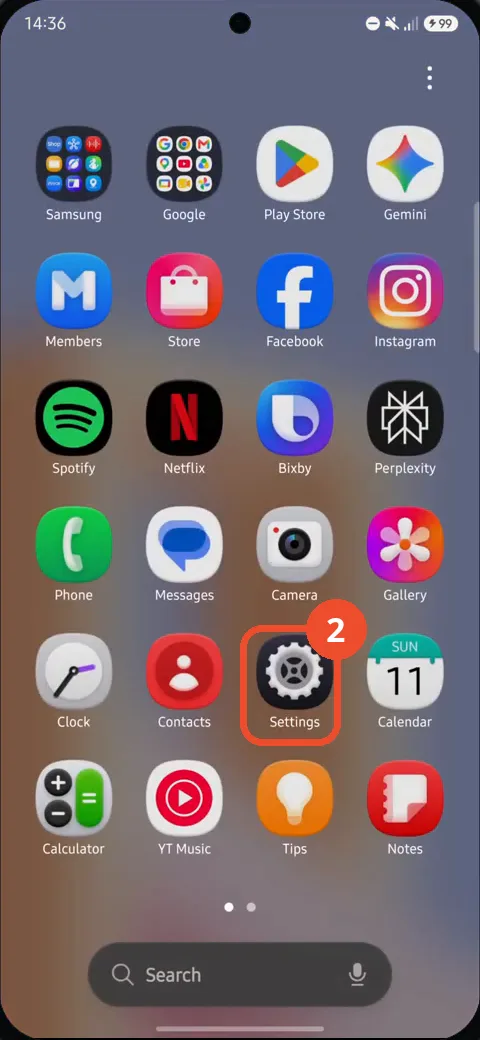
Tap Settings
In the app drawer, tap Settings — the gear icon.
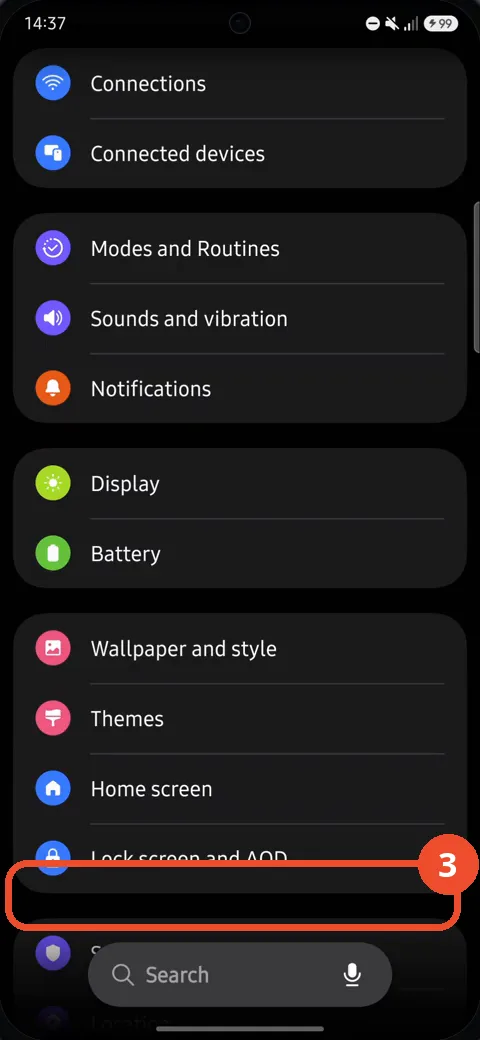
Scroll down and tap Lock screen and AOD
Scroll down the Settings list until you see Lock screen and AOD at the bottom, then tap it.
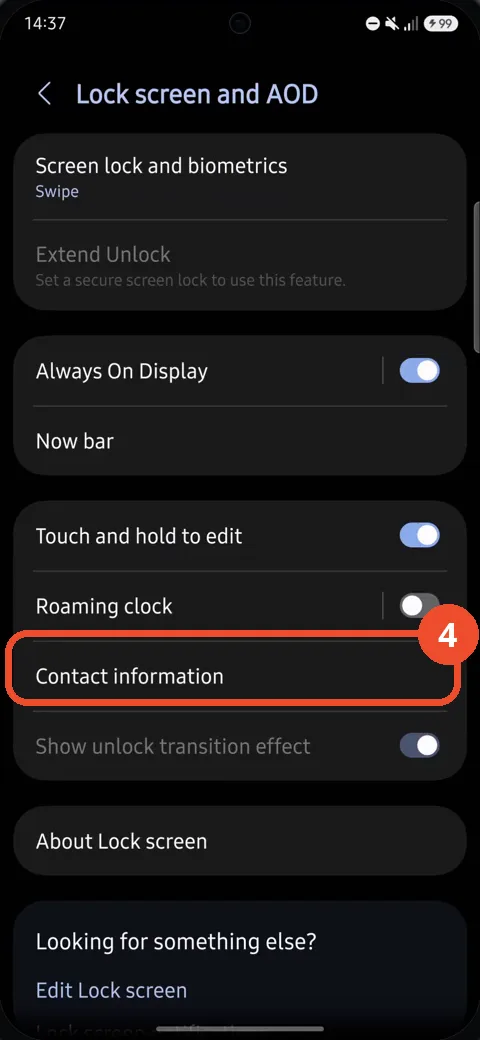
Tap Contact information
On the Lock screen and AOD page, tap Contact information.
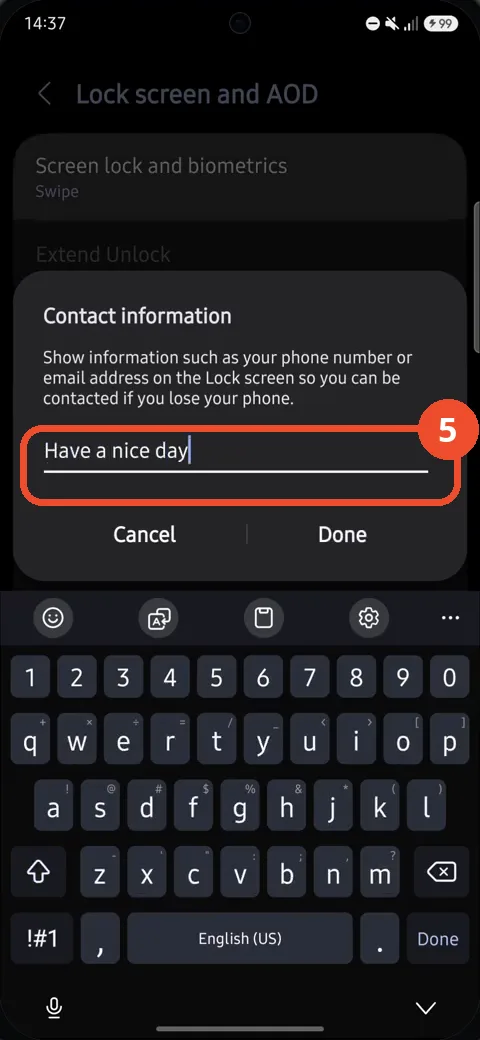
Type the phrase, then tap Done
In the Contact information dialog, type the phrase to show on the lock screen — here “Have a nice day” — then tap Done to save it.
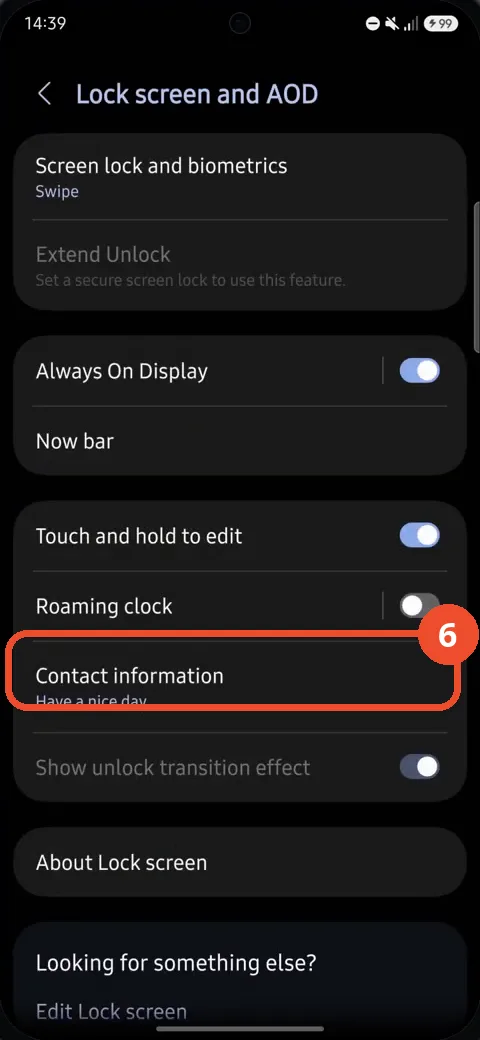
Check Contact information shows the phrase
Back on the Lock screen and AOD page, Contact information now reads “Have a nice day”. That is the confirmation.
Good to know
- The video’s narration also describes removing the phrase — long-press the text, Select all, delete it, then Done with the field empty. The recording only gets as far as Select all: the text is selected but never deleted, and the dialog is closed with the phrase still saved (Contact information still reads “Have a nice day” at the end). To actually remove it, delete the selected text and tap Done with the field empty.
- Contact information is meant for a phone number or email address so you can be contacted if you lose the phone — any short phrase works in the same field.
- This phone has no secure screen lock set (Screen lock and biometrics reads Swipe), so Extend Unlock is greyed out — that does not affect the lock screen text.
- The phrase is saved when you tap Done — the Lock screen and AOD page then shows it under Contact information.
- Remove the Google Search Bar on Samsung Galaxy A57
- Find Private Album in Samsung Gallery on Samsung Galaxy A57
- Set Up the Magnifier Shortcut on Samsung Galaxy A57
- Find Call Recording Settings on Samsung Galaxy A57
- Check Your Hotspot Password on Samsung Galaxy A57
- Change Notification Sound on Samsung Galaxy A57
- Change Font Size on Samsung Galaxy A57
- Check Multi Control on Samsung Galaxy A57
- How to Enable Autocorrect on Samsung Galaxy A57
- How to Turn On the Flashlight on Samsung Galaxy A57
- How to Change Keyboard Layout on Samsung Galaxy A57
- How to Change the Lock Screen Clock Style on Samsung Galaxy A57
- How to Check and Enable NFC on Samsung Galaxy A57
- How to Change Your Ringtone on Samsung Galaxy A57
- How to Open the Power Menu with the Side Button on Samsung Galaxy A57
- How to Block Calls from Unknown Numbers on Samsung Galaxy A57
- How to Change Font Style on Samsung Galaxy A57
- How to Check the First Used Date on Samsung Galaxy A57 with One UI 8.5
- How to Enable Autofill Codes by SMS on Samsung Galaxy A57 with One UI 8.5
- How to Find the Default Launcher Setting on Samsung Galaxy A57 with One UI 8.5
- How to Change App Icon Size on Samsung Galaxy A57 with One UI 8.5
- How to Turn Touch Feedback On or Off on Samsung Galaxy A57 with One UI 8.5
- How to Find the Swipe-Down Notification Setting on Samsung Galaxy A57 with One UI 8.5
- How to Block Spam Calls on Samsung Galaxy A57
- How to Enable Motion Photo on Samsung Galaxy A57 with One UI 8.5
- How to Change Screen Brightness on Samsung Galaxy A57 with One UI 8.5
- How to Draw on Photos in Samsung Gallery on Samsung Galaxy A57 with One UI 8.5
- How to Choose the Game Booster Shortcut Bar on Samsung Galaxy A57 with One UI 8.5
- How to Manage Messages Bubbles on Samsung Galaxy A57 with One UI 8.5
- How to Use the Magnification Shortcut on Samsung Galaxy A57 with One UI 8.5
- How to Turn on Sound Mode on Samsung Galaxy A57 with One UI 8.5
- How to Use Accessibility Shortcuts on Samsung Galaxy A57 with One UI 8.5
- How to Check Battery Health on Samsung Galaxy A57 with One UI 8.5
- How to Enable Floating Windows on Samsung Galaxy A57 with One UI 8.5
- How to Change Display Size on Samsung Galaxy A57 with One UI 8.5
- How to Enable Silent Mode on Samsung Galaxy A57 with One UI 8.5
- How to Check Call Screening on Samsung Galaxy A57 with One UI 8.5
- How to Choose Automatic System Update Downloads on Samsung Galaxy A57 with One UI 8.5
- How to Enable Dark Mode on Samsung Galaxy A57 with One UI 8.5
- How to Force Stop an App on Samsung Galaxy A57 with One UI 8.5
- How to Find an App on Samsung Galaxy A57 with One UI 8.5
- How to View Downloads on Samsung Galaxy A57 with One UI 8.5
- How to Find PIN Setup Options on Samsung Galaxy A57 with One UI 8.5
- How to Find Predictive Text in Samsung Keyboard Settings on Samsung Galaxy A57 with One UI 8.5
- How to Close All Tabs in Samsung Internet on Samsung Galaxy A57 with One UI 8.5
- How to Find the Manual Time Settings on Samsung Galaxy A57 with One UI 8.5
- How to Enable Dolby Atmos on Samsung Galaxy A57 with One UI 8.5
- How to Change the Home Screen Grid on Samsung Galaxy A57 with One UI 8.5
- How to Connect Samsung Galaxy A57 to Wi-Fi on One UI 8.5
- How to Turn On Reduce Animations on Samsung Galaxy A57 with One UI 8.5