How to Turn On One-Handed Mode on Redmi Note 17 Pro with HyperOS 3
One-handed mode lives in Accessibility in Settings. Open Settings, tap Accessibility, then open One-handed mode and turn its switch on - the switch turns blue.
✅ Tested on
- DeviceRedmi Note 17 Pro
- SystemHyperOS 3
- AppSettings
- Also works onOther Xiaomi phones running HyperOS 3
- Last verifiedNovember 26, 2026
Every screenshot below is taken from the actual recording on this device — no stock images.
Steps
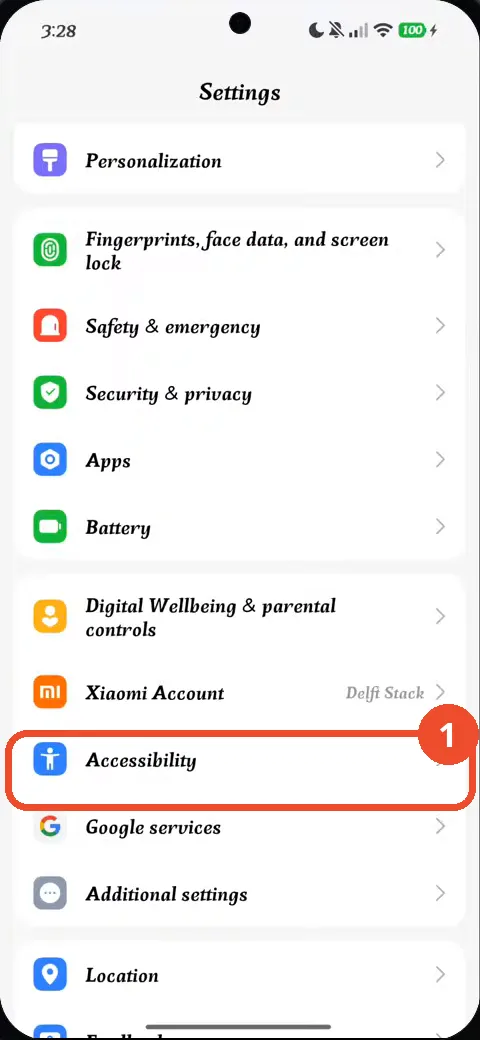
Open Settings, then tap Accessibility
Open Settings - the recording cuts to the Settings list, already scrolled down - then tap Accessibility.
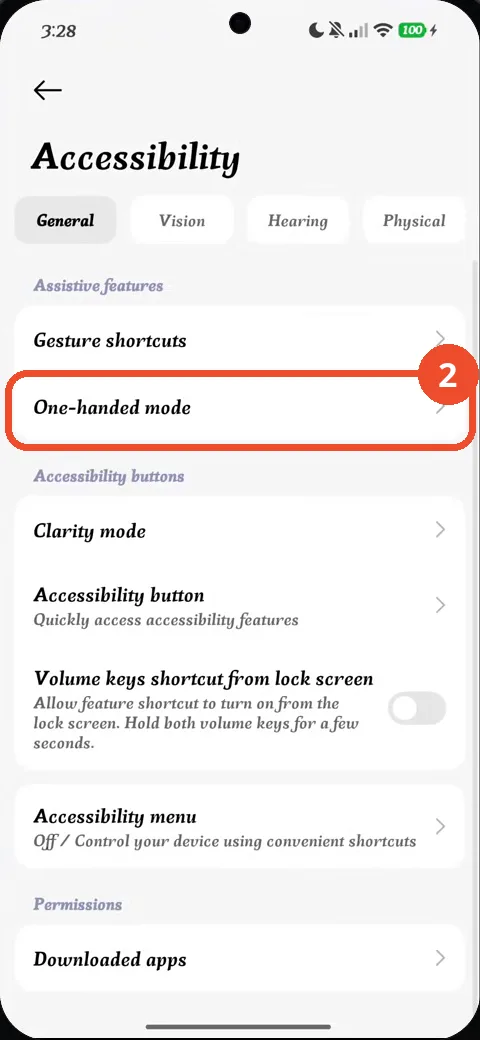
Tap One-handed mode
On the Accessibility page, under Assistive features, tap One-handed mode.
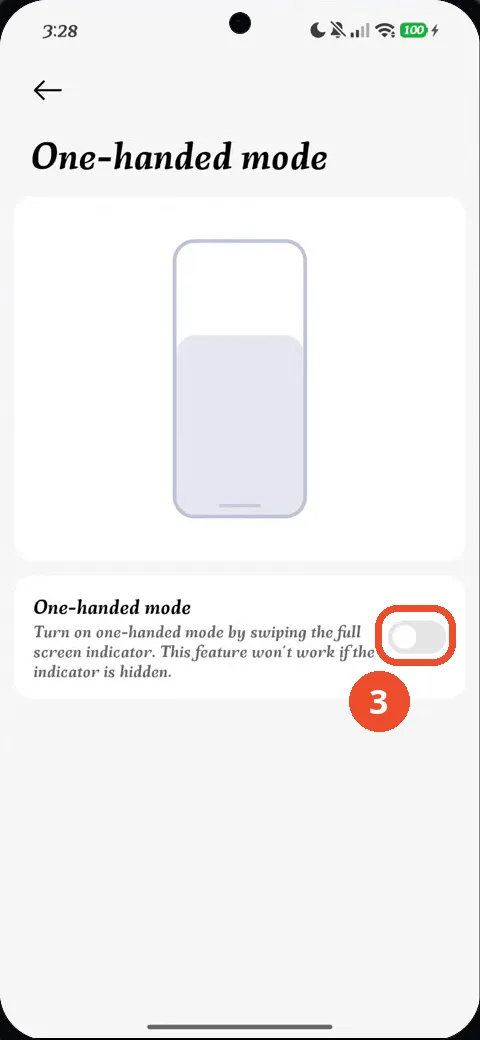
Turn on the One-handed mode switch
On the One-handed mode page, tap the switch next to One-handed mode - it is off.
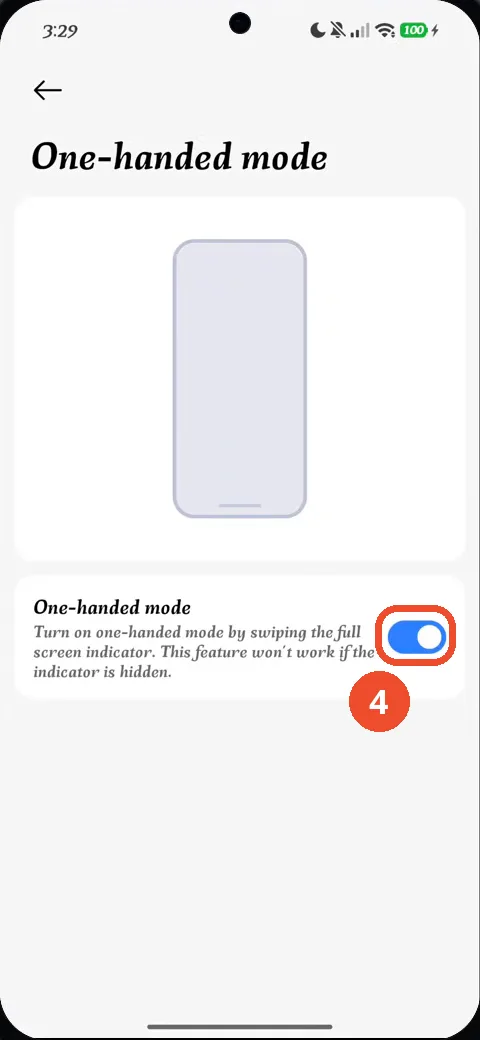
Check that the One-handed mode switch is on
The switch is now blue and on. That is the confirmation - one-handed mode is enabled.
Good to know
- The recording cuts from the home screen straight to the Settings list - the tap that opens Settings is not shown on screen, and the list is already scrolled down so Accessibility is visible.
- One-handed mode is switched on by swiping the full screen indicator, as the page itself notes - and it will not work if the indicator is hidden.
- The video never shows the shrunken one-handed screen itself; the confirmation is the switch turning blue (on) on the One-handed mode page.
- The switch was off when the page opened and is turned on once - nothing else on the page is changed.
- How to Check NFC Is Enabled on Redmi Note 17 Pro with HyperOS 3
- How to Check Mobile Data on Redmi Note 17 Pro with HyperOS 3
- How to Check RAM Usage on Redmi Note 17 Pro with HyperOS 3
- How to Turn Off Vibration and Haptic Feedback on Redmi Note 17 Pro with HyperOS 3
- How to Check Battery Health on Redmi Note 17 Pro with HyperOS 3
- How to Enable Always-on Display on Redmi Note 17 Pro with HyperOS 3
- How to Remove Lock Screen Shortcuts on Redmi Note 17 Pro with HyperOS 3
- How to Check Gmail Notifications on Redmi Note 17 Pro with HyperOS 3
- How to Enable the App Drawer on Redmi Note 17 Pro with HyperOS 3
- How to Find Your Wi-Fi IP Address on Redmi Note 17 Pro with HyperOS 3
- How to Find and Apply a Free Font on Redmi Note 17 Pro with HyperOS 3
- How to Find the Mobile Hotspot Switch on Redmi Note 17 Pro with HyperOS 3
- How to Check for Macro Mode on Redmi Note 17 Pro with HyperOS 3
- How to Change the Map Type to Satellite in Google Maps on Redmi Note 17 Pro with HyperOS 3
- How to Assign Camera Zoom to Volume Buttons on Redmi Note 17 Pro with HyperOS 3
- How to Change Video Resolution on Redmi Note 17 Pro with HyperOS 3
- How to Raise Media Volume on Redmi Note 17 Pro with HyperOS 3
- How to Check the 80% Charging Limit on Redmi Note 17 Pro with HyperOS 3
- How to Check RCS Chat Status on Redmi Note 17 Pro with HyperOS 3
- How to Change Icon Size on Redmi Note 17 Pro with HyperOS 3
- How to Find Contact Name Fields on Redmi Note 17 Pro with HyperOS 3
- How to Check Predictive Text Settings on Redmi Note 17 Pro with HyperOS 3
- How to Edit Quick Settings on Redmi Note 17 Pro with HyperOS 3
- How to Find Your Phone Number in Settings on Redmi Note 17 Pro with HyperOS 3
- How to Change Wallpaper on Redmi Note 17 Pro with HyperOS 3
- How to Open the Notification Shade on Redmi Note 17 Pro with HyperOS 3
- How to Find and Open Settings on Redmi Note 17 Pro with HyperOS 3
- How to Check the Default SMS App on Redmi Note 17 Pro with HyperOS 3
- How to Change Date and Time Settings on Redmi Note 17 Pro with HyperOS 3
- How to Change Font Style on Redmi Note 17 Pro with HyperOS 3
- How to Set Display Colors to Vivid on Redmi Note 17 Pro with HyperOS 3
- How to Check Battery Percentage on Redmi Note 17 Pro with HyperOS 3
- How to Turn Off Google App Notifications on Redmi Note 17 Pro with HyperOS 3
- How to Set 120 Hz Refresh Rate on Redmi Note 17 Pro with HyperOS 3
- How to Enable Double-Tap to Wake on Redmi Note 17 Pro with HyperOS 3
Guide complete
Every step above comes from the original recording, with a screenshot for each step. Want more like this? Browse all Redmi Note 17 Pro guides.