How to Turn Off Vibration and Haptic Feedback on Redmi Note 17 Pro with HyperOS 3
Both controls live on the Sound & vibration page. Open Settings, open Sound & vibration, scroll down to the Vibrate section, and switch off Vibrate in silent mode and Haptic feedback.
- DeviceRedmi Note 17 Pro
- SystemHyperOS 3
- AppSettings
- Also works onOther Xiaomi phones running HyperOS 3
- Last verifiedNovember 21, 2026
Every screenshot below is taken from the actual recording on this device — no stock images.
Steps
Swipe to the Home screen page with Settings
Swipe to the Home screen page with Settings, then tap Settings.

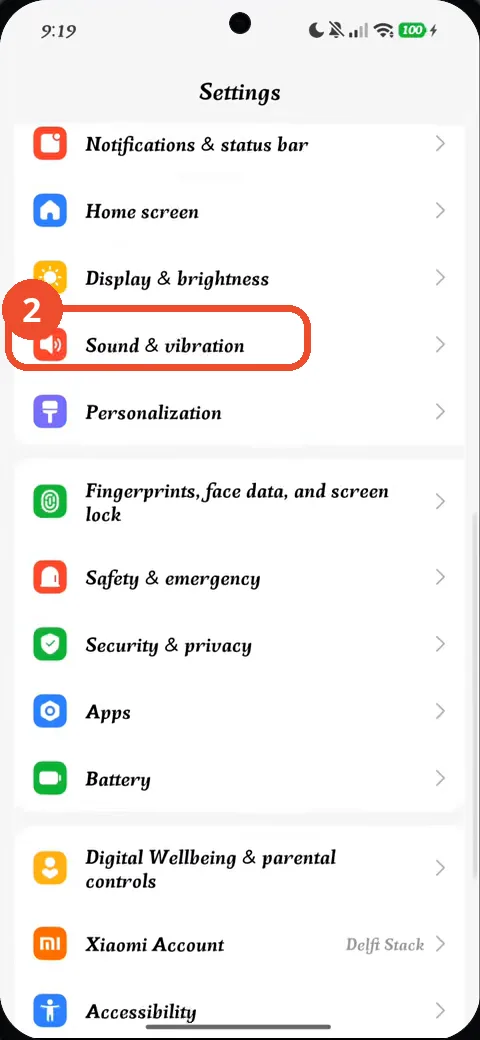
Scroll down and tap Sound & vibration
Scroll down the Settings list and tap Sound & vibration.
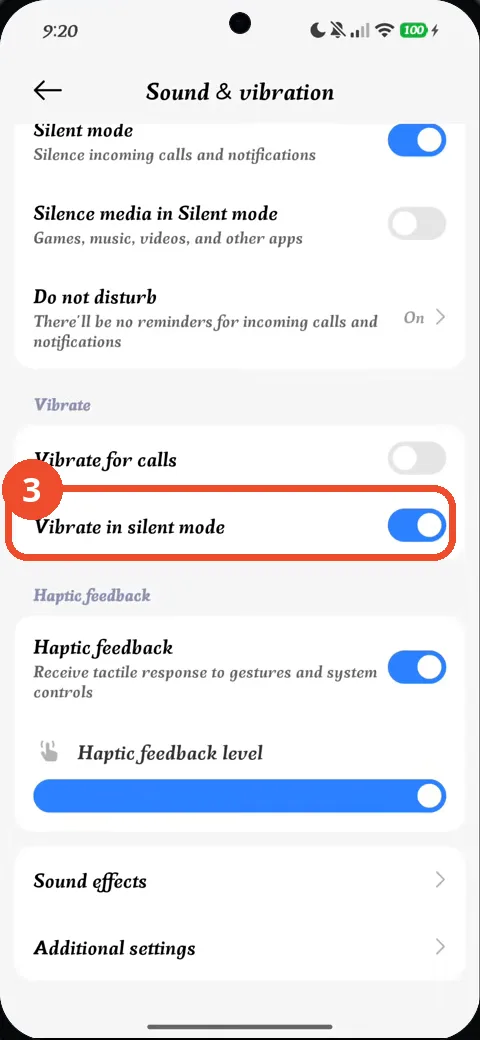
Tap the Vibrate in silent mode switch to turn it off
Scroll down to the Vibrate section and tap the Vibrate in silent mode switch. It is on (blue) before the tap.
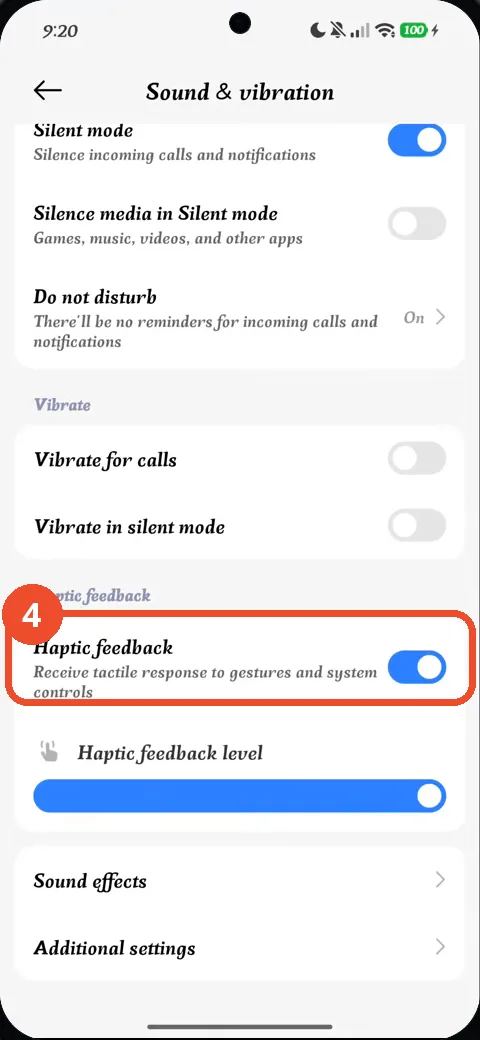
Tap the Haptic feedback switch to turn it off
Under Haptic feedback, tap the Haptic feedback switch. It is still on (blue) before the tap.
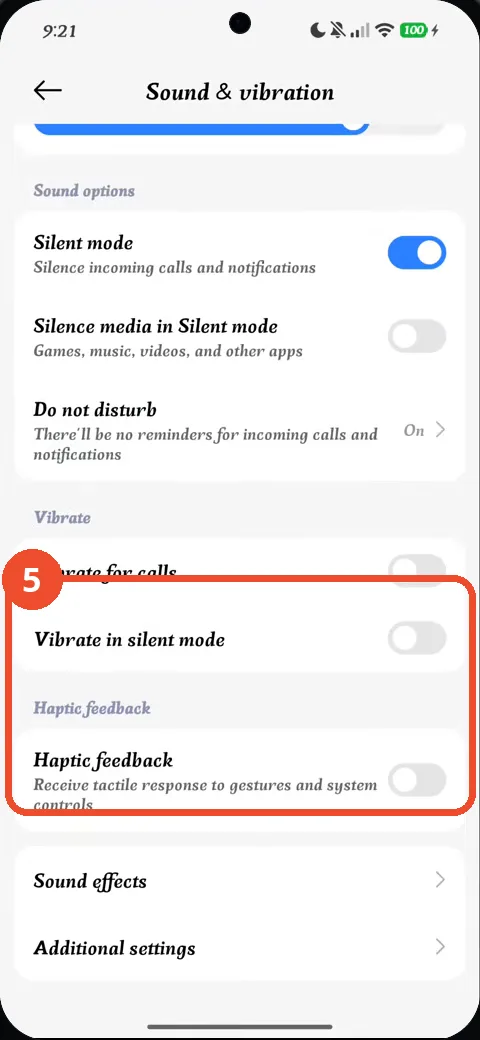
Check that both switches are off
Both switches are now off (grey) — Vibrate in silent mode and Haptic feedback. That is the confirmation.
Good to know
- Vibrate for calls is already off in this recording and stays off — only the two named switches are changed.
- Silent mode itself stays on; turning off Vibrate in silent mode only stops the phone vibrating while it is silenced.
- The switch states were verified frame by frame: Vibrate in silent mode goes off first, then Haptic feedback.
- How to Check the 80% Charging Limit on Redmi Note 17 Pro with HyperOS 3
- How to Check NFC Is Enabled on Redmi Note 17 Pro with HyperOS 3
- How to Check Mobile Data on Redmi Note 17 Pro with HyperOS 3
- How to Check RAM Usage on Redmi Note 17 Pro with HyperOS 3
- How to Check Battery Health on Redmi Note 17 Pro with HyperOS 3
Guide complete
Every step above comes from the original recording, with a screenshot for each step. Want more like this? Browse all Redmi Note 17 Pro guides.