How to Find Silent Mode on Redmi Note 17 Pro with HyperOS 3
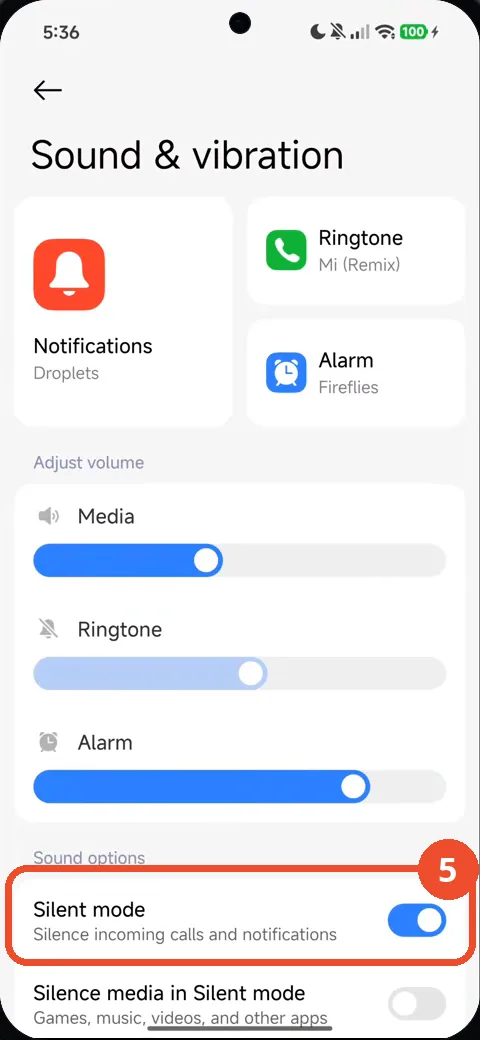
Silent mode lives under Sound options at the bottom of the Sound & vibration page. Swipe to the Settings page, search Settings for “sound”, then open Sound & vibration — Silent mode is already on, and its description says it silences incoming calls and notifications.
- DeviceRedmi Note 17 Pro
- SystemHyperOS 3
- AppSettings
- Also works onOther Xiaomi phones running HyperOS 3
- Last verifiedNovember 28, 2026
Every screenshot below is taken from the actual recording on this device — no stock images.
Steps
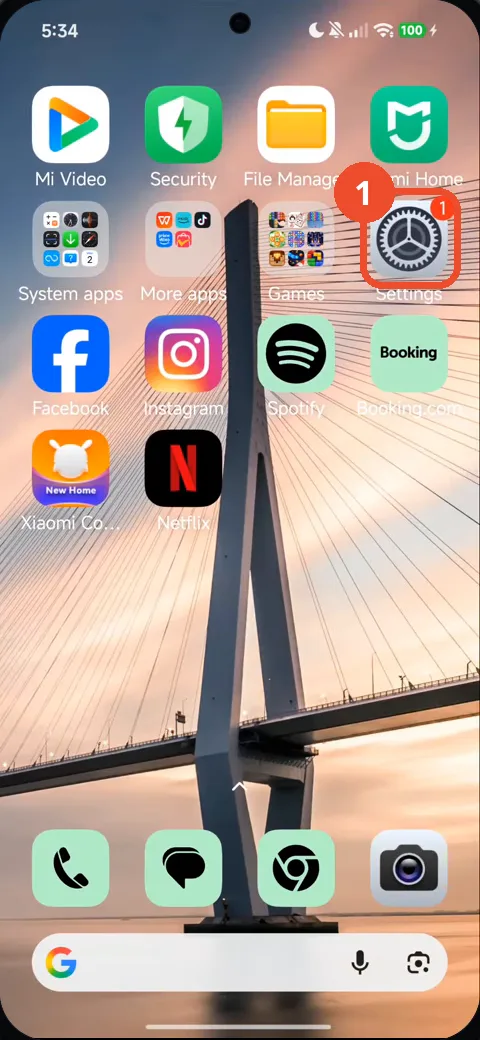
Swipe to the Home screen page with Settings, then tap Settings
Swipe left to the Home screen page that has Settings, then tap the Settings icon.
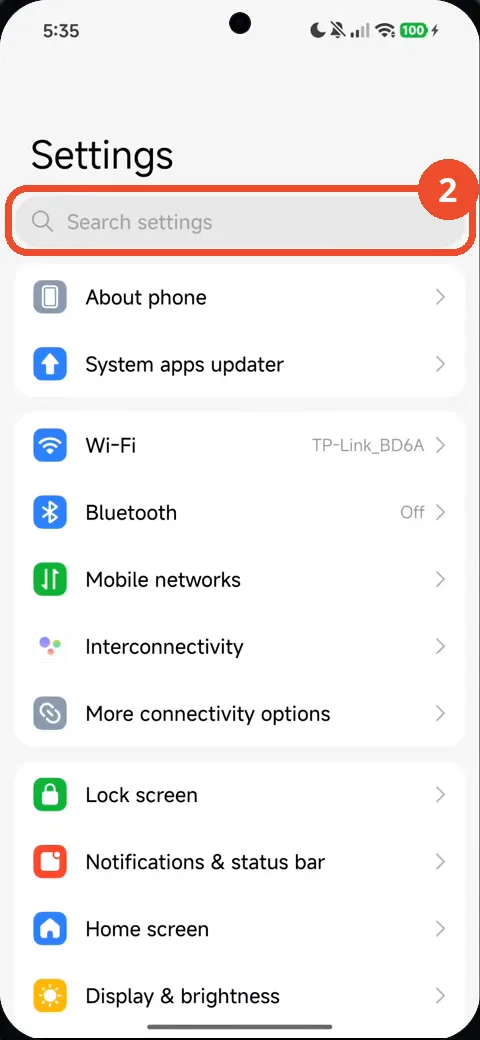
Tap the Search settings bar
Scroll back to the top of the Settings list and tap the Search settings bar.
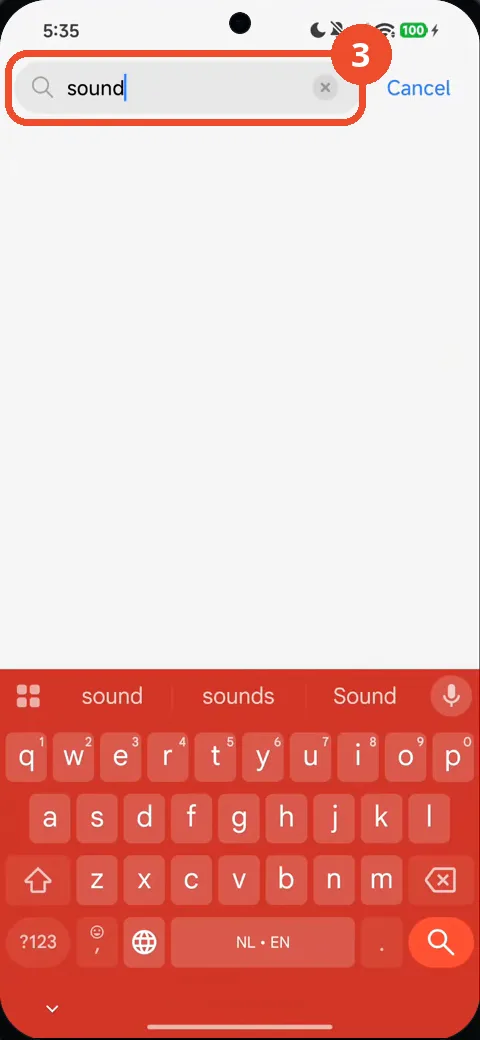
Type sound in the search bar
Type sound. The keyboard stays open while you type, and the matching settings appear once the word is entered.
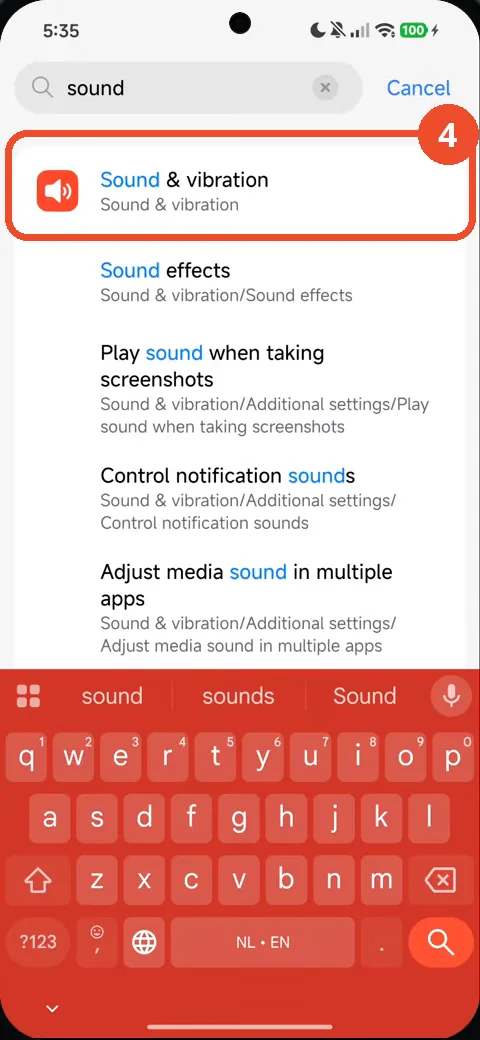
Tap Sound & vibration in the search results
Tap the first result, Sound & vibration — its subtitle reads Sound & vibration.
Check that Silent mode is on
Under Sound options at the bottom of the page, Silent mode is already on (blue), and its description reads “Silence incoming calls and notifications”. Silence media in Silent mode below it is off. That is the confirmation.
Good to know
- Silent mode is already on in this recording — nothing is switched on camera. This article shows where to find it and what it silences; if yours is off, tap the Silent mode switch to turn it on.
- Silent mode silences incoming calls and notifications, as its description says. Silence media in Silent mode is a separate switch below it and is off here — games, music, videos, and other apps are not silenced.
- The video first scrolls down the Settings list looking for the sound controls, then uses search instead. Sound & vibration is already visible on the scrolled list, so you can also tap it directly instead of searching.
- The same task on the Galaxy A57 is Enable Silent Mode — there it is the Mute option in Sounds and vibration.
- Do not confuse Silent mode with Vibrate in silent mode and Haptic feedback — those are separate switches further down the same Sound & vibration page; see Turn Off Vibration and Haptic Feedback.
- How to Check NFC Is Enabled on Redmi Note 17 Pro with HyperOS 3
- How to Check Mobile Data on Redmi Note 17 Pro with HyperOS 3
- How to Check RAM Usage on Redmi Note 17 Pro with HyperOS 3
- How to Turn Off Vibration and Haptic Feedback on Redmi Note 17 Pro with HyperOS 3
- How to Check Battery Health on Redmi Note 17 Pro with HyperOS 3
- How to Enable Always-on Display on Redmi Note 17 Pro with HyperOS 3
- How to Remove Lock Screen Shortcuts on Redmi Note 17 Pro with HyperOS 3
- How to Check Gmail Notifications on Redmi Note 17 Pro with HyperOS 3
- How to Enable the App Drawer on Redmi Note 17 Pro with HyperOS 3
- How to Find Your Wi-Fi IP Address on Redmi Note 17 Pro with HyperOS 3
- How to Find and Apply a Free Font on Redmi Note 17 Pro with HyperOS 3
- How to Find the Mobile Hotspot Switch on Redmi Note 17 Pro with HyperOS 3
- How to Check for Macro Mode on Redmi Note 17 Pro with HyperOS 3
- How to Change the Map Type to Satellite in Google Maps on Redmi Note 17 Pro with HyperOS 3
- How to Assign Camera Zoom to Volume Buttons on Redmi Note 17 Pro with HyperOS 3
- How to Change Video Resolution on Redmi Note 17 Pro with HyperOS 3
- How to Raise Media Volume on Redmi Note 17 Pro with HyperOS 3
- How to Check the 80% Charging Limit on Redmi Note 17 Pro with HyperOS 3
- How to Check RCS Chat Status on Redmi Note 17 Pro with HyperOS 3
- How to Change Icon Size on Redmi Note 17 Pro with HyperOS 3
- How to Find Contact Name Fields on Redmi Note 17 Pro with HyperOS 3
- How to Check Predictive Text Settings on Redmi Note 17 Pro with HyperOS 3
- How to Edit Quick Settings on Redmi Note 17 Pro with HyperOS 3
- How to Find Your Phone Number in Settings on Redmi Note 17 Pro with HyperOS 3
- How to Change Wallpaper on Redmi Note 17 Pro with HyperOS 3
- How to Open the Notification Shade on Redmi Note 17 Pro with HyperOS 3
- How to Find and Open Settings on Redmi Note 17 Pro with HyperOS 3
- How to Check the Default SMS App on Redmi Note 17 Pro with HyperOS 3
- How to Change Date and Time Settings on Redmi Note 17 Pro with HyperOS 3
- How to Set Display Colors to Vivid on Redmi Note 17 Pro with HyperOS 3
- How to Check Battery Percentage on Redmi Note 17 Pro with HyperOS 3
- How to Turn Off Google App Notifications on Redmi Note 17 Pro with HyperOS 3
- How to Set 120 Hz Refresh Rate on Redmi Note 17 Pro with HyperOS 3
- How to Turn On One-Handed Mode on Redmi Note 17 Pro with HyperOS 3
- How to Enable Double-Tap to Wake on Redmi Note 17 Pro with HyperOS 3
- How to Change Font Style on Redmi Note 17 Pro with HyperOS 3
- How to View Call History on Redmi Note 17 Pro with HyperOS 3
- How to Change Compatible Icon Background Color on Redmi Note 17 Pro with HyperOS 3
- How to Check Location Services on Redmi Note 17 Pro with HyperOS 3
- How to Check Google Play System Update Status on Redmi Note 17 Pro with HyperOS 3
- How to Turn On Automatic Brightness on Redmi Note 17 Pro with HyperOS 3
- How to Turn Off Wi-Fi Calling on Redmi Note 17 Pro with HyperOS 3
- How to Change the Lock Screen Wallpaper on Redmi Note 17 Pro with HyperOS 3
- How to View Blocked Calls on Redmi Note 17 Pro with HyperOS 3
- How to Change System Text Size to 145% on Redmi Note 17 Pro with HyperOS 3
- How to Find Hidden Apps on Redmi Note 17 Pro with HyperOS 3
- How to Change Navigation Button Order on Redmi Note 17 Pro with HyperOS 3
Guide complete
Every step above comes from the original recording, with a screenshot for each step. Want more like this? Browse all Redmi Note 17 Pro guides.