How to Find Hidden Apps on Redmi Note 17 Pro with HyperOS 3
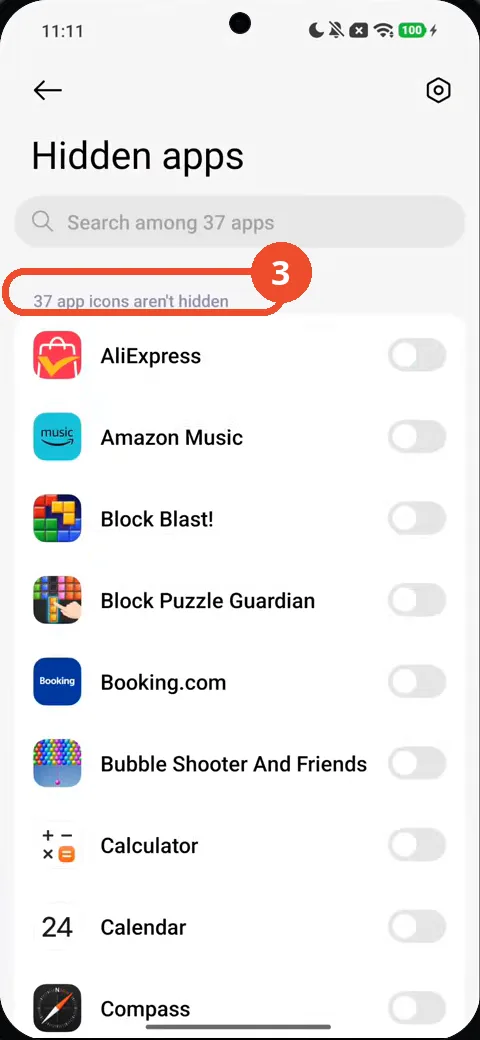
Hidden apps live in the Security app, not in Settings. Open Security, scroll down to Hide apps, and the list shows the current status — here, 37 app icons aren’t hidden and every switch is off.
- DeviceRedmi Note 17 Pro
- SystemHyperOS 3
- AppSecurity
- Also works onOther Xiaomi phones running HyperOS 3
- Last verifiedNovember 28, 2026
Every screenshot below is taken from the actual recording on this device — no stock images.
Steps
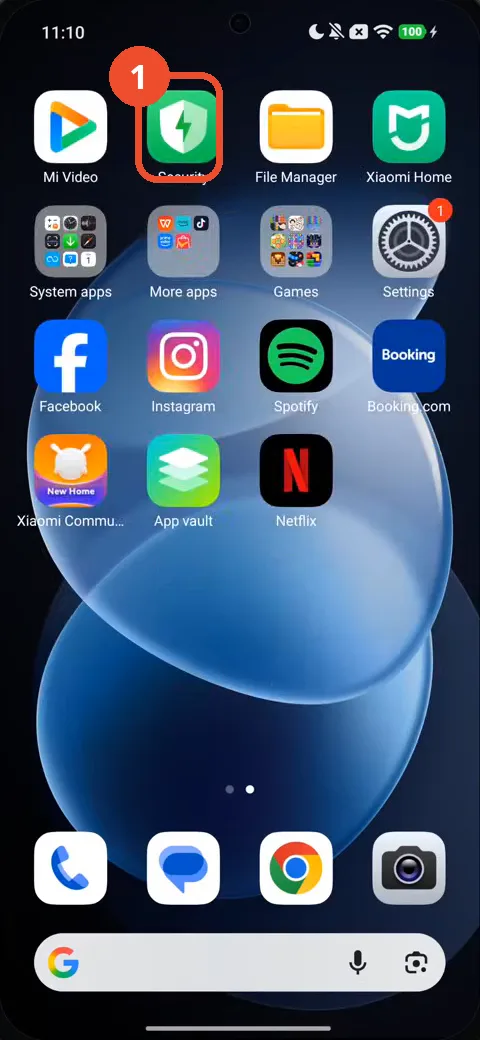
Swipe to the Home screen page with Security, then tap Security
Swipe left to the Home screen page that has Security, then tap the Security icon.
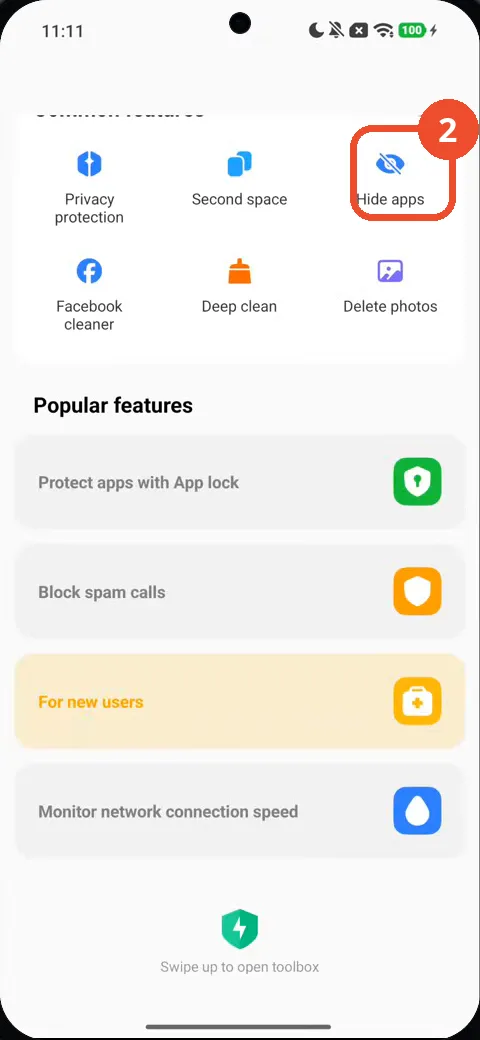
Scroll down and tap Hide apps
In Security, scroll down to the Common features section, then tap Hide apps.
Check that no apps are hidden
The Hidden apps list says “37 app icons aren’t hidden”, and every visible switch is off — AliExpress, Amazon Music, Block Blast!, and the rest. That is the confirmation: no apps are hidden.
Good to know
- This is a check, not a change: nothing is hidden or unhidden in the video, and no switch is flipped — the list only shows the current status.
- A Temu ad briefly covered the screen after Security opened and was dismissed before scrolling down. It is not part of the route and may not appear for you.
- The narration says to tap Security on the home screen, but Security sits on the second Home screen page — swipe left first.
- Hide apps sits in the Common features section of the Security app, below the main tools — scroll down to reach it. It is not in Settings.
- Each app has its own switch in this list — that switch is what hides or unhides that app. The video leaves every switch off, so no hiding is shown.
- On a Galaxy A57, finding an app works differently — by searching the app drawer by name. See How to Find an App on Samsung Galaxy A57 with One UI 8.5. The app drawer itself is a separate Home screen layout — see How to Enable the App Drawer.
- How to Check NFC Is Enabled on Redmi Note 17 Pro with HyperOS 3
- How to Check Mobile Data on Redmi Note 17 Pro with HyperOS 3
- How to Check RAM Usage on Redmi Note 17 Pro with HyperOS 3
- How to Turn Off Vibration and Haptic Feedback on Redmi Note 17 Pro with HyperOS 3
- How to Check Battery Health on Redmi Note 17 Pro with HyperOS 3
- How to Enable Always-on Display on Redmi Note 17 Pro with HyperOS 3
- How to Remove Lock Screen Shortcuts on Redmi Note 17 Pro with HyperOS 3
- How to Check Gmail Notifications on Redmi Note 17 Pro with HyperOS 3
- How to Enable the App Drawer on Redmi Note 17 Pro with HyperOS 3
- How to Find Your Wi-Fi IP Address on Redmi Note 17 Pro with HyperOS 3
- How to Find and Apply a Free Font on Redmi Note 17 Pro with HyperOS 3
- How to Find the Mobile Hotspot Switch on Redmi Note 17 Pro with HyperOS 3
- How to Check for Macro Mode on Redmi Note 17 Pro with HyperOS 3
- How to Change the Map Type to Satellite in Google Maps on Redmi Note 17 Pro with HyperOS 3
- How to Assign Camera Zoom to Volume Buttons on Redmi Note 17 Pro with HyperOS 3
- How to Change Video Resolution on Redmi Note 17 Pro with HyperOS 3
- How to Raise Media Volume on Redmi Note 17 Pro with HyperOS 3
- How to Check the 80% Charging Limit on Redmi Note 17 Pro with HyperOS 3
- How to Check RCS Chat Status on Redmi Note 17 Pro with HyperOS 3
- How to Change Icon Size on Redmi Note 17 Pro with HyperOS 3
- How to Find Contact Name Fields on Redmi Note 17 Pro with HyperOS 3
- How to Check Predictive Text Settings on Redmi Note 17 Pro with HyperOS 3
- How to Edit Quick Settings on Redmi Note 17 Pro with HyperOS 3
- How to Find Your Phone Number in Settings on Redmi Note 17 Pro with HyperOS 3
- How to Change Wallpaper on Redmi Note 17 Pro with HyperOS 3
- How to Open the Notification Shade on Redmi Note 17 Pro with HyperOS 3
- How to Find and Open Settings on Redmi Note 17 Pro with HyperOS 3
- How to Check the Default SMS App on Redmi Note 17 Pro with HyperOS 3
- How to Change Date and Time Settings on Redmi Note 17 Pro with HyperOS 3
- How to Set Display Colors to Vivid on Redmi Note 17 Pro with HyperOS 3
- How to Check Battery Percentage on Redmi Note 17 Pro with HyperOS 3
- How to Turn Off Google App Notifications on Redmi Note 17 Pro with HyperOS 3
- How to Set 120 Hz Refresh Rate on Redmi Note 17 Pro with HyperOS 3
- How to Turn On One-Handed Mode on Redmi Note 17 Pro with HyperOS 3
- How to Enable Double-Tap to Wake on Redmi Note 17 Pro with HyperOS 3
- How to Change Font Style on Redmi Note 17 Pro with HyperOS 3
- How to View Call History on Redmi Note 17 Pro with HyperOS 3
- How to Change Compatible Icon Background Color on Redmi Note 17 Pro with HyperOS 3
- How to Check Location Services on Redmi Note 17 Pro with HyperOS 3
- How to Check Google Play System Update Status on Redmi Note 17 Pro with HyperOS 3
- How to Turn On Automatic Brightness on Redmi Note 17 Pro with HyperOS 3
- How to Turn Off Wi-Fi Calling on Redmi Note 17 Pro with HyperOS 3
- How to Change the Lock Screen Wallpaper on Redmi Note 17 Pro with HyperOS 3
- How to Find Silent Mode on Redmi Note 17 Pro with HyperOS 3
- How to View Blocked Calls on Redmi Note 17 Pro with HyperOS 3
- How to Change System Text Size to 145% on Redmi Note 17 Pro with HyperOS 3
- How to Change Navigation Button Order on Redmi Note 17 Pro with HyperOS 3
Guide complete
Every step above comes from the original recording, with a screenshot for each step. Want more like this? Browse all Redmi Note 17 Pro guides.