How to Enable the App Drawer on Redmi Note 17 Pro with HyperOS 3
The app drawer is a Home screen layout choice. Long-press the Home screen, open its Settings, tap More, then choose the Home screen layout — pick With App drawer.
- DeviceRedmi Note 17 Pro
- SystemHyperOS 3
- AppSettings
- Also works onOther Xiaomi phones running HyperOS 3
- Last verifiedNovember 22, 2026
Every screenshot below is taken from the actual recording on this device — no stock images.
Steps
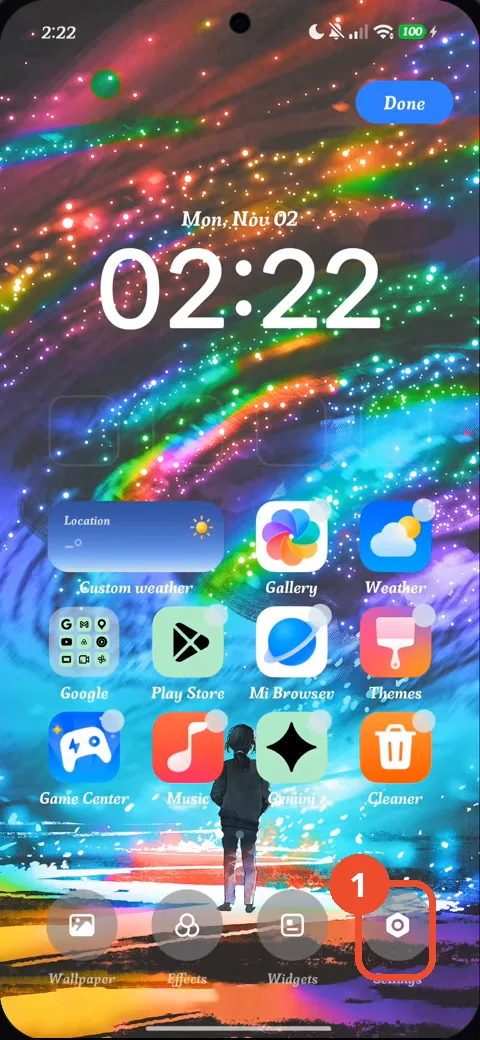
Long-press the Home screen, then tap Settings
Long-press an empty area of the Home screen to open its customization bar, then tap Settings.
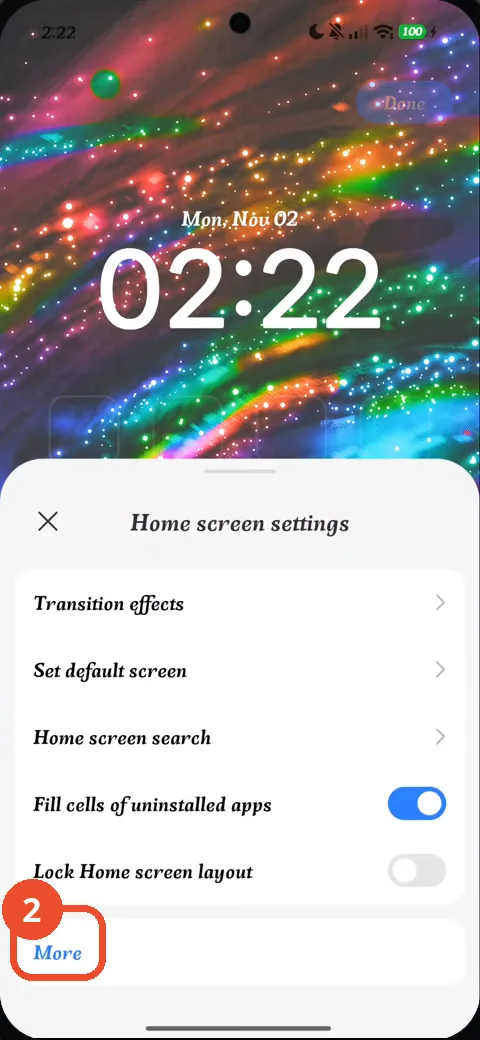
Tap More
On the Home screen settings sheet, tap More to open the full settings page.
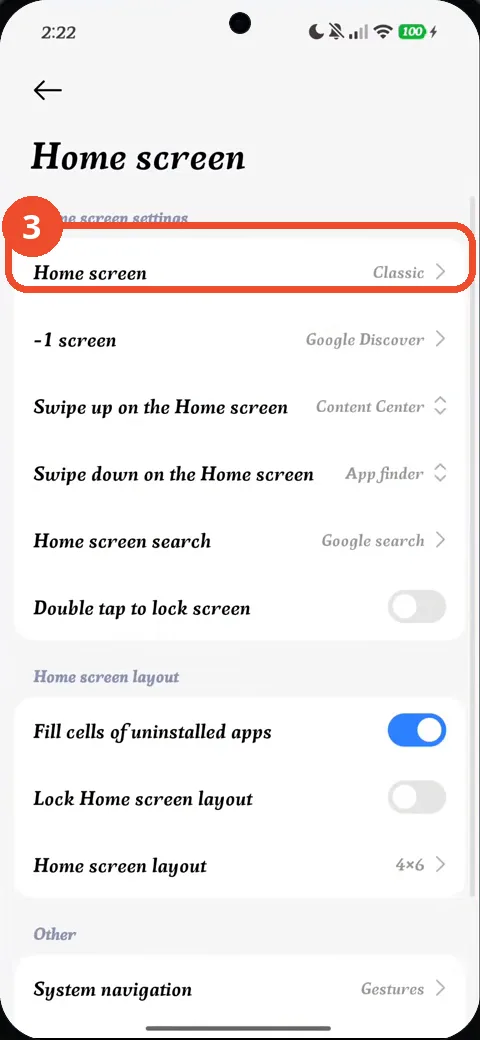
Tap Home screen
On the Home screen settings page, tap Home screen to see the available layouts.
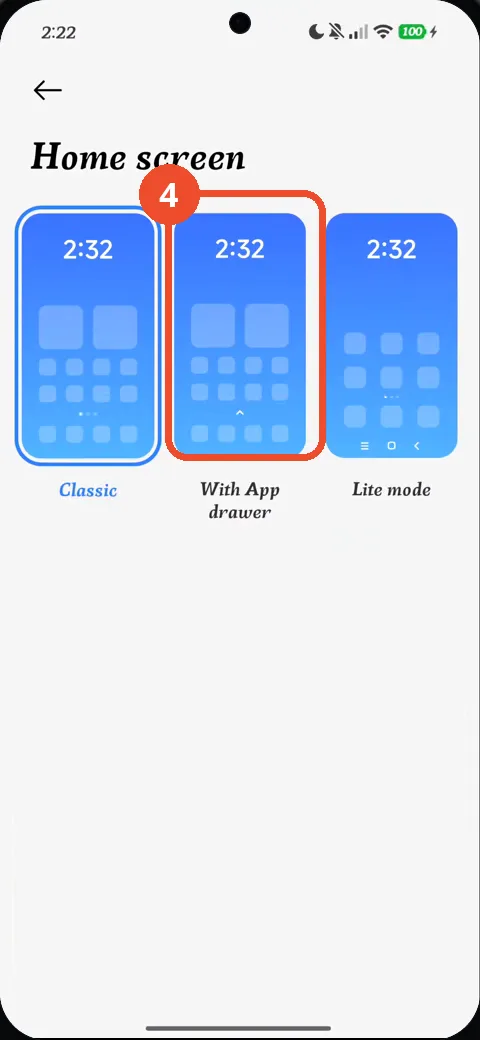
Tap With App drawer
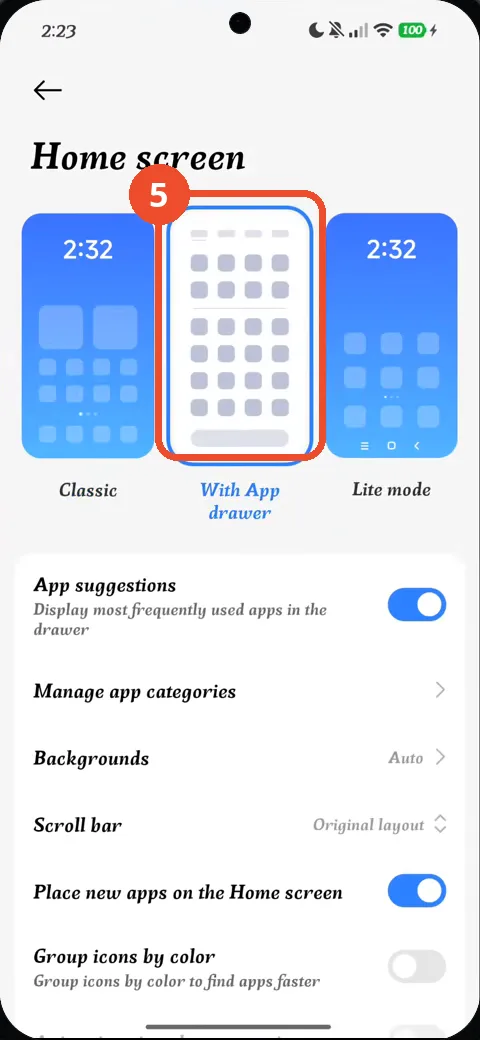
Three layouts are offered — Classic, With App drawer and Lite mode. Tap With App drawer.
Check that With App drawer is selected
With App drawer is now the selected layout, and the drawer options appear below it. That is the confirmation.
Good to know
- Classic is the layout without a drawer; pick Classic on the same page to hide the drawer again.
- With the drawer on, App suggestions, Manage app categories and the drawer background and scroll-bar options appear on the same page.
- The recording ends on the settings page — it does not show the drawer being opened afterwards.
- How to Check NFC Is Enabled on Redmi Note 17 Pro with HyperOS 3
- How to Check Mobile Data on Redmi Note 17 Pro with HyperOS 3
- How to Check RAM Usage on Redmi Note 17 Pro with HyperOS 3
- How to Turn Off Vibration and Haptic Feedback on Redmi Note 17 Pro with HyperOS 3
- How to Check Battery Health on Redmi Note 17 Pro with HyperOS 3
- How to Check the 80% Charging Limit on Redmi Note 17 Pro with HyperOS 3
- How to Enable Always-on Display on Redmi Note 17 Pro with HyperOS 3
- How to Remove Lock Screen Shortcuts on Redmi Note 17 Pro with HyperOS 3
- How to Check Gmail Notifications on Redmi Note 17 Pro with HyperOS 3
- How to Find Your Wi-Fi IP Address on Redmi Note 17 Pro with HyperOS 3
- How to Find and Apply a Free Font on Redmi Note 17 Pro with HyperOS 3
Guide complete
Every step above comes from the original recording, with a screenshot for each step. Want more like this? Browse all Redmi Note 17 Pro guides.