How to Edit Quick Settings on Redmi Note 17 Pro with HyperOS 3
Quick Settings tiles are edited in the Tile Editor. Swipe down to open Quick Settings, tap Edit at the bottom of the panel, then scroll through the editor to browse the tiles you can add or remove — in this recording nothing is changed.
- DeviceRedmi Note 17 Pro
- SystemHyperOS 3
- AppQuick Settings (built-in)
- Also works onOther Xiaomi phones running HyperOS 3
- Last verifiedNovember 24, 2026
Every screenshot below is taken from the actual recording on this device — no stock images.
Steps
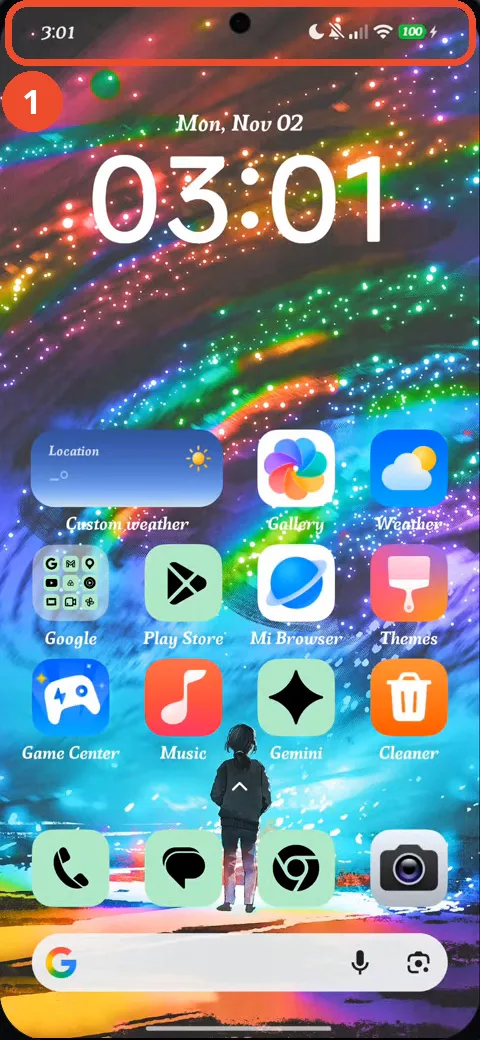
Swipe down from the top of the screen
On the Home screen, swipe down from the very top of the screen to open Quick Settings.
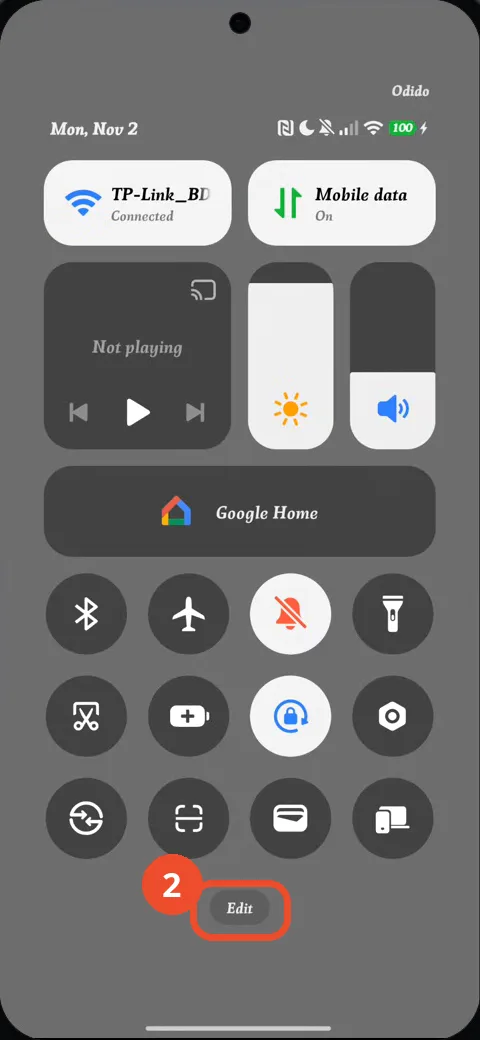
Tap Edit at the bottom of the panel
Quick Settings is open. Tap Edit at the bottom of the panel to open the Tile Editor.
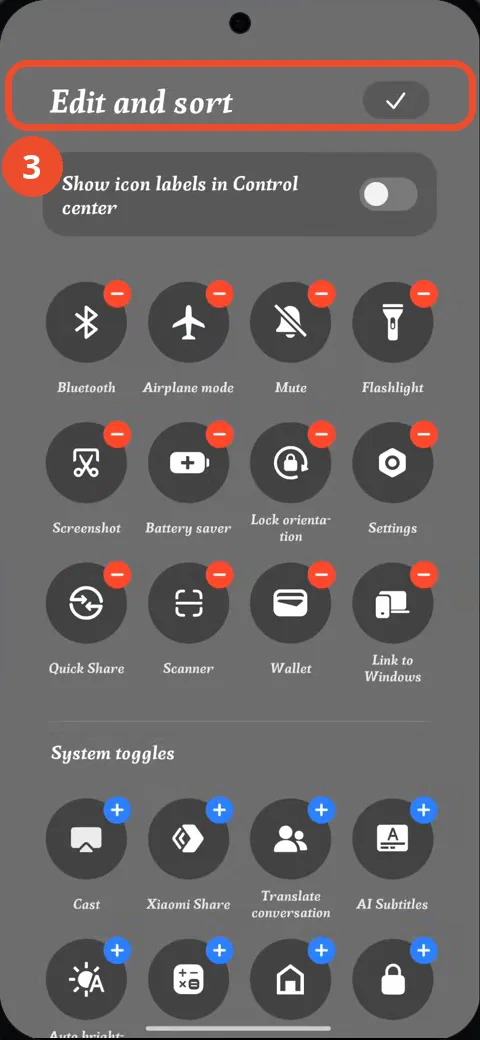
Check the Tile Editor opens
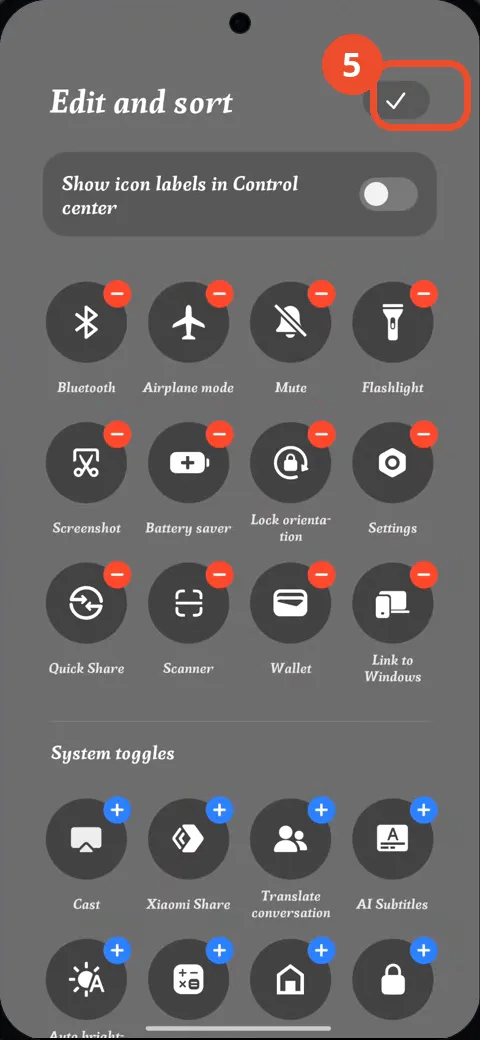
The Tile Editor opens, titled Edit and sort. The tiles already in the panel — Bluetooth, Airplane mode, Mute and Flashlight — carry red minus badges, and tiles you can add sit under System toggles with blue plus badges.
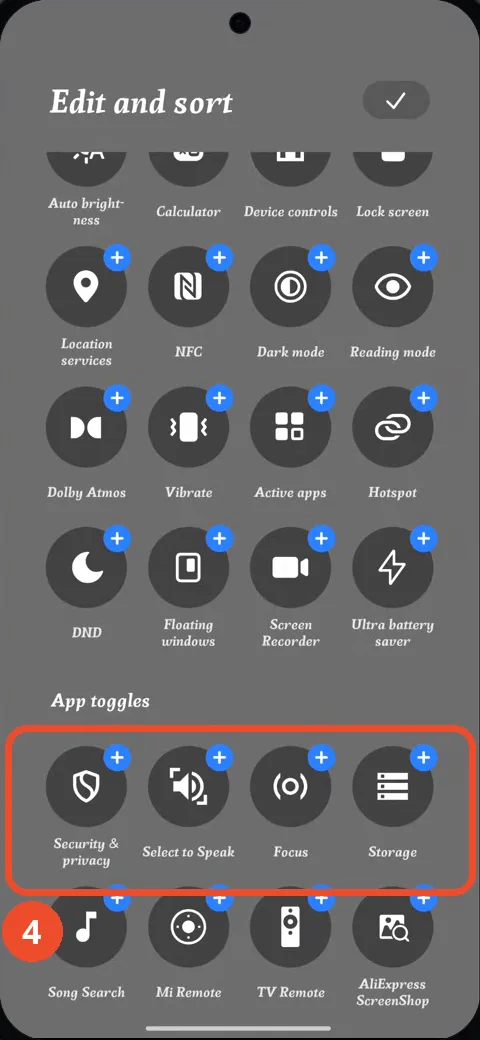
Scroll through the editor to browse the available tiles
Scroll down through the editor to browse the available tiles — Location services, NFC, Dark mode, Reading mode, Dolby Atmos, Vibrate, Active apps and Hotspot, then the App toggles section with Security & privacy, Select to Speak, Focus and Storage.
Check the layout is unchanged
Scroll back to the top: the same tiles are still in place with their red minus badges, and the checkmark at the top right is untouched. Nothing was added or removed — the video only shows how the editor works.
Good to know
- Nothing is added or removed in this recording — the video opens the Tile Editor, scrolls through it and leaves the layout exactly as it was.
- Tiles already in the panel carry a red minus badge; tiles you can add carry a blue plus badge under System toggles and App toggles.
- The ‘Show icon labels in Control center’ switch at the top of the editor is off in this recording; the video does not change it.
- The same editor on the Pixel 11 Pro is covered in How to Edit Quick Settings Tiles on Google Pixel 11 Pro.
- How to Check NFC Is Enabled on Redmi Note 17 Pro with HyperOS 3
- How to Check Mobile Data on Redmi Note 17 Pro with HyperOS 3
- How to Check RAM Usage on Redmi Note 17 Pro with HyperOS 3
- How to Turn Off Vibration and Haptic Feedback on Redmi Note 17 Pro with HyperOS 3
- How to Check Battery Health on Redmi Note 17 Pro with HyperOS 3
- How to Enable Always-on Display on Redmi Note 17 Pro with HyperOS 3
- How to Remove Lock Screen Shortcuts on Redmi Note 17 Pro with HyperOS 3
- How to Check Gmail Notifications on Redmi Note 17 Pro with HyperOS 3
- How to Enable the App Drawer on Redmi Note 17 Pro with HyperOS 3
- How to Find Your Wi-Fi IP Address on Redmi Note 17 Pro with HyperOS 3
- How to Find and Apply a Free Font on Redmi Note 17 Pro with HyperOS 3
- How to Find the Mobile Hotspot Switch on Redmi Note 17 Pro with HyperOS 3
- How to Check for Macro Mode on Redmi Note 17 Pro with HyperOS 3
- How to Change the Map Type to Satellite in Google Maps on Redmi Note 17 Pro with HyperOS 3
- How to Assign Camera Zoom to Volume Buttons on Redmi Note 17 Pro with HyperOS 3
- How to Change Video Resolution on Redmi Note 17 Pro with HyperOS 3
- How to Raise Media Volume on Redmi Note 17 Pro with HyperOS 3
- How to Check the 80% Charging Limit on Redmi Note 17 Pro with HyperOS 3
- How to Check RCS Chat Status on Redmi Note 17 Pro with HyperOS 3
- How to Change Icon Size on Redmi Note 17 Pro with HyperOS 3
- How to Find Contact Name Fields on Redmi Note 17 Pro with HyperOS 3
- How to Check Predictive Text Settings on Redmi Note 17 Pro with HyperOS 3
- How to Change Font Style on Redmi Note 17 Pro with HyperOS 3
Guide complete
Every step above comes from the original recording, with a screenshot for each step. Want more like this? Browse all Redmi Note 17 Pro guides.