How to Change Font Style on Redmi Note 17 Pro with HyperOS 3
Font style lives on the Font settings page. Search Settings for font, open Font settings - Arial Bold is the selected style - then tap MiSans and the preview switches to it.
- DeviceRedmi Note 17 Pro
- SystemHyperOS 3
- AppSettings
- Also works onOther Xiaomi phones running HyperOS 3
- Last verifiedNovember 24, 2026
Every screenshot below is taken from the actual recording on this device — no stock images.
Steps
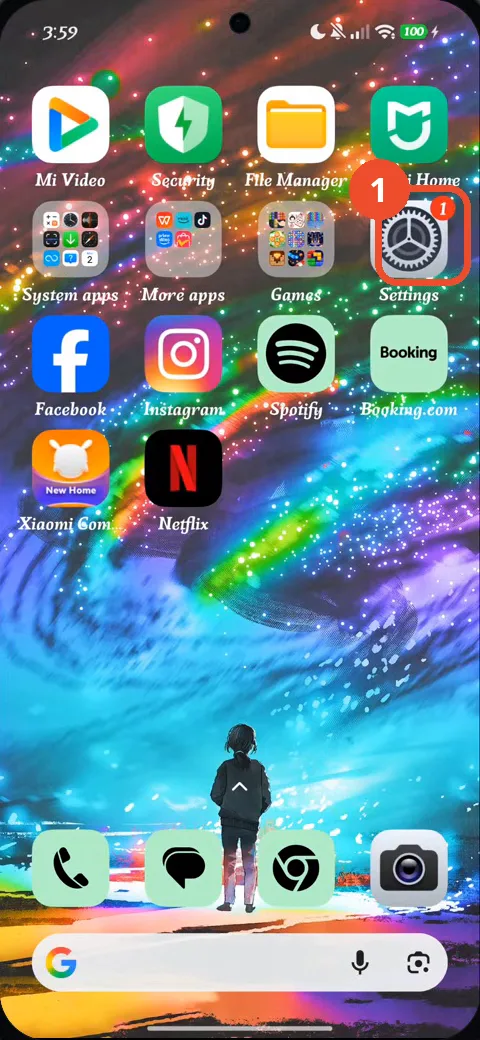
Swipe to the Home screen page with Settings, then tap Settings
Swipe to the Home screen page that has Settings, then tap the Settings icon.
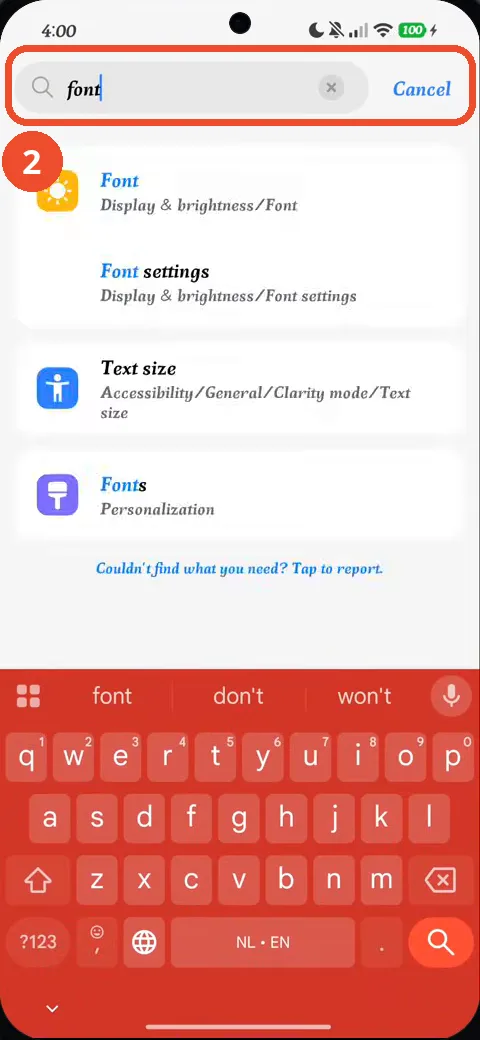
Tap the Settings search field and type font
Tap Search settings at the top, then type font - four results appear, including Font settings and Fonts.
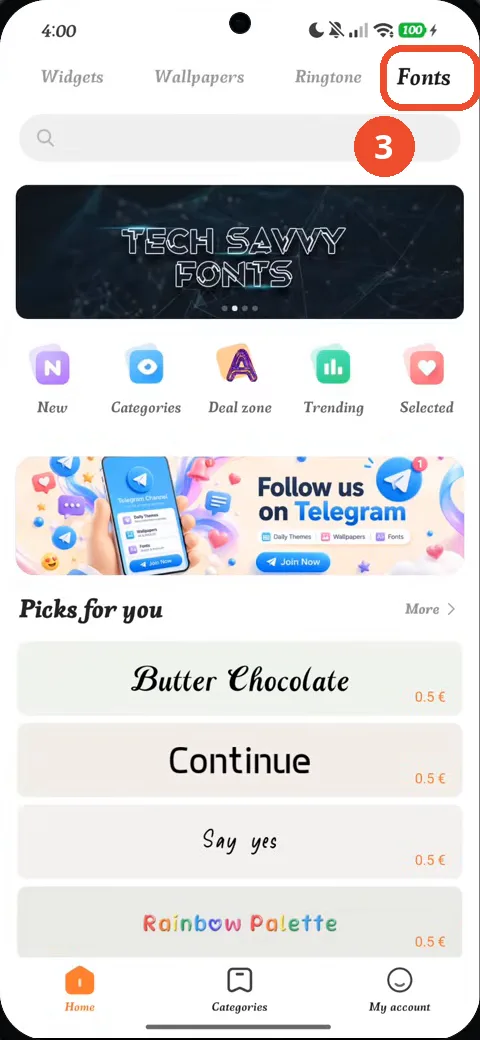
Tap Fonts to open the Themes store Fonts tab, then go back
Tap Fonts in the results - the Themes store opens on its Fonts tab. This is the font store, not the setting itself; go back to the search results.
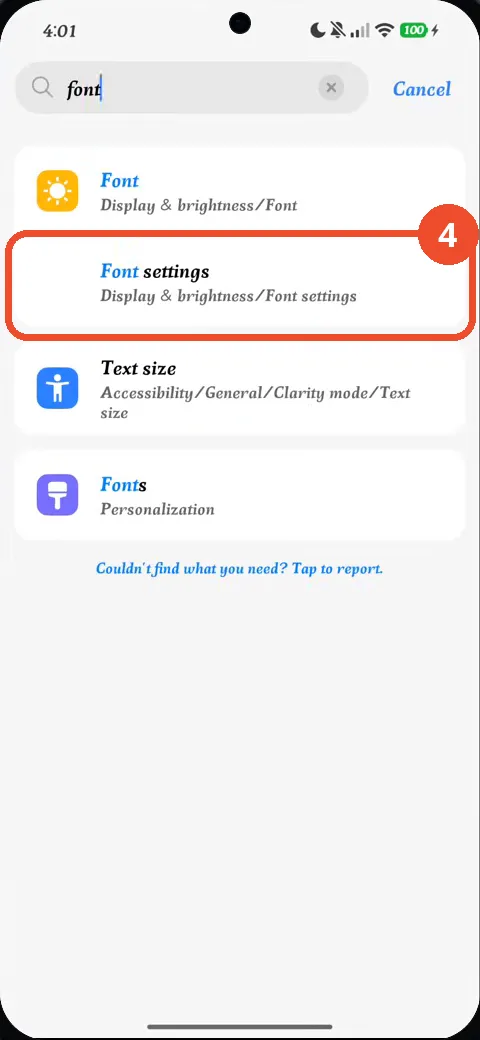
Tap Font settings
Back in the search results, tap Font settings - the second result, under Display & brightness.
Check that Arial Bold is the selected font
The Font settings page opens with Arial Bold already selected - the blue outline is on Arial Bold and the example text is in that style. That is the phone’s current font.
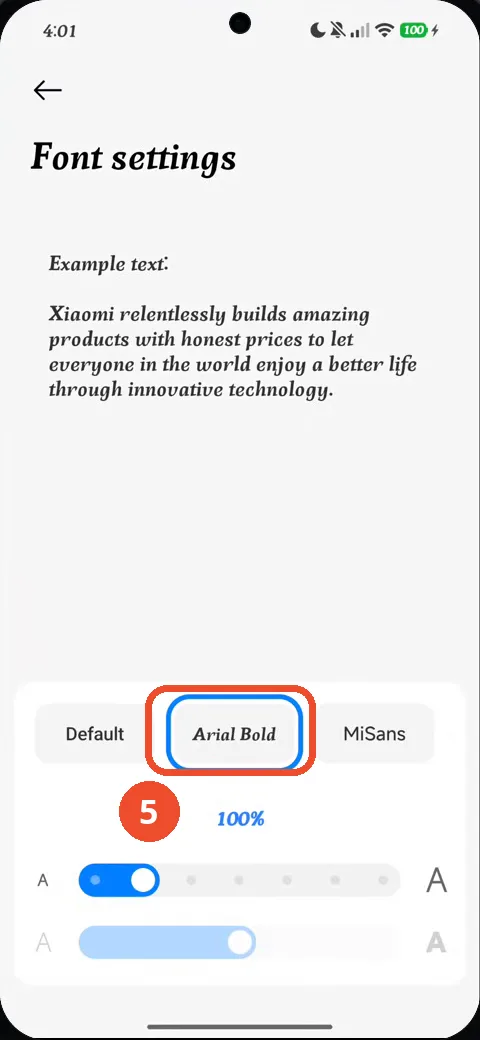
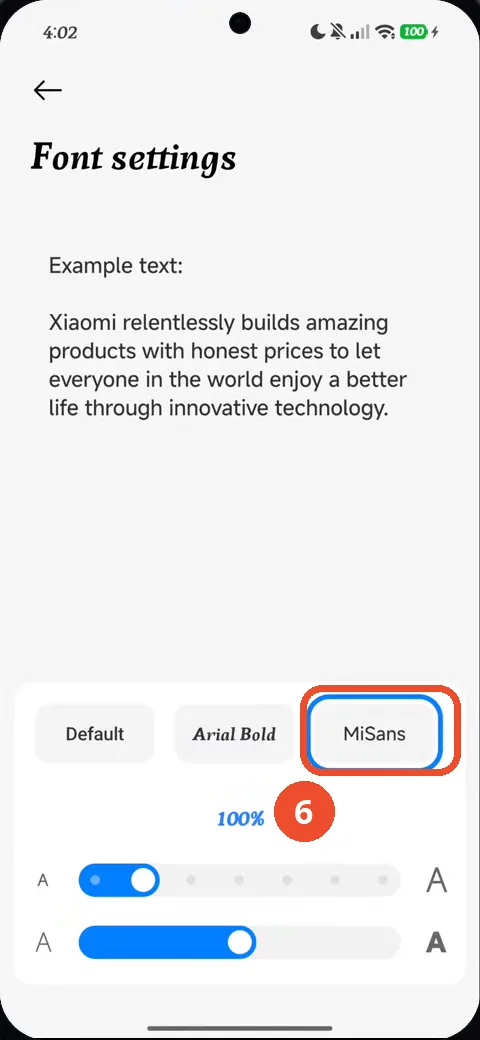
Tap MiSans to change the font style
Tap MiSans - the blue outline moves to MiSans and the example text switches to the MiSans style. That is the confirmation; the video ends with MiSans selected.
Good to know
- The video starts with the notification shade and a brief look at the Notifications & status bar page, then returns to the home screen - that detour is not part of changing the font.
- Arial Bold is already the selected style when the Font settings page opens, so the video previews it first and then switches to MiSans - the phone ends on MiSans.
- The same page also has weight and size sliders under the three font choices; the video briefly touches the size slider, but the size stays at 100%.
- The Fonts result in search opens the Themes store, where fonts cost 0.50 euro each - the free built-in styles (Default, Arial Bold, MiSans) are on the Font settings page instead.
- Finding and applying a new free font from the store is a different flow - see How to Find and Apply a Free Font on Redmi Note 17 Pro with HyperOS 3.
- The same change on the Galaxy A57 is covered in How to Change Font Style on Samsung Galaxy A57.
- How to Check NFC Is Enabled on Redmi Note 17 Pro with HyperOS 3
- How to Check Mobile Data on Redmi Note 17 Pro with HyperOS 3
- How to Check RAM Usage on Redmi Note 17 Pro with HyperOS 3
- How to Turn Off Vibration and Haptic Feedback on Redmi Note 17 Pro with HyperOS 3
- How to Check Battery Health on Redmi Note 17 Pro with HyperOS 3
- How to Enable Always-on Display on Redmi Note 17 Pro with HyperOS 3
- How to Remove Lock Screen Shortcuts on Redmi Note 17 Pro with HyperOS 3
- How to Check Gmail Notifications on Redmi Note 17 Pro with HyperOS 3
- How to Enable the App Drawer on Redmi Note 17 Pro with HyperOS 3
- How to Find Your Wi-Fi IP Address on Redmi Note 17 Pro with HyperOS 3
- How to Find and Apply a Free Font on Redmi Note 17 Pro with HyperOS 3
- How to Find the Mobile Hotspot Switch on Redmi Note 17 Pro with HyperOS 3
- How to Check for Macro Mode on Redmi Note 17 Pro with HyperOS 3
- How to Change the Map Type to Satellite in Google Maps on Redmi Note 17 Pro with HyperOS 3
- How to Assign Camera Zoom to Volume Buttons on Redmi Note 17 Pro with HyperOS 3
- How to Change Video Resolution on Redmi Note 17 Pro with HyperOS 3
- How to Raise Media Volume on Redmi Note 17 Pro with HyperOS 3
- How to Check the 80% Charging Limit on Redmi Note 17 Pro with HyperOS 3
- How to Check RCS Chat Status on Redmi Note 17 Pro with HyperOS 3
- How to Change Icon Size on Redmi Note 17 Pro with HyperOS 3
- How to Find Contact Name Fields on Redmi Note 17 Pro with HyperOS 3
- How to Check Predictive Text Settings on Redmi Note 17 Pro with HyperOS 3
- How to Edit Quick Settings on Redmi Note 17 Pro with HyperOS 3
Guide complete
Every step above comes from the original recording, with a screenshot for each step. Want more like this? Browse all Redmi Note 17 Pro guides.