How to Turn On Spoken Directions in Google Maps on Google Pixel 11 Pro
If Google Maps shows your route but never says a word, its Mute state is set to Muted — exactly how this Pixel 11 Pro was set. The fix is in Maps’ own settings: switch Mute state to Unmuted and full spoken directions come back for every drive.
}}✅ Tested on
- DeviceGoogle Pixel 11 Pro
- SystemAndroid 17
- AppGoogle Maps
- Also works onOther Android phones with the same Google Maps version
- Last verifiedOctober 27, 2026
Every screenshot below is taken from the actual recording on this device — no stock images.
Before you start
- This is a Google Maps setting, not a phone setting — you will not find it in the Android Settings app.
- Alerts only is the middle option: it speaks traffic and hazard alerts but not turn-by-turn directions. For full voice guidance you need Unmuted.
Steps
}
}Open Google Maps
Open the app drawer and tap Maps.
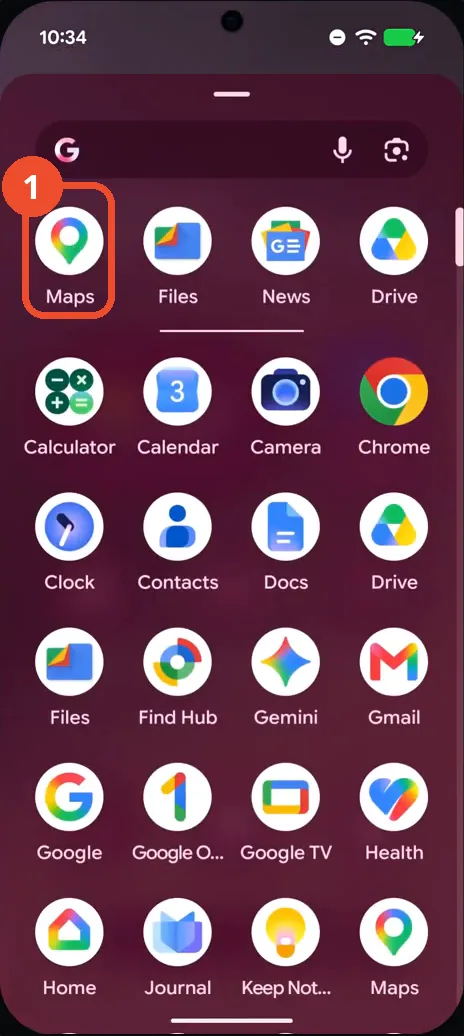
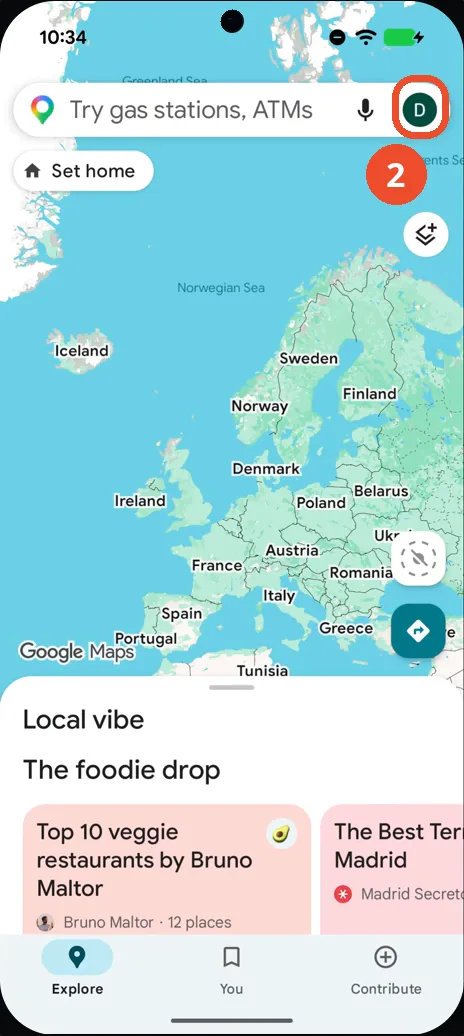
Tap your profile picture
Tap your profile picture at the right end of the search bar at the top of Maps.
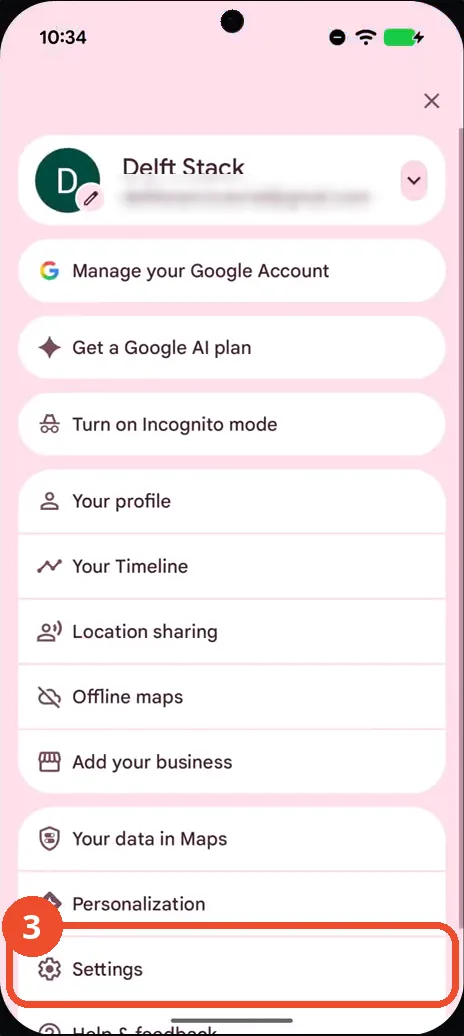
Tap Settings
In the profile menu, tap Settings near the bottom.
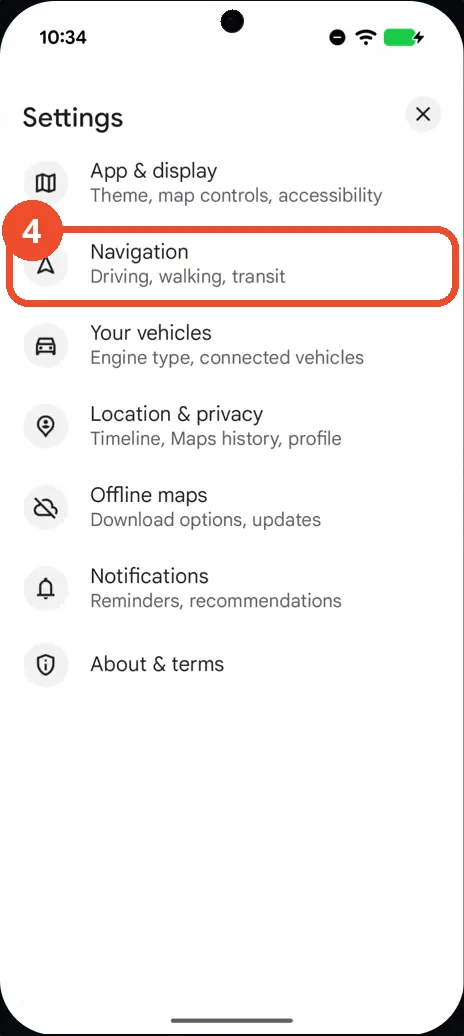
Tap Navigation
In Maps Settings, tap Navigation — described as Driving, walking, transit.
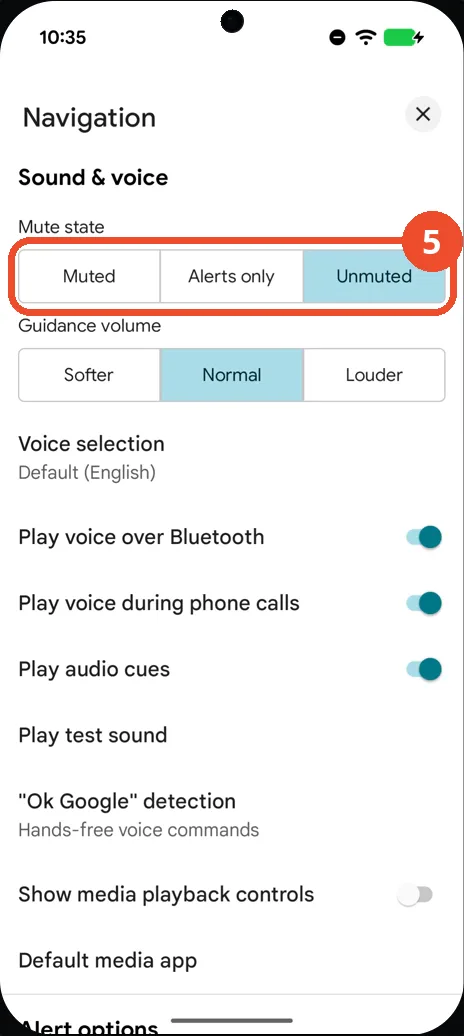
Tap Unmuted under Mute state
Under Sound & voice, tap Unmuted in the Mute state control. The segment turns blue, as in the screenshot — spoken directions are on.
If directions are still silent
- On the same Navigation page, check Guidance volume — set it to Normal or Louder, and try Play test sound further down the page.
- If the phone is connected to the car, check Play voice over Bluetooth on the same page; with it off, guidance stays on the phone’s speaker.
- During a drive, the speaker icon on the navigation screen toggles the same Mute state — if it shows muted there, tap it to unmute without leaving the route.