How to Turn On the Flashlight on Google Pixel 11 Pro
The Pixel 11 Pro has a built-in flashlight in Quick Settings — no app to install and nothing to set up. Two swipes open the full tile panel, and one tap on the Flashlight tile turns the camera flash on as a torch.
}}✅ Tested on
- DeviceGoogle Pixel 11 Pro
- SystemAndroid 17
- AppQuick Settings (built-in)
- Also works onOther Pixel phones running Android 17
- Last verifiedOctober 27, 2026
Every screenshot below is taken from the actual recording on this device — no stock images.
Before you start
- The Flashlight tile is one of the round tiles in Quick Settings. On this phone it sits on the first page of tiles; the dots under the tiles show there is a second page if you cannot see it.
- The flashlight uses the camera flash, so it keeps working even with the camera app closed.
Steps
}
}Swipe down twice to open Quick Settings
Swipe down from the very top of the screen, then swipe down again to expand the full Quick Settings panel. The round Flashlight tile is in the bottom row of tiles.
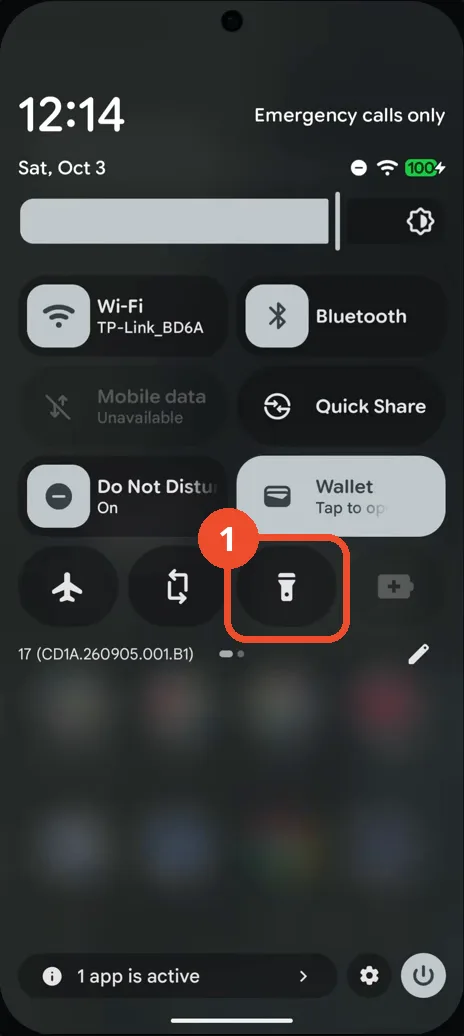
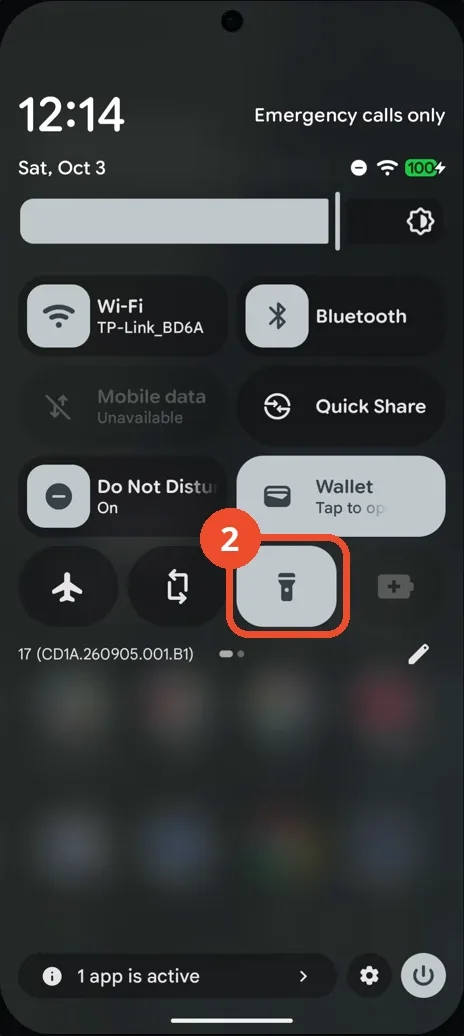
Tap the Flashlight tile to turn it on
Tap the Flashlight tile once. The tile lights up, which means the flashlight is on. Tap the same tile again whenever you want to turn it off.
If you don’t see the Flashlight tile
- Open Quick Settings as in step 1 and tap the pencil (edit) icon at the bottom of the panel.
- Find Flashlight in the list of unused tiles and add it to the panel, then drag it where you want it.
- Swipe left on the tile panel as well — with two pages of tiles, Flashlight may simply be on the second page.