How to Turn Off Pop-Up Notifications for Messages on Google Pixel 11 Pro
Message banners that drop down over whatever you are doing come from one switch: Pop on screen. On the Pixel 11 Pro it lives in the notification settings for the Messages app, under the Incoming messages category. Turning it off stops the banners — the messages themselves still arrive in the notification shade as usual.
}}- DeviceGoogle Pixel 11 Pro
- SystemAndroid 17
- AppSettings (pre-installed)
- Also works onOther Pixel phones running Android 17
- Last verifiedOctober 27, 2026
Every screenshot below is taken from the actual recording on this device — no stock images.
Before you start
- This changes only the Messages app. Other apps keep popping up until you repeat the same steps for them under App notifications.
- Nothing is deleted and no notifications are blocked: incoming messages still appear in the notification shade and in Notification history.
Steps
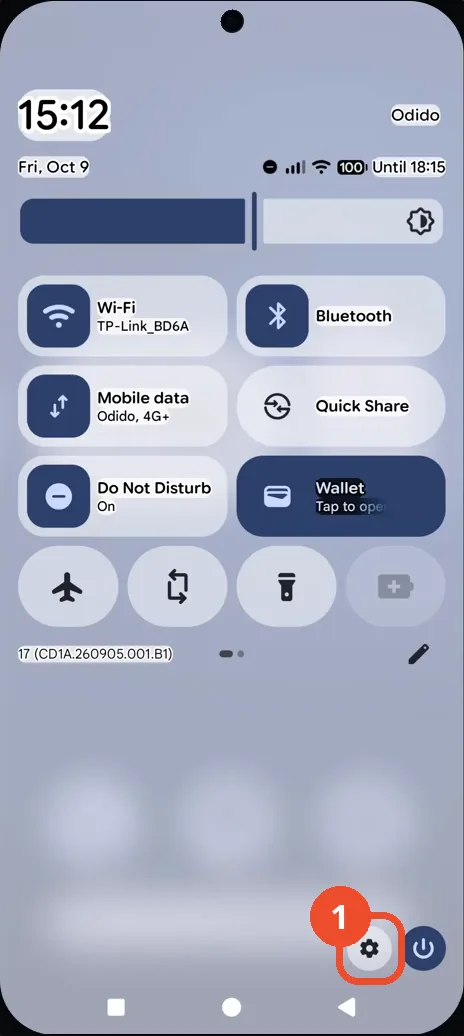
Swipe down twice and tap the gear icon to open Settings
Swipe down twice from the top of the screen to open Quick Settings, then tap the gear icon at the bottom to open Settings.
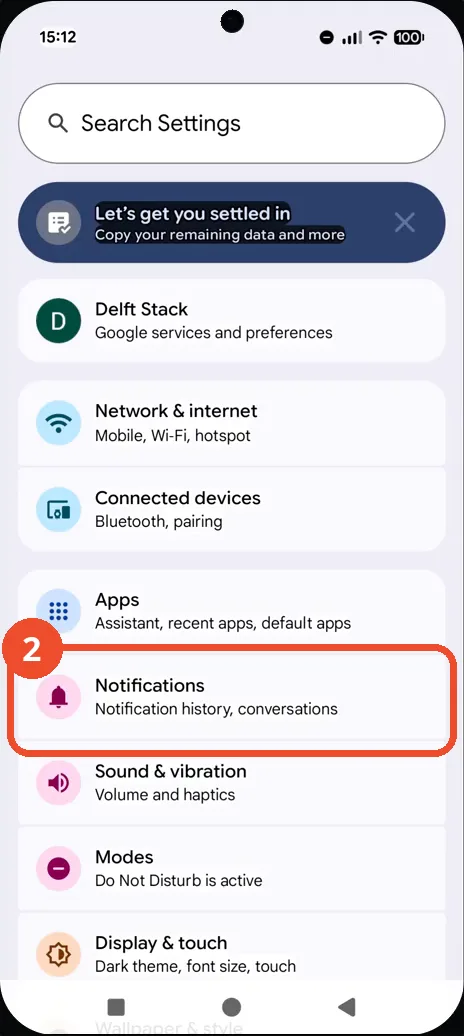
Tap Notifications
In the Settings list, tap Notifications — described as Notification history, conversations.
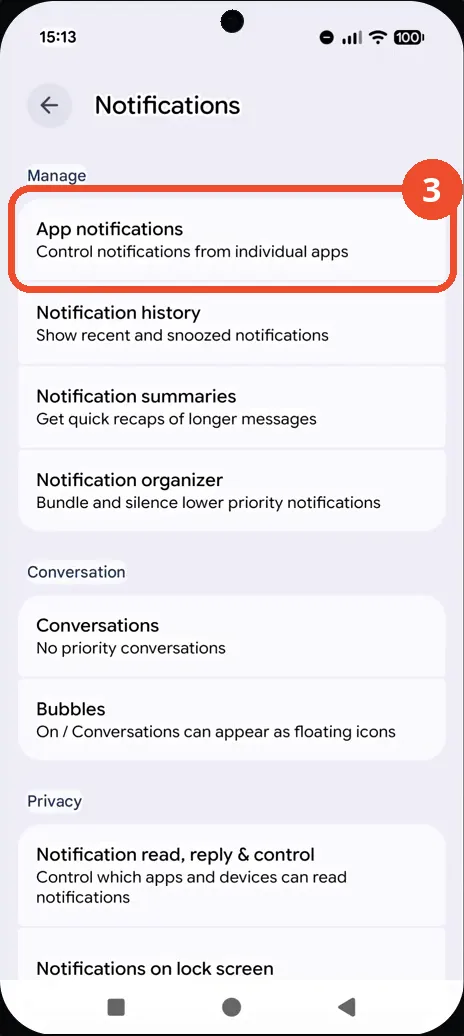
Tap App notifications
At the top of the Notifications page, tap App notifications to control notifications from individual apps.
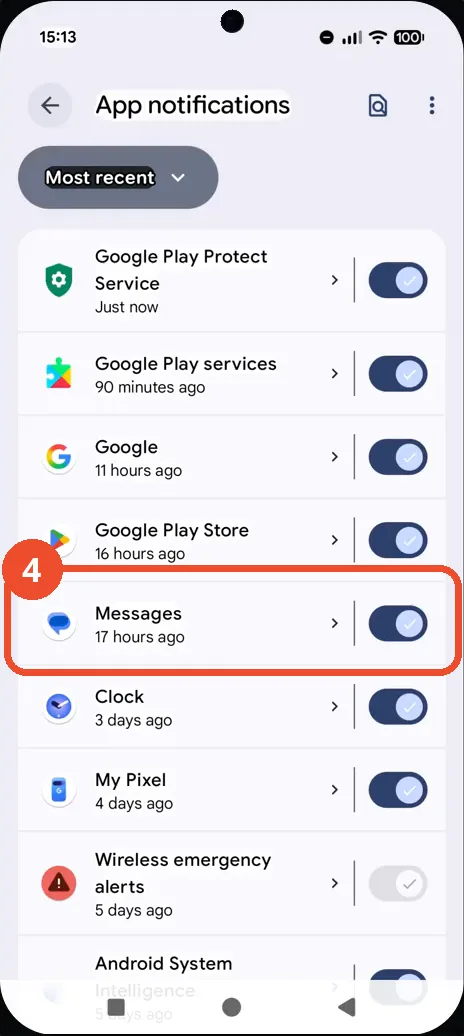
Tap Messages
Find Messages in the app list — the list is sorted by most recent — and tap it (tap the row itself, not the switch on the right).
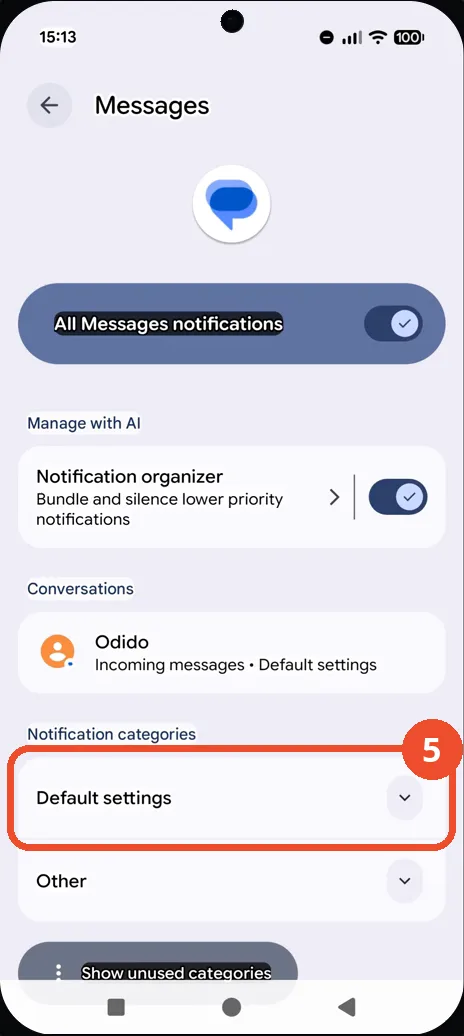
Expand Default settings
Scroll to Notification categories and tap Default settings to expand it.
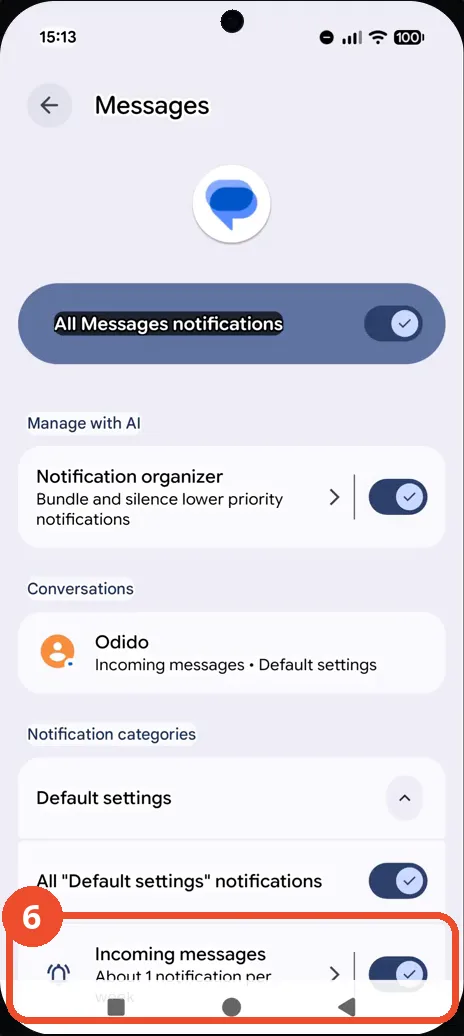
Tap Incoming messages
In the expanded list, tap Incoming messages. This is the category that handles regular incoming texts.
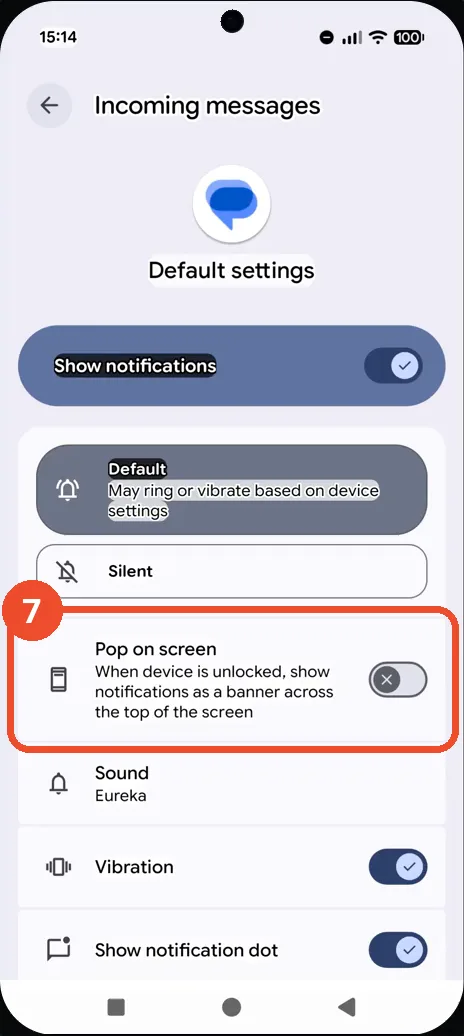
Turn off Pop on screen
Turn off Pop on screen — When device is unlocked, show notifications as a banner across the top of the screen. The switch is now off, so new messages no longer drop down as banners.
If messages still pop up
- Check the other categories on the Messages page (for example under Conversations): a chat with its own settings keeps its own Pop on screen switch.
- Make sure the main Show notifications switch at the top of the Incoming messages page is still on — if you turned that off instead, messages stop arriving in the shade too.
- Want the messages to arrive silently as well? Set the category to Silent on the same page; that is a separate switch from Pop on screen.