How to Show or Hide Silent Notifications on Pixel 11 Pro with Android 17
Silent notifications can be hidden from the status bar, or shown there. Open Settings, go to Notifications, scroll to the General section, and flip the Hide silent notifications in status bar switch.
- DeviceGoogle Pixel 11 Pro
- SystemAndroid 17
- AppSettings
- Also works onOther Pixel phones running Android 17
- Last verifiedNovember 23, 2026
Every screenshot below is taken from the actual recording on this device — no stock images.
Steps
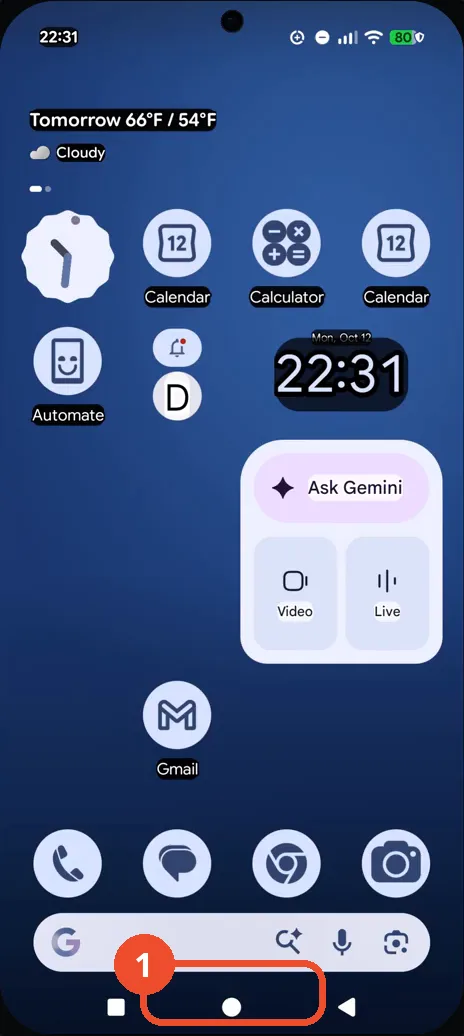
Swipe up to open the app drawer
On the Home screen, swipe up from the bottom of the screen to open the app drawer.
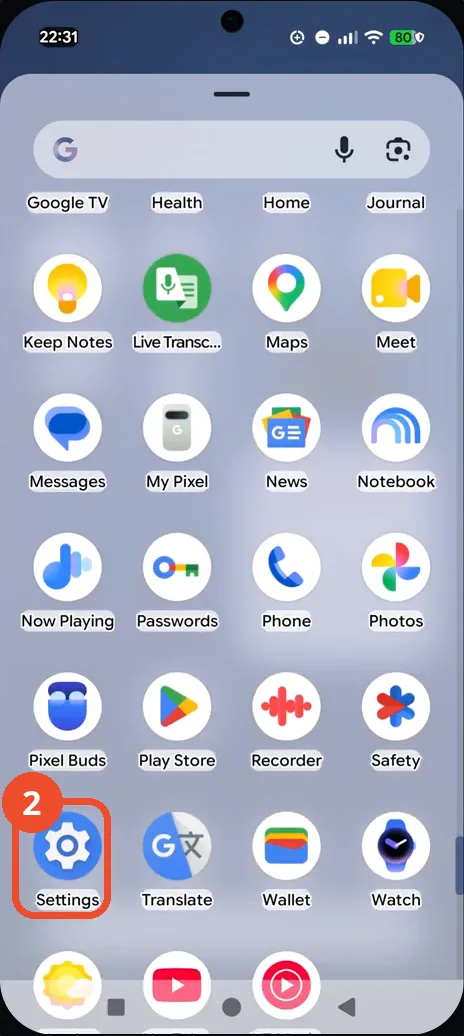
Tap Settings
In the app drawer, scroll to the second page and tap the Settings gear icon at the bottom left.
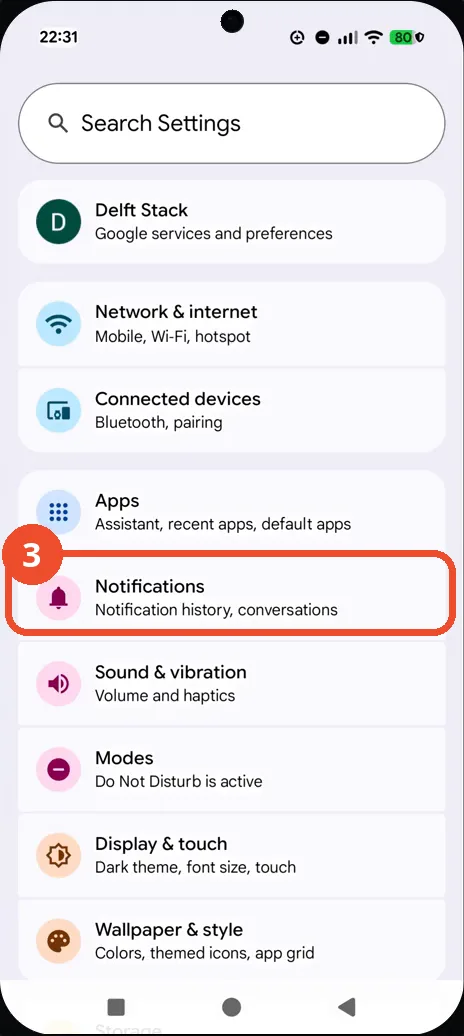
Tap Notifications
On the main Settings screen, tap Notifications.
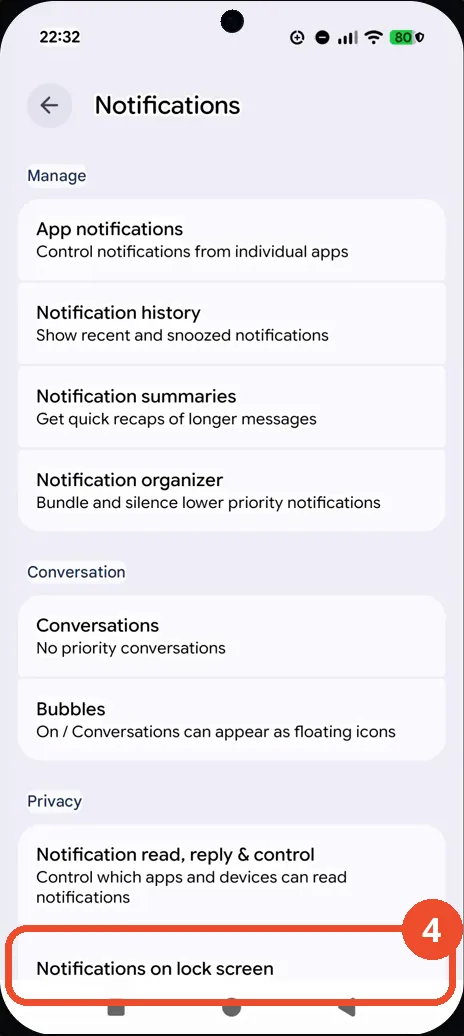
Scroll down to the General section
On the Notifications page, scroll down past the Manage and Conversation sections to General.
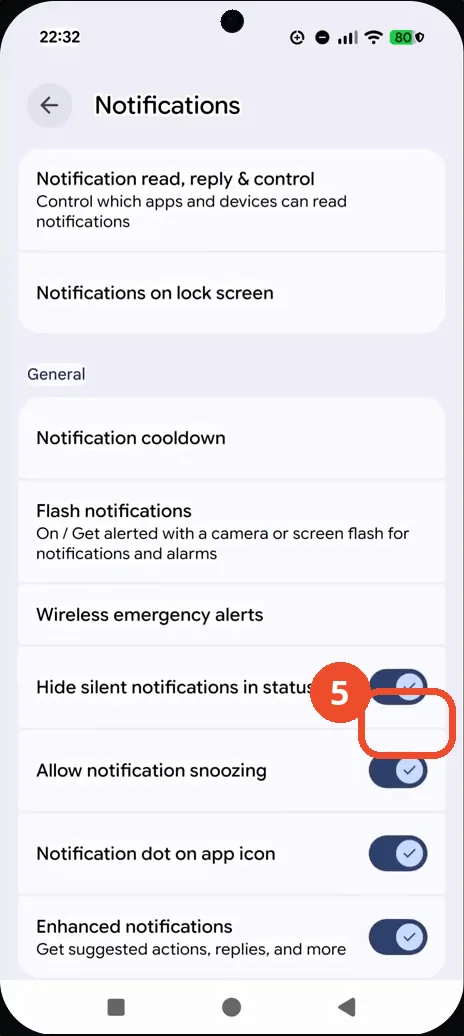
Tap the Hide silent notifications in status bar switch
Under General, tap the Hide silent notifications in status bar switch, which is on.
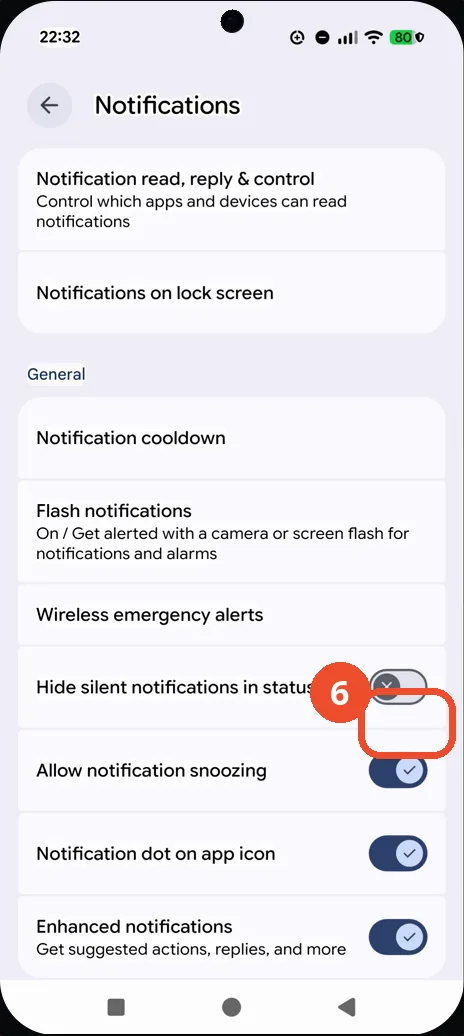
Check the switch is off
The switch now shows an X and is greyed out — silent notifications will appear in the status bar.
Good to know
- In this recording the switch starts on and is turned off, so silent notifications now appear in the status bar. Tap the switch again to hide them.
- The same setting can also be found by searching Settings for “status bar” — see How to Check Status Bar Notifications on Pixel 11 Pro with Android 17.
- Allow notification snoozing is the row below this switch — it stays on here and is a different setting.
- Do Not Disturb is on in this recording; it does not affect this switch.
- Change App Icons on Google Pixel 11 Pro
- Turn On the Flashlight on Google Pixel 11 Pro
- Turn Off Pop-Up Notifications for Messages on Google Pixel 11 Pro
- Turn On Spoken Directions in Google Maps on Google Pixel 11 Pro
- Find Call Recording Settings on Google Pixel 11 Pro
- Change Text Tone in Google Messages on Google Pixel 11 Pro
- Block Spam Calls on Google Pixel 11 Pro
- How to Find Apps on Google Pixel 11 Pro
- How to Find System Apps on Google Pixel 11 Pro
- How to Open the Power Menu with the Power Button on Google Pixel 11 Pro
- How to Check VoLTE Support on Google Pixel 11 Pro
- How to Change the Google Messages Notification Sound on Google Pixel 11 Pro
- How to Change System Colors on Google Pixel 11 Pro
- How to Check RAM Usage on Google Pixel 11 Pro
- How to Edit Quick Settings Tiles on Google Pixel 11 Pro
- How to Enable GPS Location on Google Pixel 11 Pro
- How to Set a Ringtone for One Contact on Google Pixel 11 Pro
- How to Enable Daily Changing Wallpaper on Google Pixel 11 Pro
- How to Change Font Size on Google Pixel 11 Pro
- How to Customize the Google Search Bar on Pixel 11 Pro with Android 17
- How to Use Macro Focus on Pixel 11 Pro with Android 17
- How to View Blocked Numbers on Pixel 11 Pro with Android 17
- How to Adjust Volume Without Buttons on Google Pixel 11 Pro
- Where Is NFC on the Google Pixel 11 Pro with Android 17?
- How to Adjust Camera ISO on Pixel 11 Pro with Android 17
- How to Turn On Camera Flash on Pixel 11 Pro with Android 17
- How to Check Desktop Experience on Pixel 11 Pro with Android 17
- How to Show Wallpaper on Always-on Display on Pixel 11 Pro with Android 17
- How to Enable or Disable Google Discover on Pixel 11 Pro with Android 17
- How to Find Deleted Messages in Google Messages on Pixel 11 Pro with Android 17
- How to Check the App Drawer Layout on Pixel 11 Pro with Android 17
- How to Turn on Dark Theme on Pixel 11 Pro with Android 17
- How to Change Media Output on Pixel 11 Pro with Android 17
- How to Change App Size on Pixel 11 Pro with Android 17
- How to Turn Off Motion Photo on Pixel 11 Pro with Android 17
- How to Turn On Sensitive Content Warnings on Pixel 11 Pro with Android 17
- How to Use Camera Pro Mode on Pixel 11 Pro with Android 17
- How to View Call History on Pixel 11 Pro with Android 17
- How to Change the Lock Screen Clock on Pixel 11 Pro with Android 17
- How to Manage Bubbles on Pixel 11 Pro with Android 17
- How to Change Keyboards on Pixel 11 Pro with Android 17
- How to Check for Reverse Wireless Charging on Pixel 11 Pro with Android 17
- How to Check Status Bar Notifications on Pixel 11 Pro with Android 17
- How to Find the Camera Shutter Sound Setting on Pixel 11 Pro with Android 17
- How to Change the Home Screen Grid on Pixel 11 Pro with Android 17
- How to Delete Call History on Pixel 11 Pro with Android 17
- How to Change the Ringtone on Pixel 11 Pro with Pixel Sounds
- How to Customize the Clock Widget on Pixel 11 Pro with Android 17
- How to Open Gboard Keyboard Settings on Pixel 11 Pro with Android 17
- How to Find Magic Eraser in Google Photos on Pixel 11 Pro with Android 17
- How to Find System Volume Controls on Pixel 11 Pro with Android 17
- How to Improve Phone Sound Quality on Pixel 11 Pro with Android 17
- How to Turn Night Light Off and On on Pixel 11 Pro with Android 17
- How to Check the Default Contactless Payment App on Pixel 11 Pro with Android 17
- How to Find Ultra HDR in Camera Settings on Pixel 11 Pro with Android 17
- How to Access Voicemail on Pixel 11 Pro with Android 17
- How to Set Up a Work Profile on Pixel 11 Pro with Android 17
- How to Start a Screen Recording on Pixel 11 Pro
- How to Enable SMS Code Autofill on Pixel 11 Pro with Android 17
- How to Use Magnification on Pixel 11 Pro with Android 17
- How to Turn On Notification Summaries and Review Organizer Settings on Pixel 11 Pro with Android 17
- How to Find Hidden Files on Pixel 11 Pro with Android 17
- How to Find Downloads on Pixel 11 Pro with Android 17
- How to Find the Screen Brightness Slider on Pixel 11 Pro with Android 17
- How to Open Pixel Home Screen Settings on Pixel 11 Pro with Android 17
- How to Add Calendar to the Home Screen on Pixel 11 Pro with Android 17
- How to Set Google as the Default Digital Assistant on Pixel 11 Pro with Android 17
- How to Enable NFC on Pixel 11 Pro with Android 17
- How to Remove a Home Screen Widget on Pixel 11 Pro with Android 17
- How to Turn Off Auto Updates on Pixel 11 Pro with Android 17
- How to Close All Chrome Tabs on Pixel 11 Pro with Android 17
- How to Reset APN Settings on Pixel 11 Pro with Android 17
- How to Enable Automatic Network Selection on Pixel 11 Pro with Android 17
Guide complete
Every step above comes from the original recording, with a screenshot for each step. Want more like this? Browse all Google Pixel 11 Pro guides.