How to Remove a Home Screen Widget on Pixel 11 Pro with Android 17
A widget you no longer want takes up Home screen space. Long-press it until it is selected, tap Remove, and it is gone — with a brief chance to undo.
✅ Tested on
- DeviceGoogle Pixel 11 Pro
- SystemAndroid 17
- AppPixel Launcher
- Also works onOther Pixel phones running Android 17
- Last verifiedNovember 22, 2026
Every screenshot below is taken from the actual recording on this device — no stock images.
Steps
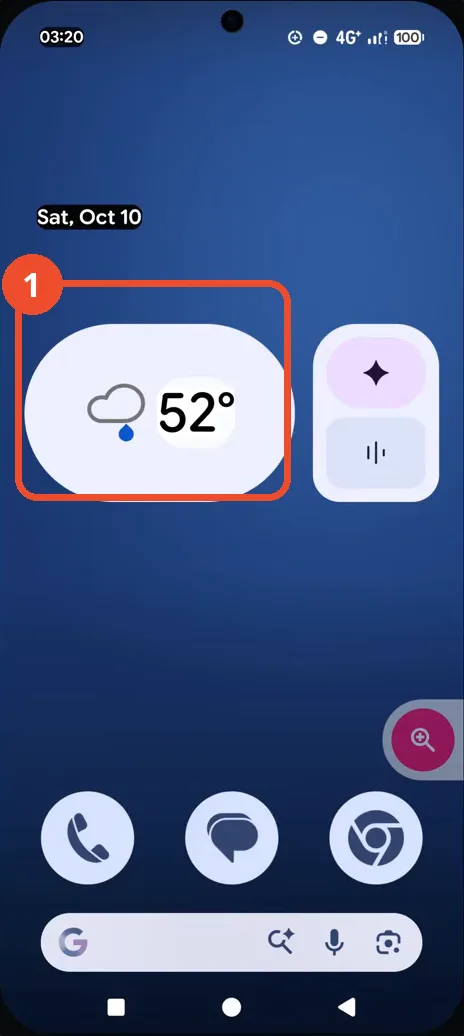
Long-press the weather widget
On the Home screen, press and hold the weather widget until it is selected, with handles around it.
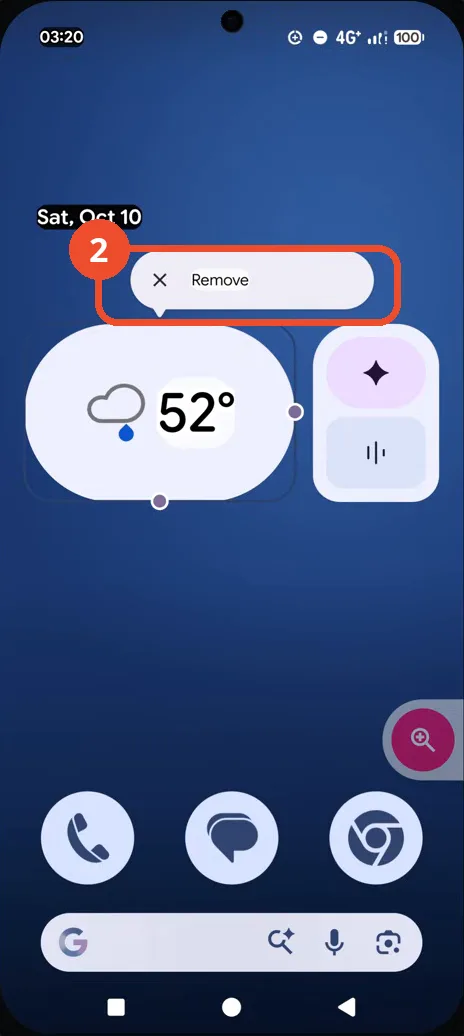
Tap Remove
A Remove pill appears above the widget. Tap Remove.
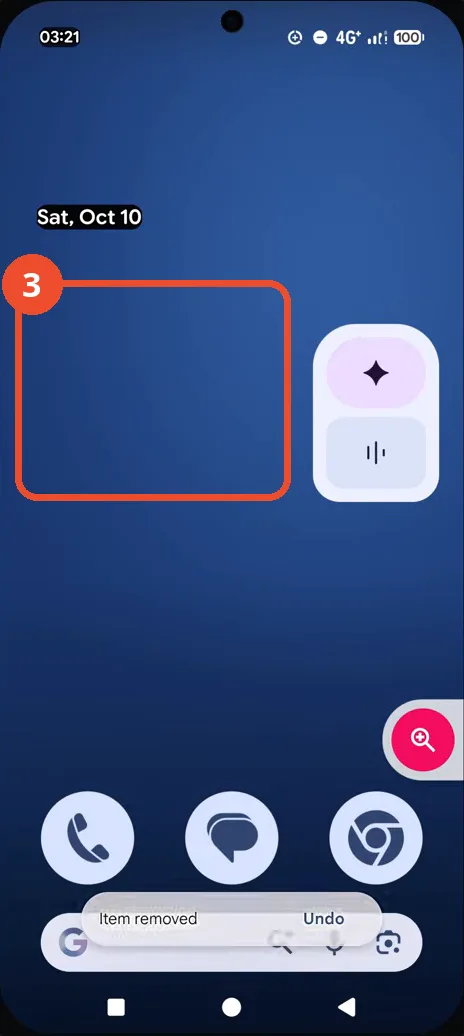
Check the widget is gone
The weather widget is gone from the Home screen, and a toast at the bottom says “Item removed” with an Undo button.
Good to know
- Only the weather widget is removed — the smaller widget next to it stays on the Home screen.
- Removing a widget does not uninstall its app. The weather widget can be added back from the Widgets menu.
- A toast says “Item removed” with an Undo button — tap Undo right away if you removed the wrong widget.
- This is about removing a widget. Adding an app icon instead is a different flow — see How to Add Calendar to the Home Screen on Pixel 11 Pro with Android 17.
- Change App Icons on Google Pixel 11 Pro
- Turn On the Flashlight on Google Pixel 11 Pro
- Turn Off Pop-Up Notifications for Messages on Google Pixel 11 Pro
- Turn On Spoken Directions in Google Maps on Google Pixel 11 Pro
- Find Call Recording Settings on Google Pixel 11 Pro
- Change Text Tone in Google Messages on Google Pixel 11 Pro
- Block Spam Calls on Google Pixel 11 Pro
- How to Find Apps on Google Pixel 11 Pro
- How to Find System Apps on Google Pixel 11 Pro
- How to Open the Power Menu with the Power Button on Google Pixel 11 Pro
- How to Check VoLTE Support on Google Pixel 11 Pro
- How to Change the Google Messages Notification Sound on Google Pixel 11 Pro
- How to Change System Colors on Google Pixel 11 Pro
- How to Check RAM Usage on Google Pixel 11 Pro
- How to Edit Quick Settings Tiles on Google Pixel 11 Pro
- How to Enable GPS Location on Google Pixel 11 Pro
- How to Set a Ringtone for One Contact on Google Pixel 11 Pro
- How to Enable Daily Changing Wallpaper on Google Pixel 11 Pro
- How to Change Font Size on Google Pixel 11 Pro
- How to Customize the Google Search Bar on Pixel 11 Pro with Android 17
- How to Use Macro Focus on Pixel 11 Pro with Android 17
- How to View Blocked Numbers on Pixel 11 Pro with Android 17
- How to Adjust Volume Without Buttons on Google Pixel 11 Pro
- Where Is NFC on the Google Pixel 11 Pro with Android 17?
- How to Adjust Camera ISO on Pixel 11 Pro with Android 17
- How to Turn On Camera Flash on Pixel 11 Pro with Android 17
- How to Check Desktop Experience on Pixel 11 Pro with Android 17
- How to Show Wallpaper on Always-on Display on Pixel 11 Pro with Android 17
- How to Enable or Disable Google Discover on Pixel 11 Pro with Android 17
- How to Find Deleted Messages in Google Messages on Pixel 11 Pro with Android 17
- How to Check the App Drawer Layout on Pixel 11 Pro with Android 17
- How to Turn on Dark Theme on Pixel 11 Pro with Android 17
- How to Change Media Output on Pixel 11 Pro with Android 17
- How to Change App Size on Pixel 11 Pro with Android 17
- How to Turn Off Motion Photo on Pixel 11 Pro with Android 17
- How to Turn On Sensitive Content Warnings on Pixel 11 Pro with Android 17
- How to Use Camera Pro Mode on Pixel 11 Pro with Android 17
- How to View Call History on Pixel 11 Pro with Android 17
- How to Change the Lock Screen Clock on Pixel 11 Pro with Android 17
- How to Manage Bubbles on Pixel 11 Pro with Android 17
- How to Change Keyboards on Pixel 11 Pro with Android 17
- How to Check for Reverse Wireless Charging on Pixel 11 Pro with Android 17
- How to Check Status Bar Notifications on Pixel 11 Pro with Android 17
- How to Find the Camera Shutter Sound Setting on Pixel 11 Pro with Android 17
- How to Change the Home Screen Grid on Pixel 11 Pro with Android 17
- How to Delete Call History on Pixel 11 Pro with Android 17
- How to Change the Ringtone on Pixel 11 Pro with Pixel Sounds
- How to Customize the Clock Widget on Pixel 11 Pro with Android 17
- How to Open Gboard Keyboard Settings on Pixel 11 Pro with Android 17
- How to Find Magic Eraser in Google Photos on Pixel 11 Pro with Android 17
- How to Find System Volume Controls on Pixel 11 Pro with Android 17
- How to Improve Phone Sound Quality on Pixel 11 Pro with Android 17
- How to Turn Night Light Off and On on Pixel 11 Pro with Android 17
- How to Check the Default Contactless Payment App on Pixel 11 Pro with Android 17
- How to Find Ultra HDR in Camera Settings on Pixel 11 Pro with Android 17
- How to Access Voicemail on Pixel 11 Pro with Android 17
- How to Set Up a Work Profile on Pixel 11 Pro with Android 17
- How to Start a Screen Recording on Pixel 11 Pro
- How to Enable SMS Code Autofill on Pixel 11 Pro with Android 17
- How to Use Magnification on Pixel 11 Pro with Android 17
- How to Turn On Notification Summaries and Review Organizer Settings on Pixel 11 Pro with Android 17
- How to Find Hidden Files on Pixel 11 Pro with Android 17
- How to Find Downloads on Pixel 11 Pro with Android 17
- How to Find the Screen Brightness Slider on Pixel 11 Pro with Android 17
- How to Open Pixel Home Screen Settings on Pixel 11 Pro with Android 17
- How to Add Calendar to the Home Screen on Pixel 11 Pro with Android 17
- How to Set Google as the Default Digital Assistant on Pixel 11 Pro with Android 17
- How to Close All Chrome Tabs on Pixel 11 Pro with Android 17
- How to Enable NFC on Pixel 11 Pro with Android 17
- How to Turn Off Auto Updates on Pixel 11 Pro with Android 17
Guide complete
Every step above comes from the original recording, with a screenshot for each step. Want more like this? Browse all Google Pixel 11 Pro guides.