How to Open the Power Menu with the Power Button on Google Pixel 11 Pro
By default, pressing and holding the power button can summon the digital assistant instead of the Power menu. One Gestures setting switches it back to the Power menu.
- DeviceGoogle Pixel 11 Pro
- SystemAndroid 17
- AppSettings (pre-installed)
- Also works onOther Pixel phones running Android 17
- Last verifiedOctober 29, 2026
Every screenshot below is taken from the actual recording on this device — no stock images.
Steps
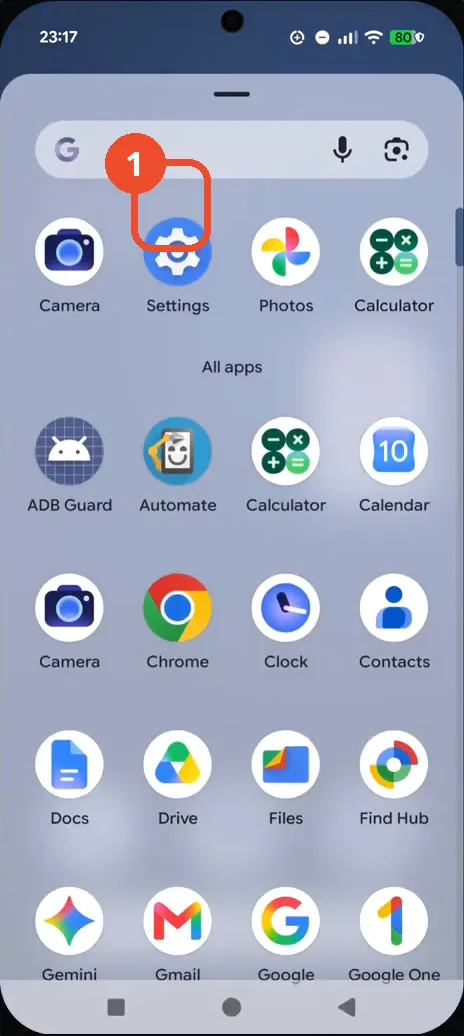
Swipe up and tap Settings
Swipe up from the Home screen to open All apps, then tap the Settings gear in the top row.
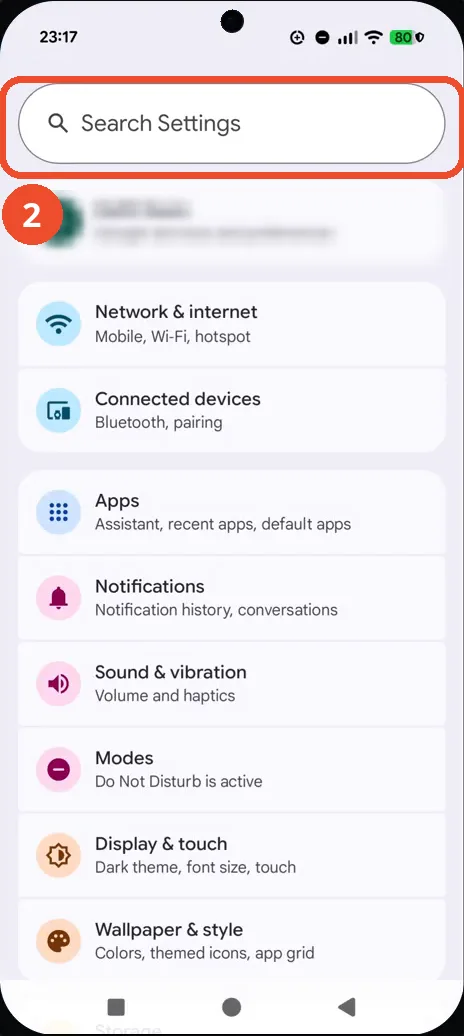
Tap the Search Settings bar
On the Settings page, tap the Search Settings bar at the top.
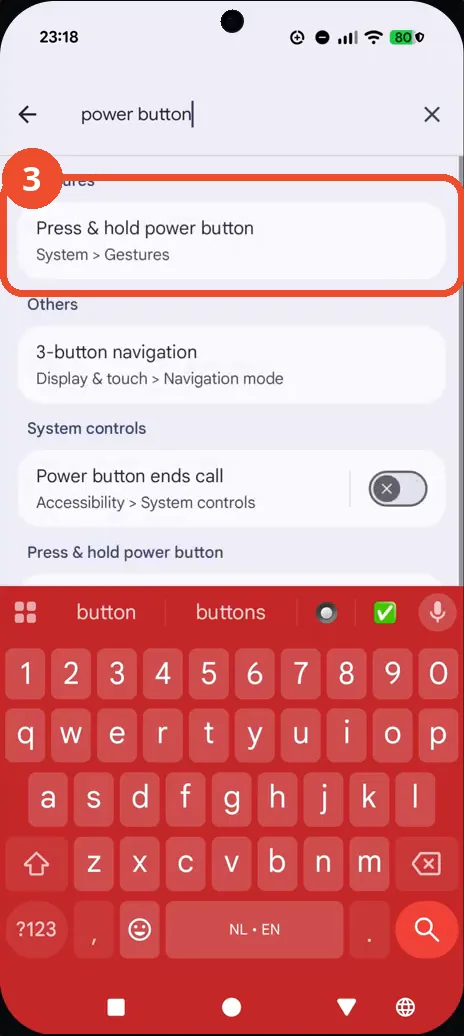
Search for ‘power button’ and tap the result
Type ‘power button’. Under the Gestures heading, tap the ‘Press & hold power button’ result, listed as System > Gestures.
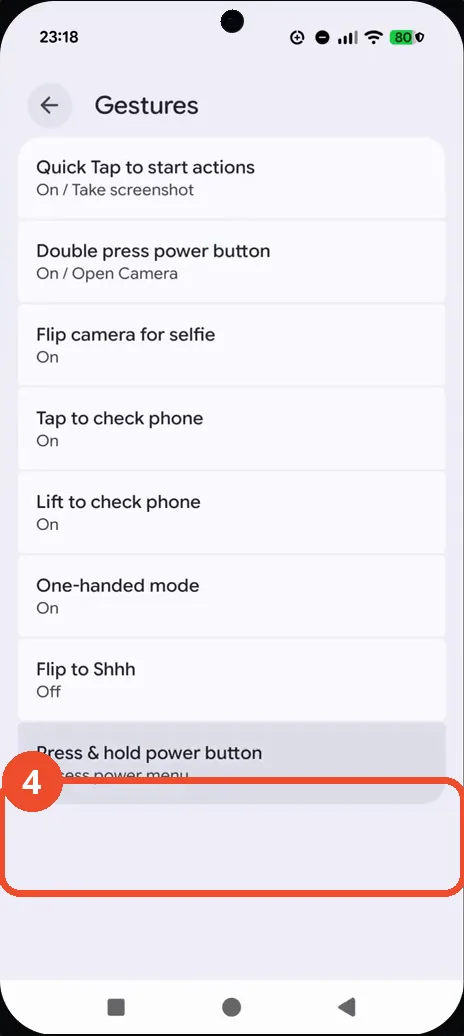
Tap Press & hold power button
The Gestures page opens. Tap ‘Press & hold power button’ at the bottom of the list; its subtitle already reads ‘Access power menu’.
Check that Power menu is selected
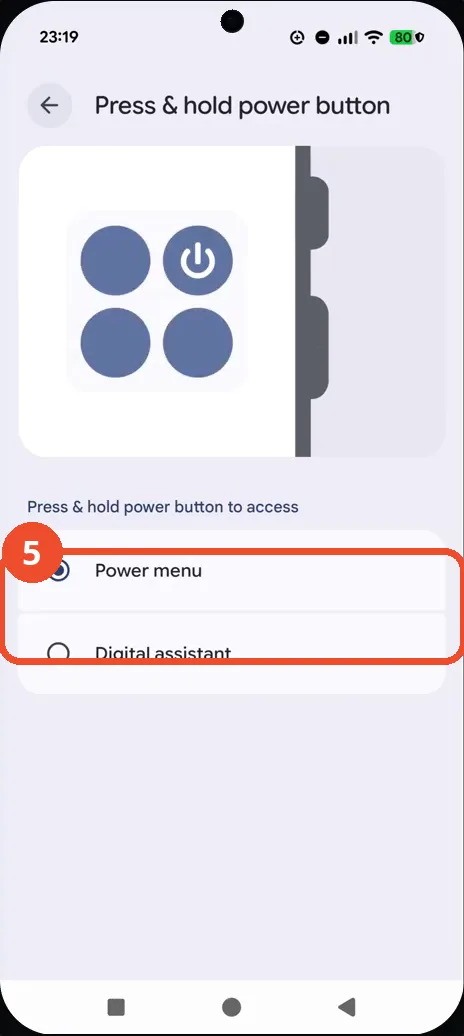
The page offers Power menu and Digital assistant. Power menu is selected, shown by the filled radio, so pressing and holding the power button now opens the Power menu. If Digital assistant is selected instead, tap Power menu.
Good to know
- Double press power button is a separate Gestures entry — it opens the camera on this phone and is not changed by this setting.
- If the Power menu still does not appear, reopen this page: the filled radio next to Power menu is the confirmation.
- Change App Icons on Google Pixel 11 Pro
- Adjust Volume Without Buttons on Google Pixel 11 Pro
- Turn On the Flashlight on Google Pixel 11 Pro
- Turn Off Pop-Up Notifications for Messages on Google Pixel 11 Pro
- Turn On Spoken Directions in Google Maps on Google Pixel 11 Pro
- Find Call Recording Settings on Google Pixel 11 Pro
- Change Text Tone in Google Messages on Google Pixel 11 Pro
- How to Block Spam Calls on Google Pixel 11 Pro
- How to Find Apps on Google Pixel 11 Pro
- How to Find System Apps on Google Pixel 11 Pro