How to Find System Apps on Google Pixel 11 Pro
System apps are hidden from the app list by default, but Settings can show them alongside your regular apps. It takes one extra menu choice in the Apps page.
- DeviceGoogle Pixel 11 Pro
- SystemAndroid 17
- AppSettings (pre-installed)
- Also works onOther Pixel phones running Android 17
- Last verifiedOctober 29, 2026
Every screenshot below is taken from the actual recording on this device — no stock images.
Steps
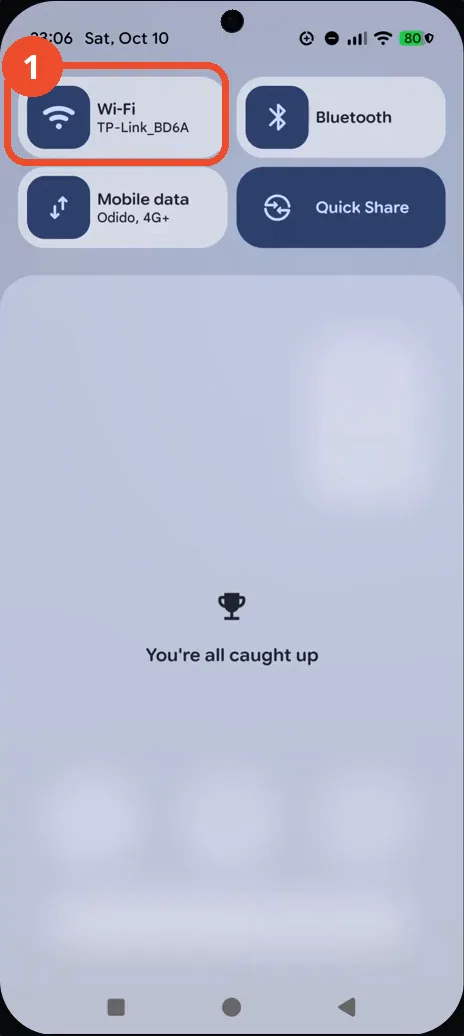
Swipe down twice to open Quick Settings
Swipe down from the top of the screen twice to open Quick Settings. The panel shows Wi-Fi, Bluetooth, Mobile data and Quick Share tiles.
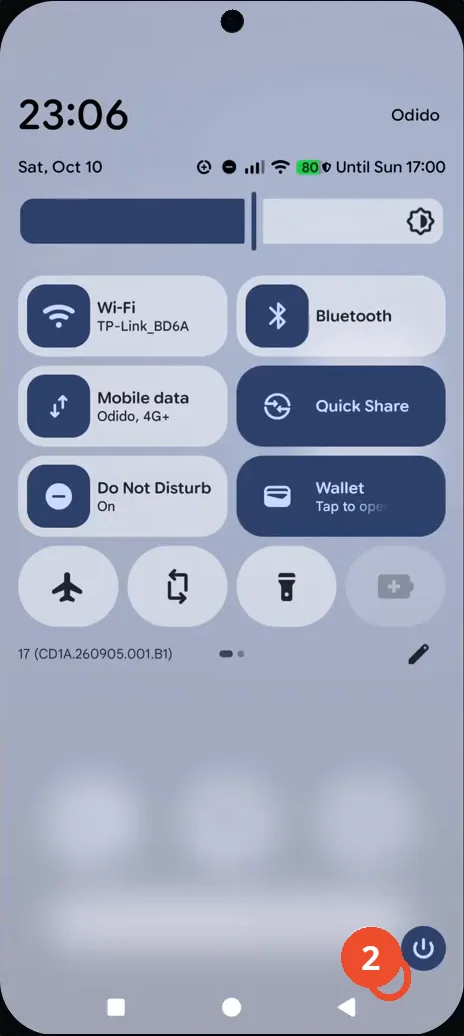
Tap the Settings gear
In the expanded Quick Settings panel, tap the gear icon at the bottom right to open Settings.
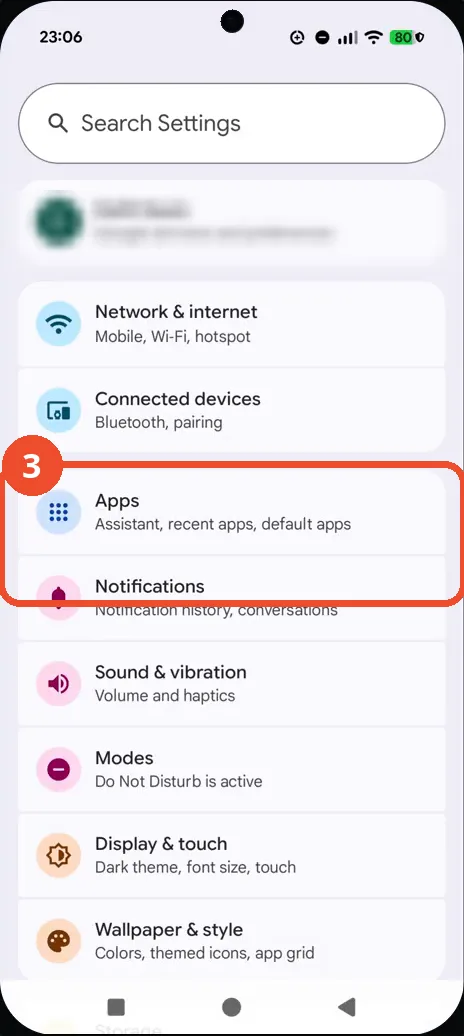
Tap Apps
On the Settings page, tap Apps, listed with the subtitle ‘Assistant, recent apps, default apps’.
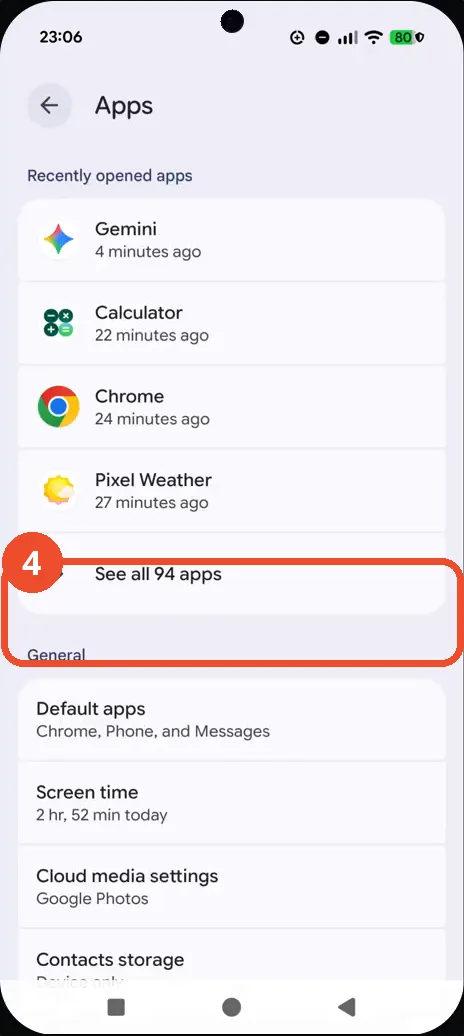
Tap See all 94 apps
The Apps page shows recently opened apps first. Tap See all 94 apps below them to open the full list.
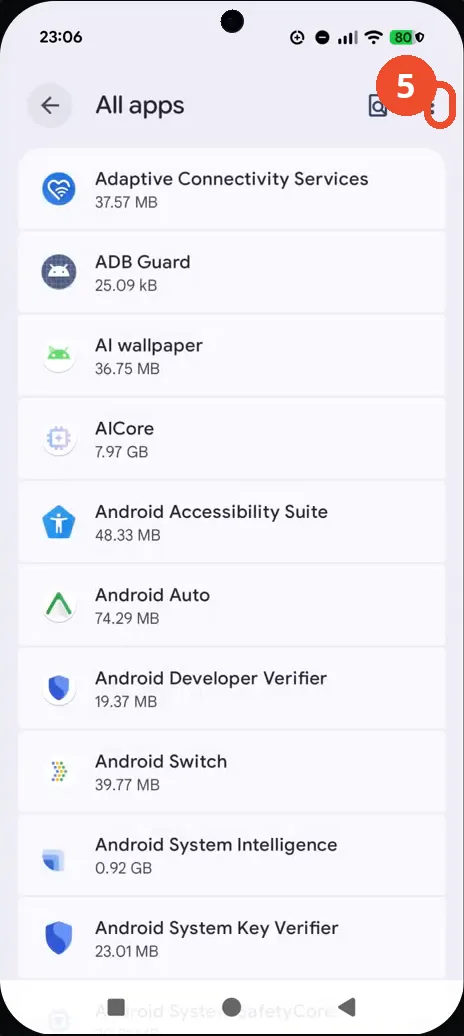
Tap the three-dot menu
The All apps list opens, starting with Adaptive Connectivity Services. Tap the three-dot menu at the top right.
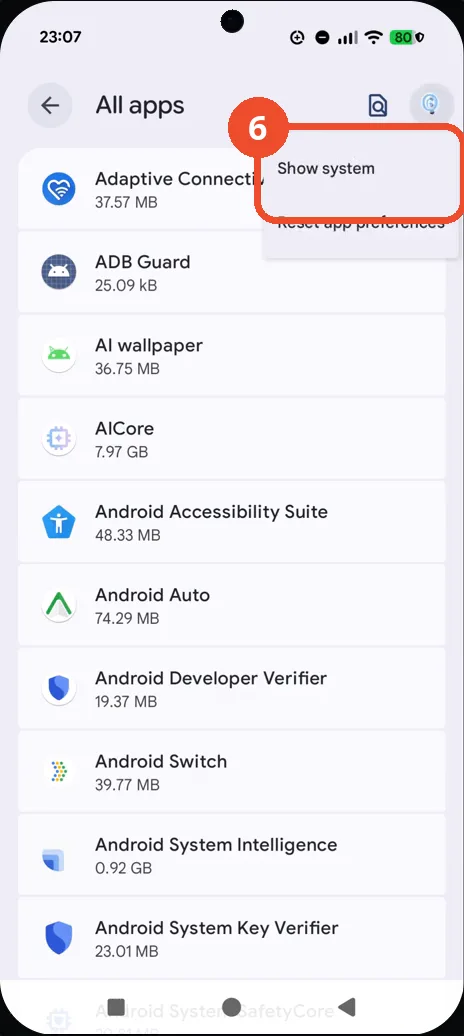
Tap Show system
The menu offers Show system and Reset app preferences. Tap Show system to include system apps in the list.
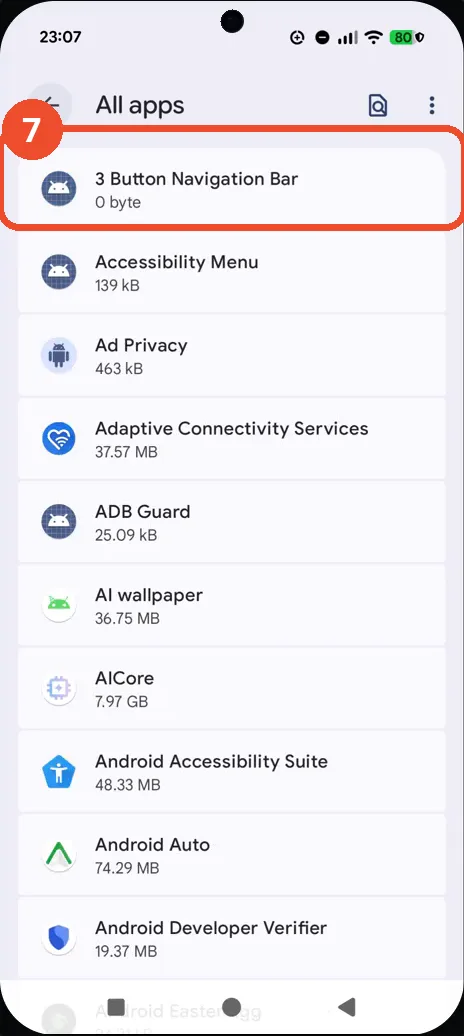
Check the system apps in the list
The list now starts with 3 Button Navigation Bar, followed by Accessibility Menu and Ad Privacy — system apps are now shown alongside the rest.
Good to know
- The ‘See all 94 apps’ count reflects the apps installed on this phone, so your number may differ.
- The list is alphabetical, so system entries such as 3 Button Navigation Bar appear at the very top once system apps are shown.
- Change App Icons on Google Pixel 11 Pro
- Adjust Volume Without Buttons on Google Pixel 11 Pro
- Turn On the Flashlight on Google Pixel 11 Pro
- Turn Off Pop-Up Notifications for Messages on Google Pixel 11 Pro
- Turn On Spoken Directions in Google Maps on Google Pixel 11 Pro
- Find Call Recording Settings on Google Pixel 11 Pro
- Change Text Tone in Google Messages on Google Pixel 11 Pro
- How to Block Spam Calls on Google Pixel 11 Pro
- How to Find Apps on Google Pixel 11 Pro