How to Edit Quick Settings Tiles on Google Pixel 11 Pro
The Pixel 11 Pro keeps its Quick Settings tiles behind a small pencil icon. Swipe down twice from the top, tap the pencil, and the Edit tiles screen lets you rearrange tiles and resize the ones that offer a handle.
- DeviceGoogle Pixel 11 Pro
- SystemAndroid 17
- AppQuick Settings (built-in)
- Also works onOther Pixel phones running Android 17
- Last verifiedOctober 31, 2026
Every screenshot below is taken from the actual recording on this device — no stock images.
Steps
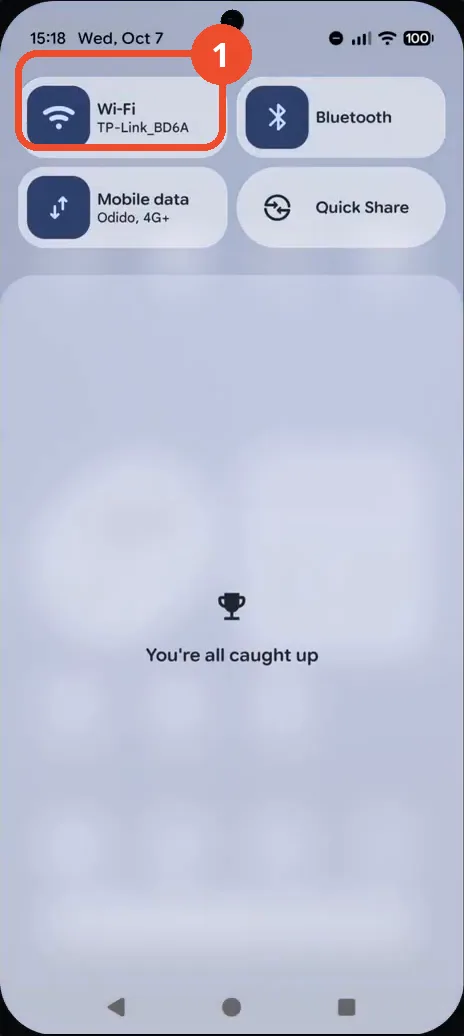
Swipe down once for the notification shade
Swipe down once from the top of the screen. The notification shade opens, showing the first row of Quick Settings tiles such as Wi-Fi and Bluetooth.
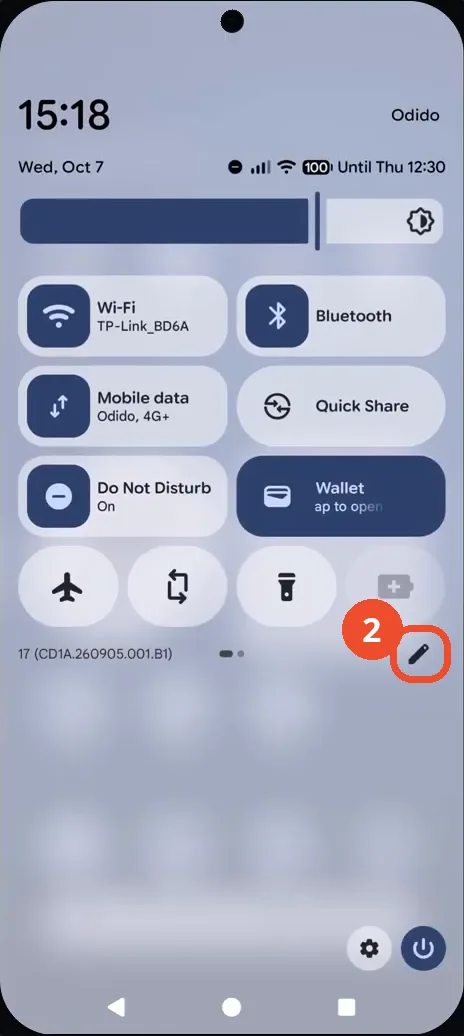
Swipe down again to expand Quick Settings
Swipe down a second time. The full Quick Settings panel expands, with the brightness slider, more tiles, and the pencil edit icon at the lower right.
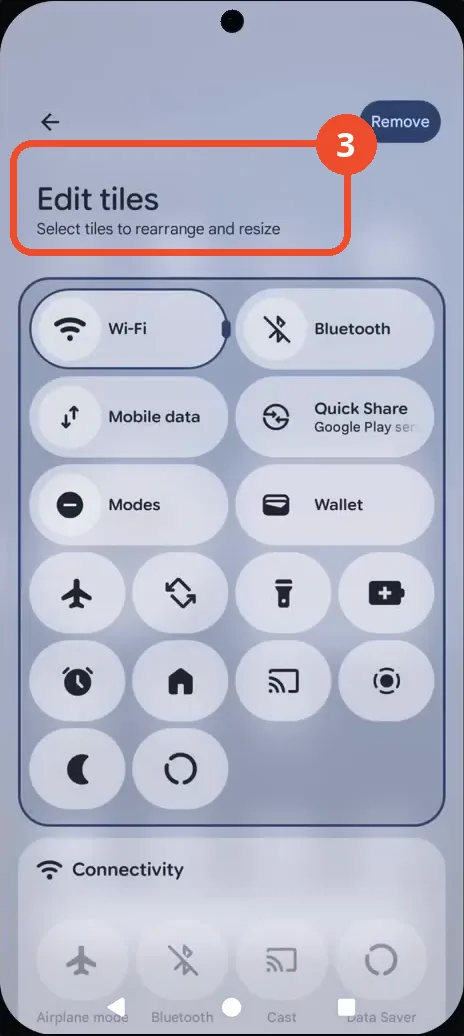
Tap the pencil to open the tile editor
Tap the pencil icon. The Edit tiles screen opens, headed Select tiles to rearrange and resize, with a Remove button at the top right.
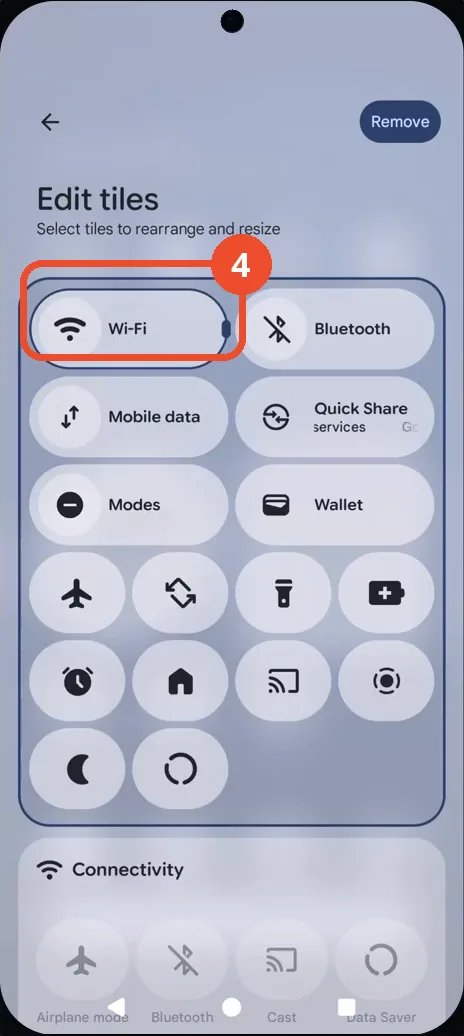
Rearrange or resize tiles in the editor
In the editor, drag a tile to a new position to rearrange it, or use the resize handle on a tile such as Wi-Fi to change its size. The recording inspects the editor and leaves the tiles unchanged.
Good to know
- The first swipe down opens the notification shade; only the second swipe expands the full Quick Settings panel with the pencil icon.
- The Wi-Fi tile in the editor carries a resize handle on its edge, while other tiles are rearranged by dragging them to a new spot.
- This recording opens the editor and inspects it but leaves every tile unchanged, so no tile moves or resizes in these screenshots.
- Change App Icons on Google Pixel 11 Pro
- Turn On the Flashlight on Google Pixel 11 Pro
- Turn Off Pop-Up Notifications for Messages on Google Pixel 11 Pro
- Turn On Spoken Directions in Google Maps on Google Pixel 11 Pro
- Find Call Recording Settings on Google Pixel 11 Pro
- Change Text Tone in Google Messages on Google Pixel 11 Pro
- Block Spam Calls on Google Pixel 11 Pro
- How to Find Apps on Google Pixel 11 Pro
- How to Find System Apps on Google Pixel 11 Pro
- How to Open the Power Menu with the Power Button on Google Pixel 11 Pro
- How to Check VoLTE Support on Google Pixel 11 Pro
- How to Change the Google Messages Notification Sound on Google Pixel 11 Pro
- How to Change System Colors on Google Pixel 11 Pro
- How to Adjust Volume Without Buttons on Google Pixel 11 Pro
- How to Check RAM Usage on Google Pixel 11 Pro