How to Customize the Google Search Bar on Pixel 11 Pro with Android 17
The Google Search bar’s appearance options live behind a long-press. Open Widget settings from the bar’s own menu and the Customize screen offers themes, a transparency slider, and a shortcut control.
- DeviceGoogle Pixel 11 Pro
- SystemAndroid 17
- AppGoogle Search
- Also works onOther Pixel phones running Android 17
- Last verifiedNovember 2, 2026
Every screenshot below is taken from the actual recording on this device — no stock images.
Steps
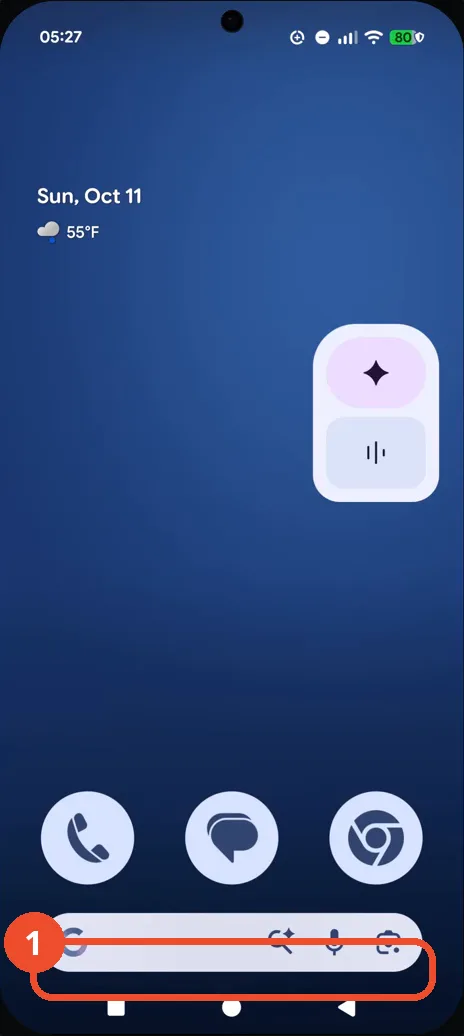
Long-press the Google Search bar
On the Home screen, touch and hold the Google Search bar at the bottom. A small menu appears.
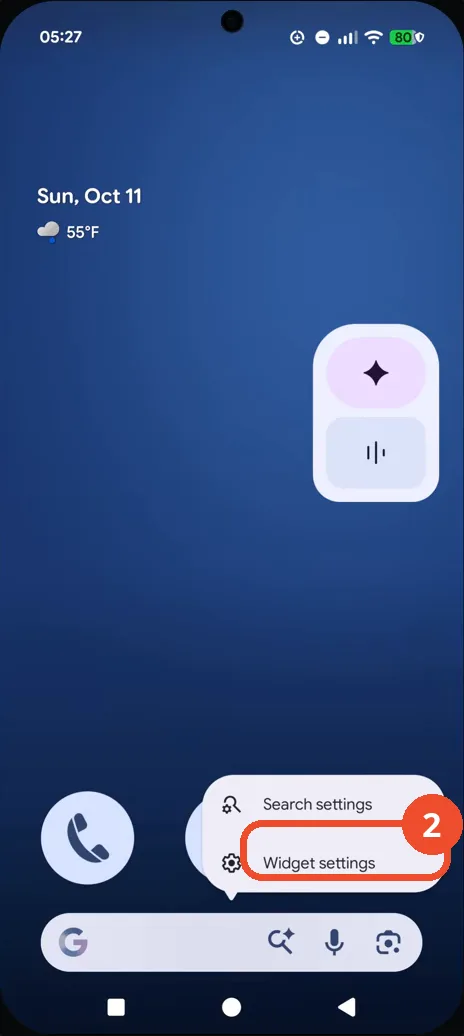
Tap Widget settings
In the menu, tap Widget settings. The Customize screen opens.
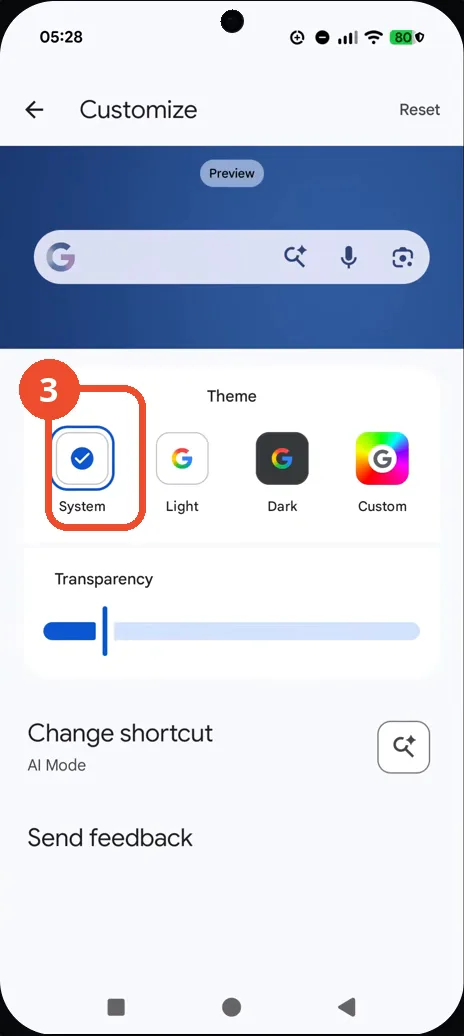
See the Theme options
The Customize screen shows Theme options: System, Light, Dark, and Custom. System is selected in the recording.
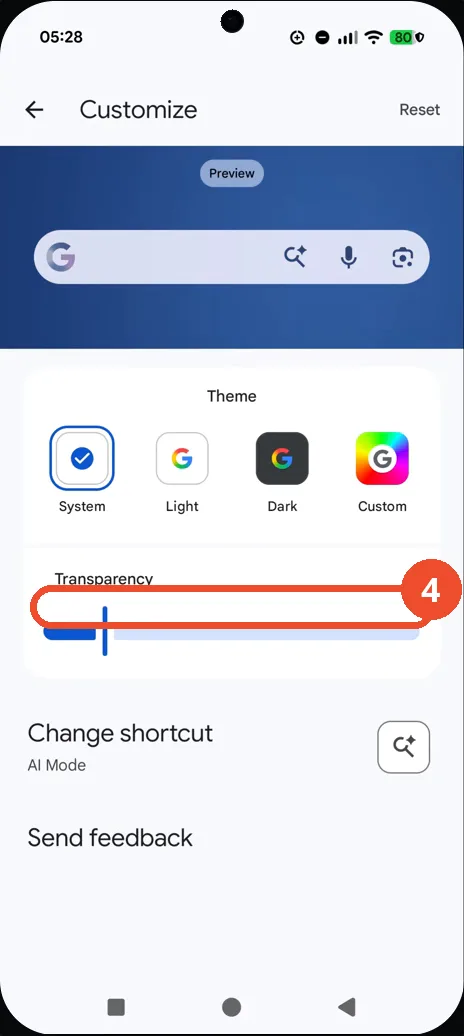
Check the Transparency slider
Below the themes, the Transparency slider controls how see-through the search bar looks.
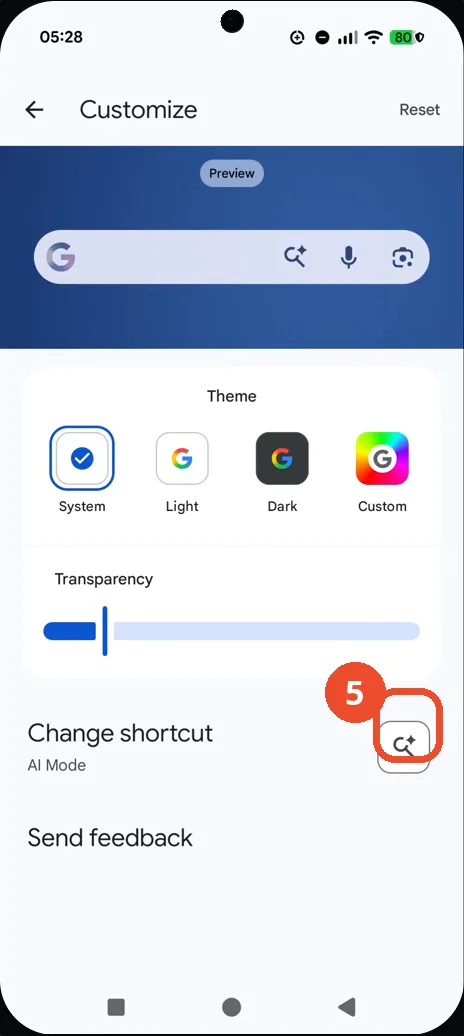
Check Change shortcut
Further down, Change shortcut shows the current shortcut, AI Mode, and lets you pick a different one.
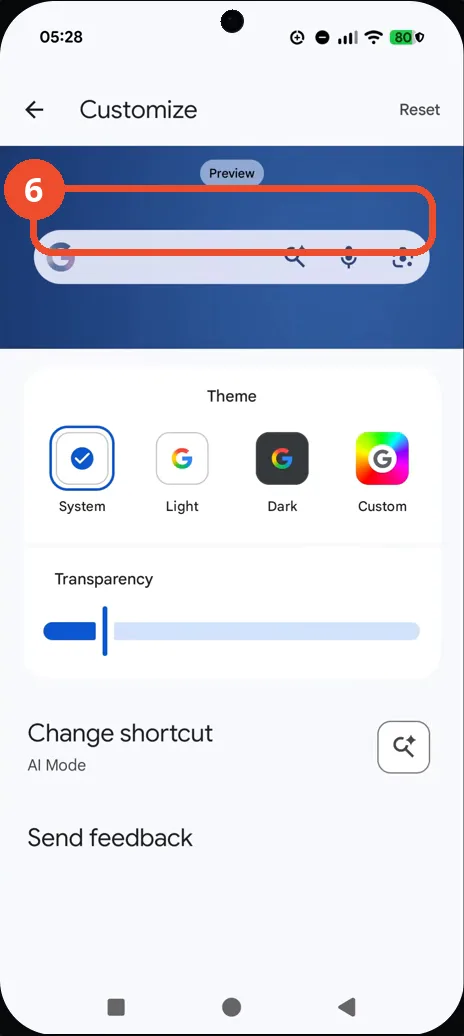
Confirm the Customize screen
The preview at the top shows the search bar with the System theme. No setting was changed in the recording — this screen is where the appearance options live.
Good to know
- No setting is changed in the recording: System stays selected from start to finish, so the guide shows where the options live rather than a change being applied.
- The Customize screen also shows a Reset button at the top right and a live preview of the search bar above the Theme options.
- Change App Icons on Google Pixel 11 Pro
- Turn On the Flashlight on Google Pixel 11 Pro
- Turn Off Pop-Up Notifications for Messages on Google Pixel 11 Pro
- Turn On Spoken Directions in Google Maps on Google Pixel 11 Pro
- Find Call Recording Settings on Google Pixel 11 Pro
- Change Text Tone in Google Messages on Google Pixel 11 Pro
- Block Spam Calls on Google Pixel 11 Pro
- How to Find Apps on Google Pixel 11 Pro
- How to Find System Apps on Google Pixel 11 Pro
- How to Open the Power Menu with the Power Button on Google Pixel 11 Pro
- How to Check VoLTE Support on Google Pixel 11 Pro
- How to Change the Google Messages Notification Sound on Google Pixel 11 Pro
- How to Change System Colors on Google Pixel 11 Pro
- How to Check RAM Usage on Google Pixel 11 Pro
- How to Edit Quick Settings Tiles on Google Pixel 11 Pro
- How to Enable GPS Location on Google Pixel 11 Pro
- How to Set a Ringtone for One Contact on Google Pixel 11 Pro
- How to Enable Daily Changing Wallpaper on Google Pixel 11 Pro
- How to Change Font Size on Google Pixel 11 Pro
- How to Adjust Volume Without Buttons on Google Pixel 11 Pro