How to Check RAM Usage on Google Pixel 11 Pro
The Pixel 11 Pro does not put a RAM readout on the main Settings screen. The memory figures live under Developer Options: search Settings for Memory, open the Memory entry, and read the Memory use screen.
- DeviceGoogle Pixel 11 Pro
- SystemAndroid 17
- AppSettings
- Also works onOther Pixel phones running Android 17
- Last verifiedOctober 31, 2026
Every screenshot below is taken from the actual recording on this device — no stock images.
Steps
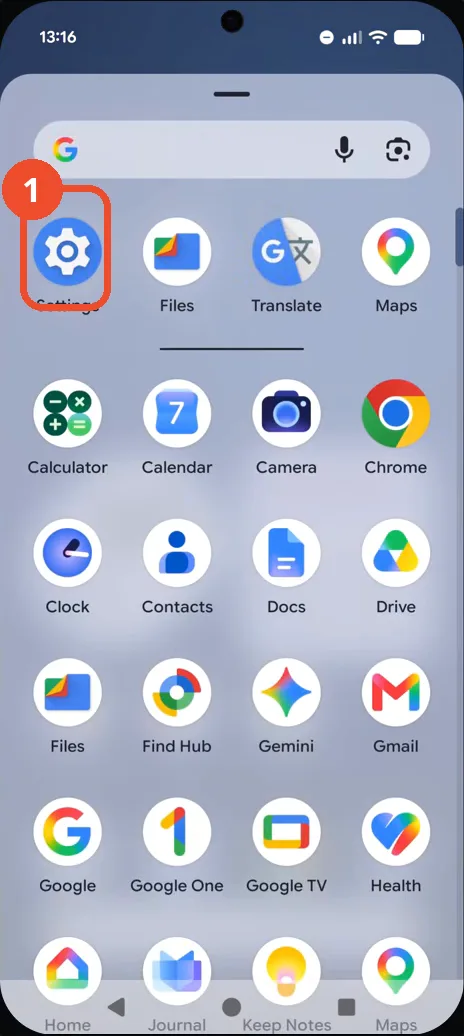
Open Settings from the app drawer
Swipe up to open the app drawer and tap the Settings gear icon in the top row. The main Settings screen opens.
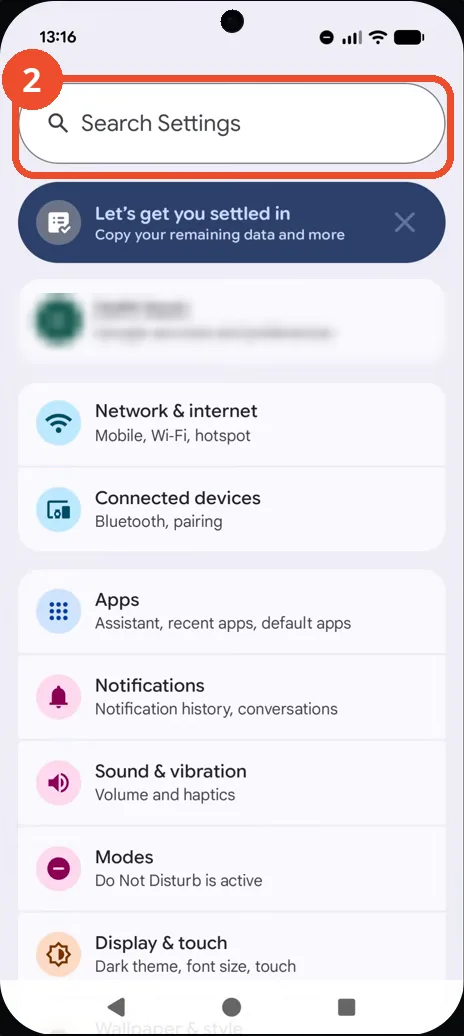
Tap the Search Settings bar
On the main Settings screen, tap the Search Settings bar at the top. The settings search screen opens.
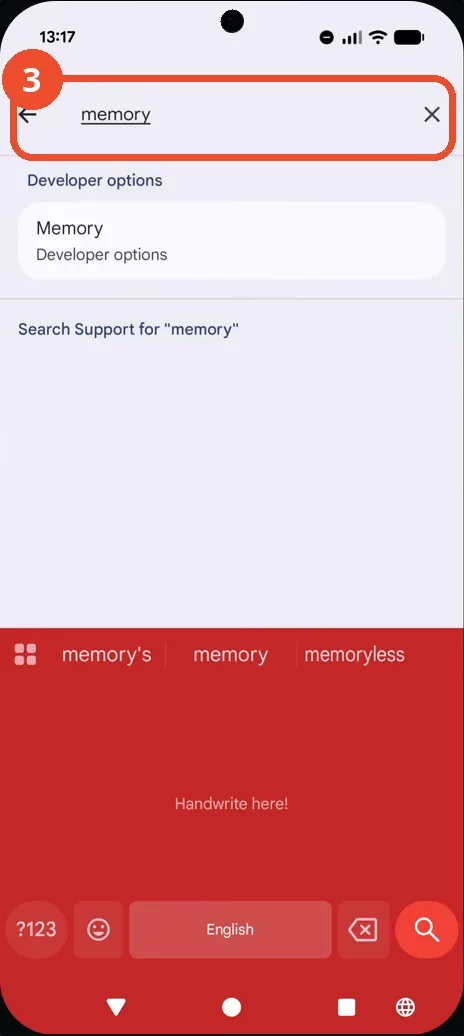
Type memory in the search box
Tap the search field and type memory. Matching settings appear below, including a Memory entry under Developer options.
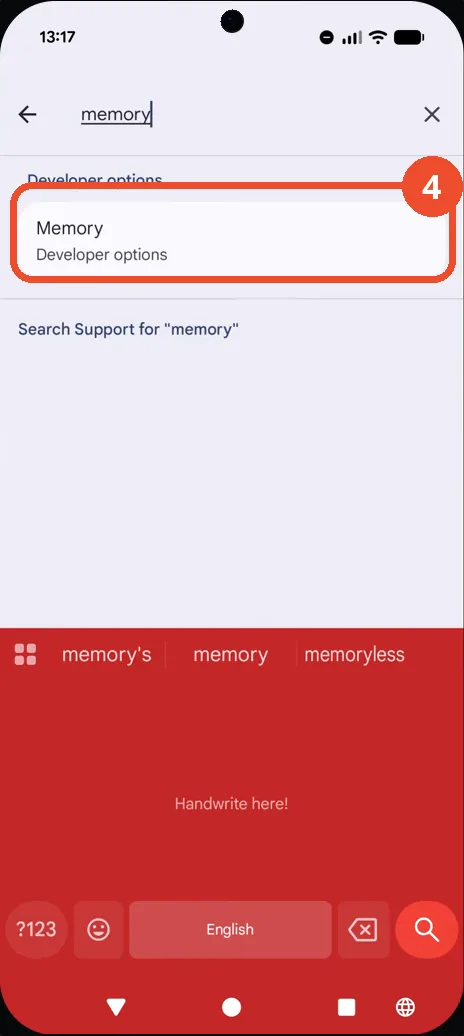
Tap the Memory result
Tap the Memory result, listed under Developer options. The Developer options screen opens.
Check the Memory entry in Developer options
On the Developer options screen, find the Memory entry near the top. Here it reads Memory profiling disabled, so no RAM figures are collected yet.
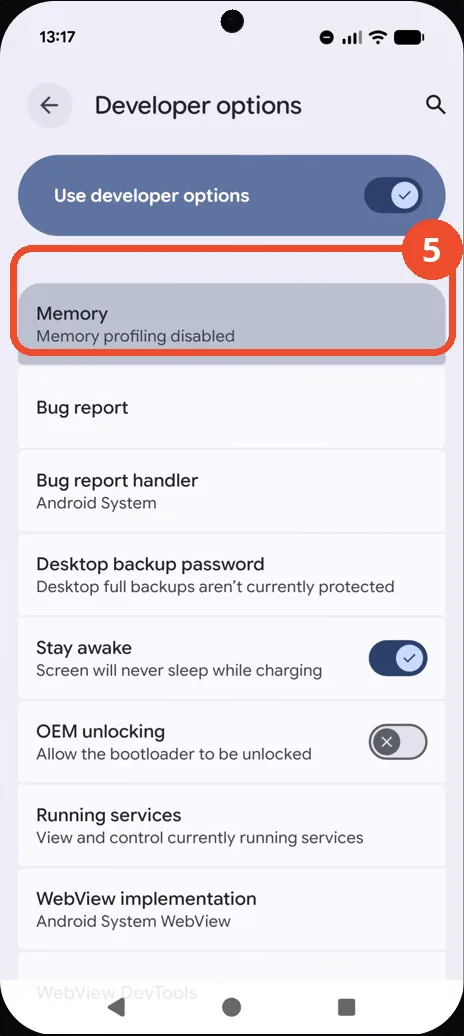
Open the Memory use screen
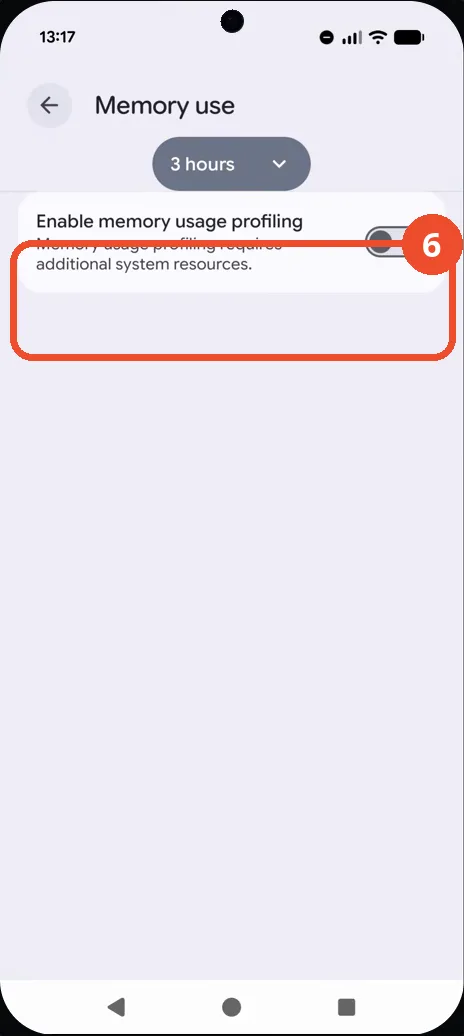
Tap Memory to open the Memory use screen. It shows the 3-hour window selector and the Enable memory usage profiling toggle, switched off on this phone — so the screen lists no memory figures.
Good to know
- On this phone memory profiling is off, so the Memory use screen shows no per-app figures — only the profiling toggle and the 3-hour window selector.
- This path needs Developer options already turned on: the video phone has the Use developer options switch on, which is why Memory appears in the search results.
- To see figures here later, memory profiling must be switched on and given time to collect data; this video leaves the toggle off.
- Change App Icons on Google Pixel 11 Pro
- Turn On the Flashlight on Google Pixel 11 Pro
- Turn Off Pop-Up Notifications for Messages on Google Pixel 11 Pro
- Turn On Spoken Directions in Google Maps on Google Pixel 11 Pro
- Find Call Recording Settings on Google Pixel 11 Pro
- Change Text Tone in Google Messages on Google Pixel 11 Pro
- Block Spam Calls on Google Pixel 11 Pro
- How to Find Apps on Google Pixel 11 Pro
- How to Find System Apps on Google Pixel 11 Pro
- How to Open the Power Menu with the Power Button on Google Pixel 11 Pro
- How to Check VoLTE Support on Google Pixel 11 Pro
- How to Change the Google Messages Notification Sound on Google Pixel 11 Pro
- How to Change System Colors on Google Pixel 11 Pro
- How to Adjust Volume Without Buttons on Google Pixel 11 Pro