How to Check the App Drawer Layout on Pixel 11 Pro with Android 17
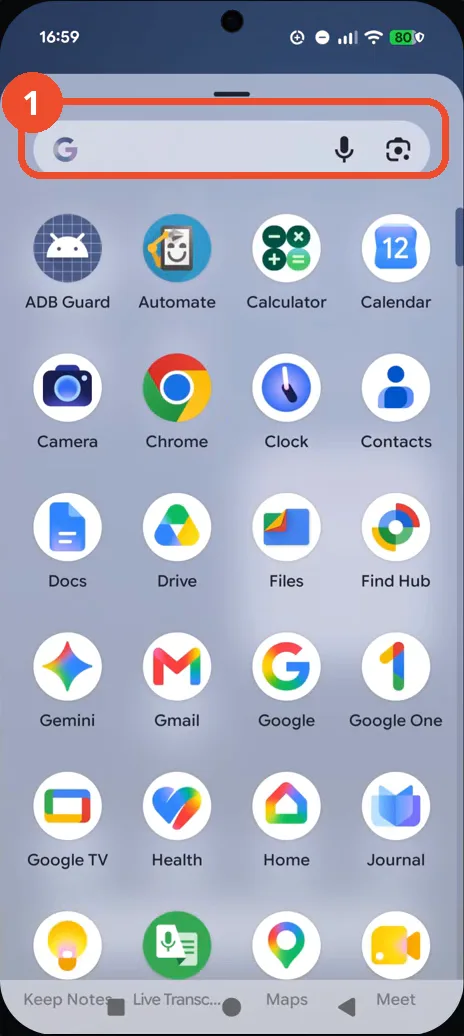
The app drawer on the Pixel 11 Pro is a single alphabetical list with a search bar at the top — no categories, no folders. Swipe up to open it, check the layout, and swipe down to close it again.
✅ Tested on
- DeviceGoogle Pixel 11 Pro
- SystemAndroid 17
- AppPixel Launcher (pre-installed)
- Also works onOther Pixel phones running Android 17
- Last verifiedNovember 6, 2026
Every screenshot below is taken from the actual recording on this device — no stock images.
Steps
Swipe up to open the app drawer
From the Home screen, swipe up: the app drawer opens with a search bar at the top and your apps below it.
Check the alphabetical layout
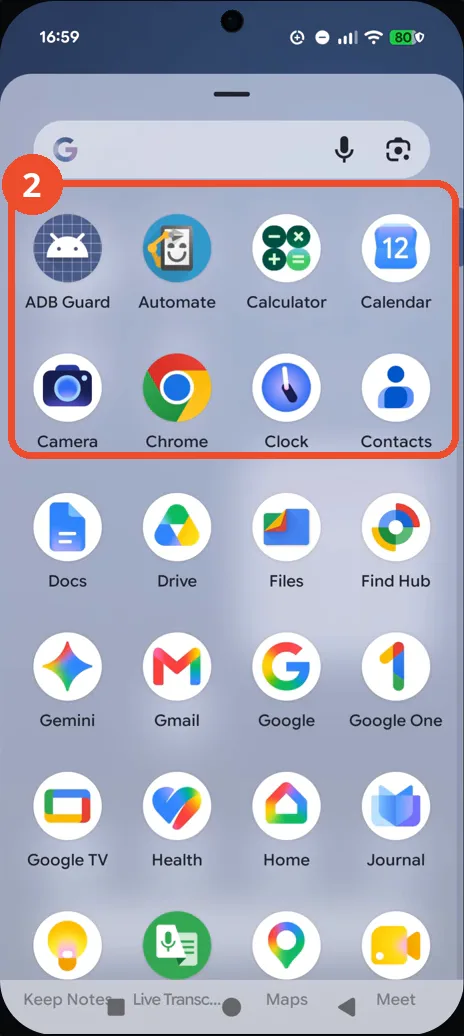
The drawer lists every app in one alphabetical grid — ADB Guard, Automate, Calculator and Calendar at the top, then Camera, Chrome, Clock and Contacts. There are no category tabs or folders.
Close the drawer to go back Home
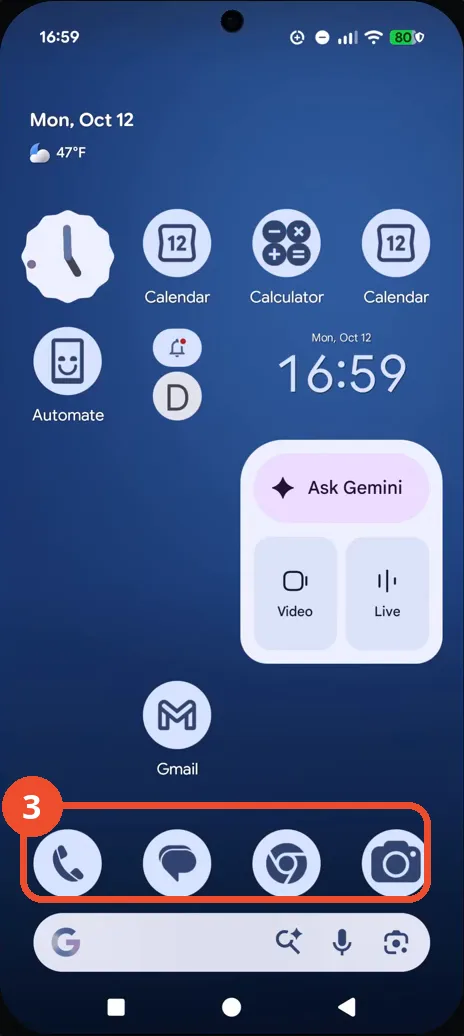
Swipe down, or press Back, to close the drawer and return to the Home screen. Swipe up again any time to reopen it.
Good to know
- The video’s title mentions categories, but no categories view appears in the recording: the drawer is a single alphabetical list with no category tabs, and no layout or categories setting is opened.
- To find one particular app instead of checking the layout, use the search bar at the top of the drawer or browse the A–Z list — see How to Find Apps on Google Pixel 11 Pro.
- Apps list settings — where the drawer’s appearance defaults live — is not opened in this recording; it sits at the bottom of Home settings.
- The drawer order is alphabetical and fixed: an app’s position depends on its name, not on how often you open it.
- Change App Icons on Google Pixel 11 Pro
- Turn On the Flashlight on Google Pixel 11 Pro
- Turn Off Pop-Up Notifications for Messages on Google Pixel 11 Pro
- Turn On Spoken Directions in Google Maps on Google Pixel 11 Pro
- Find Call Recording Settings on Google Pixel 11 Pro
- Change Text Tone in Google Messages on Google Pixel 11 Pro
- Block Spam Calls on Google Pixel 11 Pro
- How to Find Apps on Google Pixel 11 Pro
- How to Find System Apps on Google Pixel 11 Pro
- How to Open the Power Menu with the Power Button on Google Pixel 11 Pro
- How to Check VoLTE Support on Google Pixel 11 Pro
- How to Change the Google Messages Notification Sound on Google Pixel 11 Pro
- How to Change System Colors on Google Pixel 11 Pro
- How to Check RAM Usage on Google Pixel 11 Pro
- How to Edit Quick Settings Tiles on Google Pixel 11 Pro
- How to Enable GPS Location on Google Pixel 11 Pro
- How to Set a Ringtone for One Contact on Google Pixel 11 Pro
- How to Enable Daily Changing Wallpaper on Google Pixel 11 Pro
- How to Change Font Size on Google Pixel 11 Pro
- How to Customize the Google Search Bar on Pixel 11 Pro with Android 17
- How to Use Macro Focus on Pixel 11 Pro with Android 17
- How to View Blocked Numbers on Pixel 11 Pro with Android 17
- How to Adjust Volume Without Buttons on Google Pixel 11 Pro
- Where Is NFC on the Google Pixel 11 Pro with Android 17?
- How to Adjust Camera ISO on Pixel 11 Pro with Android 17
- How to Turn On Camera Flash on Pixel 11 Pro with Android 17
- How to Check Desktop Experience on Pixel 11 Pro with Android 17
- How to Show Wallpaper on Always-on Display on Pixel 11 Pro with Android 17
- How to Turn Off Motion Photo on Pixel 11 Pro with Android 17
- How to Enable or Disable Google Discover on Pixel 11 Pro with Android 17
- How to Find Deleted Messages in Google Messages on Pixel 11 Pro with Android 17