How to Change the Ringtone on Pixel 11 Pro with Pixel Sounds
The Pixel 11 Pro ringtone is picked from the Pixel Sounds collection: Settings, Sound & vibration, Ringtone, then Pixel Sounds. The recording switches from Your New Adventure to The Next Adventure.
- DeviceGoogle Pixel 11 Pro
- SystemAndroid 17
- AppSettings
- Also works onOther Pixel phones running Android 17
- Last verifiedNovember 13, 2026
Every screenshot below is taken from the actual recording on this device — no stock images.
Steps
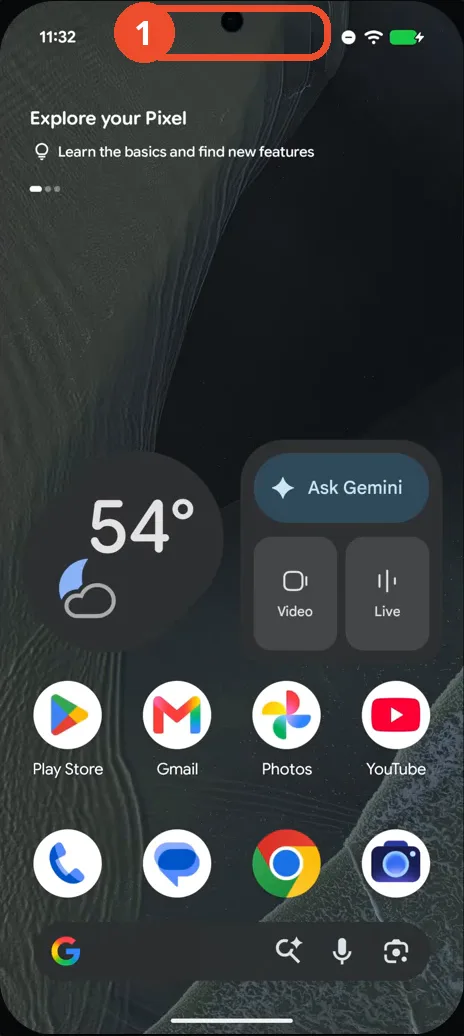
Swipe down to open Quick Settings
Swipe down from the top of the screen to open Quick Settings.
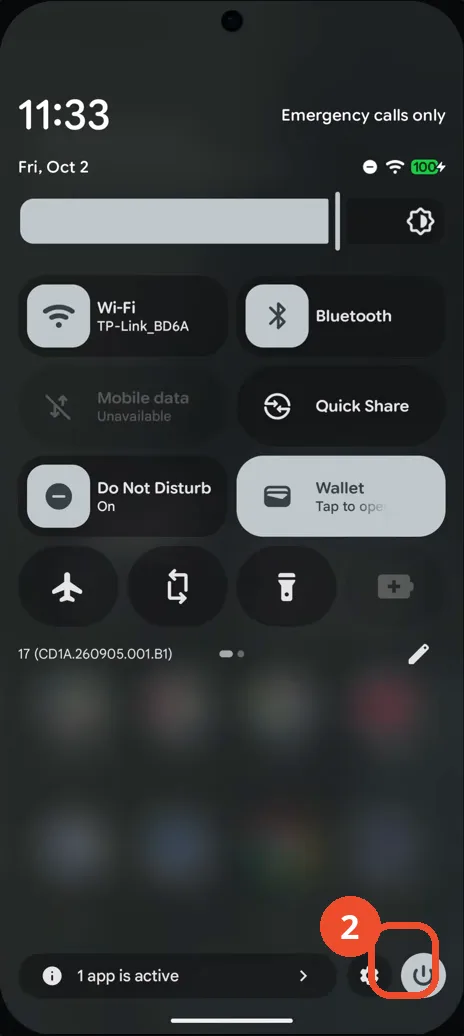
Tap the Settings gear
Swipe down again to expand Quick Settings fully, then tap the gear icon at the bottom right.
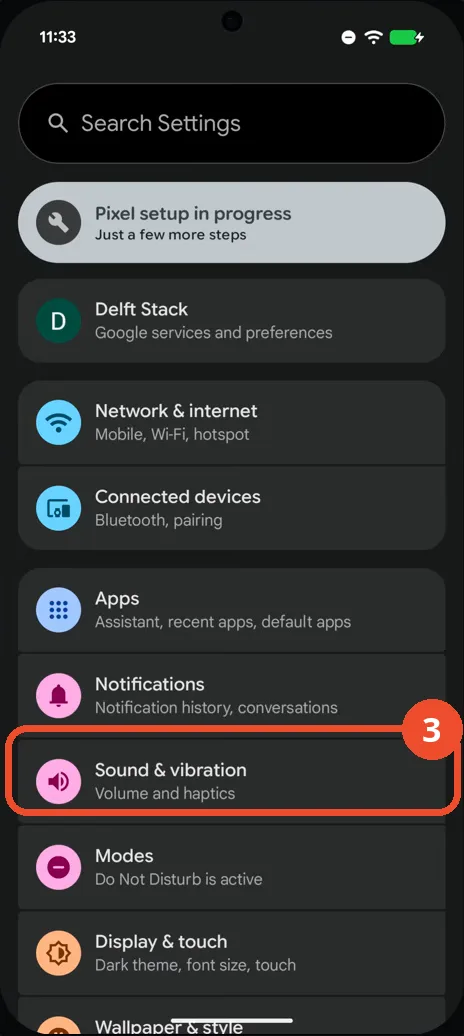
Tap Sound & vibration
In Settings, tap Sound & vibration — Volume and haptics.
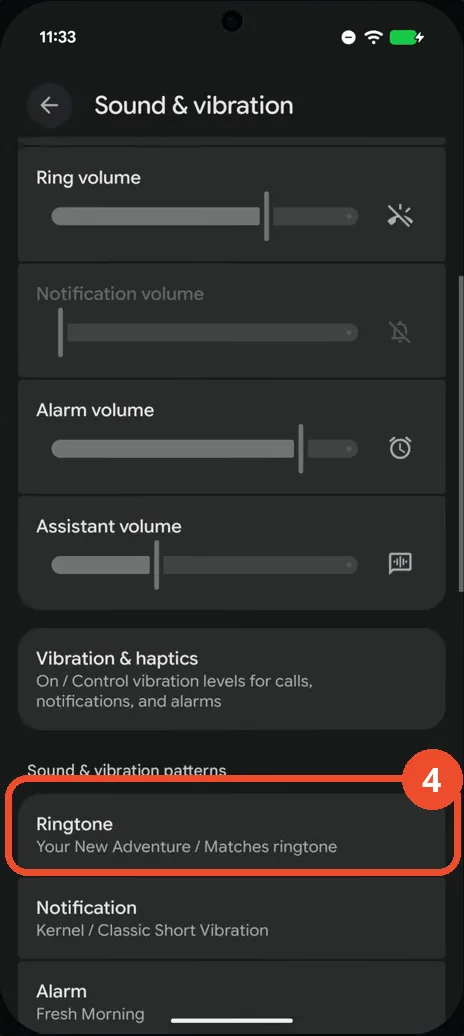
Scroll down and tap Ringtone
Scroll down the Sound & vibration page to Sound & vibration patterns and tap Ringtone — it currently reads Your New Adventure / Matches ringtone.
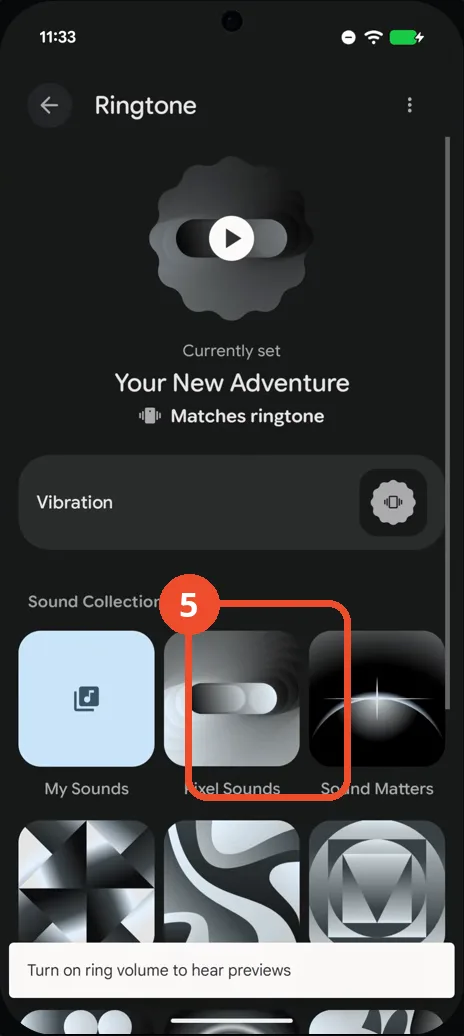
Tap Pixel Sounds
On the Ringtone page, tap the Pixel Sounds collection tile.
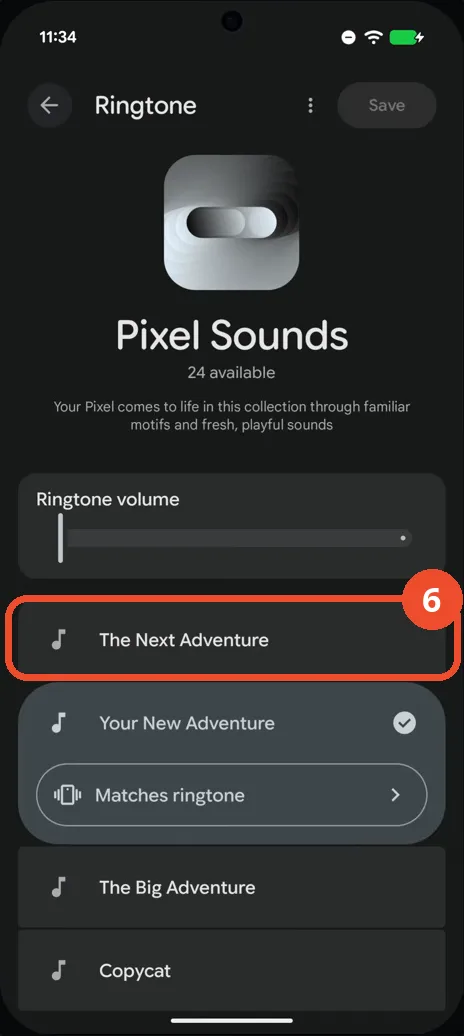
Tap The Next Adventure
In the Pixel Sounds list, tap The Next Adventure — Your New Adventure is currently checked.
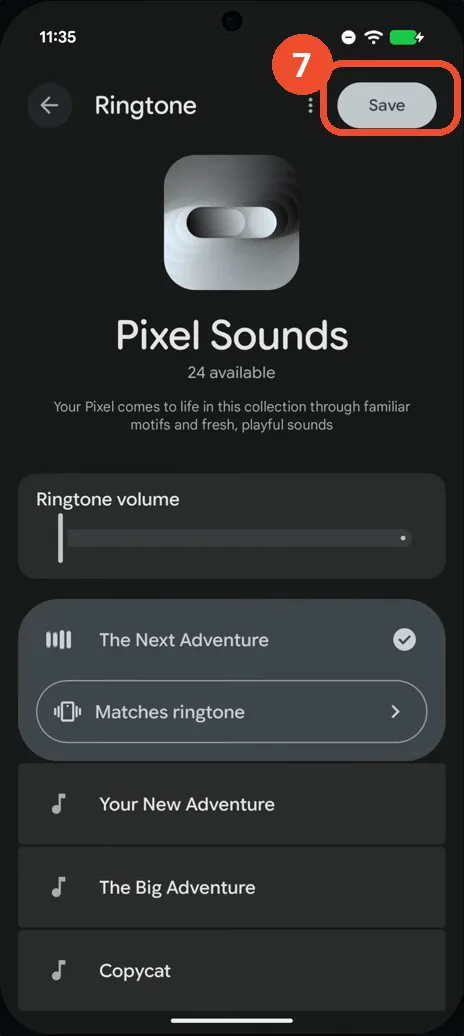
Tap Save
With The Next Adventure checked, tap Save at the top right.
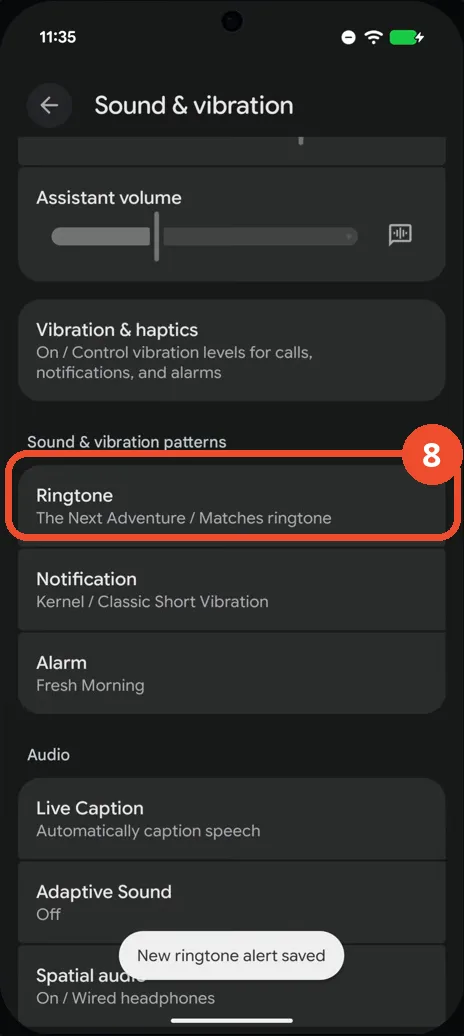
Check the new ringtone
Back on Sound & vibration, Ringtone now reads The Next Adventure / Matches ringtone, and a toast confirms “New ringtone alert saved”. That is the confirmation.
Good to know
- The recording also opens the Vibration row on the Ringtone page (the Vibrations sheet, 11 options) but changes nothing there — ringtone vibration is “Unavailable because DND is on” while Do Not Disturb is active, and Matches ringtone stays checked.
- The same task on the Galaxy A57 is covered in a separate article on the same task page — the Pixel route goes through the Pixel Sounds collection and a Save button, while the A57 route picks the sound directly.
- Do Not Disturb is active during this recording (shown on the Modes row and in the Quick Settings shade).
- A ringtone preview plays when you tap a tone — turn on ring volume to hear previews (the hint at the bottom of the Ringtone page).
- Change App Icons on Google Pixel 11 Pro
- Turn On the Flashlight on Google Pixel 11 Pro
- Turn Off Pop-Up Notifications for Messages on Google Pixel 11 Pro
- Turn On Spoken Directions in Google Maps on Google Pixel 11 Pro
- Find Call Recording Settings on Google Pixel 11 Pro
- Change Text Tone in Google Messages on Google Pixel 11 Pro
- Block Spam Calls on Google Pixel 11 Pro
- How to Find Apps on Google Pixel 11 Pro
- How to Find System Apps on Google Pixel 11 Pro
- How to Open the Power Menu with the Power Button on Google Pixel 11 Pro
- How to Check VoLTE Support on Google Pixel 11 Pro
- How to Change the Google Messages Notification Sound on Google Pixel 11 Pro
- How to Change System Colors on Google Pixel 11 Pro
- How to Check RAM Usage on Google Pixel 11 Pro
- How to Edit Quick Settings Tiles on Google Pixel 11 Pro
- How to Enable GPS Location on Google Pixel 11 Pro
- How to Set a Ringtone for One Contact on Google Pixel 11 Pro
- How to Enable Daily Changing Wallpaper on Google Pixel 11 Pro
- How to Change Font Size on Google Pixel 11 Pro
- How to Customize the Google Search Bar on Pixel 11 Pro with Android 17
- How to Use Macro Focus on Pixel 11 Pro with Android 17
- How to View Blocked Numbers on Pixel 11 Pro with Android 17
- How to Adjust Volume Without Buttons on Google Pixel 11 Pro
- Where Is NFC on the Google Pixel 11 Pro with Android 17?
- How to Adjust Camera ISO on Pixel 11 Pro with Android 17
- How to Turn On Camera Flash on Pixel 11 Pro with Android 17
- How to Check Desktop Experience on Pixel 11 Pro with Android 17
- How to Show Wallpaper on Always-on Display on Pixel 11 Pro with Android 17
- How to Enable or Disable Google Discover on Pixel 11 Pro with Android 17
- How to Find Deleted Messages in Google Messages on Pixel 11 Pro with Android 17
- How to Check the App Drawer Layout on Pixel 11 Pro with Android 17
- How to Turn on Dark Theme on Pixel 11 Pro with Android 17
- How to Change Media Output on Pixel 11 Pro with Android 17
- How to Change App Size on Pixel 11 Pro with Android 17
- How to Turn Off Motion Photo on Pixel 11 Pro with Android 17
- How to Turn On Sensitive Content Warnings on Pixel 11 Pro with Android 17
- How to Use Camera Pro Mode on Pixel 11 Pro with Android 17
- How to View Call History on Pixel 11 Pro with Android 17
- How to Change the Lock Screen Clock on Pixel 11 Pro with Android 17
- How to Manage Bubbles on Pixel 11 Pro with Android 17
- How to Change Keyboards on Pixel 11 Pro with Android 17
- How to Check for Reverse Wireless Charging on Pixel 11 Pro with Android 17
- How to Check Status Bar Notifications on Pixel 11 Pro with Android 17
- How to Find the Camera Shutter Sound Setting on Pixel 11 Pro with Android 17
- How to Change the Home Screen Grid on Pixel 11 Pro with Android 17
- How to Delete Call History on Pixel 11 Pro with Android 17
- How to Find Magic Eraser in Google Photos on Pixel 11 Pro with Android 17
- How to Customize the Clock Widget on Pixel 11 Pro with Android 17
- How to Open Gboard Keyboard Settings on Pixel 11 Pro with Android 17