How to Change System Colors on Google Pixel 11 Pro
System colors on the Pixel 11 Pro come from the Wallpaper & style settings, where you can pick a palette drawn from your wallpaper or one that stands on its own. This guide applies a new palette and checks the result on the Home screen.
- DeviceGoogle Pixel 11 Pro
- SystemAndroid 17
- AppPixel Launcher (Wallpaper & style)
- Also works onOther Pixel phones running Android 17
- Last verifiedOctober 30, 2026
Every screenshot below is taken from the actual recording on this device — no stock images.
Steps
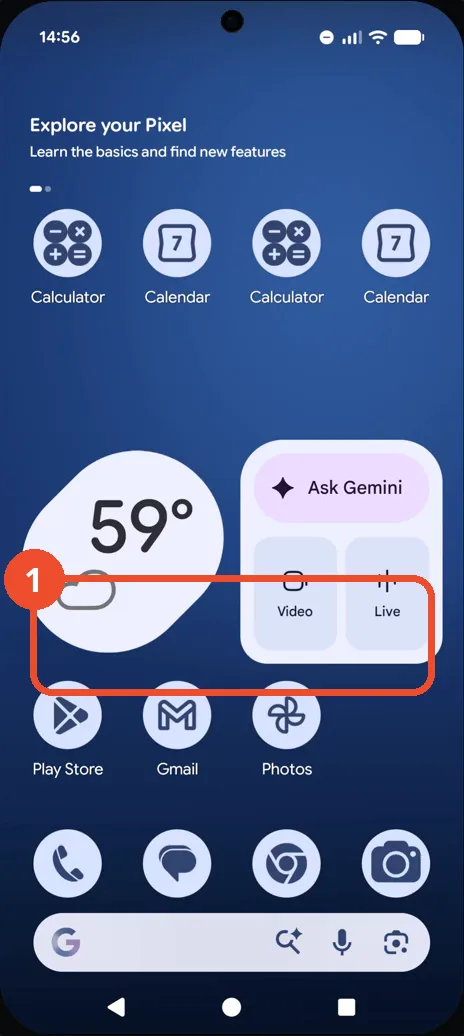
Touch and hold an empty space
On the Home screen, touch and hold an empty area until the options menu appears.
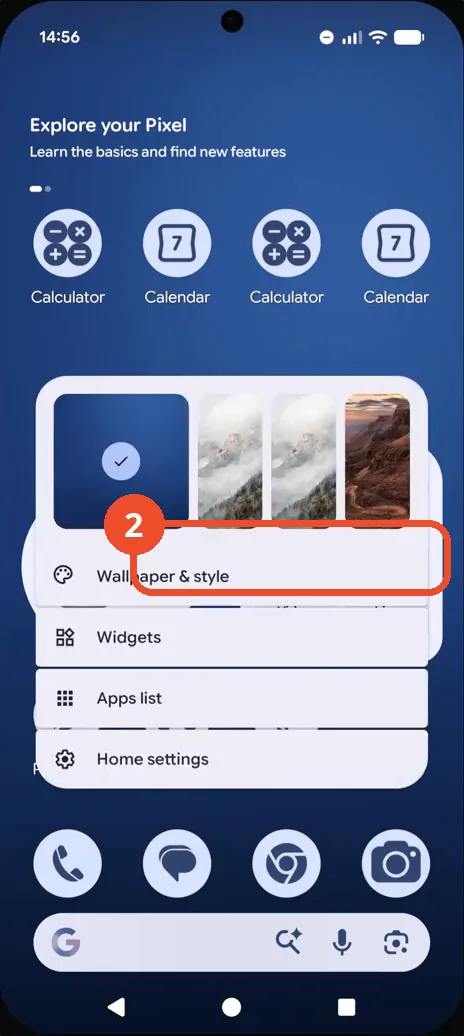
Tap Wallpaper & style
In the options menu, tap Wallpaper & style. The appearance settings open.
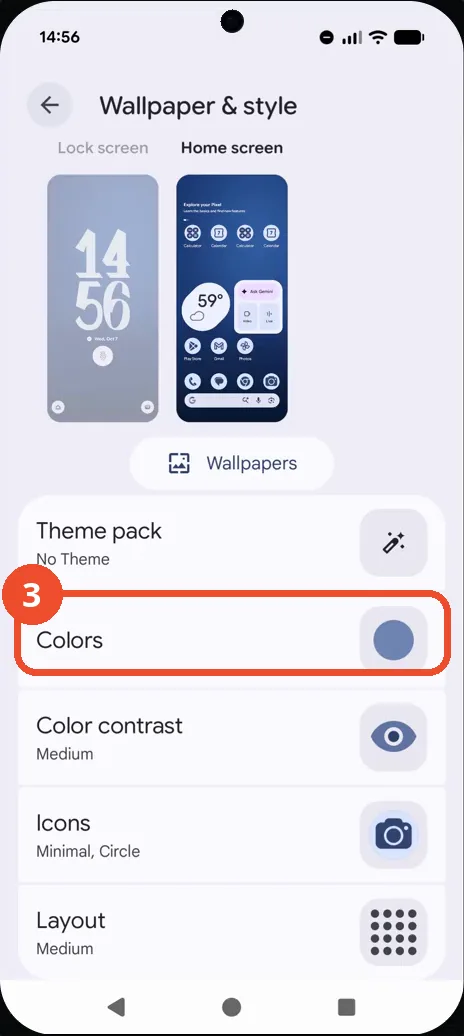
Scroll down and open Colors
Scroll down in Wallpaper & style and tap Colors. The Colors screen opens with a live preview.
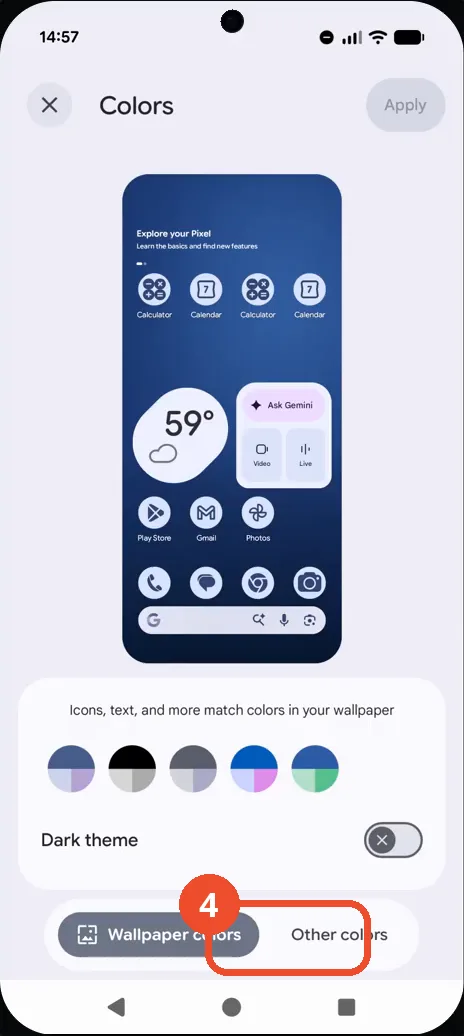
Try Other colors
To explore palettes that do not depend on your wallpaper, tap Other colors at the bottom. A second set of palettes appears.
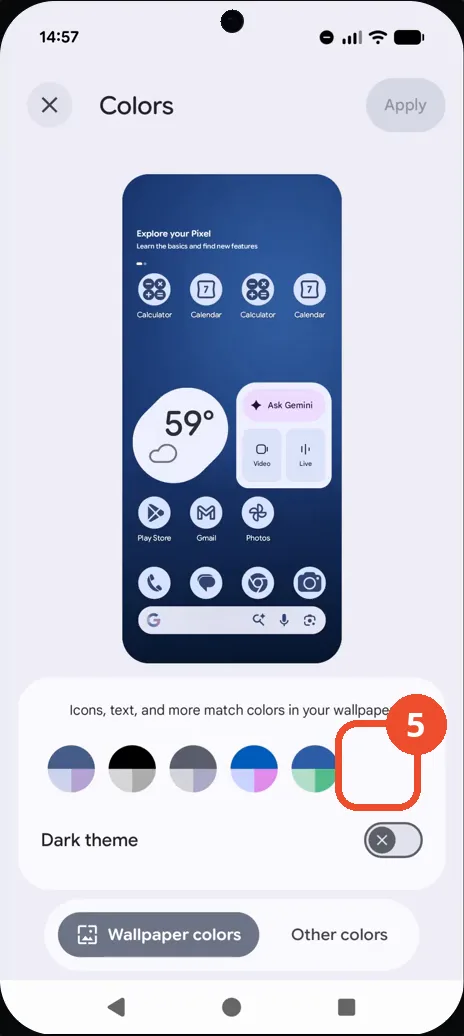
Choose the green-and-blue palette
Back on Wallpaper colors, tap the green-and-blue palette, the last dot in the row. The preview updates and Apply turns blue.
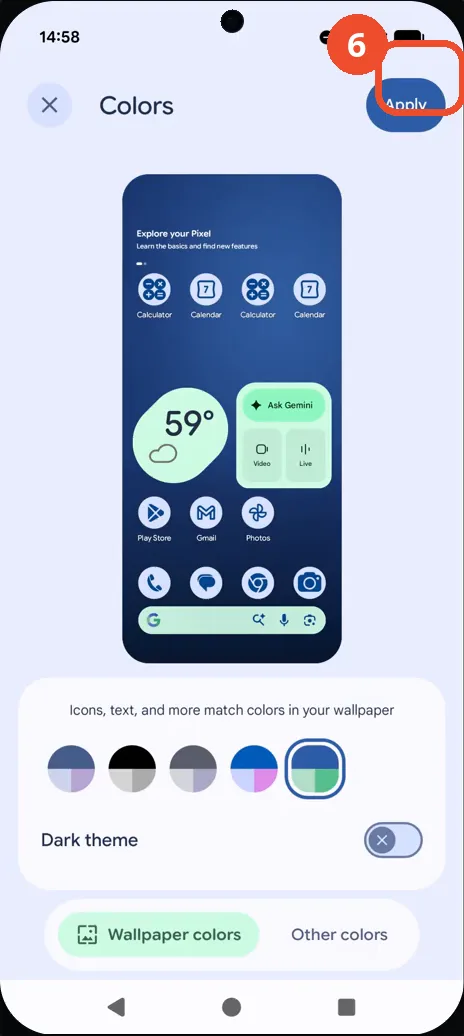
Tap Apply
Tap Apply at the top right of the Colors screen. The palette is applied.
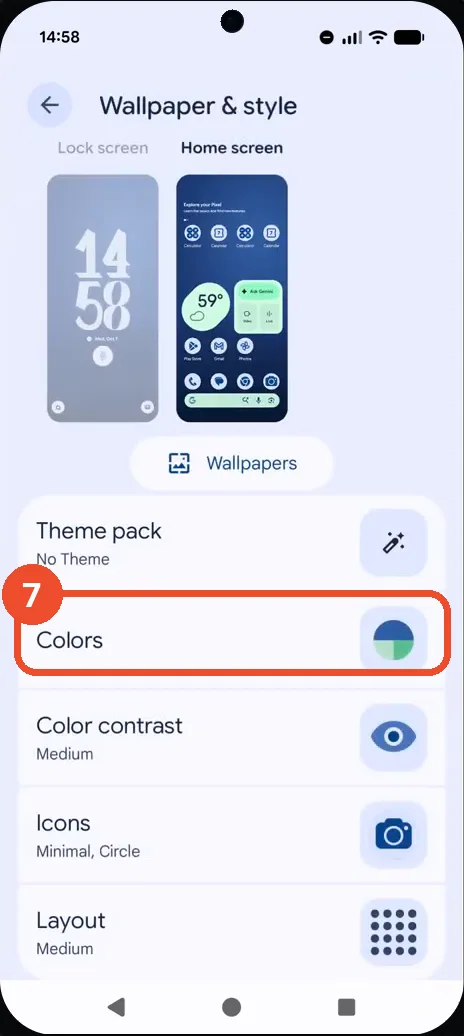
Check the applied colors
Back in Wallpaper & style, the Colors row now shows the green-and-blue split circle, and the Home screen preview uses the new colors.
Good to know
- Wallpaper colors palettes are drawn from your current wallpaper; Other colors palettes are independent of it.
- The preview updates as you tap palettes, but nothing changes until you tap Apply.
- You can also change color contrast, icons, and layout from the same Wallpaper & style screen.
- Change App Icons on Google Pixel 11 Pro
- Turn On the Flashlight on Google Pixel 11 Pro
- Turn Off Pop-Up Notifications for Messages on Google Pixel 11 Pro
- Turn On Spoken Directions in Google Maps on Google Pixel 11 Pro
- Find Call Recording Settings on Google Pixel 11 Pro
- Change Text Tone in Google Messages on Google Pixel 11 Pro
- Block Spam Calls on Google Pixel 11 Pro
- How to Find Apps on Google Pixel 11 Pro
- How to Find System Apps on Google Pixel 11 Pro
- How to Open the Power Menu with the Power Button on Google Pixel 11 Pro
- How to Check VoLTE Support on Google Pixel 11 Pro
- How to Change the Google Messages Notification Sound on Google Pixel 11 Pro
- Adjust Volume Without Buttons on Google Pixel 11 Pro