How to Change the Google Messages Notification Sound on Google Pixel 11 Pro
The default incoming-message sound in Google Messages is easy to miss in Settings, because the sound option hides inside the notification categories. This guide opens Messages settings, expands the categories, and picks a new alert sound.
- DeviceGoogle Pixel 11 Pro
- SystemAndroid 17
- AppGoogle Messages
- Also works onOther Pixel phones running Android 17
- Last verifiedOctober 30, 2026
Every screenshot below is taken from the actual recording on this device — no stock images.
Steps
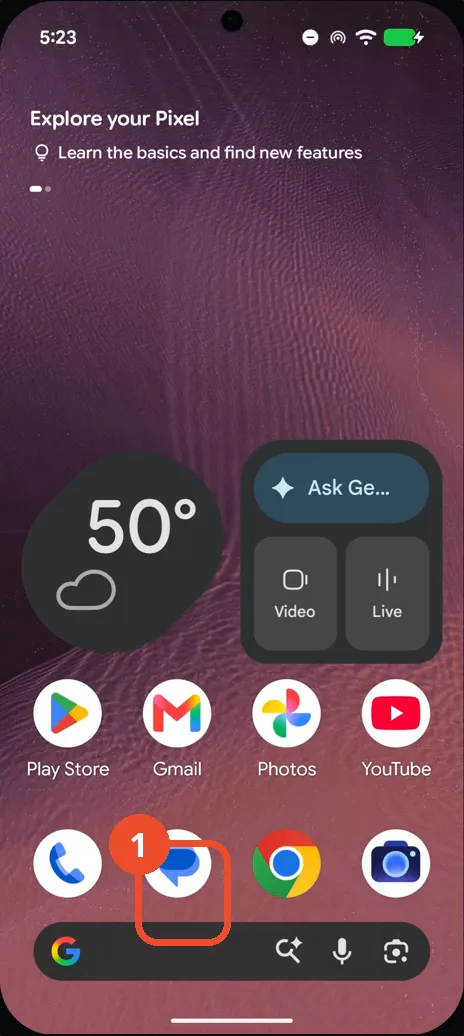
Open Google Messages
From the Home screen, tap the Messages icon in the dock. The Google Messages conversation list opens (empty here).
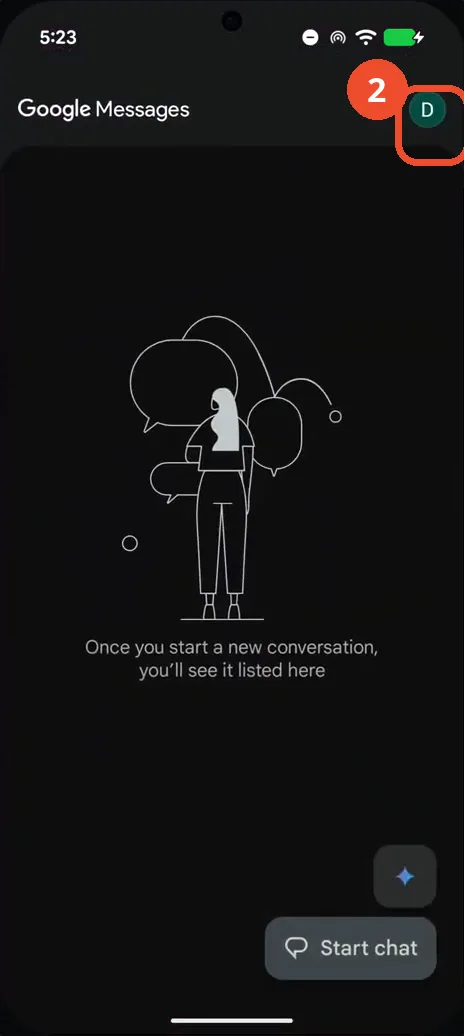
Tap your profile icon
Tap the profile icon with the letter D at the top right of Google Messages. A menu opens.
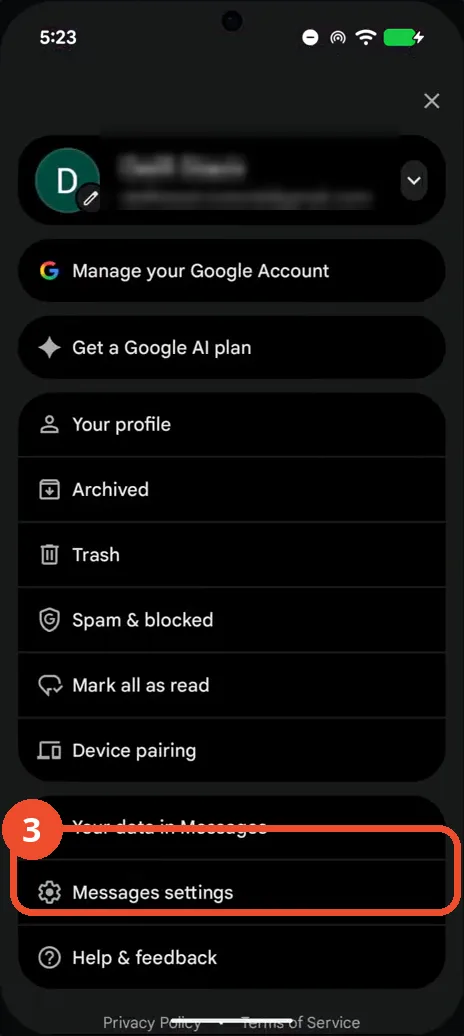
Choose Messages settings
In the menu, tap Messages settings near the bottom of the list. The Messages settings screen opens.
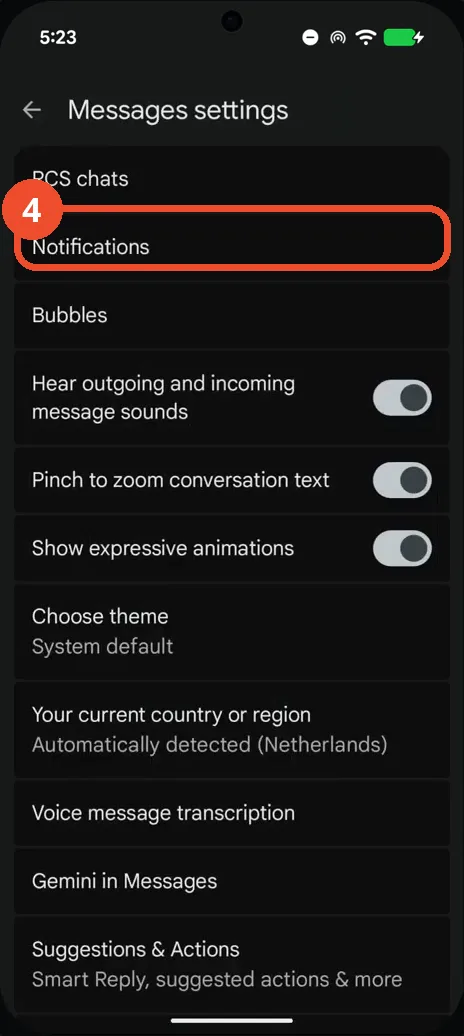
Tap Notifications
On the Messages settings screen, tap Notifications. The notification settings for Messages open.
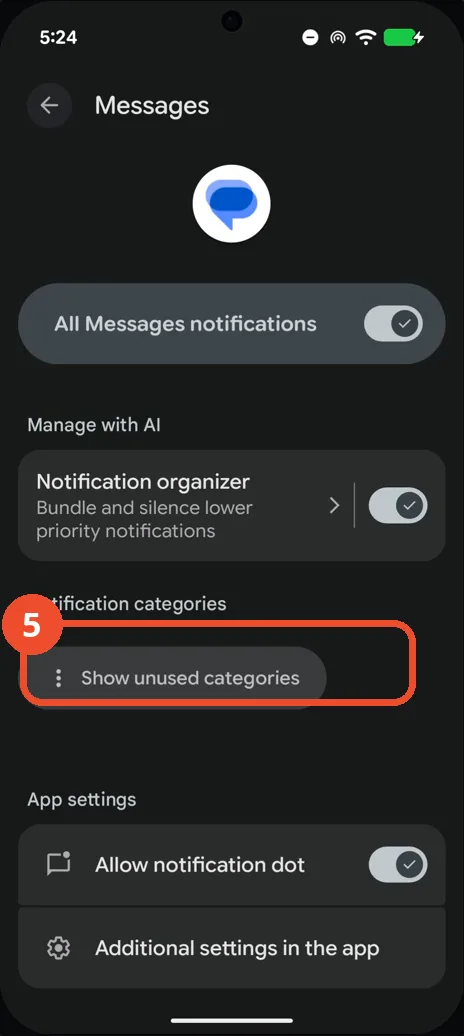
Show the notification categories
Tap Show unused categories to reveal the notification categories below. Default settings and Other appear.
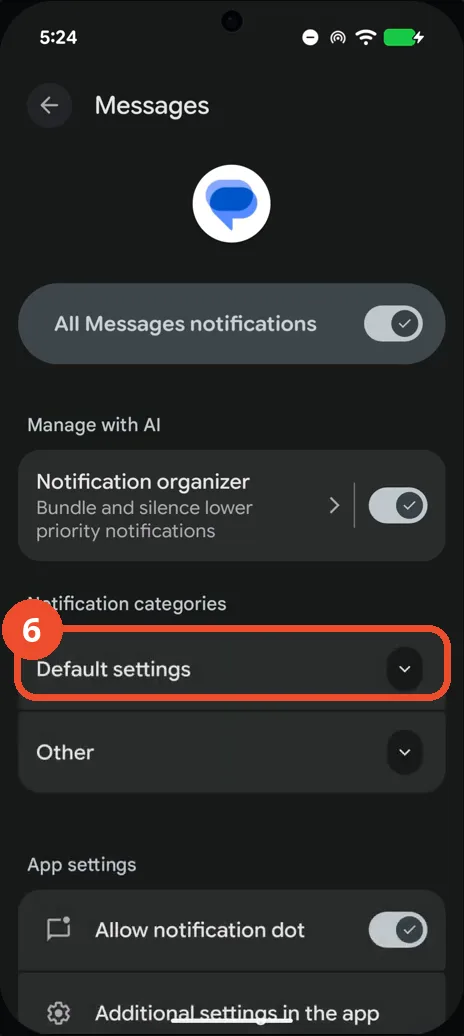
Expand Default settings
Under Notification categories, tap Default settings to expand it. The Incoming messages category appears.
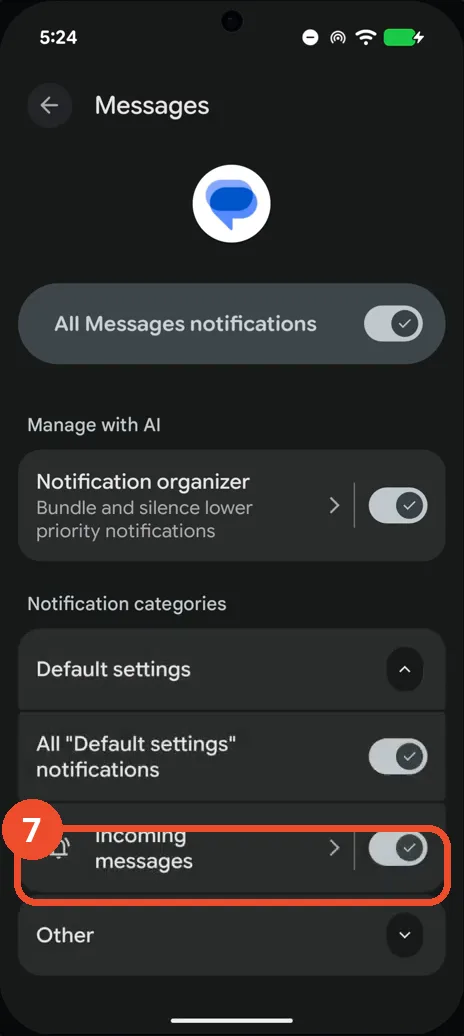
Open Incoming messages
Tap Incoming messages under Default settings. Its detail screen opens, showing the current sound.
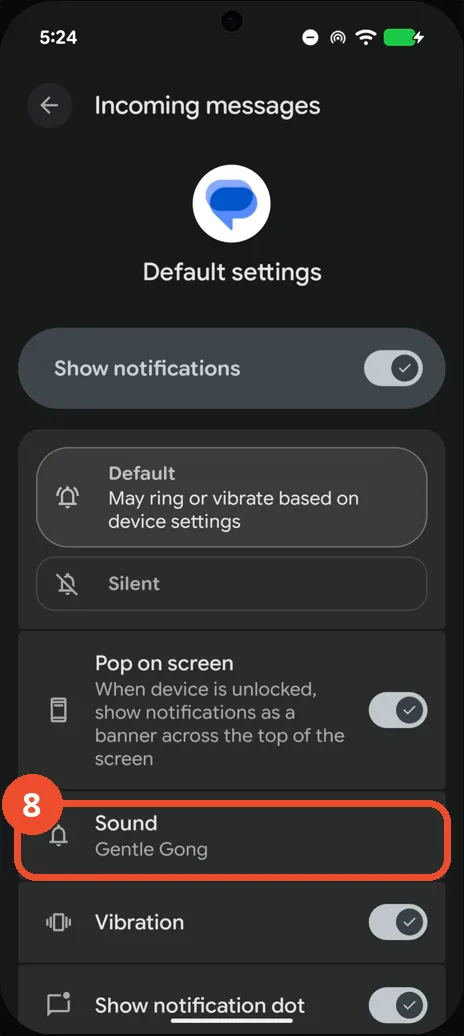
Tap Sound
On the Incoming messages screen, tap Sound, currently set to Gentle Gong. The sound picker opens.
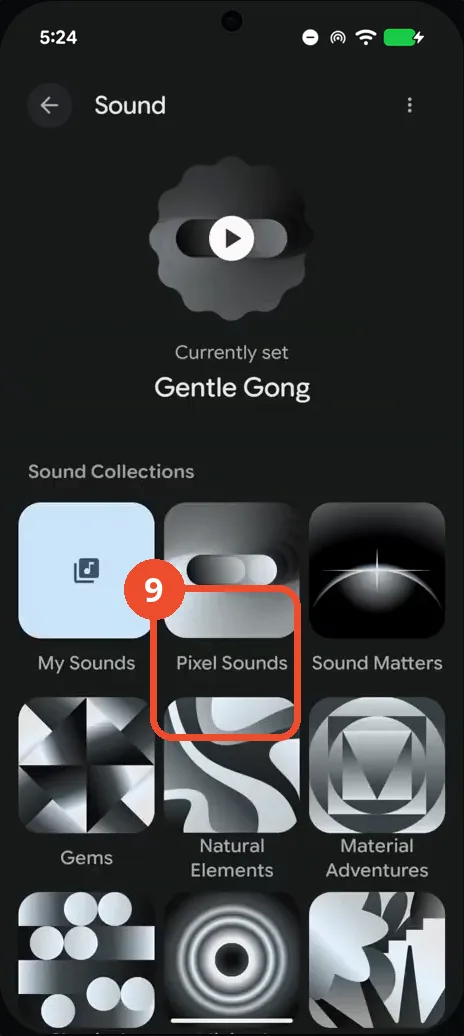
Open the Pixel Sounds collection
In the sound picker, tap the Pixel Sounds tile under Sound Collections. The collection’s sound list opens.
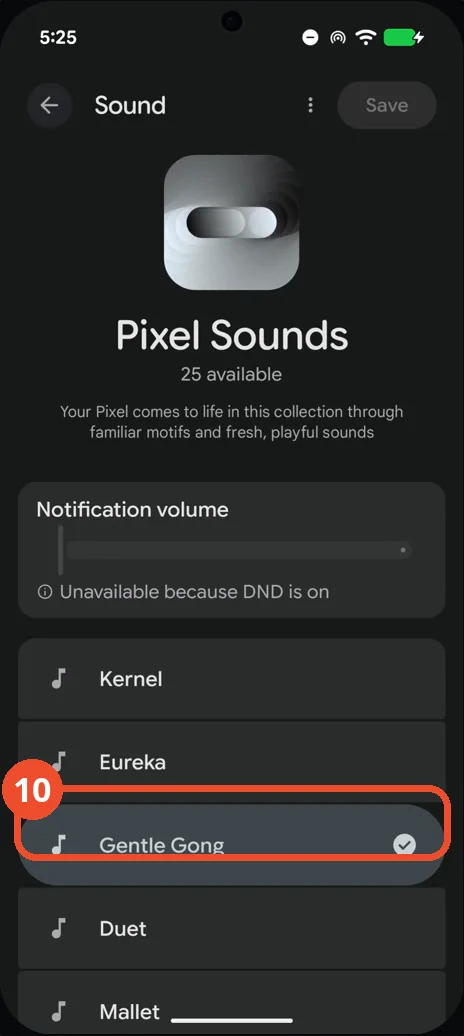
Select Eureka and save
Tap Eureka in the Pixel Sounds list, then tap Save at the top right. The picker closes.
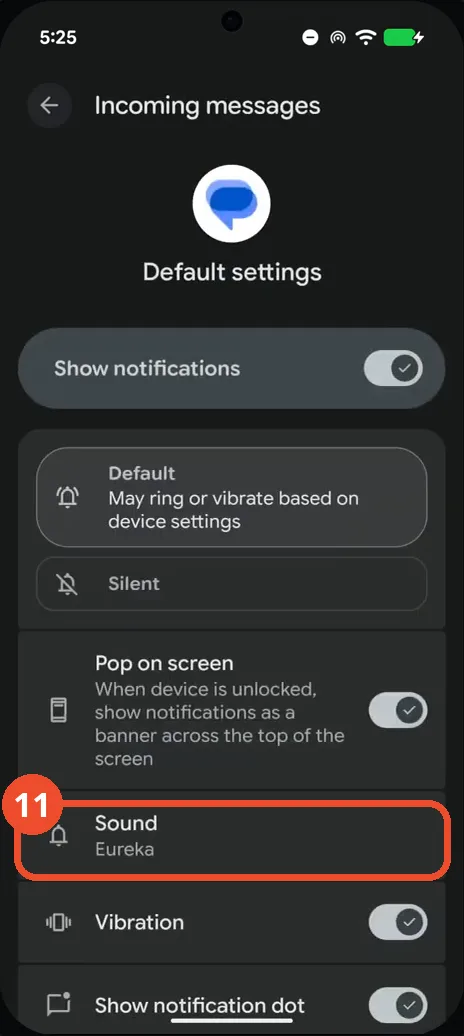
Confirm Eureka is set
Back on the Incoming messages screen, Sound now reads Eureka. The new notification sound is set.
Good to know
- Notification volume is greyed out while Do Not Disturb is on — turn Do Not Disturb off to adjust it.
- The sound you pick applies to incoming messages under Default settings.
- If you do not see the notification categories, tap ‘Show unused categories’ in the notification settings.
- Change App Icons on Google Pixel 11 Pro
- Turn On the Flashlight on Google Pixel 11 Pro
- Turn Off Pop-Up Notifications for Messages on Google Pixel 11 Pro
- Turn On Spoken Directions in Google Maps on Google Pixel 11 Pro
- Find Call Recording Settings on Google Pixel 11 Pro
- Change Text Tone in Google Messages on Google Pixel 11 Pro
- Block Spam Calls on Google Pixel 11 Pro
- How to Find Apps on Google Pixel 11 Pro
- How to Find System Apps on Google Pixel 11 Pro
- How to Open the Power Menu with the Power Button on Google Pixel 11 Pro
- How to Check VoLTE Support on Google Pixel 11 Pro
- Adjust Volume Without Buttons on Google Pixel 11 Pro