How to Change the Home Screen Grid on Pixel 11 Pro with Android 17
The Pixel 11 Pro home screen grid is a Layout choice in Wallpaper & style: long-press the Home screen, open Layout, and pick a size — Small, Medium, Large or XL. The preview shows the new grid before you apply it.
- DeviceGoogle Pixel 11 Pro
- SystemAndroid 17
- AppPixel Launcher
- Also works onOther Pixel phones running Android 17
- Last verifiedNovember 12, 2026
Every screenshot below is taken from the actual recording on this device — no stock images.
Steps
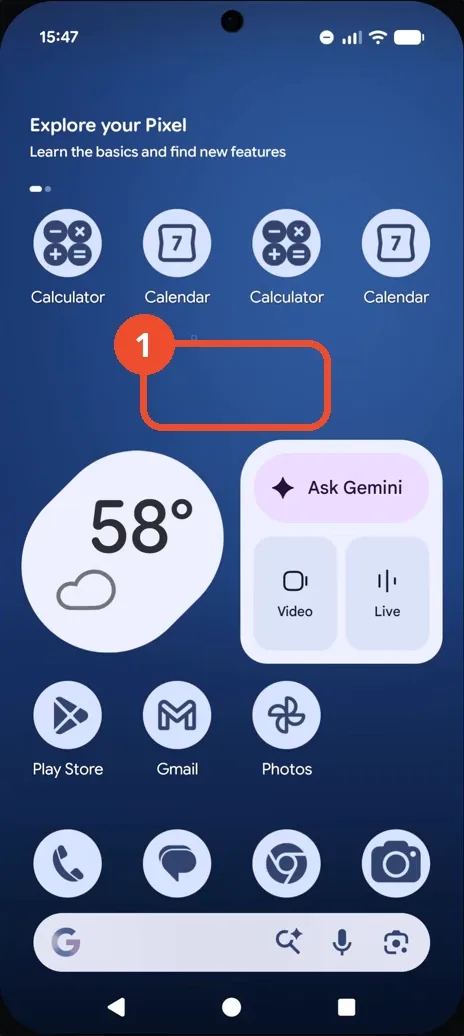
Long-press an empty spot on the Home screen
Long-press an empty area of the Home screen — not an icon — until the Home screen menu appears.
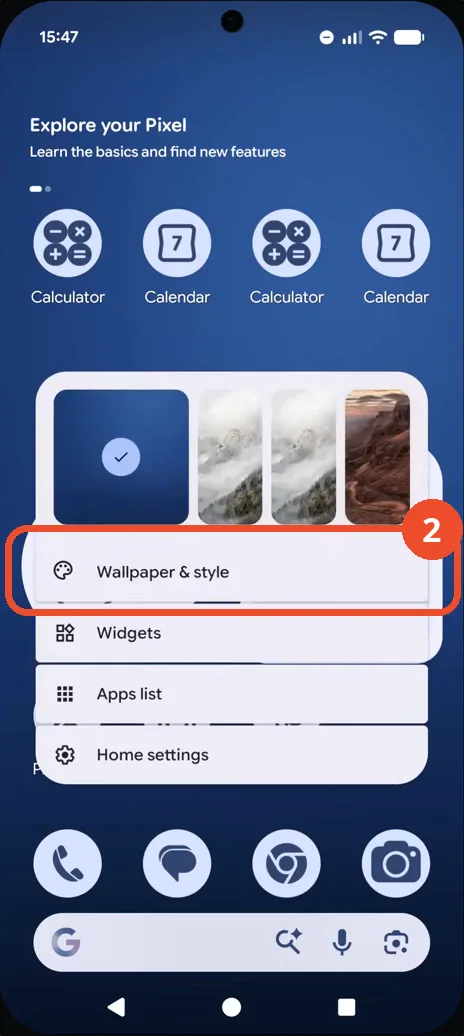
Tap Wallpaper & style
In the Home screen menu, tap Wallpaper & style at the top.
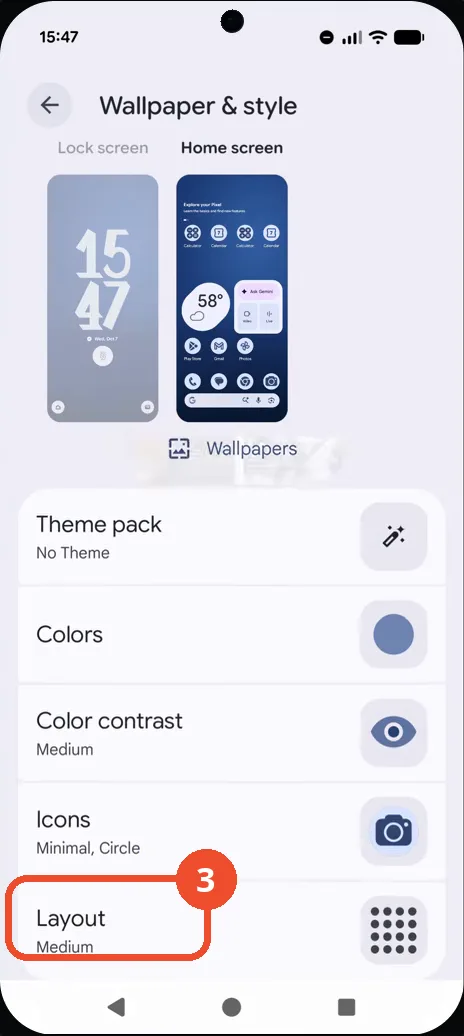
Scroll down and tap Layout
Scroll down the Wallpaper & style page until you see Layout at the bottom — it reads Medium — then tap it.
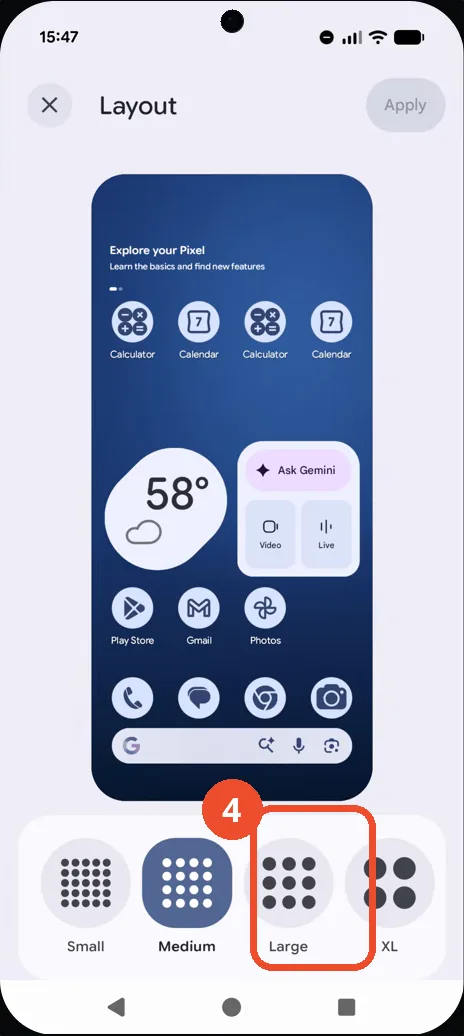
Tap Large
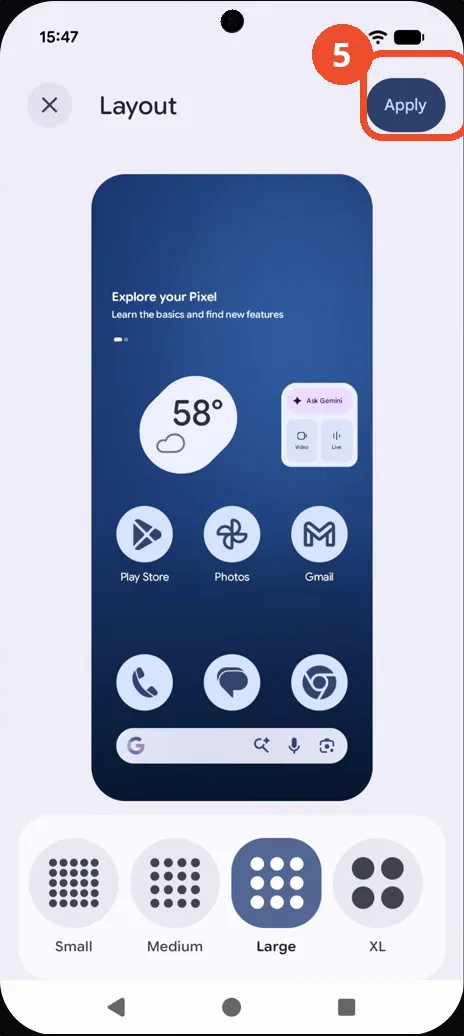
On the Layout page, Medium is currently selected. Tap Large — the preview switches to a three-column grid with larger icons, and Apply turns on.
Tap Apply
With Large selected, tap Apply at the top right. The button briefly shows a spinner while the grid is applied.
Check that Layout reads Large
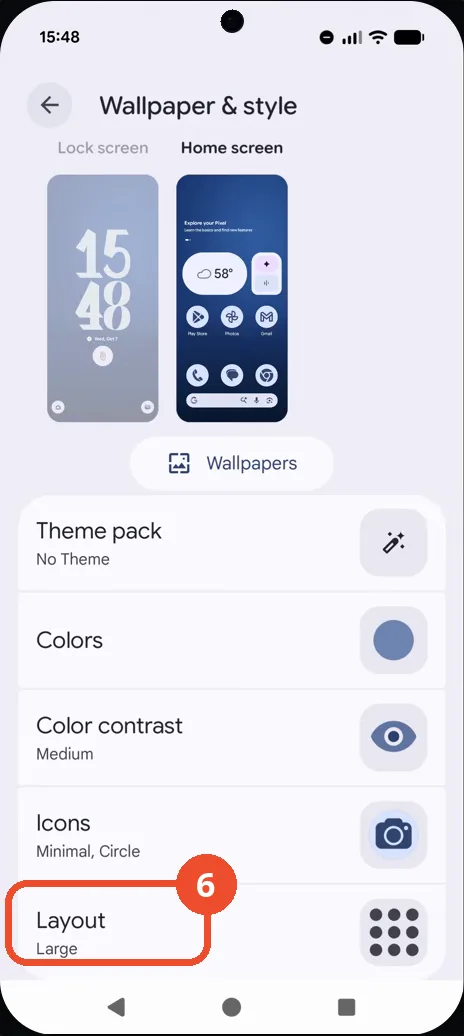
Back on the Wallpaper & style page, Layout now reads Large, and the Home screen preview shows the three-column grid. That is the confirmation.
Good to know
- Large is the third of four layouts — Small, Medium, Large, XL. Medium was the starting layout here; the preview switches from a four-column grid to a three-column grid with larger icons.
- This changes the home screen grid only, not the Display size: Settings > Display size & text scales everything on screen, while Layout only changes the home screen grid.
- The change applies as soon as you tap Apply — there is no extra save step, and the Wallpaper & style page then reads Layout: Large.
- The Icons row on the same page (Minimal, Circle here) is a separate setting and is not changed in this recording.
- Change App Icons on Google Pixel 11 Pro
- Turn On the Flashlight on Google Pixel 11 Pro
- Turn Off Pop-Up Notifications for Messages on Google Pixel 11 Pro
- Turn On Spoken Directions in Google Maps on Google Pixel 11 Pro
- Find Call Recording Settings on Google Pixel 11 Pro
- Change Text Tone in Google Messages on Google Pixel 11 Pro
- Block Spam Calls on Google Pixel 11 Pro
- How to Find Apps on Google Pixel 11 Pro
- How to Find System Apps on Google Pixel 11 Pro
- How to Open the Power Menu with the Power Button on Google Pixel 11 Pro
- How to Check VoLTE Support on Google Pixel 11 Pro
- How to Change the Google Messages Notification Sound on Google Pixel 11 Pro
- How to Change System Colors on Google Pixel 11 Pro
- How to Check RAM Usage on Google Pixel 11 Pro
- How to Edit Quick Settings Tiles on Google Pixel 11 Pro
- How to Enable GPS Location on Google Pixel 11 Pro
- How to Set a Ringtone for One Contact on Google Pixel 11 Pro
- How to Enable Daily Changing Wallpaper on Google Pixel 11 Pro
- How to Change Font Size on Google Pixel 11 Pro
- How to Customize the Google Search Bar on Pixel 11 Pro with Android 17
- How to Use Macro Focus on Pixel 11 Pro with Android 17
- How to View Blocked Numbers on Pixel 11 Pro with Android 17
- How to Adjust Volume Without Buttons on Google Pixel 11 Pro
- Where Is NFC on the Google Pixel 11 Pro with Android 17?
- How to Adjust Camera ISO on Pixel 11 Pro with Android 17
- How to Turn On Camera Flash on Pixel 11 Pro with Android 17
- How to Check Desktop Experience on Pixel 11 Pro with Android 17
- How to Show Wallpaper on Always-on Display on Pixel 11 Pro with Android 17
- How to Enable or Disable Google Discover on Pixel 11 Pro with Android 17
- How to Find Deleted Messages in Google Messages on Pixel 11 Pro with Android 17
- How to Check the App Drawer Layout on Pixel 11 Pro with Android 17
- How to Turn on Dark Theme on Pixel 11 Pro with Android 17
- How to Change Media Output on Pixel 11 Pro with Android 17
- How to Change App Size on Pixel 11 Pro with Android 17
- How to Turn Off Motion Photo on Pixel 11 Pro with Android 17
- How to Turn On Sensitive Content Warnings on Pixel 11 Pro with Android 17
- How to Use Camera Pro Mode on Pixel 11 Pro with Android 17
- How to View Call History on Pixel 11 Pro with Android 17
- How to Change the Lock Screen Clock on Pixel 11 Pro with Android 17
- How to Manage Bubbles on Pixel 11 Pro with Android 17
- How to Change Keyboards on Pixel 11 Pro with Android 17
- How to Check for Reverse Wireless Charging on Pixel 11 Pro with Android 17
- How to Check Status Bar Notifications on Pixel 11 Pro with Android 17
- How to Find the Camera Shutter Sound Setting on Pixel 11 Pro with Android 17
- How to Find Magic Eraser in Google Photos on Pixel 11 Pro with Android 17
- How to Delete Call History on Pixel 11 Pro with Android 17