How to Change Font Size on Google Pixel 11 Pro
Text too small or too large across the whole phone is fixed in one place: the Font size slider in Display size & text. This guide opens it from Settings and drags it to a new size.
- DeviceGoogle Pixel 11 Pro
- SystemAndroid 17
- AppSettings
- Also works onOther Pixel phones running Android 17
- Last verifiedNovember 1, 2026
Every screenshot below is taken from the actual recording on this device — no stock images.
Steps
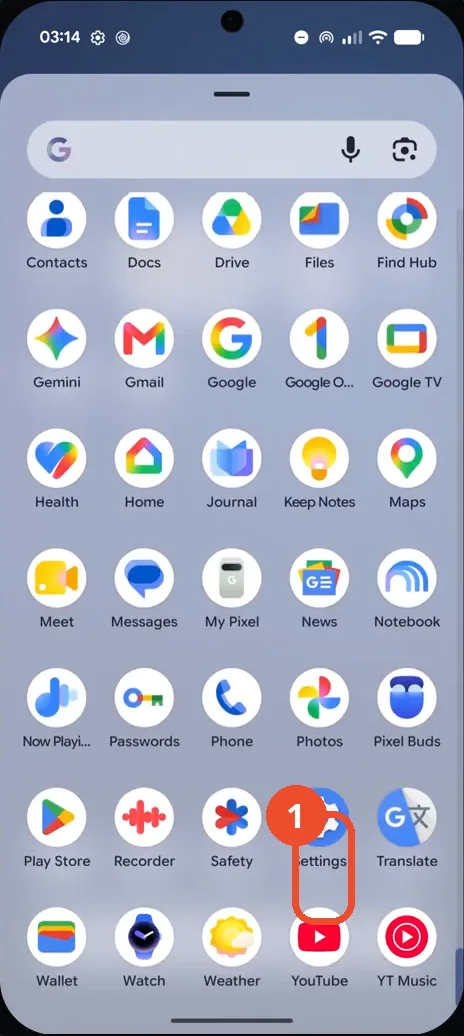
Open Settings from the app drawer
Swipe up to open the app drawer, scroll down, and tap the Settings gear icon. The main Settings screen opens.
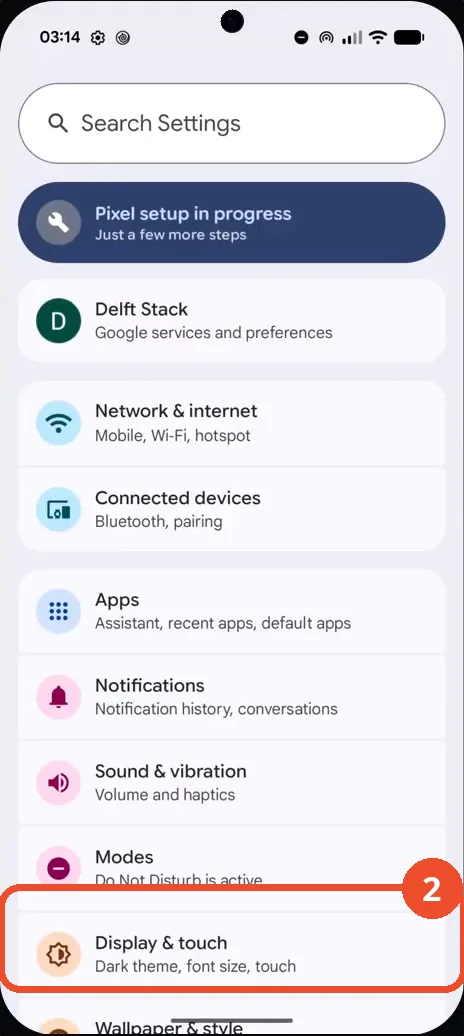
Tap Display & touch
On the main Settings screen, scroll down to Display & touch, whose subtitle already mentions font size, and tap it.
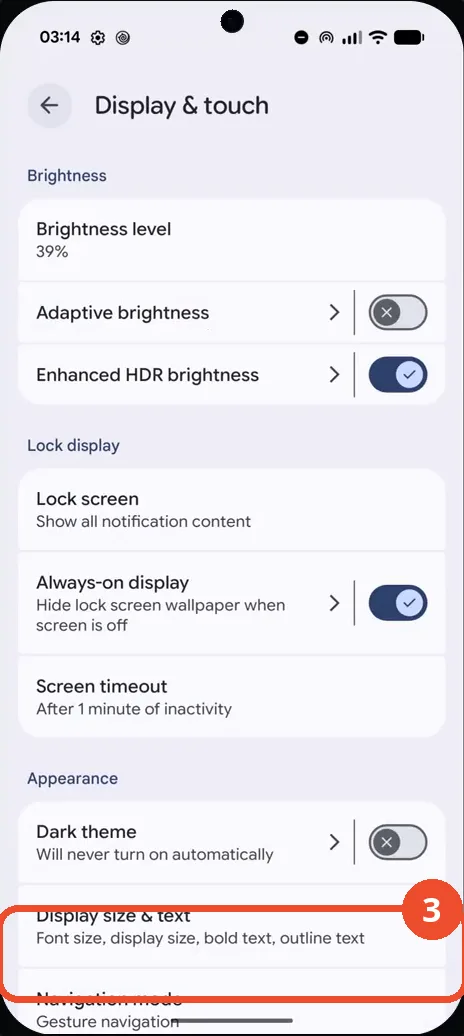
Tap Display size & text
Scroll down to Appearance and tap Display size & text. The Display size & text screen opens with a Home screen preview.
Drag the Font size slider
Under Size options, drag the Font size slider to the right to make text bigger, or to the left to make it smaller.
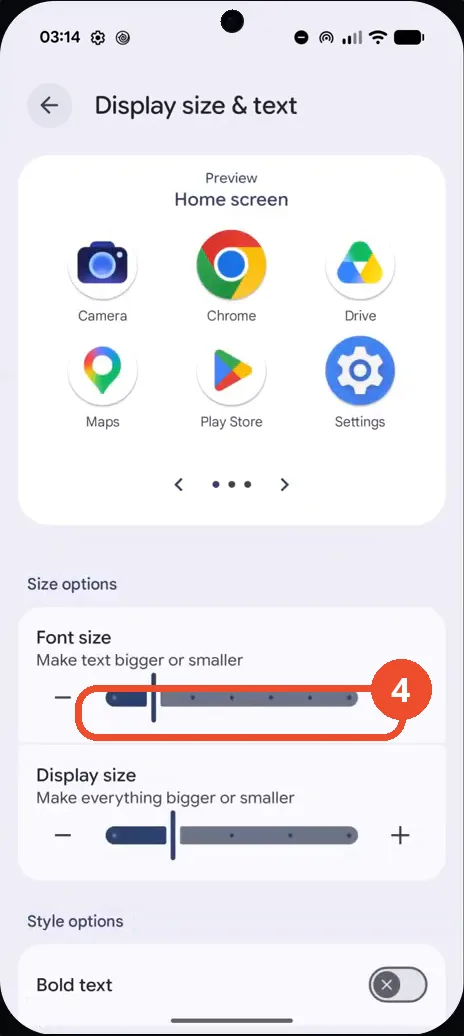
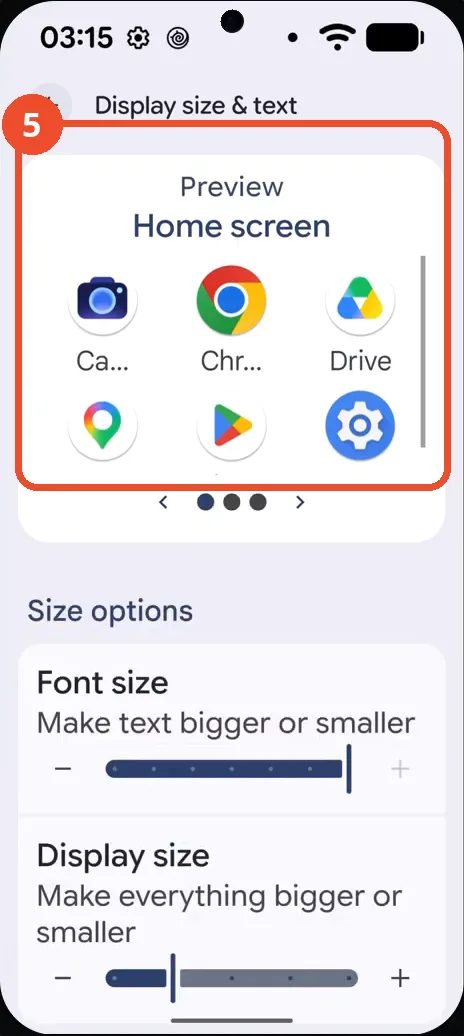
Check the preview at the largest size
Dragged to the largest size, the preview’s app labels grow and truncate (Camera shows as Ca…), proving the new size applies system-wide.
The size applies immediately
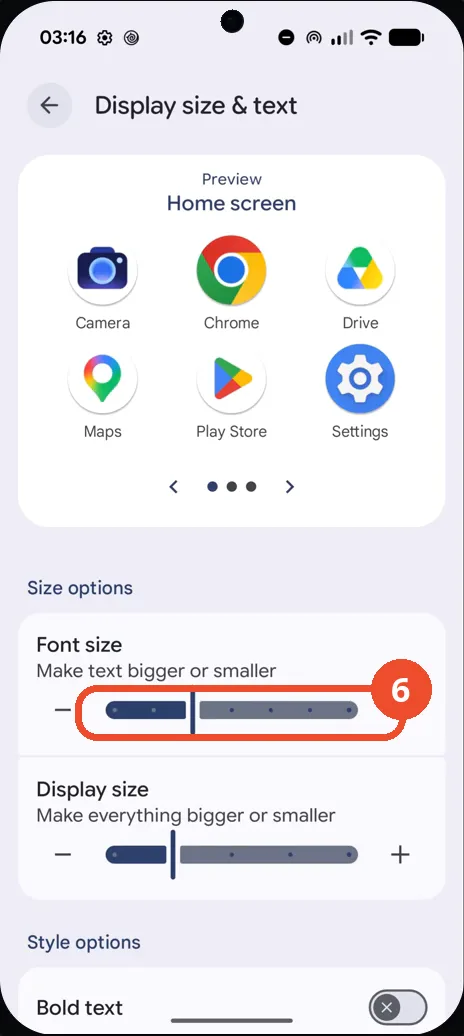
There is no save button: the size applies the moment you release the slider. In the recording the slider is then moved back toward the default and the preview returns to normal.
Good to know
- The change applies immediately as you drag — there is no save button on this screen, and the preview updates live.
- The Font size slider only changes text size; the Display size slider below it scales everything, including icons.
- In the recording the slider is dragged to the largest size to demonstrate, then moved back toward the default.
- Change App Icons on Google Pixel 11 Pro
- Turn On the Flashlight on Google Pixel 11 Pro
- Turn Off Pop-Up Notifications for Messages on Google Pixel 11 Pro
- Turn On Spoken Directions in Google Maps on Google Pixel 11 Pro
- Find Call Recording Settings on Google Pixel 11 Pro
- Change Text Tone in Google Messages on Google Pixel 11 Pro
- Block Spam Calls on Google Pixel 11 Pro
- How to Find Apps on Google Pixel 11 Pro
- How to Find System Apps on Google Pixel 11 Pro
- How to Open the Power Menu with the Power Button on Google Pixel 11 Pro
- How to Check VoLTE Support on Google Pixel 11 Pro
- How to Change the Google Messages Notification Sound on Google Pixel 11 Pro
- How to Change System Colors on Google Pixel 11 Pro
- How to Check RAM Usage on Google Pixel 11 Pro
- How to Edit Quick Settings Tiles on Google Pixel 11 Pro
- How to Enable GPS Location on Google Pixel 11 Pro
- How to Adjust Volume Without Buttons on Google Pixel 11 Pro
- How to Set a Ringtone for One Contact on Google Pixel 11 Pro
- How to Enable Daily Changing Wallpaper on Google Pixel 11 Pro