How to Change App Size on Pixel 11 Pro with Android 17
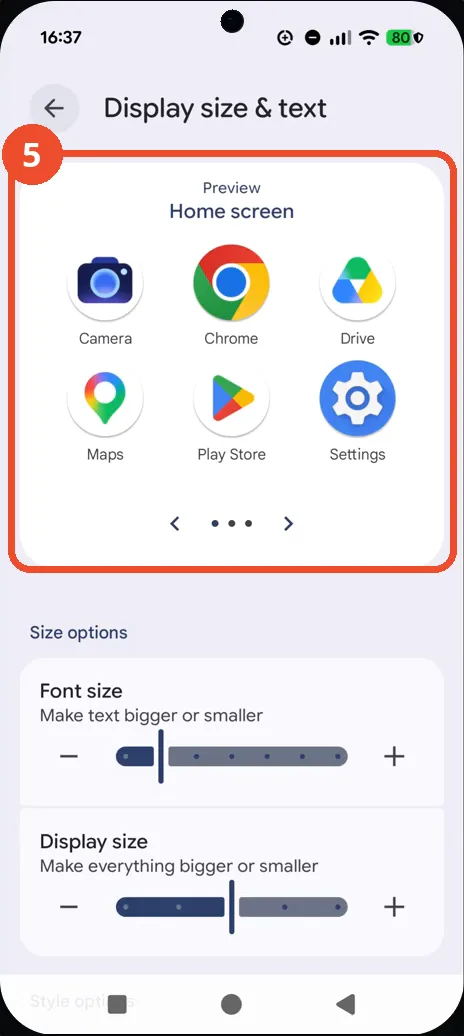
App icons too small to tap comfortably? Android 17 lets you scale up the whole display from Settings: open Display size & text and tap + once under Display size — the preview shows larger Home screen icons right away.
- DeviceGoogle Pixel 11 Pro
- SystemAndroid 17
- AppSettings
- Also works onOther Pixel phones running Android 17
- Last verifiedNovember 7, 2026
Every screenshot below is taken from the actual recording on this device — no stock images.
Steps
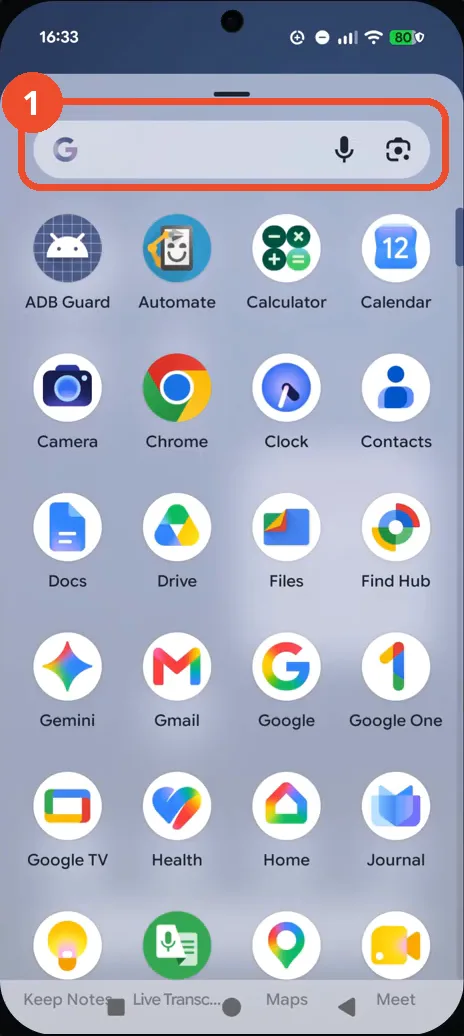
Open the app drawer
From the Home screen, swipe up: the app drawer opens with a search bar at the top and your apps below it.
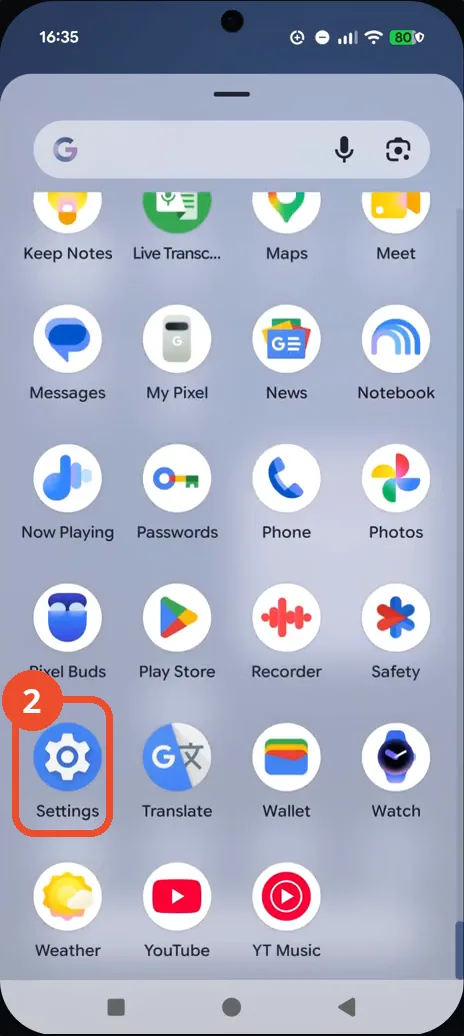
Scroll down and tap Settings
Swipe up through the drawer until the Settings gear icon appears near the bottom, then tap it.
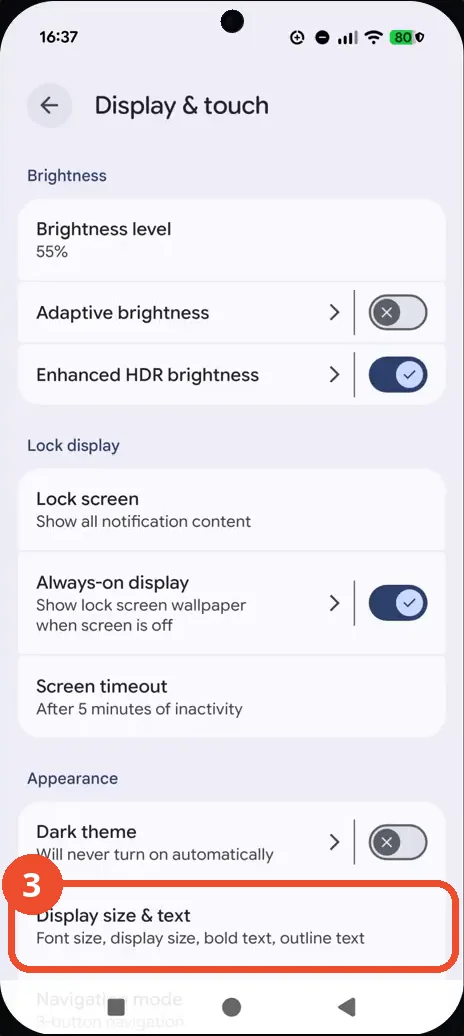
Tap Display size & text
On the Display & touch page, tap Display size & text near the bottom, under Appearance. Tapping Settings opens straight onto Display & touch here — Settings reopens on the page it was last left on — so if yours opens at the top of the list, scroll down to Display & touch first.
Tap + under Display size
On the Display size & text page, find Display size — “Make everything bigger or smaller” — and tap the + at the right end of its slider once. Leave the Font size slider alone: it only changes text.
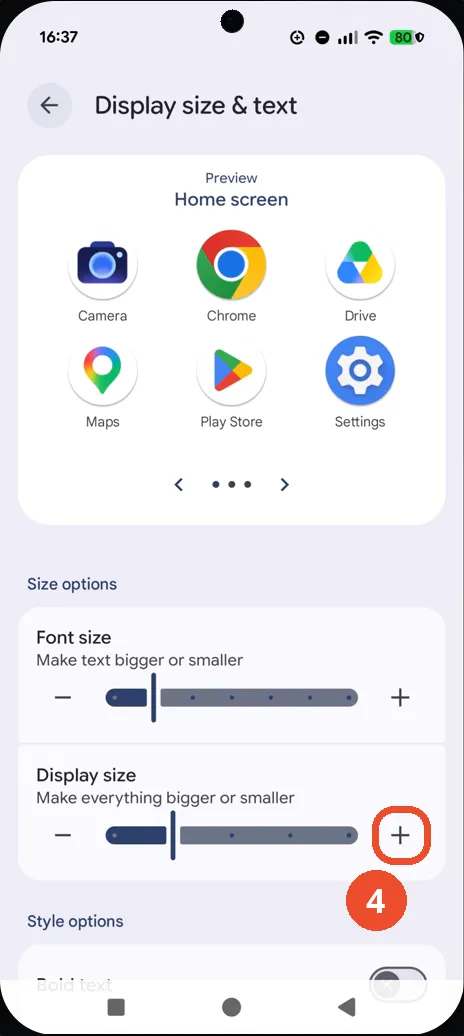
Check the preview
The preview at the top shows the Home screen with visibly larger app icons, and the Display size slider sits one notch higher. That preview is the confirmation — the change applies everywhere at once, with no save button to tap.
Good to know
- This changes Display size, not Font size: the icons and everything on screen get bigger, while the Font size slider is left untouched — the video taps + once under Display size only.
- This is different from changing the app icon style or the font size: Display size scales everything on screen — icons, menus and buttons — while Font size only scales text.
- The recording briefly opens the drawer’s search view and backs out of it again — that detour is not part of the task; just scroll to Settings.
- The recording jumps straight from the drawer to the Display & touch page — the Settings main page itself is never shown, because Settings reopened on the page it was last left on.
- To undo it, come back to the same slider and tap − once.
- Change App Icons on Google Pixel 11 Pro
- Turn On the Flashlight on Google Pixel 11 Pro
- Turn Off Pop-Up Notifications for Messages on Google Pixel 11 Pro
- Turn On Spoken Directions in Google Maps on Google Pixel 11 Pro
- Find Call Recording Settings on Google Pixel 11 Pro
- Change Text Tone in Google Messages on Google Pixel 11 Pro
- Block Spam Calls on Google Pixel 11 Pro
- How to Find Apps on Google Pixel 11 Pro
- How to Find System Apps on Google Pixel 11 Pro
- How to Open the Power Menu with the Power Button on Google Pixel 11 Pro
- How to Check VoLTE Support on Google Pixel 11 Pro
- How to Change the Google Messages Notification Sound on Google Pixel 11 Pro
- How to Change System Colors on Google Pixel 11 Pro
- How to Check RAM Usage on Google Pixel 11 Pro
- How to Edit Quick Settings Tiles on Google Pixel 11 Pro
- How to Enable GPS Location on Google Pixel 11 Pro
- How to Set a Ringtone for One Contact on Google Pixel 11 Pro
- How to Enable Daily Changing Wallpaper on Google Pixel 11 Pro
- How to Change Font Size on Google Pixel 11 Pro
- How to Customize the Google Search Bar on Pixel 11 Pro with Android 17
- How to Use Macro Focus on Pixel 11 Pro with Android 17
- How to View Blocked Numbers on Pixel 11 Pro with Android 17
- How to Adjust Volume Without Buttons on Google Pixel 11 Pro
- Where Is NFC on the Google Pixel 11 Pro with Android 17?
- How to Adjust Camera ISO on Pixel 11 Pro with Android 17
- How to Turn On Camera Flash on Pixel 11 Pro with Android 17
- How to Check Desktop Experience on Pixel 11 Pro with Android 17
- How to Show Wallpaper on Always-on Display on Pixel 11 Pro with Android 17
- How to Enable or Disable Google Discover on Pixel 11 Pro with Android 17
- How to Find Deleted Messages in Google Messages on Pixel 11 Pro with Android 17
- How to Check the App Drawer Layout on Pixel 11 Pro with Android 17
- How to Turn Off Motion Photo on Pixel 11 Pro with Android 17
- How to Turn on Dark Theme on Pixel 11 Pro with Android 17
- How to Change Media Output on Pixel 11 Pro with Android 17