How to Change App Icons on Google Pixel 11 Pro
If your Pixel 11 Pro shows plain, single-color app icons, it is using the Minimal icon style. Android 17 keeps the full-color icons one setting away: switch the icon style back to Default in Wallpaper & style and every app gets its familiar colored icon back. It takes about a minute, and the same screen also controls icon shape and name labels.
- DeviceGoogle Pixel 11 Pro
- SystemAndroid 17
- AppPixel Launcher (pre-installed)
- Also works onOther Pixel phones running Android 17
- Last verifiedOctober 27, 2026
Every screenshot below is taken from the actual recording on this device — no stock images.
Before you start
- This uses the built-in Pixel Launcher. If you run a third-party launcher, icon styles are set inside that launcher instead.
- Nothing is deleted or reset — you are only changing how icons are drawn, and you can switch back at any time.
Steps
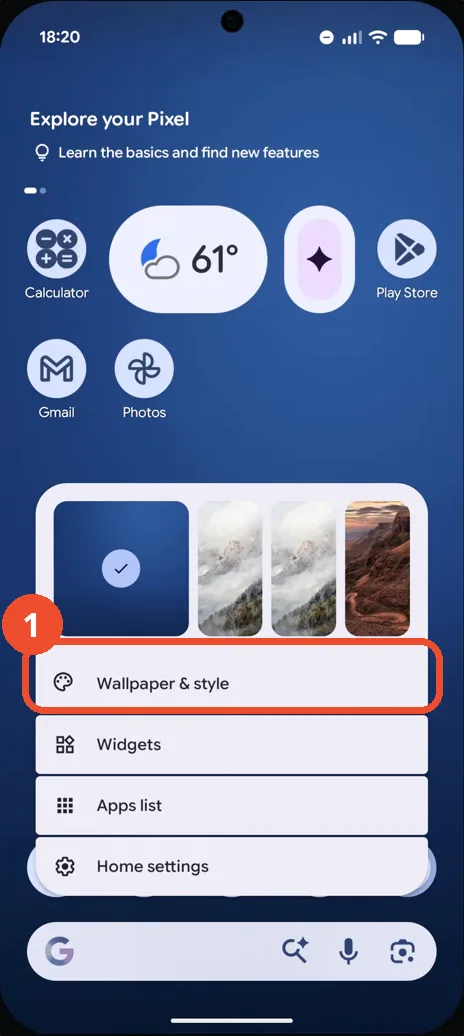
Press and hold the Home screen and tap Wallpaper & style
Press and hold an empty spot on the Home screen until the customization menu opens, then tap Wallpaper & style.
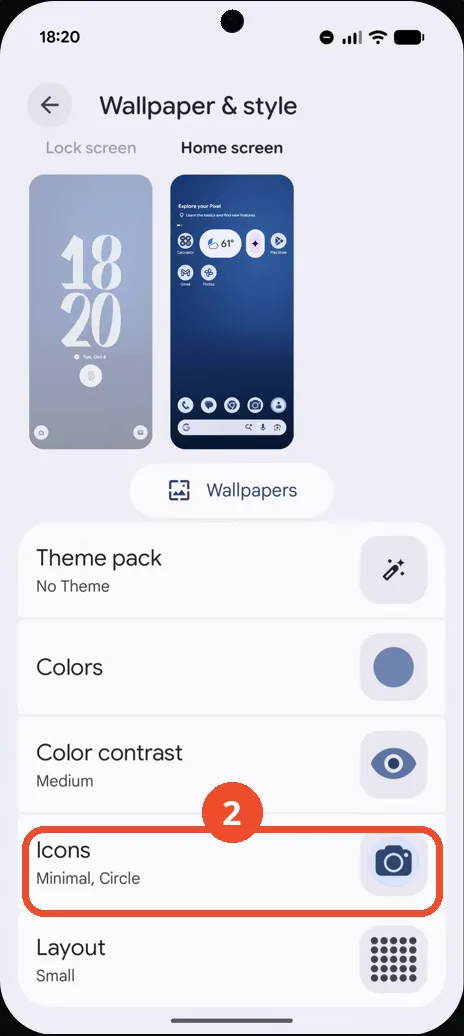
Tap Icons
On the Wallpaper & style screen, tap Icons. The line under it shows the style currently in use — in this recording it reads Minimal, Circle.
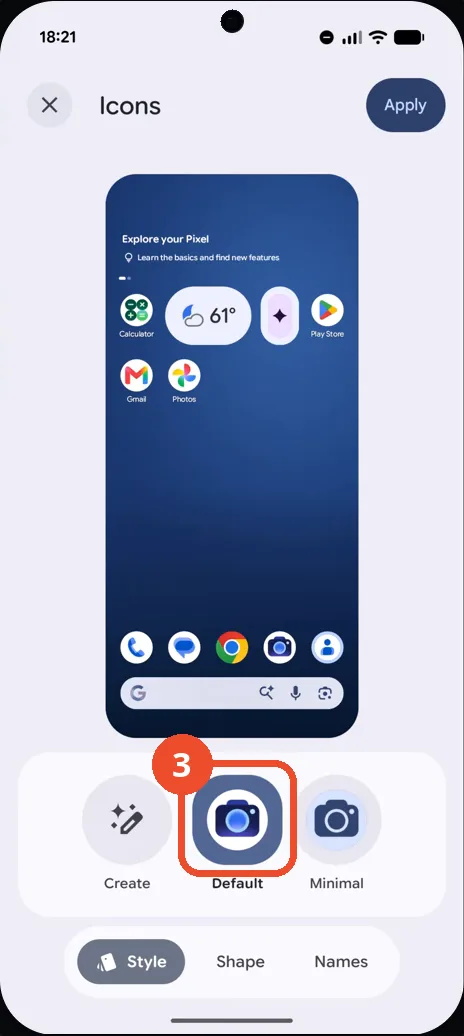
Select the Default icon style
Under the Style tab, tap Default. The preview at the top updates immediately and shows the full-color app icons. The Shape and Names tabs next to Style let you change the icon shape and turn name labels on or off.
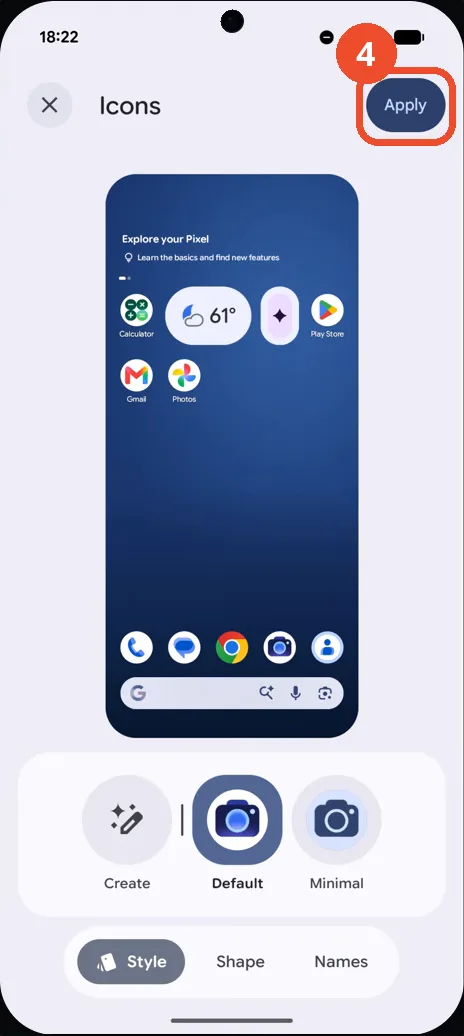
Tap Apply
Tap Apply in the top-right corner to confirm the new style. If you leave with the ✕ instead, nothing changes.
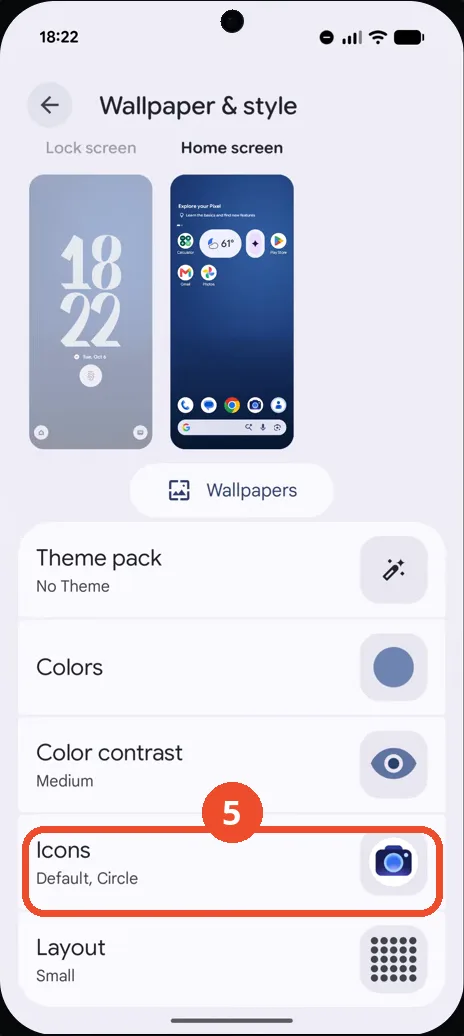
Check that Icons shows Default, Circle
You are back on Wallpaper & style, and the Icons line now reads Default, Circle. Your Home screen and app drawer icons are back to their regular full-color look.
If the icons did not change
- Reopen Wallpaper & style → Icons and check which style is selected — without tapping Apply, the change is discarded.
- To go back to the monochrome look, repeat the steps and select Minimal instead of Default.
- You can also reach the same screen from Settings → Wallpaper & style.