How to Change App Icons to Minimal on Pixel 11 Pro with Android 17
If you prefer plain, single-color app icons, the Pixel 11 Pro has a built-in Minimal icon style. Open Wallpaper & style, pick Minimal under Icons, and apply - the whole Home screen switches to the simpler look in under a minute.
- DeviceGoogle Pixel 11 Pro
- SystemAndroid 17
- AppPixel Launcher (pre-installed)
- Also works onOther Pixel phones running Android 17
- Last verifiedNovember 27, 2026
Every screenshot below is taken from the actual recording on this device — no stock images.
Steps
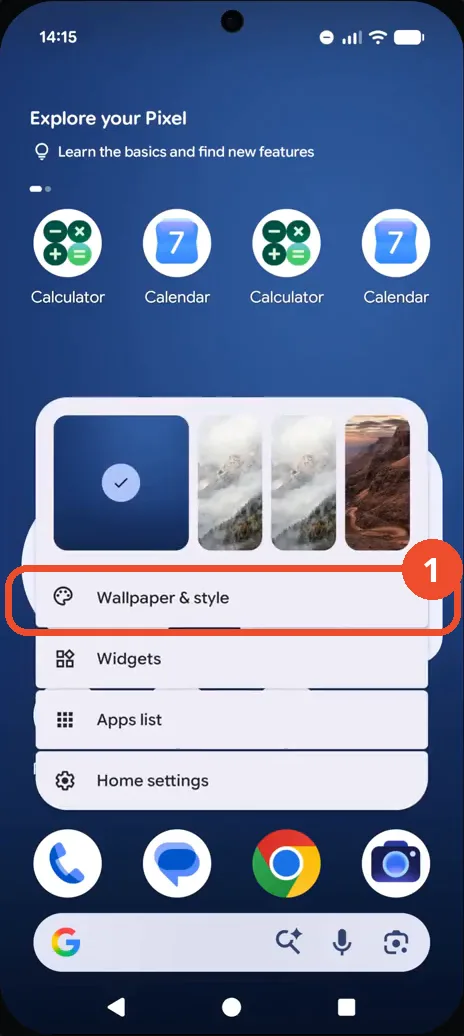
Press and hold the Home screen and tap Wallpaper & style
On the Home screen, press and hold an empty area until the menu opens, then tap Wallpaper & style.
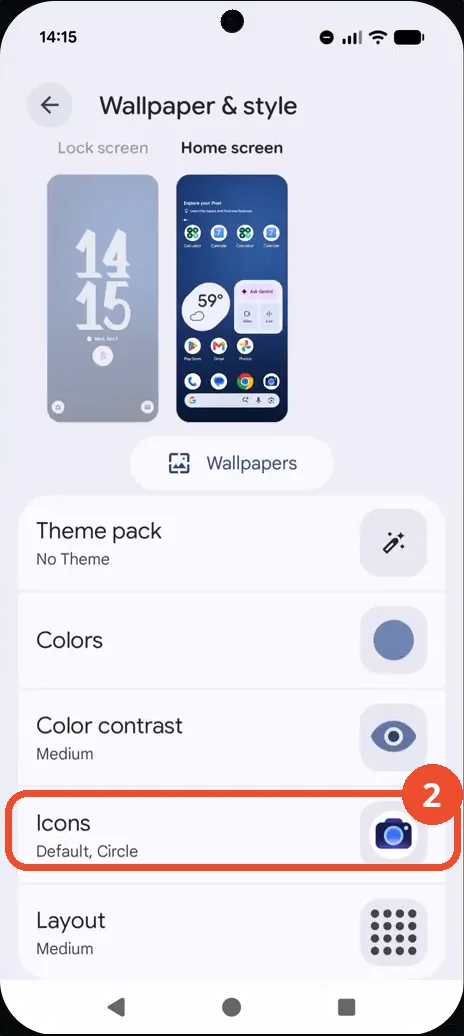
Tap Icons
On the Wallpaper & style screen, scroll down if needed and tap Icons. The line under it shows the style currently in use - here it reads Default, Circle.
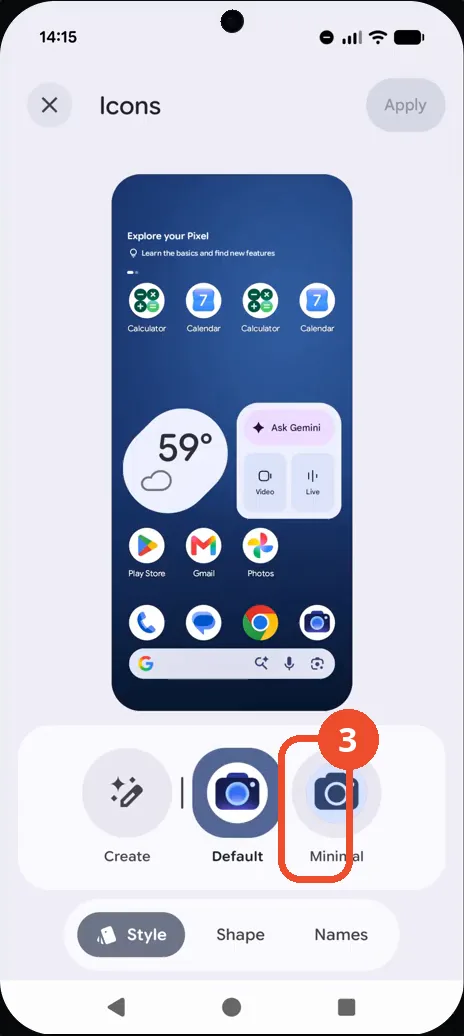
Select Minimal
Under the Style tab, tap Minimal. The preview at the top updates immediately and shows the simpler, single-color icons.
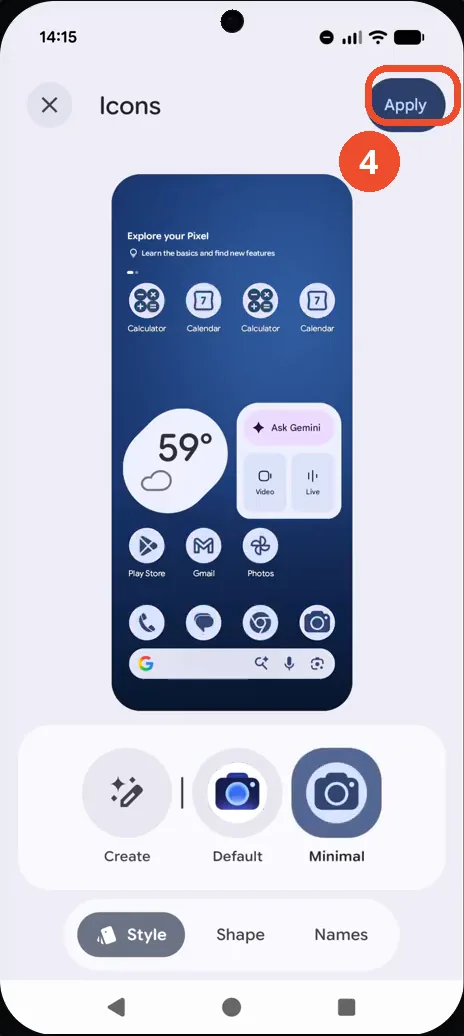
Tap Apply
Tap Apply at the top right to set the new style.
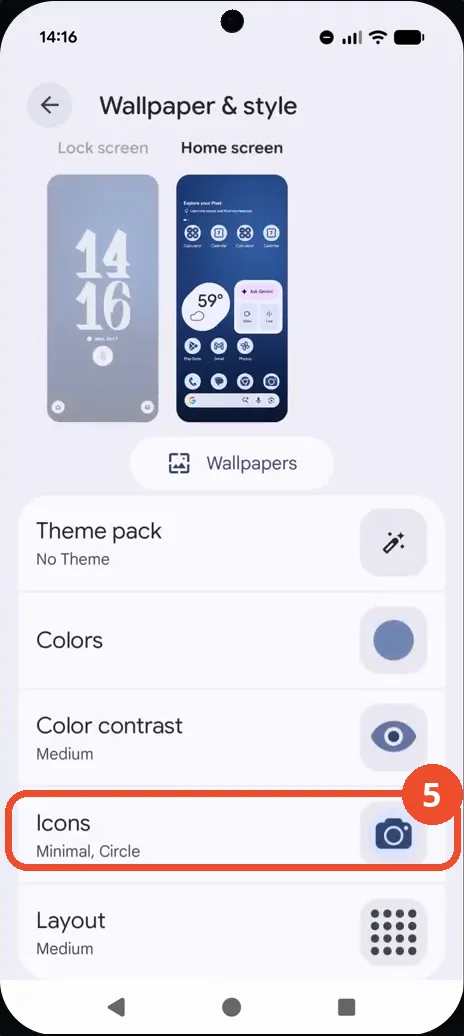
Check that Icons shows Minimal, Circle
Back on the Wallpaper & style screen, the Icons row now reads Minimal, Circle, and the preview shows the minimal icons.
Good to know
- The same screen also controls icon shape and name labels, on the Shape and Names tabs next to Style.
- To go back to full-color icons, repeat these steps and pick Default instead of Minimal.
- This changes how icons are drawn only - no apps, data, or settings are affected.
- On the Galaxy A57, making icons larger is a separate setting - see How to Make App Icons Larger on Samsung Galaxy A57 with One UI 8.5.
- Change App Icons on Google Pixel 11 Pro
- Turn On the Flashlight on Google Pixel 11 Pro
- Turn Off Pop-Up Notifications for Messages on Google Pixel 11 Pro
- Turn On Spoken Directions in Google Maps on Google Pixel 11 Pro
- Find Call Recording Settings on Google Pixel 11 Pro
- Change Text Tone in Google Messages on Google Pixel 11 Pro
- Block Spam Calls on Google Pixel 11 Pro
- How to Find Apps on Google Pixel 11 Pro
- How to Find System Apps on Google Pixel 11 Pro
- How to Open the Power Menu with the Power Button on Google Pixel 11 Pro
- How to Check VoLTE Support on Google Pixel 11 Pro
- How to Change the Google Messages Notification Sound on Google Pixel 11 Pro
- How to Change System Colors on Google Pixel 11 Pro
- How to Check RAM Usage on Google Pixel 11 Pro
- How to Edit Quick Settings Tiles on Google Pixel 11 Pro
- How to Enable GPS Location on Google Pixel 11 Pro
- How to Set a Ringtone for One Contact on Google Pixel 11 Pro
- How to Enable Daily Changing Wallpaper on Google Pixel 11 Pro
- How to Change Font Size on Google Pixel 11 Pro
- How to Customize the Google Search Bar on Pixel 11 Pro with Android 17
- How to Use Macro Focus on Pixel 11 Pro with Android 17
- How to View Blocked Numbers on Pixel 11 Pro with Android 17
- How to Adjust Volume Without Buttons on Google Pixel 11 Pro
- Where Is NFC on the Google Pixel 11 Pro with Android 17?
- How to Adjust Camera ISO on Pixel 11 Pro with Android 17
- How to Turn On Camera Flash on Pixel 11 Pro with Android 17
- How to Check Desktop Experience on Pixel 11 Pro with Android 17
- How to Show Wallpaper on Always-on Display on Pixel 11 Pro with Android 17
- How to Enable or Disable Google Discover on Pixel 11 Pro with Android 17
- How to Find Deleted Messages in Google Messages on Pixel 11 Pro with Android 17
- How to Check the App Drawer Layout on Pixel 11 Pro with Android 17
- How to Turn on Dark Theme on Pixel 11 Pro with Android 17
- How to Change Media Output on Pixel 11 Pro with Android 17
- How to Change App Size on Pixel 11 Pro with Android 17
- How to Turn Off Motion Photo on Pixel 11 Pro with Android 17
- How to Turn On Sensitive Content Warnings on Pixel 11 Pro with Android 17
- How to Use Camera Pro Mode on Pixel 11 Pro with Android 17
- How to View Call History on Pixel 11 Pro with Android 17
- How to Change the Lock Screen Clock on Pixel 11 Pro with Android 17
- How to Manage Bubbles on Pixel 11 Pro with Android 17
- How to Change Keyboards on Pixel 11 Pro with Android 17
- How to Check for Reverse Wireless Charging on Pixel 11 Pro with Android 17
- How to Check Status Bar Notifications on Pixel 11 Pro with Android 17
- How to Find the Camera Shutter Sound Setting on Pixel 11 Pro with Android 17
- How to Change the Home Screen Grid on Pixel 11 Pro with Android 17
- How to Delete Call History on Pixel 11 Pro with Android 17
- How to Change the Ringtone on Pixel 11 Pro with Pixel Sounds
- How to Customize the Clock Widget on Pixel 11 Pro with Android 17
- How to Open Gboard Keyboard Settings on Pixel 11 Pro with Android 17
- How to Find Magic Eraser in Google Photos on Pixel 11 Pro with Android 17
- How to Find System Volume Controls on Pixel 11 Pro with Android 17
- How to Improve Phone Sound Quality on Pixel 11 Pro with Android 17
- How to Turn Night Light Off and On on Pixel 11 Pro with Android 17
- How to Check the Default Contactless Payment App on Pixel 11 Pro with Android 17
- How to Find Ultra HDR in Camera Settings on Pixel 11 Pro with Android 17
- How to Access Voicemail on Pixel 11 Pro with Android 17
- How to Set Up a Work Profile on Pixel 11 Pro with Android 17
- How to Start a Screen Recording on Pixel 11 Pro
- How to Enable SMS Code Autofill on Pixel 11 Pro with Android 17
- How to Use Magnification on Pixel 11 Pro with Android 17
- How to Turn On Notification Summaries and Review Organizer Settings on Pixel 11 Pro with Android 17
- How to Find Hidden Files on Pixel 11 Pro with Android 17
- How to Find Downloads on Pixel 11 Pro with Android 17
- How to Find the Screen Brightness Slider on Pixel 11 Pro with Android 17
- How to Open Pixel Home Screen Settings on Pixel 11 Pro with Android 17
- How to Add Calendar to the Home Screen on Pixel 11 Pro with Android 17
- How to Set Google as the Default Digital Assistant on Pixel 11 Pro with Android 17
- How to Enable NFC on Pixel 11 Pro with Android 17
- How to Remove a Home Screen Widget on Pixel 11 Pro with Android 17
- How to Turn Off Auto Updates on Pixel 11 Pro with Android 17
- How to Reset APN Settings on Pixel 11 Pro with Android 17
- How to Show or Hide Silent Notifications on Pixel 11 Pro with Android 17
- How to Enable Automatic Network Selection on Pixel 11 Pro with Android 17
- How to Close All Chrome Tabs on Pixel 11 Pro with Android 17
- How to Find the PIN Screen Lock Setting on Pixel 11 Pro with Android 17
- How to Take a Screenshot with Quick Tap on Pixel 11 Pro with Android 17
- How to Clear Chrome’s Cache on Pixel 11 Pro with Android 17
- How to Find Time Lapse Speed Options on Pixel 11 Pro with Android 17
- How to Check Call Waiting on Pixel 11 Pro with Android 17
- How to Open Contacts on Pixel 11 Pro with Android 17
- How to Turn On Wi-Fi Hotspot on Pixel 11 Pro with Android 17
- How to Manage Password Autofill on Pixel 11 Pro with Android 17
- How to Enable Notification Snoozing on Pixel 11 Pro with Android 17
- How to Turn On Motion Photo on Pixel 11 Pro with Android 17
- How to Change Icon Colors on Pixel 11 Pro with Android 17
Guide complete
Every step above comes from the original recording, with a screenshot for each step. Want more like this? Browse all Google Pixel 11 Pro guides.