How to Adjust Volume Without Buttons on Google Pixel 11 Pro
Broken, stiff, or case-covered volume keys don’t lock you out of the volume controls. On the Pixel 11 Pro with Android 17, every volume slider — media, calls, ring, notifications, alarm — lives on one Settings page, so you can change any of them with touch only.
- DeviceGoogle Pixel 11 Pro
- SystemAndroid 17
- AppSettings (pre-installed)
- Also works onOther Pixel phones running Android 17
- Last verifiedOctober 27, 2026
Every screenshot below is taken from the actual recording on this device — no stock images.
Before you start
- No app is needed: this uses the built-in Settings app.
- If Do Not Disturb is on (the recording shows Do Not Disturb is active under Modes), the phone can stay silent even with the ring volume up — check Modes if raising the sliders seems to have no effect.
Steps
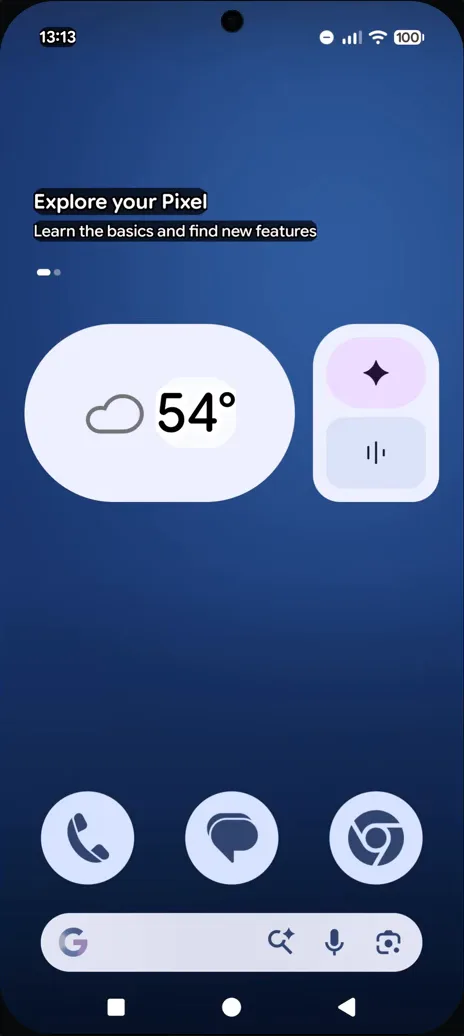
Swipe up to open the app drawer
From the Home screen, swipe up to open the app drawer with all your apps.
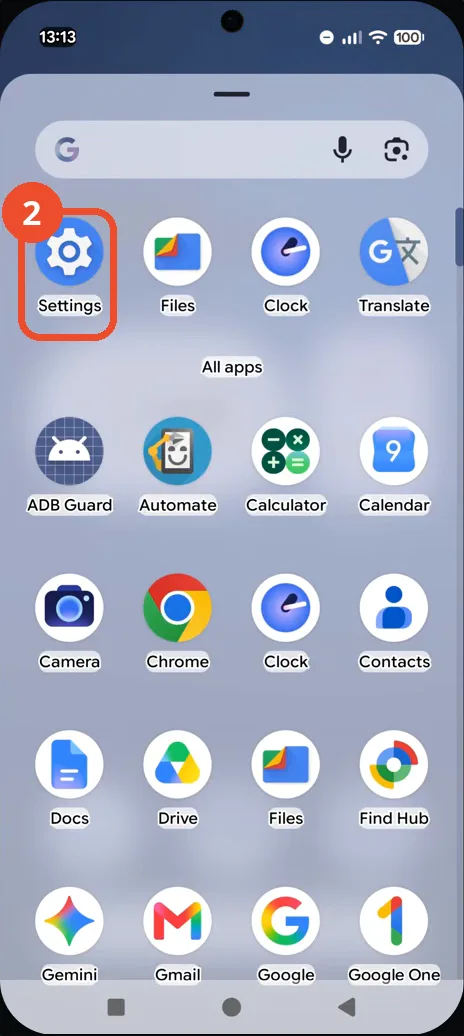
Tap Settings
Tap Settings — the gear icon at the top of the drawer in this recording; you may need to scroll if your drawer is arranged differently.
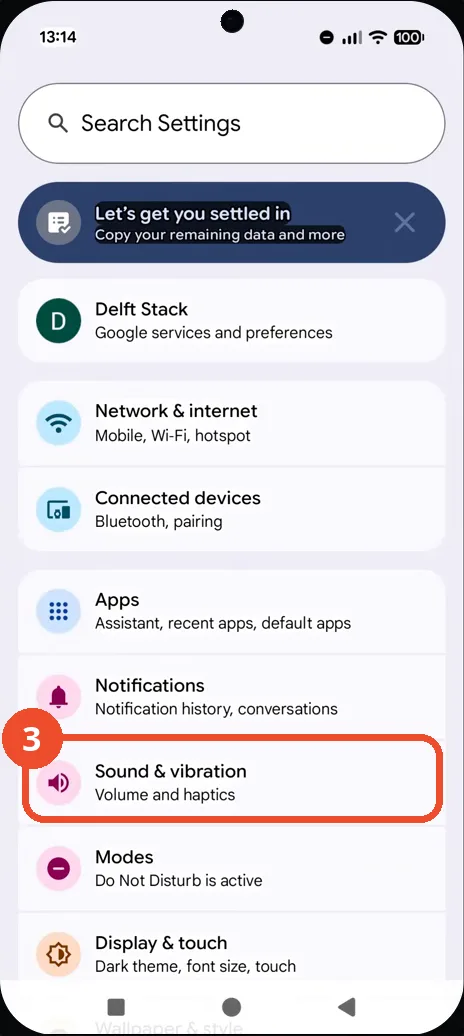
Tap Sound & vibration
In the Settings list, tap Sound & vibration, described as Volume and haptics.
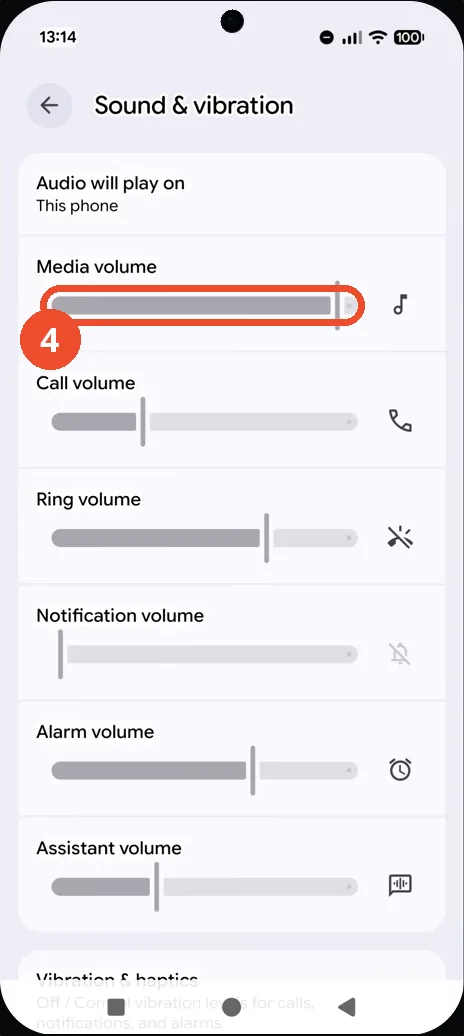
Drag the volume slider you want to change
The Sound & vibration page shows all the sliders on one screen: Media volume, Call volume, Ring volume, Notification volume, Alarm volume and Assistant volume. Drag the one you need — the change applies immediately, no button press involved.
If a slider will not move
- Look at the top of the page: if Audio will play on points to another device (for example connected earbuds), the media slider controls that device instead.
- Check Modes: with Do Not Disturb active, ring and notification sounds stay muted even when their sliders are up.