How to Use a Waze Route Offline
Waze has no offline-download button, so the trick is to load your route while you are still online: Waze keeps the map data for routes you have recently used. Load the route once, turn your connection off, then run the same route again from Recent — it navigates without the internet.
- SystemAndroid
- AppWaze
- Last verifiedNovember 24, 2026
Every screenshot below is taken from the actual recording on this device — no stock images.
Steps
Open Waze and wait for the map
Open the Waze app and wait for the map to load. The film opens on the map, with the menu button in the top-left corner and the Where to? bar at the bottom.
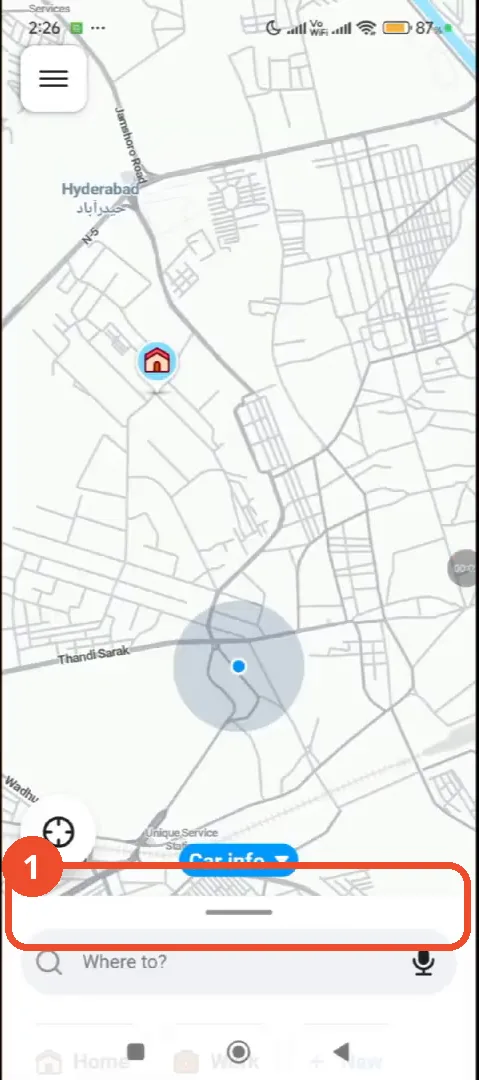
Tap Where to? and search for your destination
Tap the Where to? bar and type the name of the place you want to drive to. In the film the destination is Al fajar foods in Hyderabad; your saved Home and Work places are listed underneath. The film cuts from this empty search screen to the place card, so the typing itself is not shown.
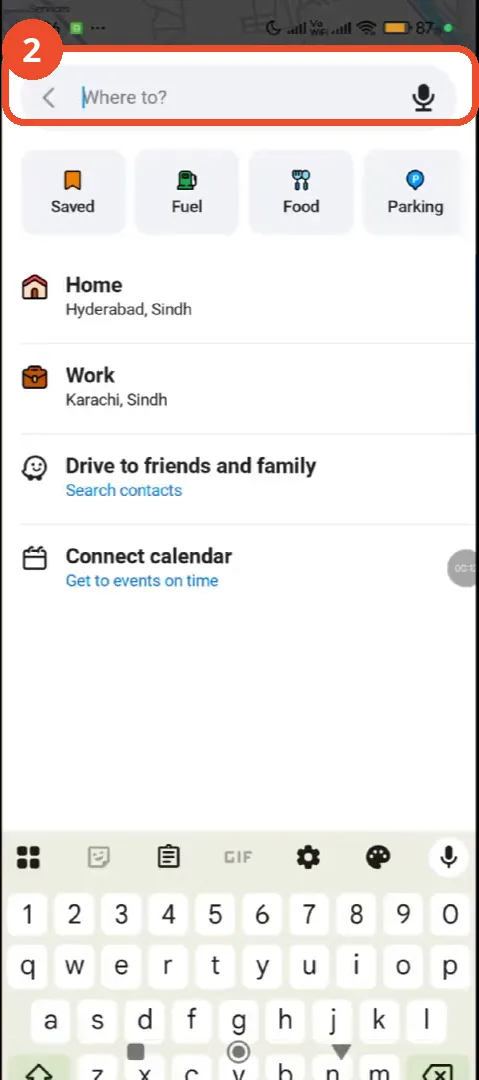
Tap the place, then tap View routes
Tap the place in the results to open its card — here Al fajar foods, 1.5 km away in Hyderabad — then tap View routes at the bottom.
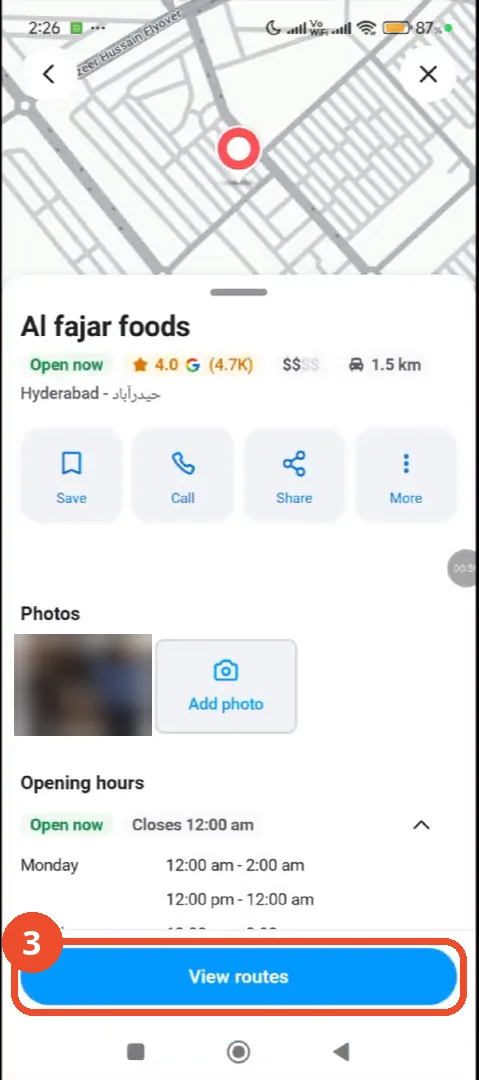
Check the route and tap Go now
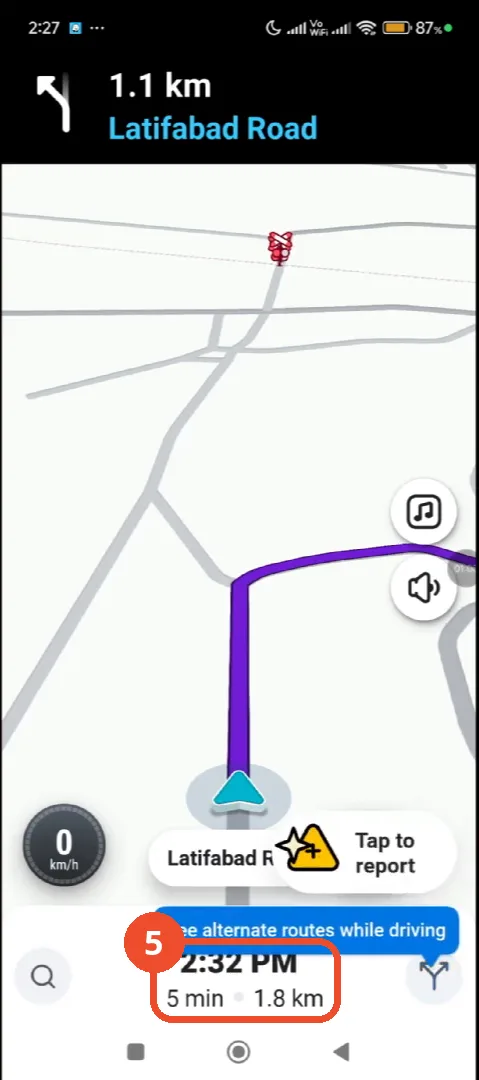
Waze shows the route: 5 min, 1.8 km, via Latifabad Road. Tap Go now to start it.
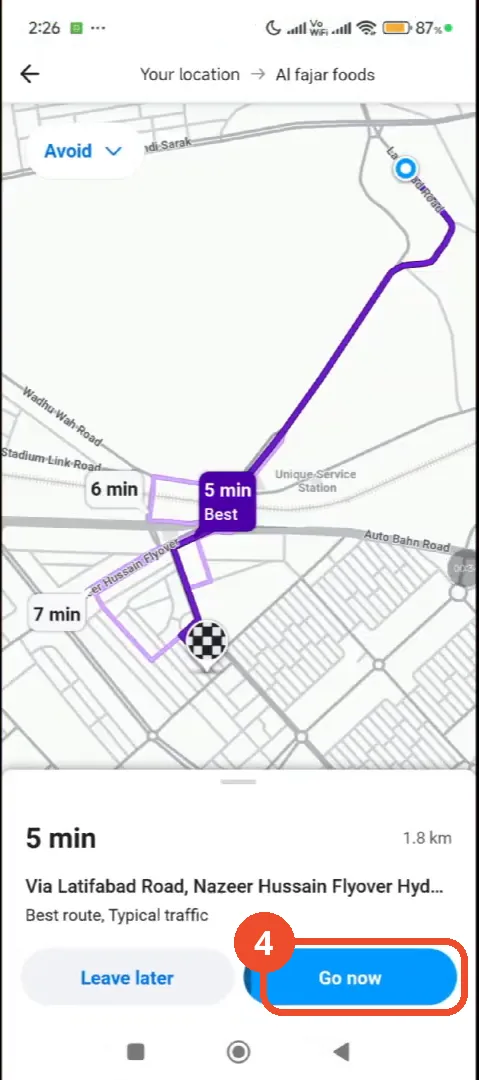
Let the route load while you are still online
Navigation starts: 1.1 km to Latifabad Road, 5 min, 1.8 km in total. This online load is the whole trick — Waze temporarily stores the map data for the route, so it can show it again later with no connection.
Turn Wi-Fi off in quick settings
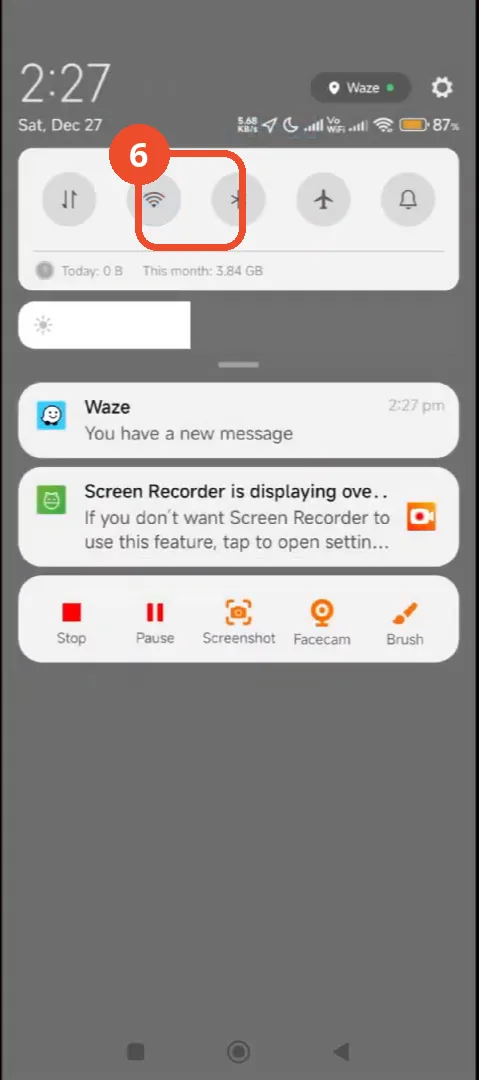
Swipe down to quick settings and tap the Wi-Fi tile to turn it off — blue means on, grey means off. The narration also says to turn mobile data off; in the film the mobile data tile already looks off before the Wi-Fi tap.
Reopen Waze and pick the same place from Recent
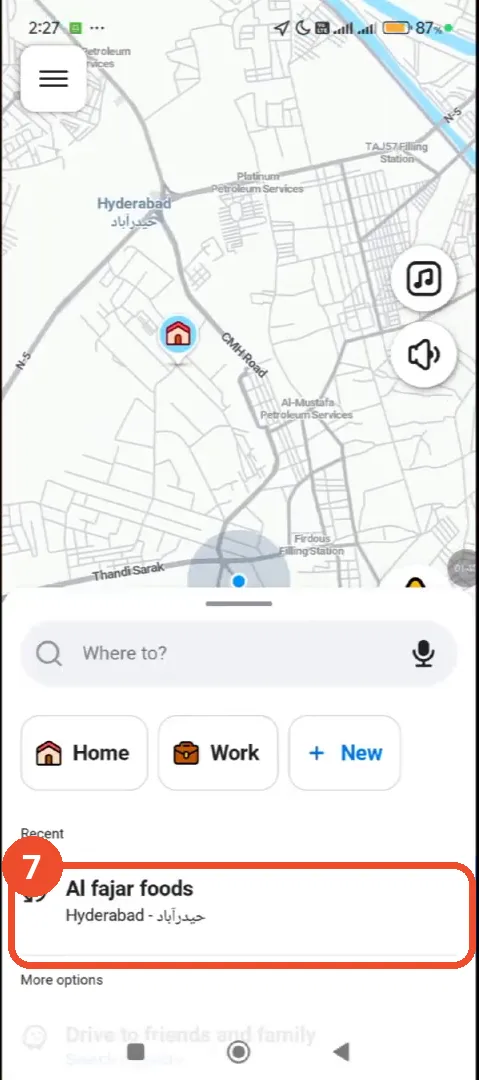
Close Waze and open it again — the film goes back to the home screen and reopens the app — then tap the Where to? bar and pick the same place from Recent. Here it is Al fajar foods, Hyderabad.
Tap Go now on the Offline route
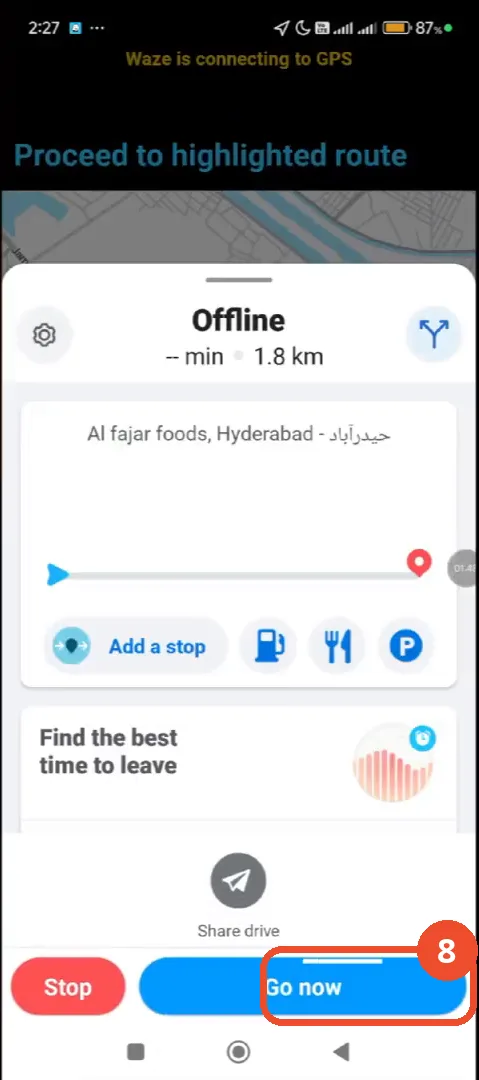
The route card now reads Offline, with no time estimate — just 1.8 km — and a banner says Waze is connecting to GPS. Tap Go now.
Check the route works with no connection
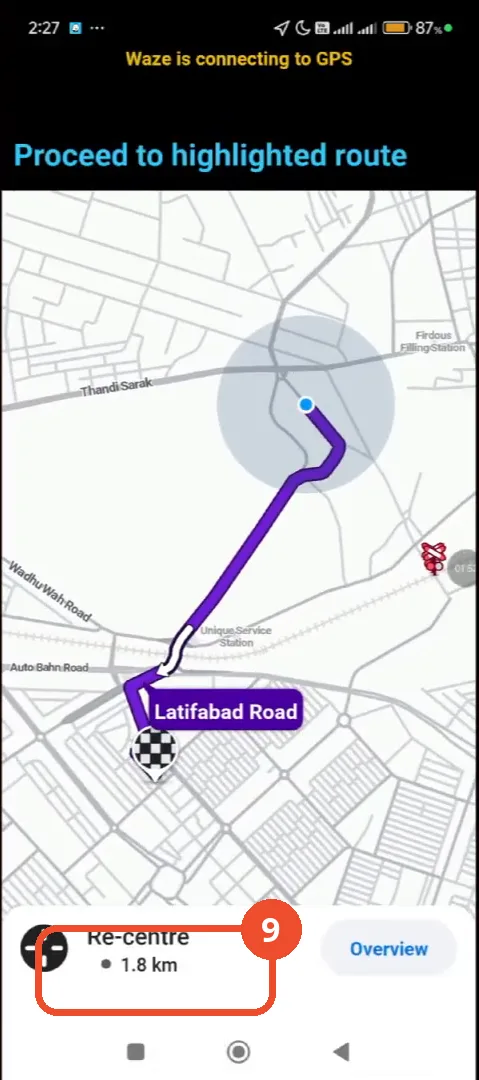
Navigation runs on the cached map: the purple route to Latifabad Road is drawn, and the bottom bar shows 1.8 km with no time estimate. The GPS banner is still connecting, but the route itself is there — that is the offline proof.
Good to know
- Waze has no button that downloads a route or a map for offline use. What the film does is load the route once while online, so Waze caches that route’s map data, and then run it again offline. It works for a route you have just loaded, not for anywhere on the map.
- The film never types the destination on camera: it cuts from the empty Where to? screen to the Al fajar foods place card. A single frame mid-film flashes the search results for ‘al fajr’ — that is an edit flash, not a step.
- In the film the mobile data tile already looks off when the quick settings open, so only the Wi-Fi tap is actually shown. The narration says to turn mobile data off as well — do that too if yours is on.
- Keep Waze open in the background while driving offline, as the narration suggests — closing it can force a map reload you cannot do without a connection.
- The second run shows no time estimate (’– min’), only the 1.8 km distance, and the banner keeps saying ‘Waze is connecting to GPS’. That is normal offline: the cached route shows, but live traffic and arrival times need a connection.
More on Waze
- How to Activate Sound on Waze App
- How to Fix Waze Sound Not Working
- How to Fix the No Network Connection Issue on Waze
- How to Change Waze Map Color
Guide complete
Every step above comes from the original recording, with a screenshot for each step. Want more like this? Browse all Waze guides.