How to Message People on Waze
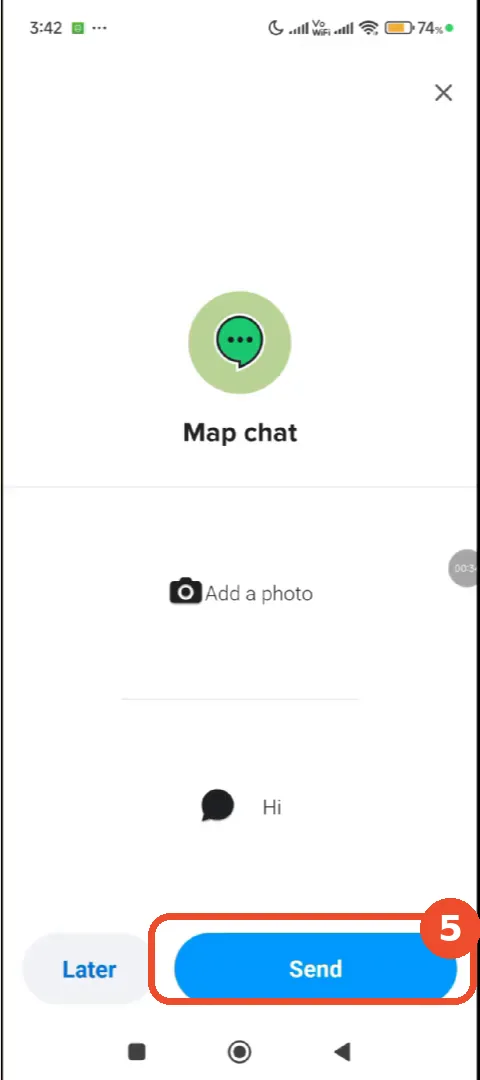
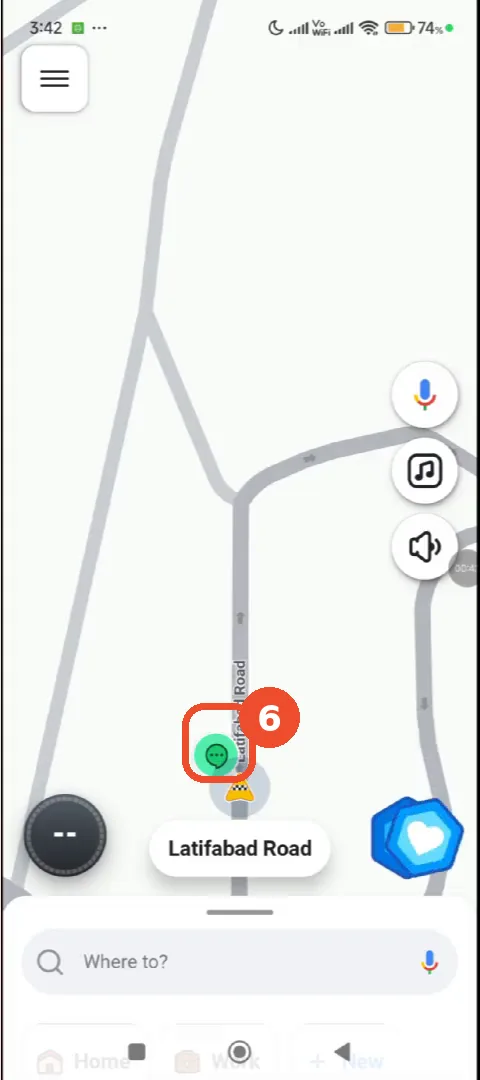
Map chat puts your message on the Waze map for nearby drivers to see. The film opens the report menu, taps Map chat, types “Hi”, and sends it — the message then shows up as a green bubble on Latifabad Road.
- SystemAndroid
- AppWaze
- Last verifiedNovember 26, 2026
Every screenshot below is taken from the actual recording on this device — no stock images.
Steps
Open Waze
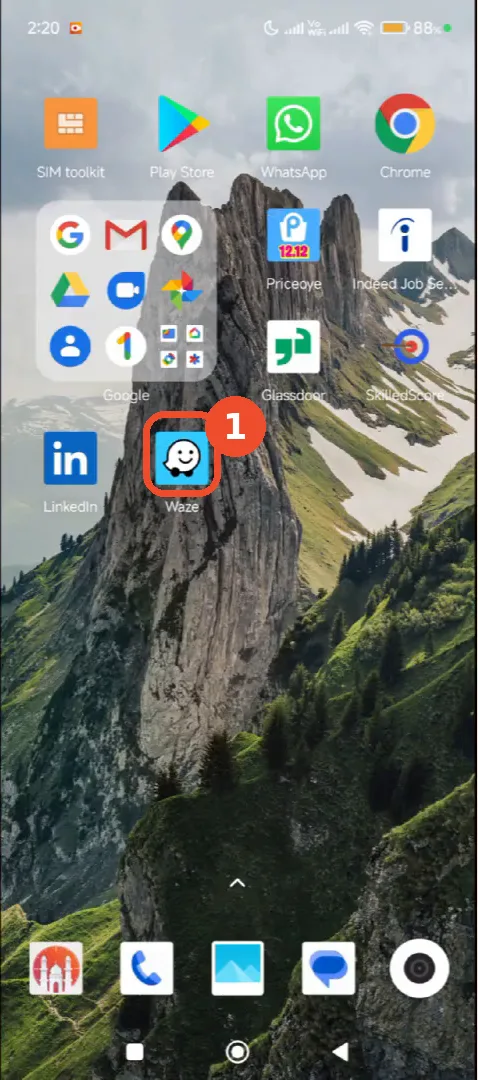
Open the Waze app. The film opens on the home screen — Waze sits in the same row as LinkedIn.
Tap the report button
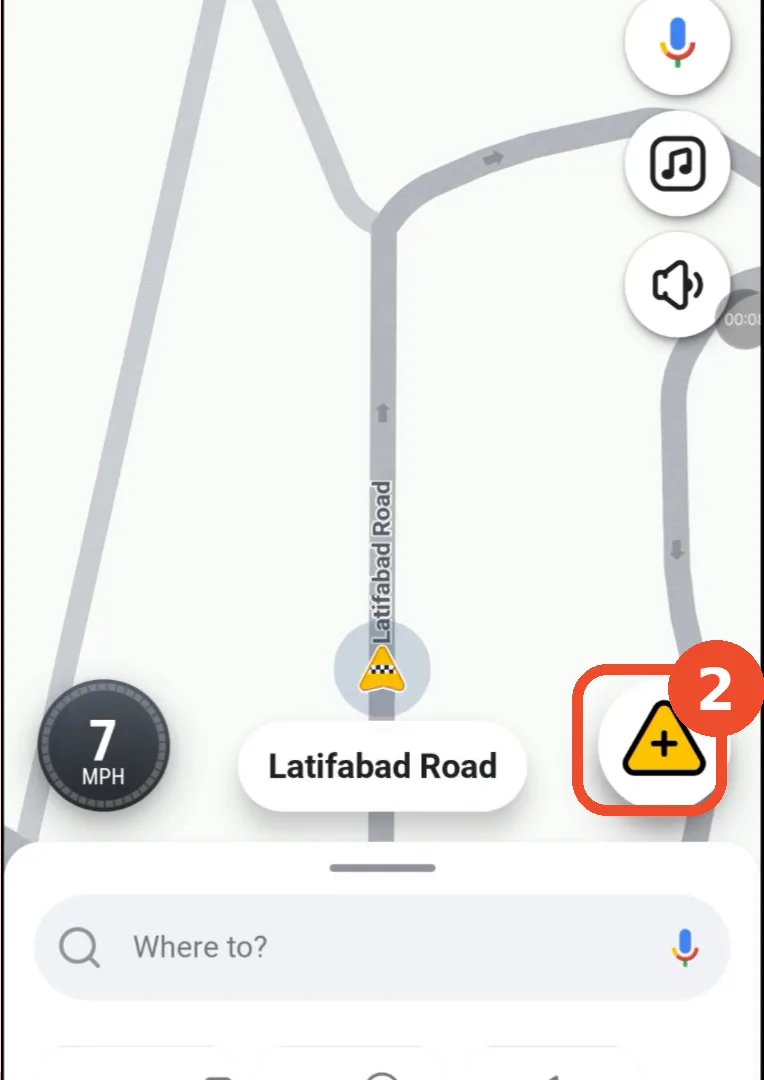
On the map, tap the yellow report button — the triangle with a plus — in the bottom-right corner. The “What do you see?” menu opens.
Tap Map chat
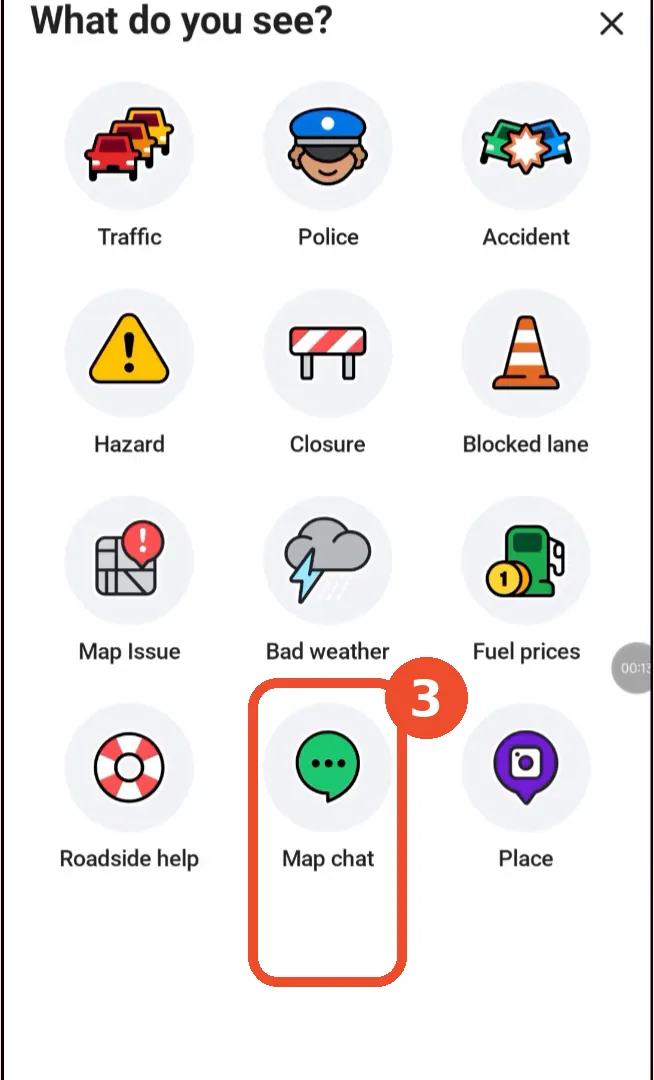
In the report menu, tap Map chat — the green speech bubble in the bottom row, between Roadside help and Place.
Tap Add a comment
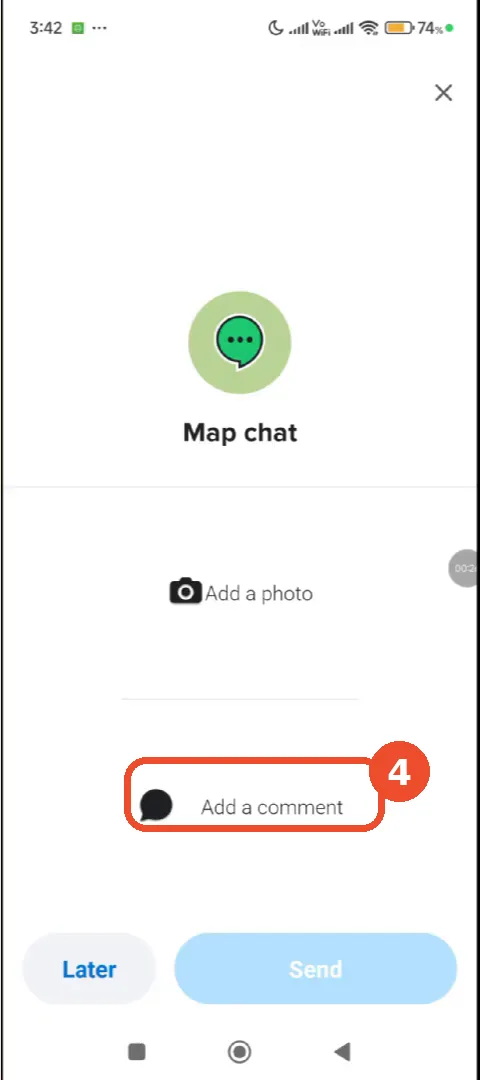
On the Map chat screen, tap Add a comment. A text field opens with the keyboard ready.
Type your message and tap Send
Type your message in the “Share details here…” field — the film types “Hi” — then tap the blue Send button. Send stays pale blue until you have typed something.
Check the map — your chat is live
Back on the map, your message shows up as a green Map chat bubble on the road — here on Latifabad Road. Nearby drivers can tap it to read it.
Good to know
- This film is shot on a different phone from the other Waze films in this batch: light theme instead of dark, and the recording zooms in and out, so the screenshots are different widths. The steps are the same on any Android phone.
- The film adds its own big red arrows pointing at the report button, at Map chat, and at Send. Those arrows are part of the film, not part of Waze — the step screenshots here are taken from frames without them.
- Map chat is public: anyone driving nearby can read what you send, so do not put anything personal in it. The film only sends “Hi” and shows no other people’s messages.
- The green bubble stays on the map for a while after you send it. The film stays on the map for about 16 seconds after sending, so how long the bubble lasts beyond that is not shown.
- A DelftStack outro banner slides in at about 2:04, at the very end of the film. No step screenshot is taken from those frames.
More on Waze
- How to Activate Sound on Waze App
- How to Fix Waze Sound Not Working
- How to Use a Waze Route Offline
- How to Fix the No Network Connection Issue on Waze
- How to Avoid Congestion Charge on Waze
- How to Change Waze North Up
- How to Avoid Cops on Waze
- How to Change Waze Map Color
- How to Set the Shortest Route on Waze
- How to Avoid ULEZ on Waze
Guide complete
Every step above comes from the original recording, with a screenshot for each step. Want more like this? Browse all Waze guides.