How to Mark Your Current Location in Waze
Your blue dot is your current location — long-press it and Waze lets you save the spot. The film saves its own location as “Sapphire”, then marks the same spot as its parking spot.
- SystemAndroid
- AppWaze
- Last verifiedNovember 27, 2026
Every screenshot below is taken from the actual recording on this device — no stock images.
Steps
Open Waze
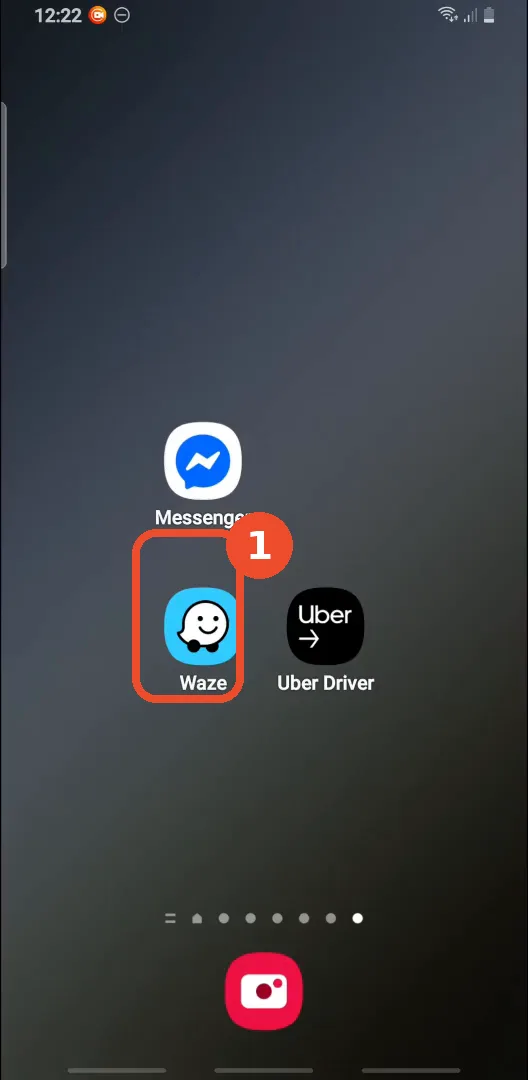
Open the Waze app. The film opens on the home screen — Waze sits below Messenger, next to Uber Driver.
Long-press your blue location dot
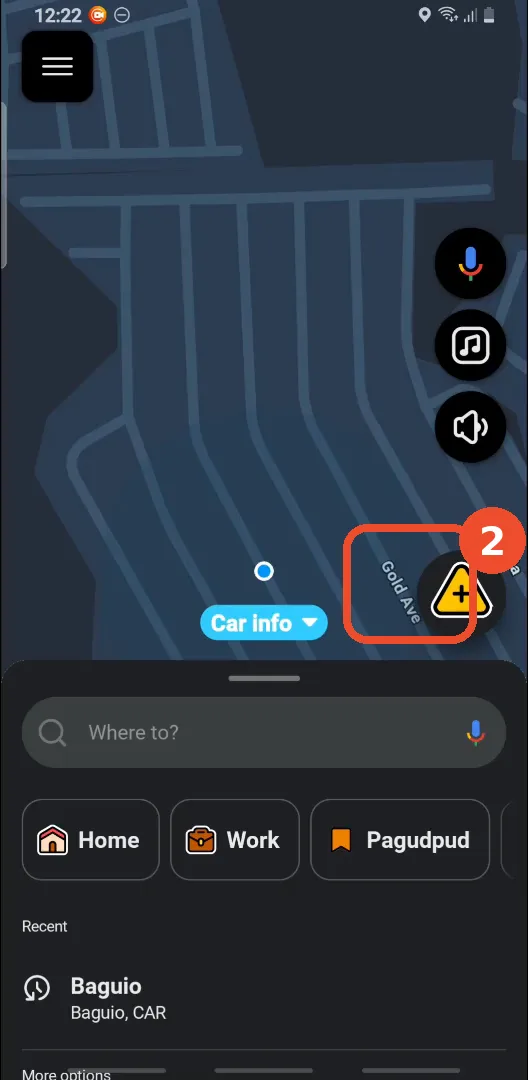
On the map, long-press the blue dot that marks where you are. A place card opens over the map.
Tap the three dots, then Preview location
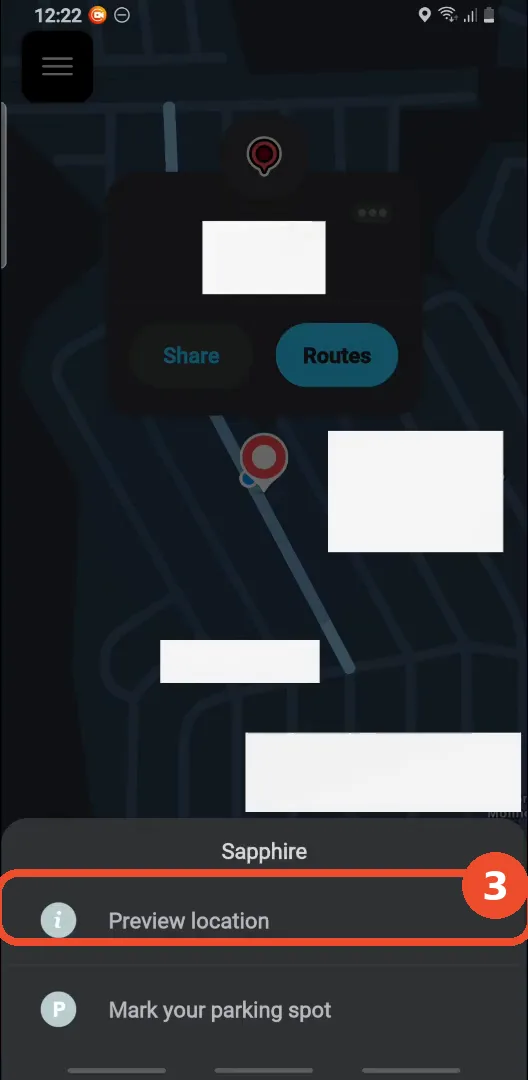
Tap the three dots at the top right of the card, then tap Preview location in the menu.
Tap Save
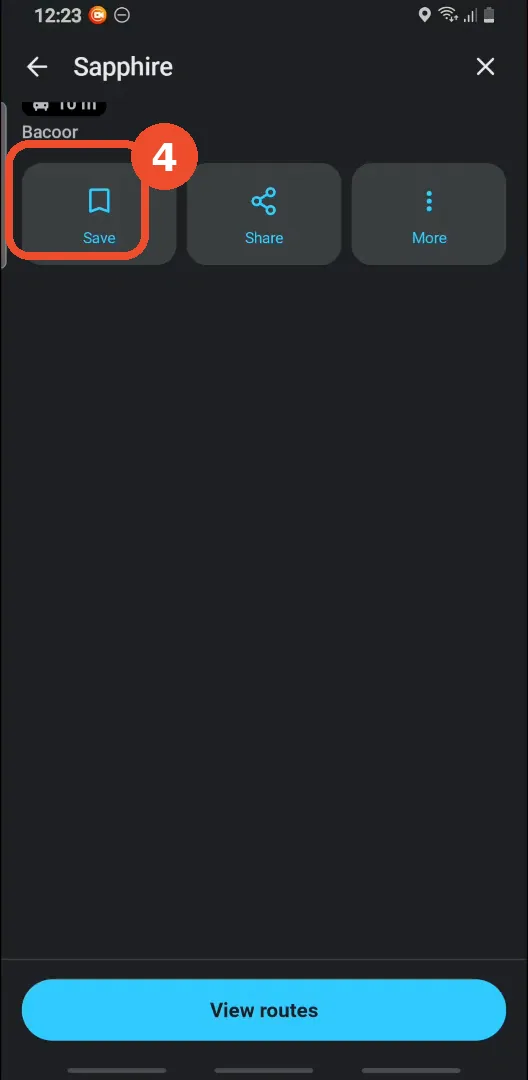
On the place page, tap Save at the top.
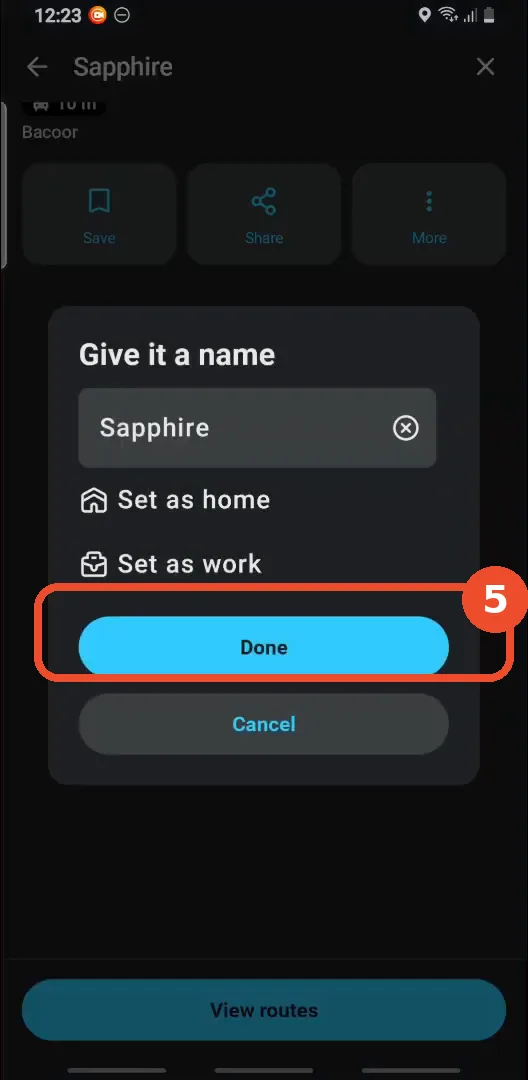
Name it and tap Done
Give the place a name — the film keeps the suggested name “Sapphire” — and tap Done. You can also set it as Home or Work here.
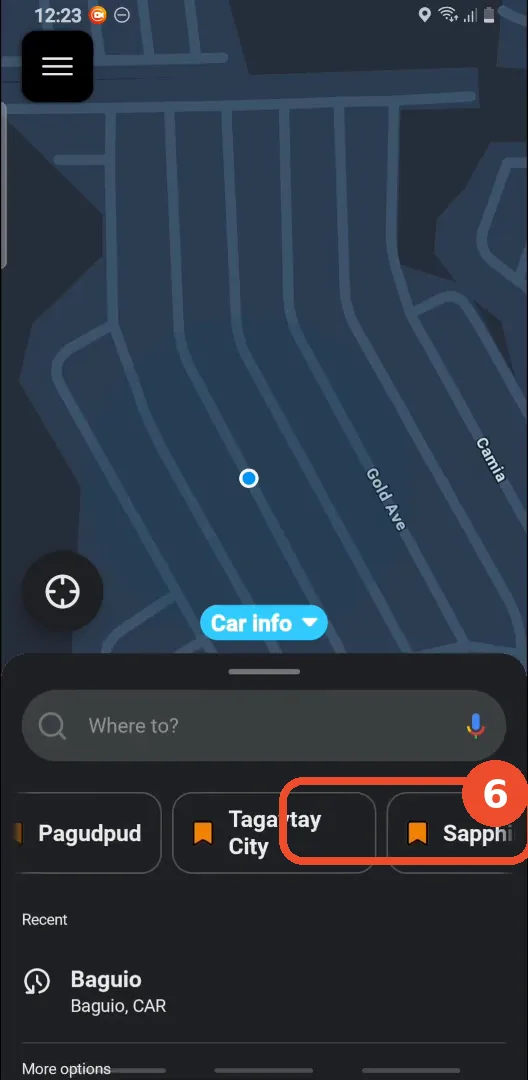
Check your saved places
Back on the map, your new place sits in the saved-places row at the bottom — “Sapphire” appears next to Tagaytay City. It is saved.
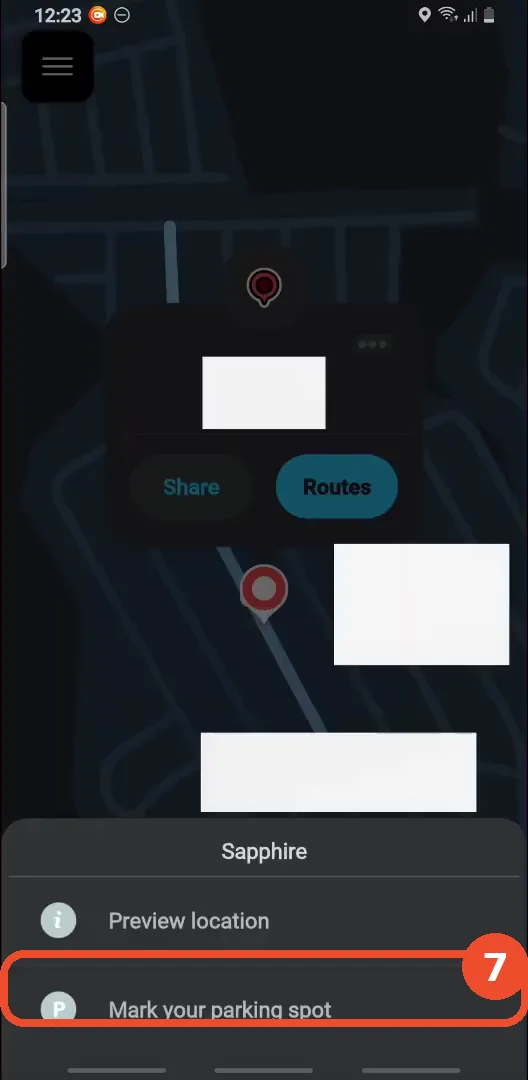
Tap the three dots again, then Mark your parking spot
Open the three-dot menu on the place card again and tap Mark your parking spot.
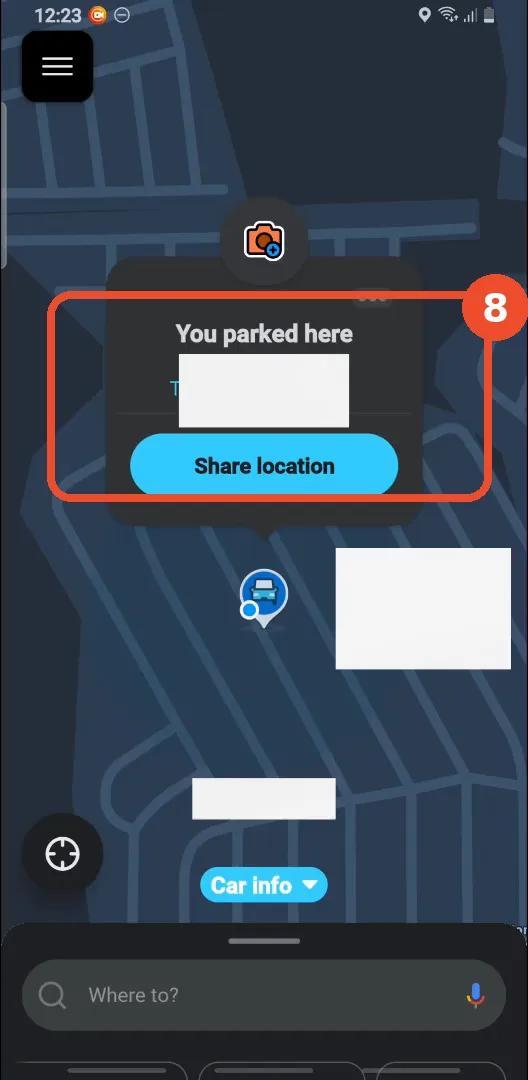
Check the map — You parked here
The map now shows a “You parked here” card with a Share location button. Your parking spot is marked.
Good to know
- The film’s place cards white out the street address and place details — those white boxes are in the film itself, not added here. Only the city, Bacoor, and the name you give the place are shown.
- Saved places are the phone’s own labels: Home, Work, Pagudpud, Tagaytay City and the new “Sapphire” are shortcuts on this phone, not steps.
- A “Driving to Baguio?” suggestion pops up when the map first opens; the film dismisses it before starting. It is just a suggestion for a recent destination — the film never shows which button dismisses it.
- Between the two parts the film briefly reopens the Sapphire place page and its More menu (Set as start point, Show on map) — that is a detour, not part of either flow.
- The film shows the parking spot card but never taps Share location — sharing the spot is your call.
- A DelftStack banner slides across the bottom of the screen at about 0:30–0:33 and again at about 1:24–1:26. It is the channel’s own overlay, not part of Waze.
- A small red camera button floats at the bottom of the home screen. It is the screen recorder’s own button, not a Waze control.
More on Waze
- How to Activate Sound on Waze App
- How to Fix Waze Sound Not Working
- How to Use a Waze Route Offline
- How to Fix the No Network Connection Issue on Waze
- How to Avoid Congestion Charge on Waze
- How to Change Waze North Up
- How to Avoid Cops on Waze
- How to Set the Shortest Route on Waze
- How to Avoid ULEZ on Waze
- How to Message People on Waze
- How to Change Waze Map Color
- How to Create a Waze Link with Waypoints
- How to Set Waze for Motorcycle Navigation
Guide complete
Every step above comes from the original recording, with a screenshot for each step. Want more like this? Browse all Waze guides.