How to Fix Waze Sound Not Working
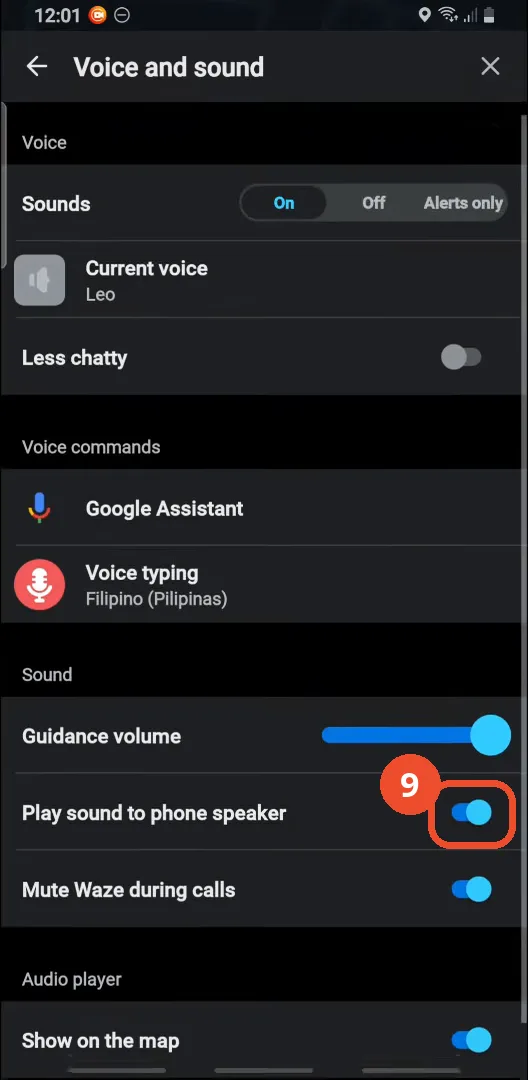
If Waze has gone silent, the fault is often not in Waze at all — it is the phone blocking the app. Allow all of Waze’s permissions in your phone’s Settings, then check Waze’s own Voice and sound settings to make sure Sound, Guidance volume, and Play sound to phone speaker are all on.
- SystemAndroid
- AppWaze
- Last verifiedNovember 23, 2026
Every screenshot below is taken from the actual recording on this device — no stock images.
Steps
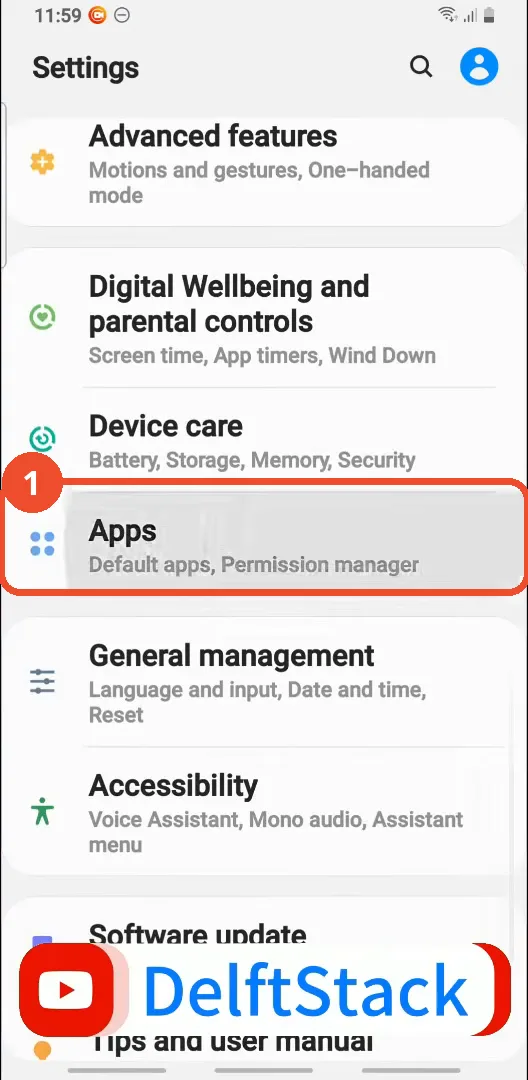
Open Settings and scroll down to Apps
Open your phone’s Settings — the film opens it from the quick-settings shade, tapping the gear icon — and scroll down until you see Apps, listed as Default apps, Permission manager.
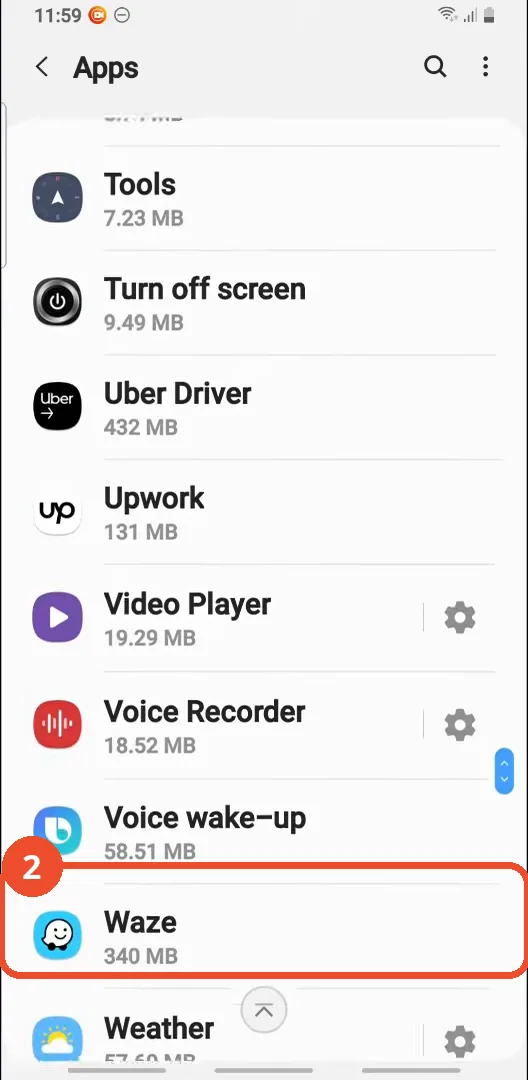
Find Waze in the Apps list
Tap Apps, then scroll down to W — Waze is listed at 340 MB. Tap it to open its App info.
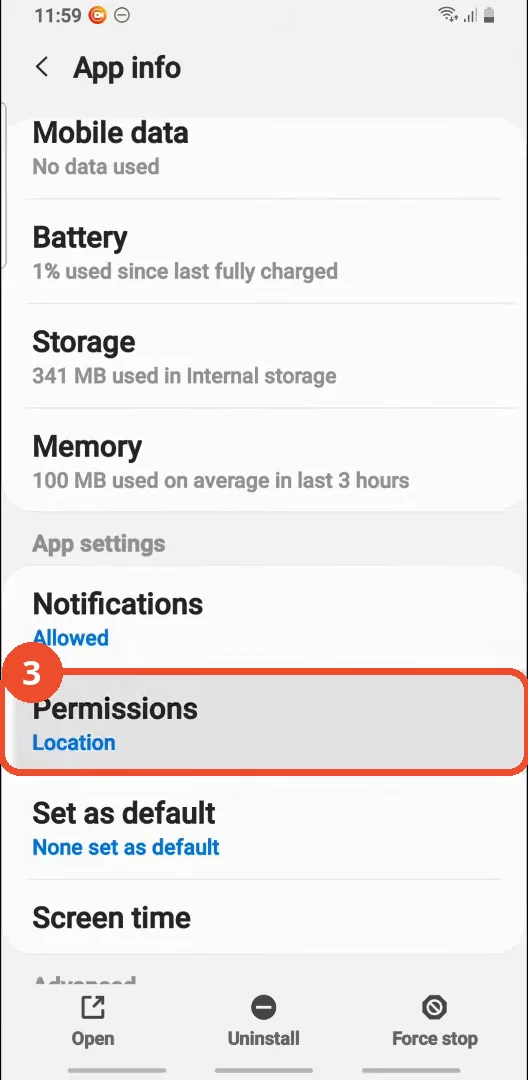
Scroll down and tap Permissions
On the App info page, scroll down to App settings. Permissions shows Location underneath it — tap the row to see every permission Waze has.
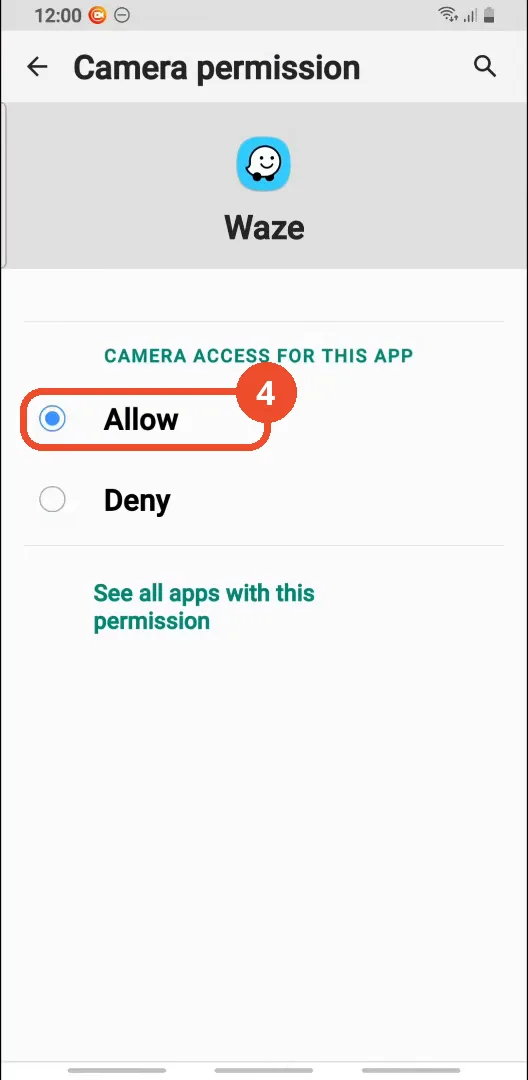
Allow a denied permission
Tap a permission under Denied — the film starts with Camera — and choose Allow.
Check that no permissions are denied
Go back and repeat for each denied permission — Calendar, Contacts, Microphone, and Telephone — until the list reads No permissions denied.
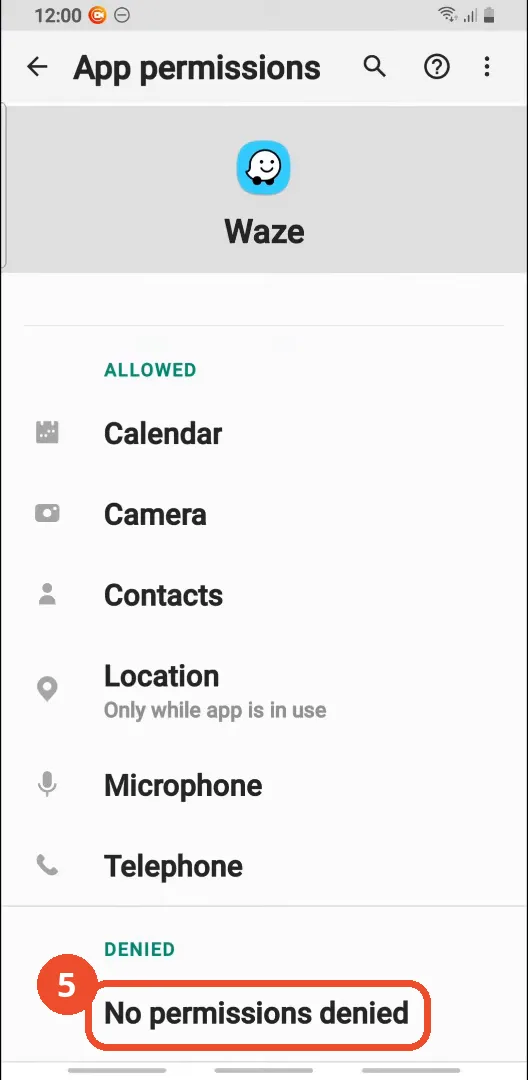
Open Waze and tap the menu
Open Waze. On the map, tap the menu button — the three lines in the top-left corner.
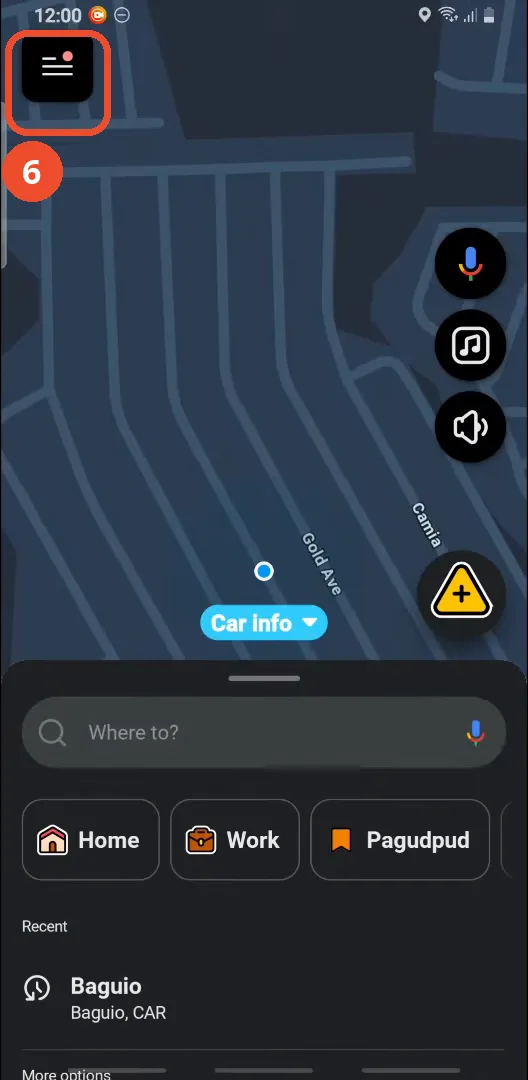
Tap Settings in the menu
The menu opens with your profile at the top. Tap Settings.
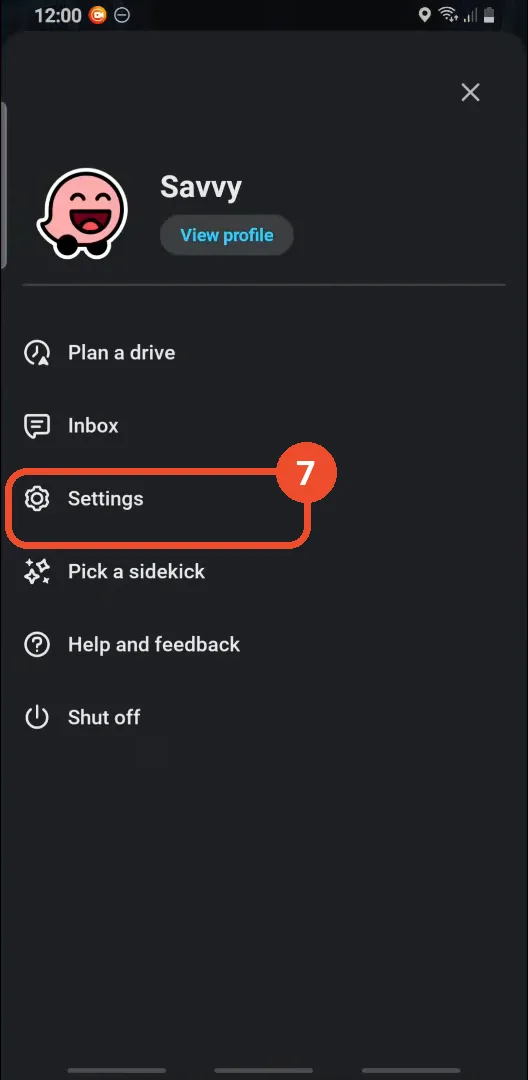
Tap Voice and sound
In Waze Settings, tap Voice and sound.
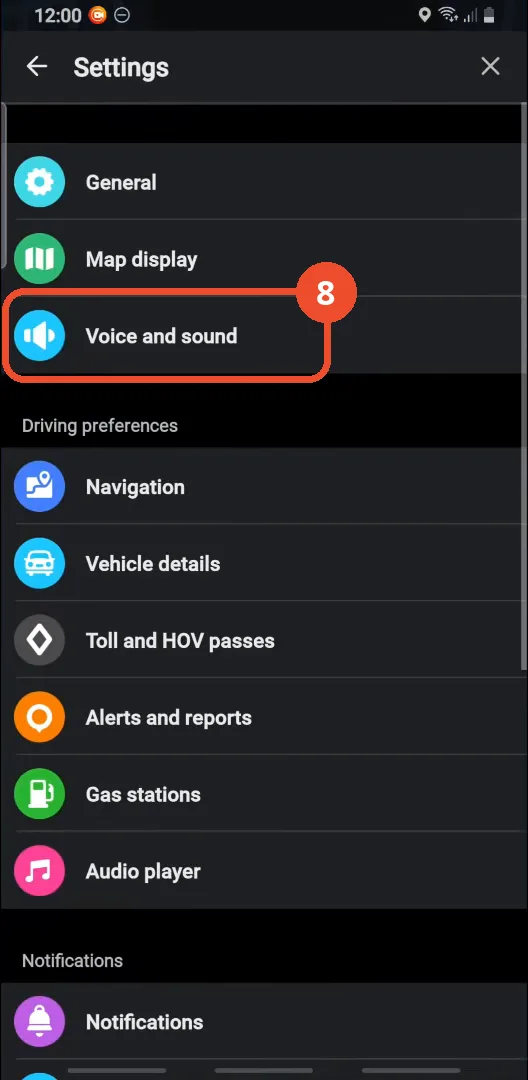
Turn on Play sound to phone speaker
Sounds is already set to On and Guidance volume is already turned up. Turn on Play sound to phone speaker — the switch turns blue — and check the other two are on as well.
Good to know
- Waze asks to turn on Location Accuracy the first time it opens after the permissions change — the film moves past that prompt to the map. It is about location, not sound, and does not affect this fix.
- The film’s phone had Do not disturb on while it was recording — you can see the icon in the status bar. If Do not disturb is on, Waze stays silent even with every permission allowed.
- The film only shows Camera being allowed in detail. Allow the other four denied permissions — Calendar, Contacts, Microphone, and Telephone — the same way, and the finished list reads No permissions denied.
- Sounds was already set to On and Guidance volume was already turned up in the film — the one switch the film actually changes in Waze is Play sound to phone speaker.
More on Waze
Guide complete
Every step above comes from the original recording, with a screenshot for each step. Want more like this? Browse all Waze guides.