How to Fix the No Network Connection Issue on Waze
If Waze says it has no network connection, the fix starts outside Waze: clear the app’s cache in Settings, force stop it so it restarts clean, and check its Location permission. Do those three before anything else.
- SystemAndroid
- AppWaze
- Last verifiedNovember 24, 2026
Every screenshot below is taken from the actual recording on this device — no stock images.
Steps
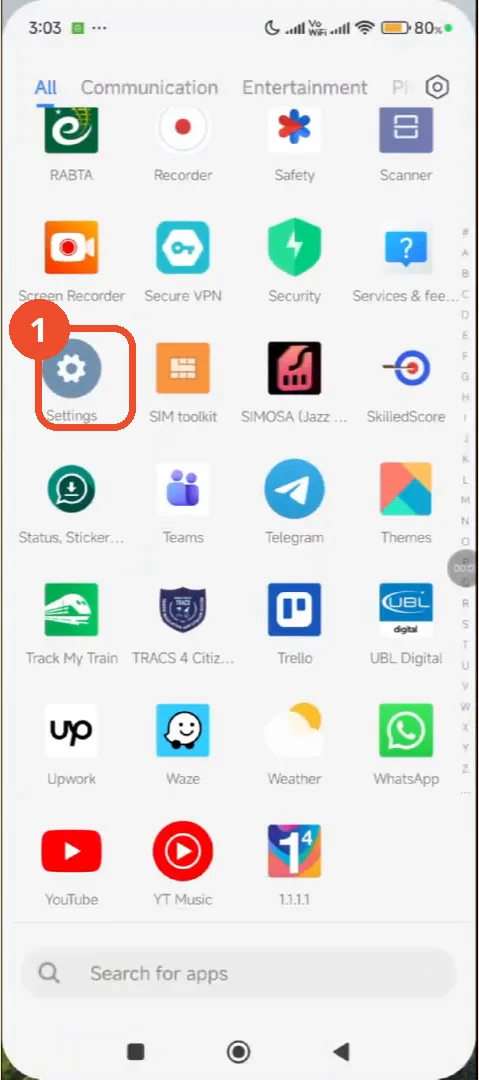
Open the app drawer and tap Settings
Do not open Waze yet. Swipe up to the app drawer and tap Settings.
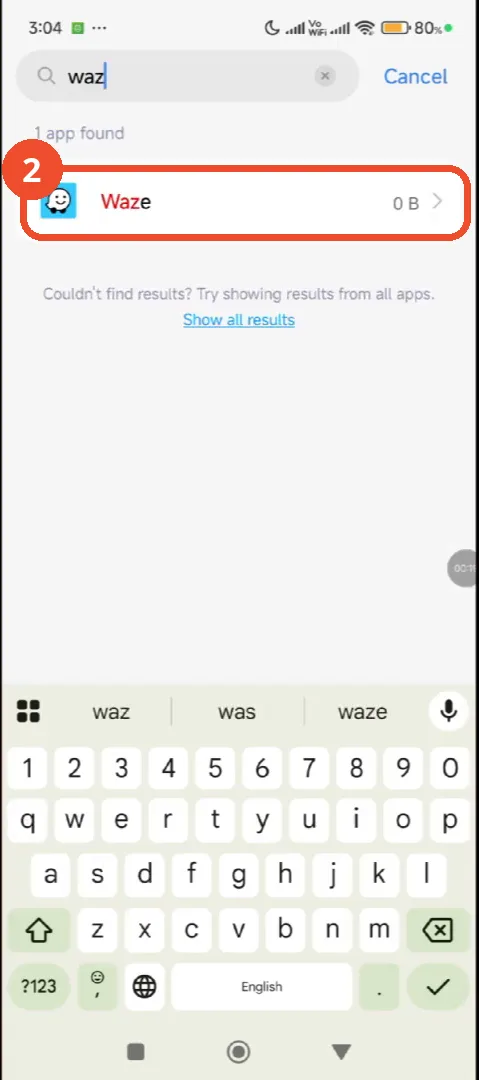
Search Settings for Waze
Tap the Settings search box and type ‘waz’. One app is found — Waze — so tap it to open its App info page. The narration says to scroll the Apps list instead, but the film searches.
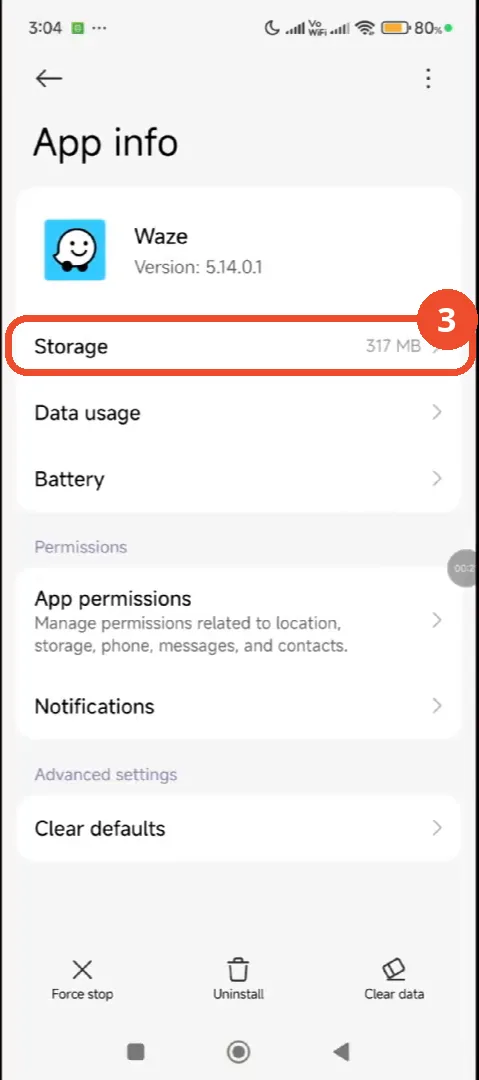
Tap Storage on Waze’s App info page
The App info page shows Waze version 5.14.0.1 with 317 MB of storage. Tap Storage.
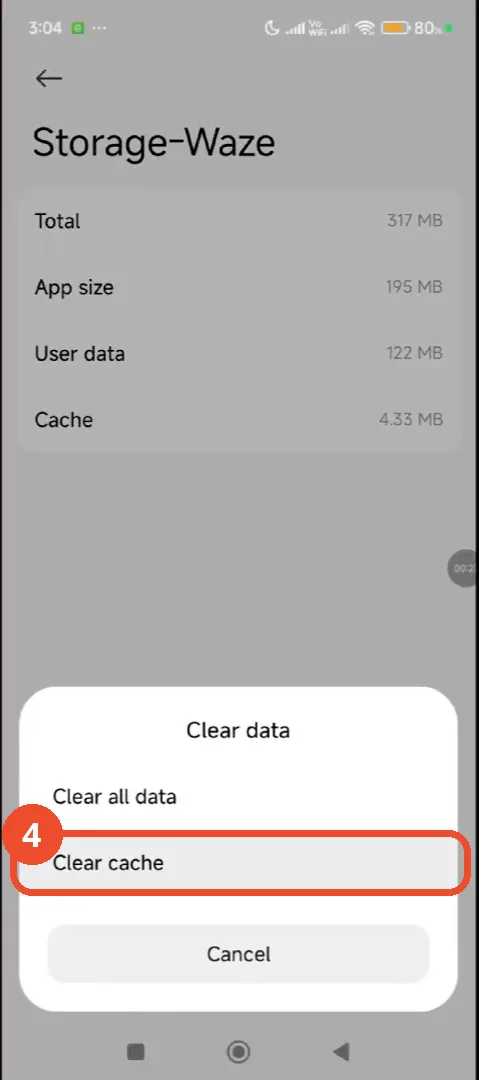
Tap Clear cache in the Clear data menu
Tap Clear all data at the bottom of the Storage page — a menu opens. Tap Clear cache in that menu, not Clear all data: the top option would wipe the app’s data, while Clear cache only removes temporary files.
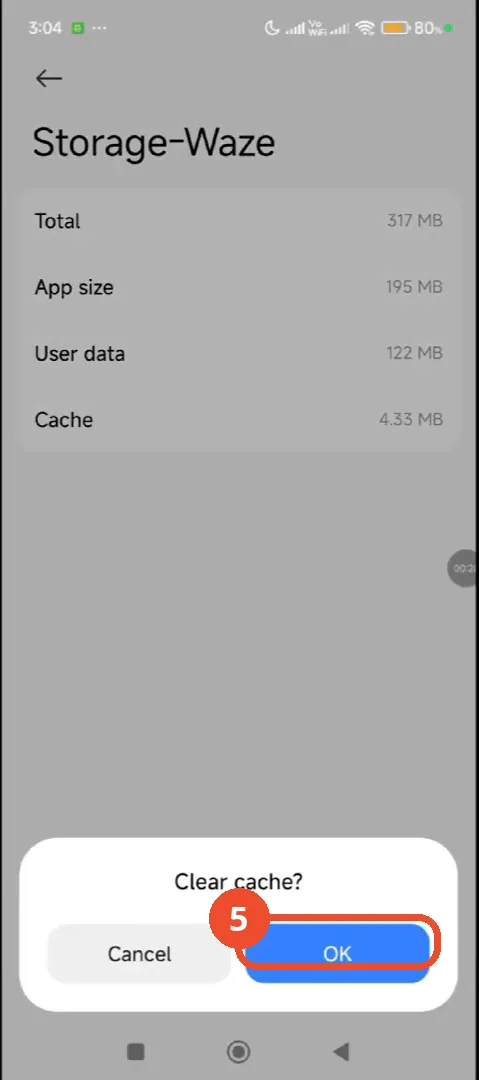
Confirm by tapping OK
A ‘Clear cache?’ dialog appears. Tap OK.
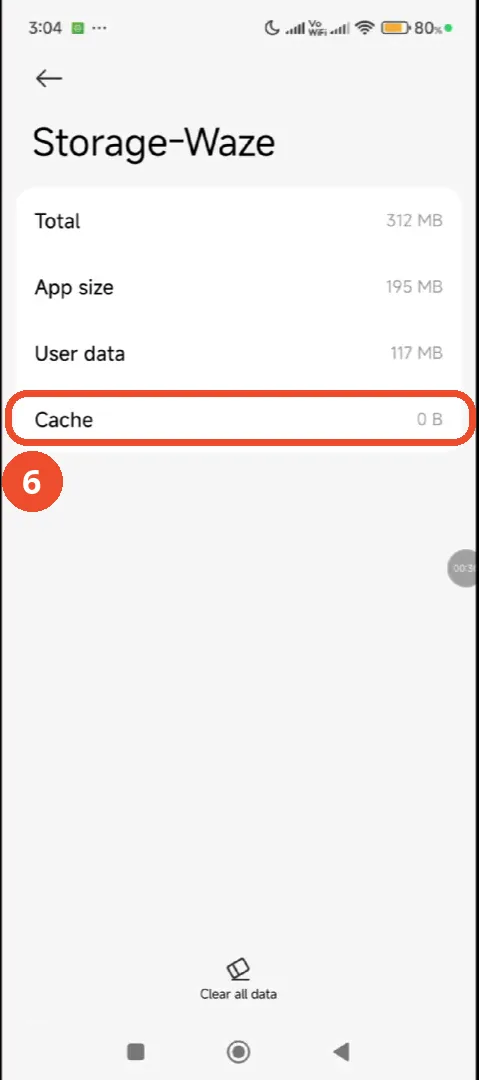
Check the cache is now 0 B
Back on the Storage page, Cache reads 0 B — it was 4.33 MB — and the total drops to 312 MB. The cache is cleared.
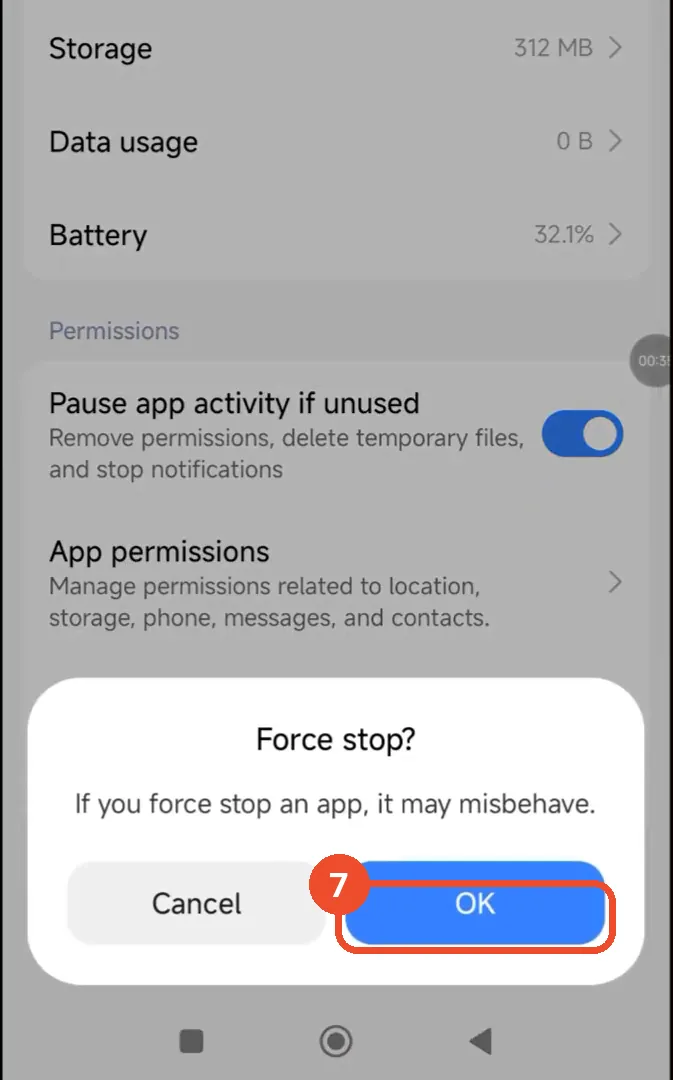
Force stop Waze
Go back to the App info page and tap Force stop at the bottom, then tap OK on the confirmation. The film zooms in on the dialog for this step, so the frame looks closer than the others.
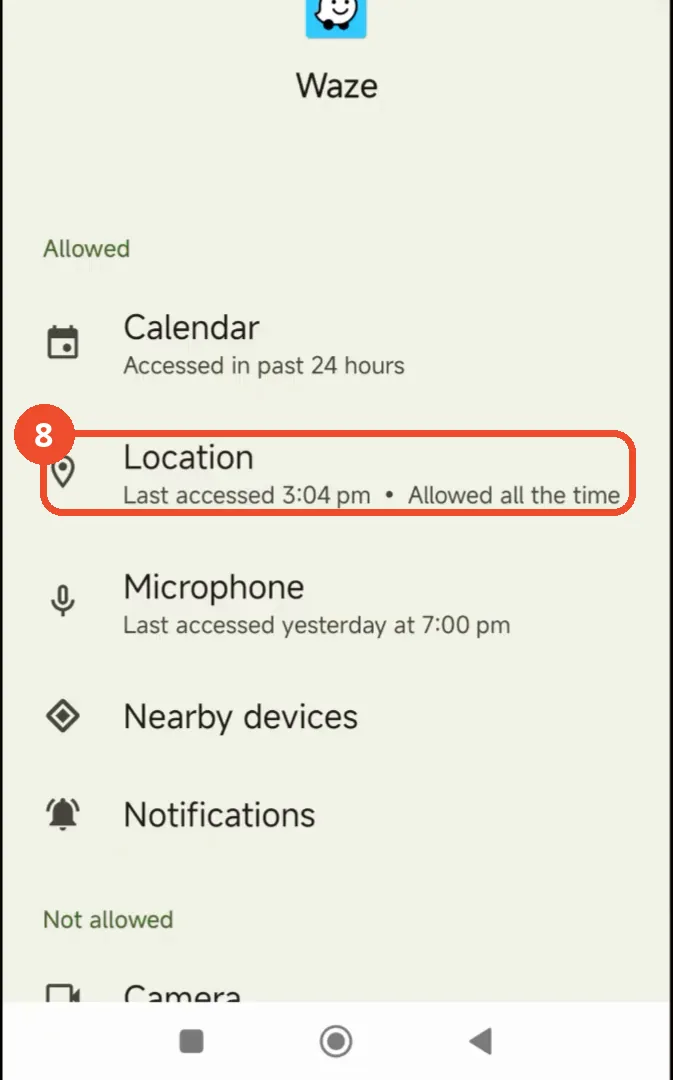
Check Location is allowed
Tap App permissions and check Location. In the film it reads ‘Allowed all the time’ — last accessed 3:04 pm — with Calendar and Microphone allowed too. This page is also zoomed in the film.
Good to know
- The film never shows the rest of the narration: toggling airplane mode, restarting the phone, and reopening Waze to see the fix work are all talked about, never filmed. The film ends on the home screen. This article covers only what the film shows — clear the cache, force stop, check the permission — and the extra steps are worth doing after these.
- The narration also mentions checking ‘Open by default’ so supported links open in Waze. That screen is never shown in the film either.
- Do not tap ‘Clear all data’ in the Clear data menu — that wipes Waze’s stored data, including your saved places. Only ‘Clear cache’ is the safe option here.
- The narration suggests keeping Waze updated to the latest version to avoid the problem coming back.
- If the problem stays after all of this, check your connection itself first — the film’s phone is on Wi-Fi throughout, and a broken connection looks exactly like a Waze problem.
More on Waze
- How to Activate Sound on Waze App
- How to Fix Waze Sound Not Working
- How to Use a Waze Route Offline
- How to Change Waze Map Color
Guide complete
Every step above comes from the original recording, with a screenshot for each step. Want more like this? Browse all Waze guides.