How to Create a Waze Link with Waypoints
A Waze link is just your drive, shared: plan the route, add the stops you want along the way, then share it and copy the link. The film drives to Baguio, adds a Petron stop on the way, and shares the drive — the link goes out with the message.
- SystemAndroid
- AppWaze
- Last verifiedNovember 27, 2026
Every screenshot below is taken from the actual recording on this device — no stock images.
Steps
Open Waze
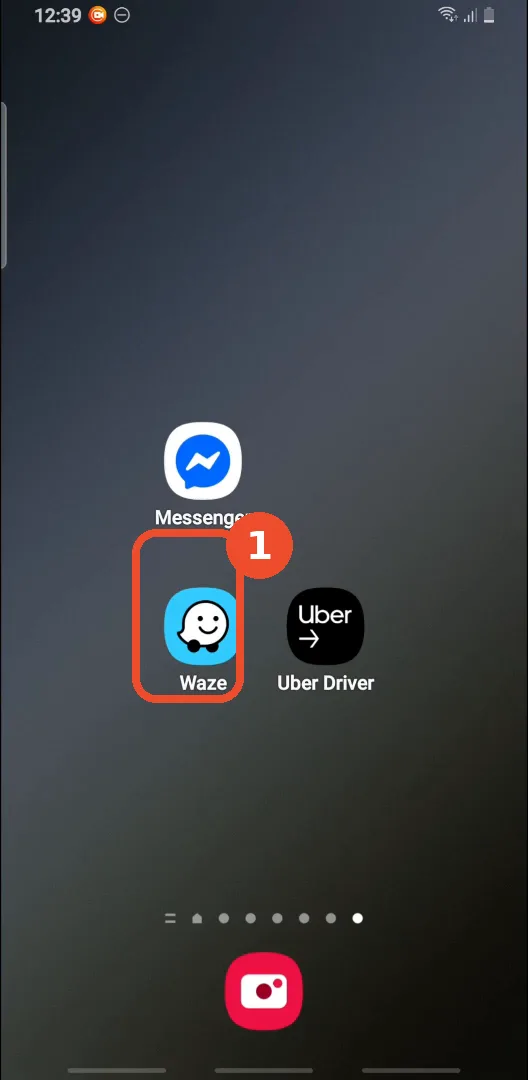
Open the Waze app. The film opens on the home screen — Waze sits below Messenger, next to Uber Driver.
Tap Where to? and pick Baguio
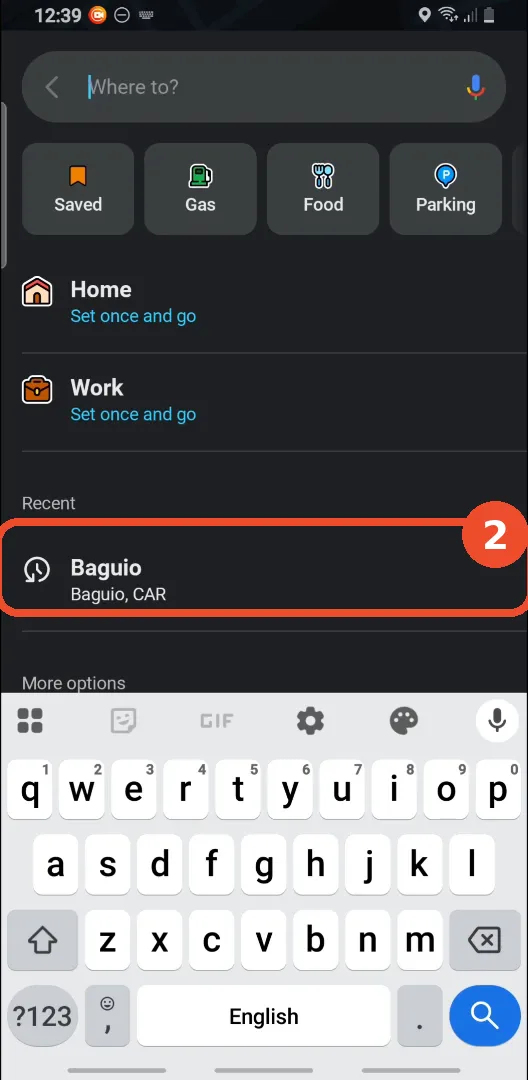
Tap the Where to? bar at the bottom of the map, then tap Baguio in Recent. The film picks Baguio straight from Recent — nothing is typed, even though the narration says “go for the bag”.
Pick the 6h 53m route
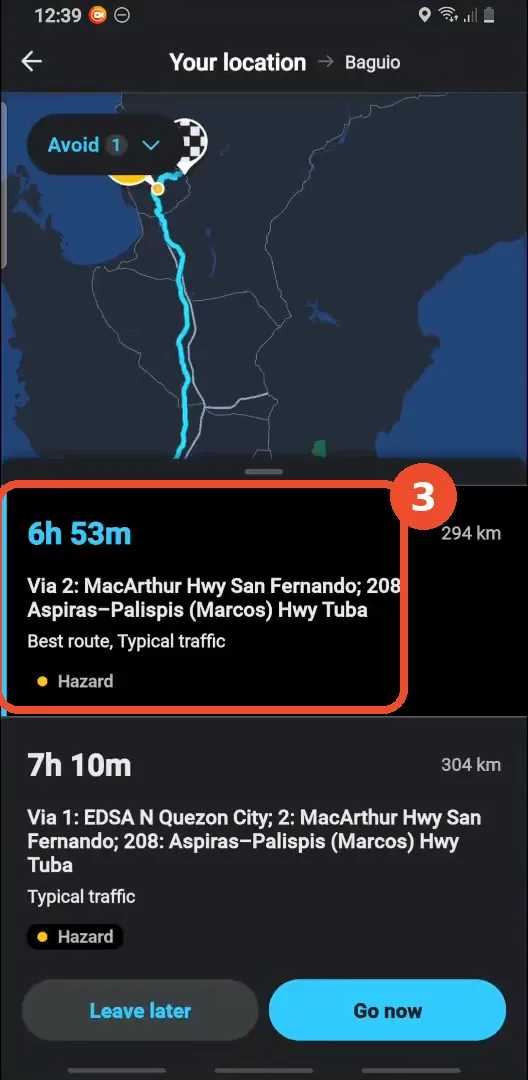
Waze lists two routes to Baguio. Tap the first one: 6h 53m, 294 km, marked Best route, via MacArthur Hwy. The alternative is 7h 10m, 304 km.
Tap Add a stop
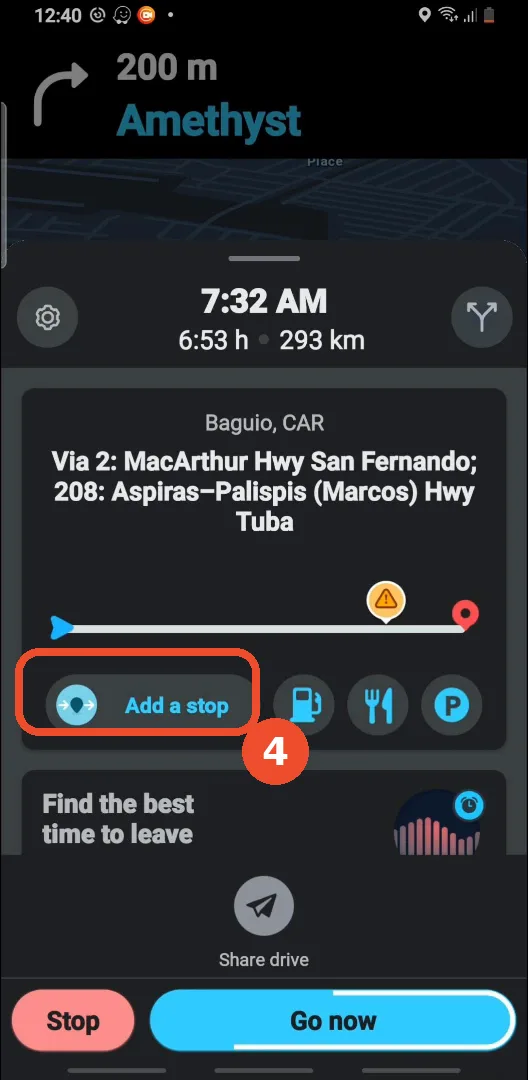
On the route preview, tap Add a stop under the route summary. A search page opens where you can add a place along the way.
Tap Gas, then Petron
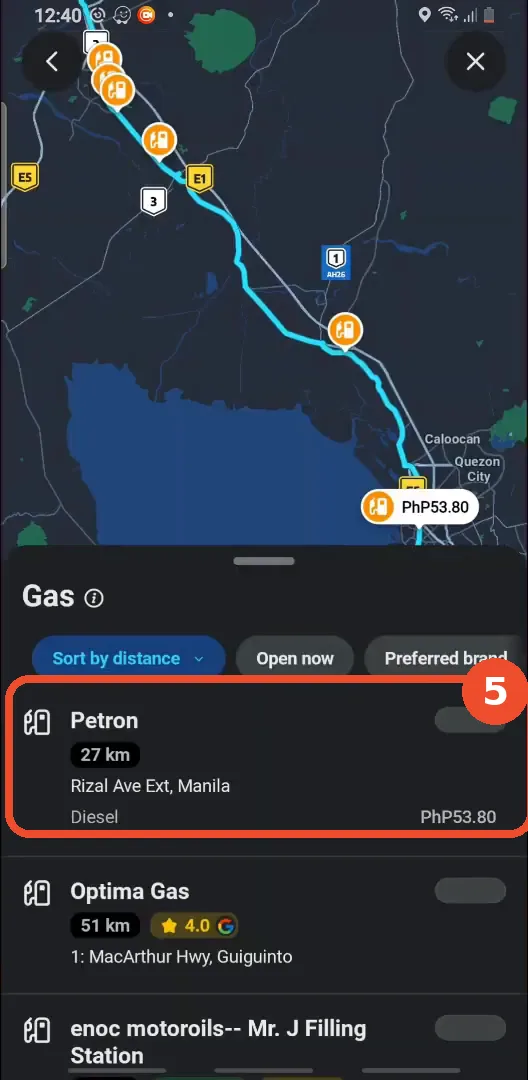
Tap Gas to see fuel stations along your route, then tap Petron — the first one, 27 km away on Rizal Ave Ext, Manila, Diesel at PhP53.80.
Tap Go, then Add a stop
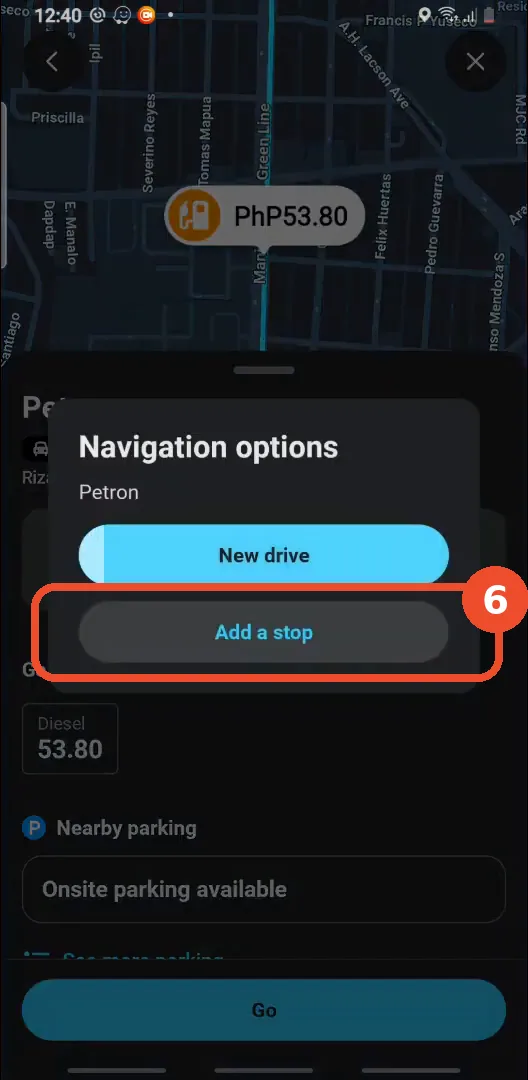
On the Petron card, tap Go. Waze asks what to do with Petron — tap Add a stop so it becomes a waypoint instead of a new drive.
Check the route now includes Petron
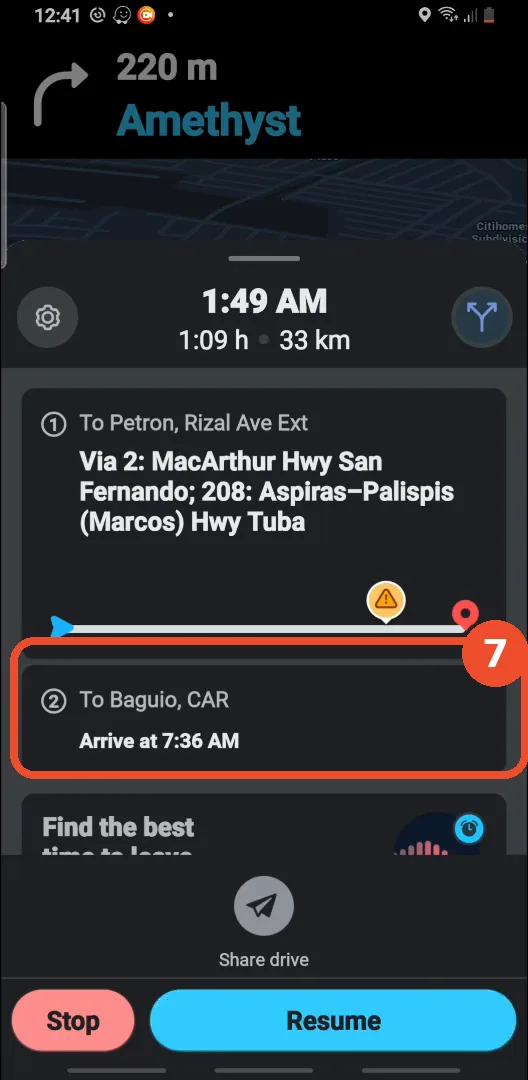
The preview now shows two legs: 1:09 h and 33 km to Petron first, then on to Baguio, arriving at 7:36 AM. The stop is in.
Tap Share drive
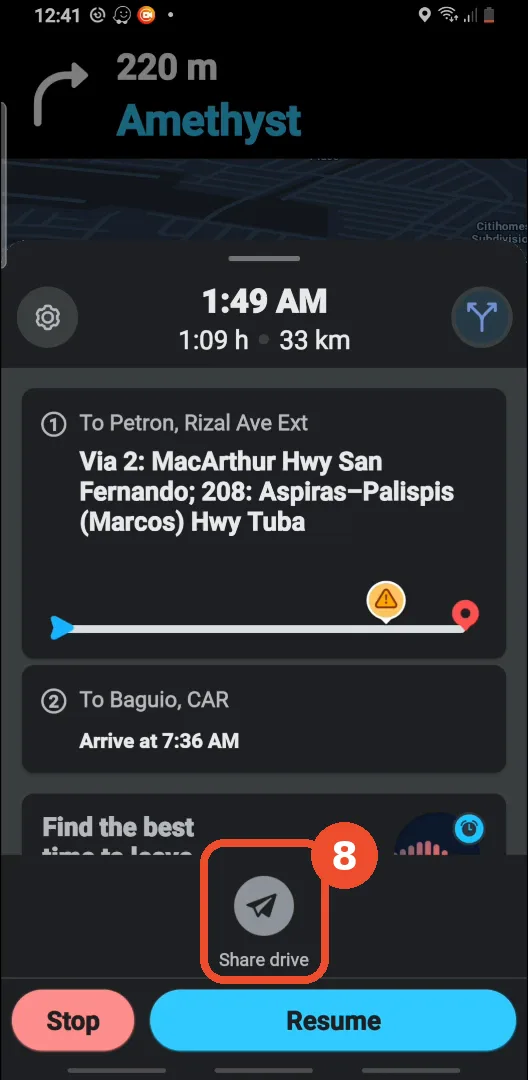
Back on the route preview, tap Share drive under the route. The Share your drive sheet opens.
Tap More options, then Copy
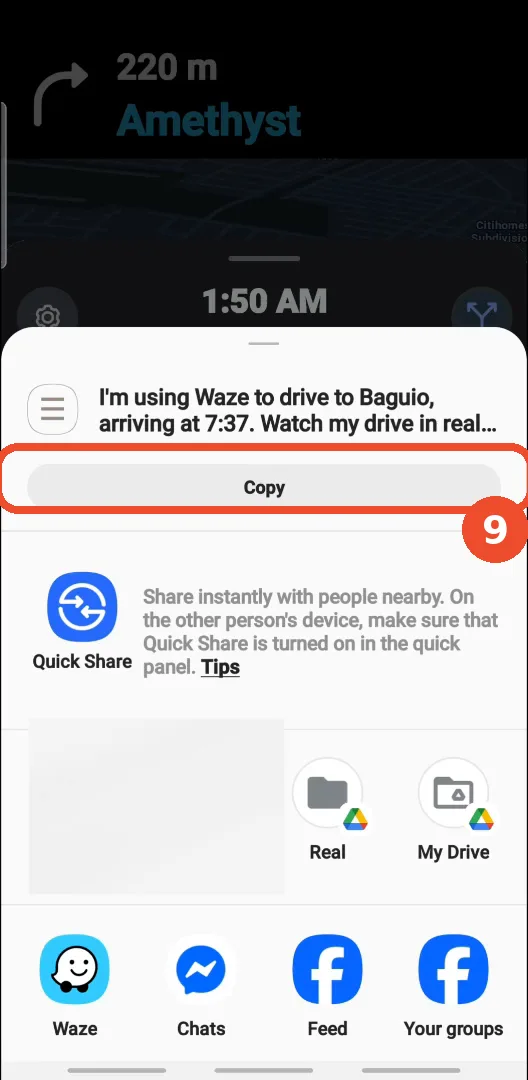
Tap More options at the bottom of the sheet for the full Android share sheet, then tap Copy. Your Waze link — “I’m using Waze to drive to Baguio, arriving at 7:37” — goes on the clipboard.
Good to know
- The film never types a destination: Baguio is picked from Recent and the search field stays empty the whole time. If your destination is not in Recent, type it — the rest of the flow is the same.
- The film taps the 6h 53m route card, not Go now — Go now stays on screen through the route preview. After the stop is added the bottom button reads Resume instead of Go now; the film never taps it and never explains the change.
- The arrival time drifts as the film goes on — 7:32 AM when the route is picked, 7:36 AM after the stop is added, 7:37 AM in the shared message. That is just the clock moving while the film runs.
- The shared message says “Watch my drive in real…” — anyone with the link can see your drive live on the map. The sheet says so itself: “Anyone with the link can see your drive on the map and share it. You can stop sharing at any time.”
- You can add as many stops as you like — the narration says so, and the film adds one to prove it. Each extra stop pushes the arrival time later.
- The Petron card shows gas prices reported by another Waze user, with their username on the card. No step screenshot is taken from that card, so no username appears in this article.
- A DelftStack banner slides across the bottom of the screen at about 0:30–0:35 and again at about 2:18–2:20. It is the channel’s own overlay, not part of Waze.
- A small red camera button floats at the bottom of the home screen. It is the screen recorder’s own button, not a Waze control.
More on Waze
- How to Activate Sound on Waze App
- How to Fix Waze Sound Not Working
- How to Use a Waze Route Offline
- How to Fix the No Network Connection Issue on Waze
- How to Avoid Congestion Charge on Waze
- How to Change Waze North Up
- How to Avoid Cops on Waze
- How to Set the Shortest Route on Waze
- How to Avoid ULEZ on Waze
- How to Message People on Waze
- How to Change Waze Map Color
- How to Set Waze for Motorcycle Navigation
- How to Mark Your Current Location in Waze
Guide complete
Every step above comes from the original recording, with a screenshot for each step. Want more like this? Browse all Waze guides.