How to Avoid ULEZ on Waze
Waze has no London ULEZ switch on this phone — the film’s region does not show the London ULEZ pass at all. The workaround is three checks: look for the pass under Toll and HOV passes, keep Vehicle type on Private, and keep Avoid toll roads on.
- SystemAndroid
- AppWaze
- Last verifiedNovember 26, 2026
Every screenshot below is taken from the actual recording on this device — no stock images.
Steps
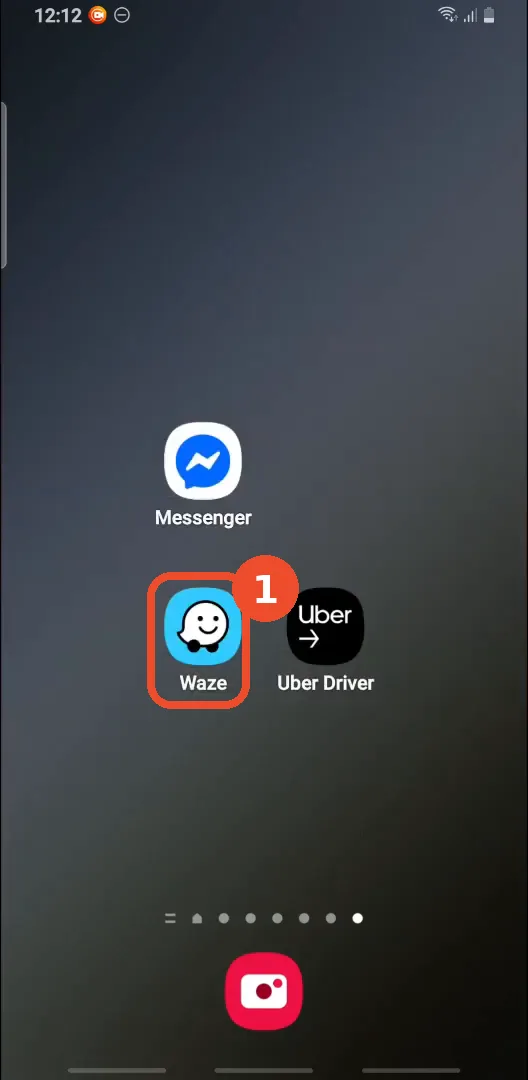
Open Waze
Open the Waze app. The film opens on the home screen — Waze sits below Messenger, next to Uber Driver.
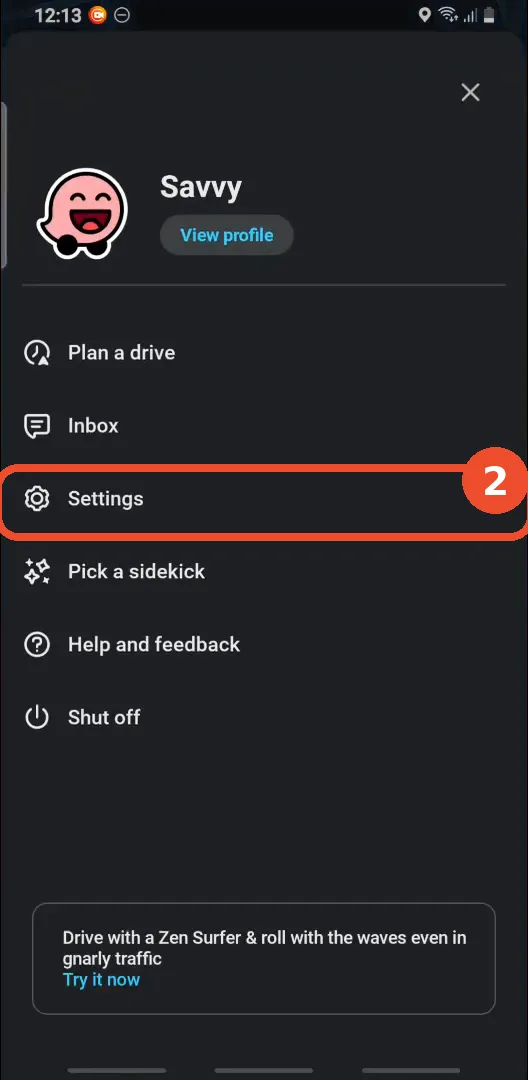
Tap the menu, then Settings
If the “Driving to Baguio?” suggestion pops up, dismiss it first. Then tap the menu button — the three lines in the top-left corner — and tap Settings in the menu.
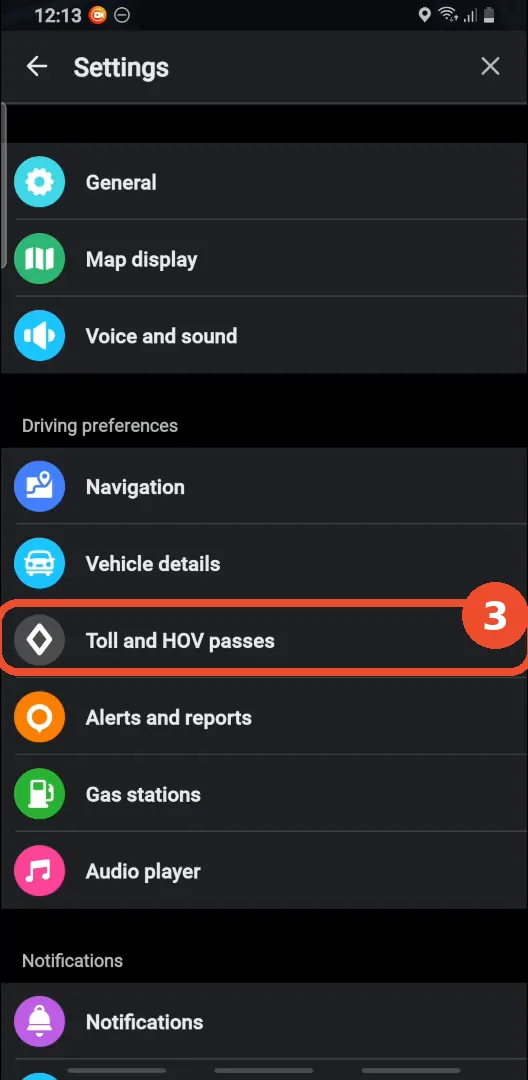
Tap Toll and HOV passes
In Waze Settings, under Driving preferences, tap Toll and HOV passes.
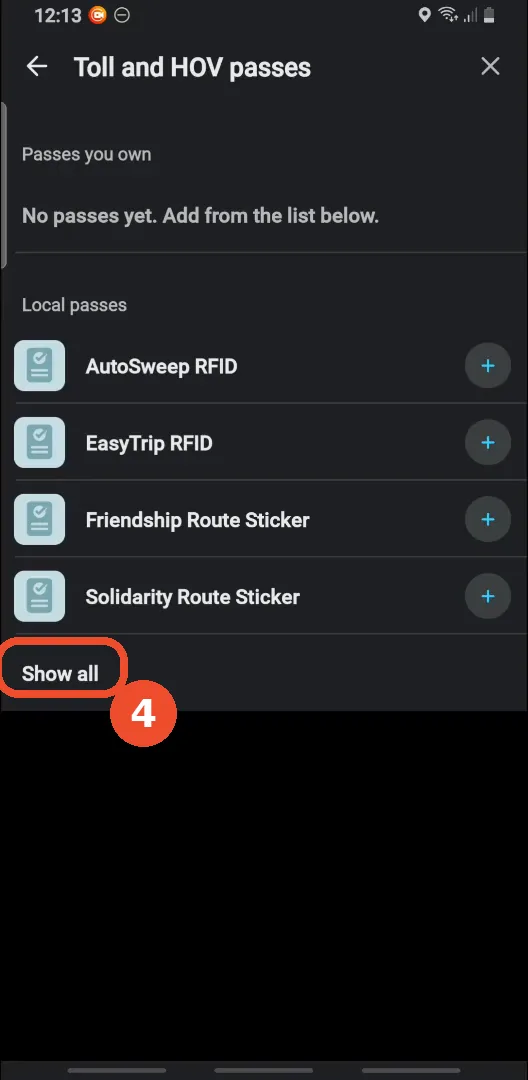
Tap Show all to see every pass
This phone owns no passes, and the local list — AutoSweep RFID, EasyTrip RFID, Friendship Route Sticker, Solidarity Route Sticker — has no London ULEZ entry. Tap Show all at the bottom to open the full list.
Search the full pass list
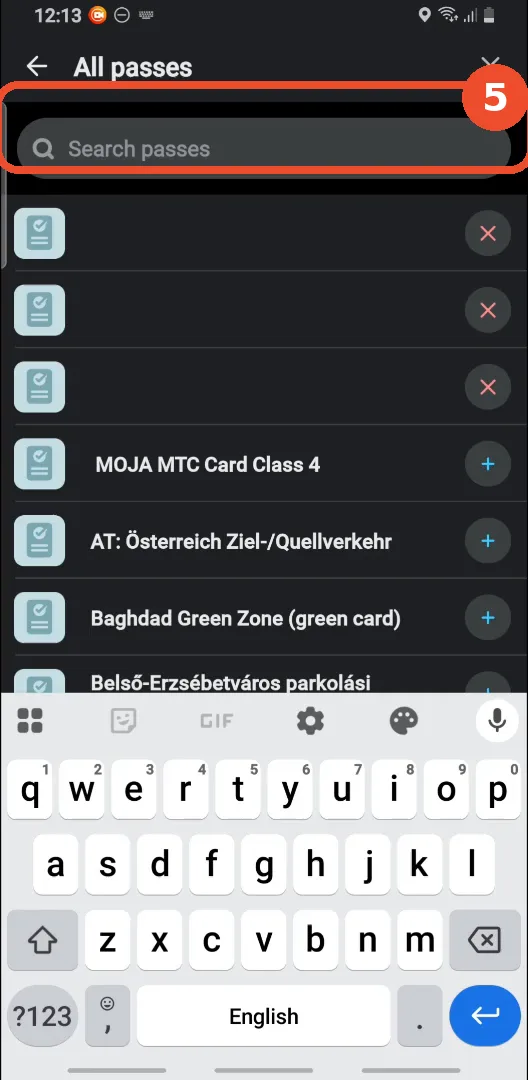
On the All passes page, tap the Search passes field at the top. The film opens the search but types nothing — and no London ULEZ entry appears in the list.
Tap Vehicle details, then Vehicle type
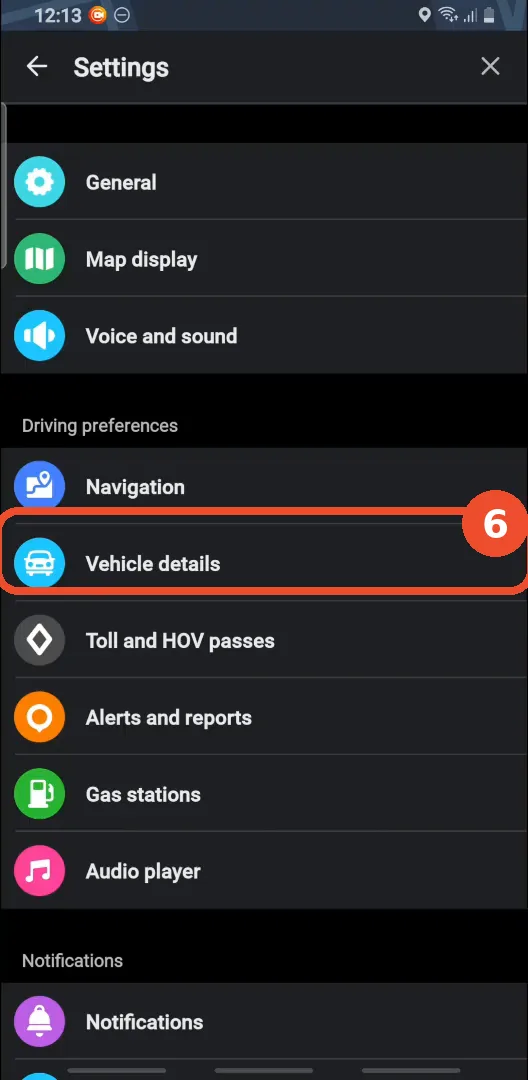
Go back to Settings and tap Vehicle details, then tap Vehicle type on the next page.
Check Private is selected
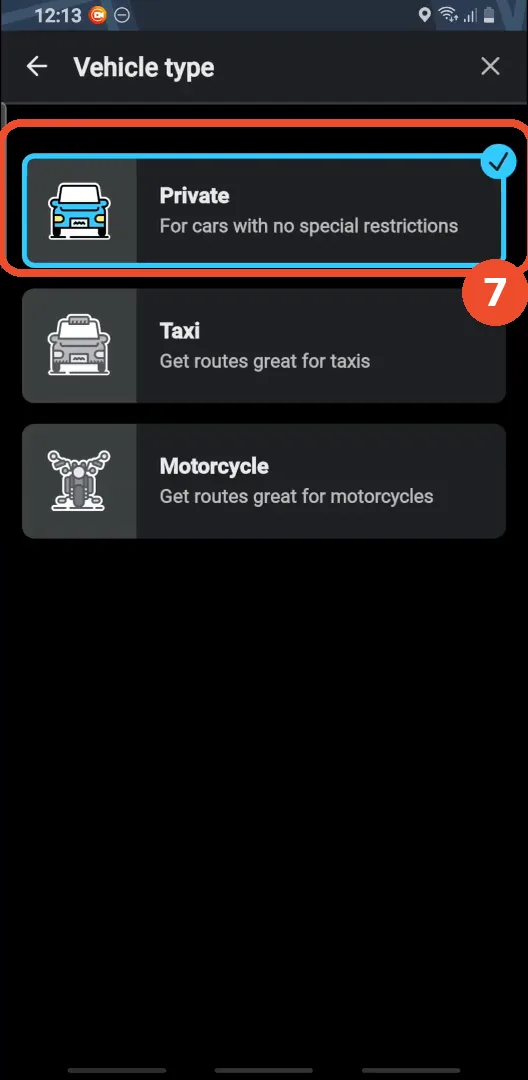
Private — “For cars with no special restrictions” — is already selected, with a check mark. The film only opens the page to confirm; it does not change anything. Private cars are often exempt from the ULEZ.
Go back to Settings, tap Navigation, and check Avoid toll roads is on
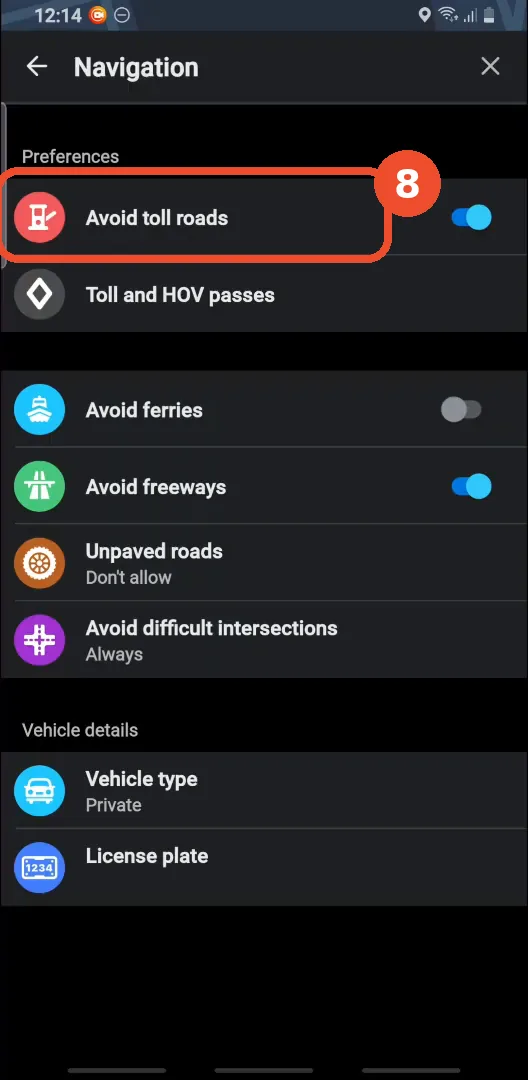
Back in Settings, tap Navigation. Avoid toll roads is already on — the film only checks it, it does not tap it. That is the setting that steers Waze around chargeable roads.
Good to know
- The London ULEZ pass option never appears on screen in this film. The narrator says so directly: “I don’t have that option because of my region.” If your Waze shows “London ULEZ compliant”, switch it off; if it does not, these three checks are the whole workaround.
- The film opens the All passes list twice and the search field once, but never types a search — so “search for ULEZ” is narration only, never demonstrated.
- Vehicle type Private was already selected and Avoid toll roads was already on when the film reached those pages — the film checks settings, it does not change them. If either is off on your phone, tap it on.
- The ULEZ only charges at certain hours — the film reminds you to check the zone’s operating hours, since Waze may still route through it outside those hours. The film never shows the hours on screen; checking them is narration only.
- A “Driving to Baguio?” suggestion pops up when the map first opens; the film dismisses it before opening the menu. It is just a suggestion for a recent destination.
- A DelftStack banner slides across the bottom of the screen at about 0:29–0:33. It is the channel’s own overlay, not part of Waze.
- The menu in the film shows the operator’s own Waze name, Savvy. That is the account name on this phone, not a setting to change.
More on Waze
- How to Activate Sound on Waze App
- How to Fix Waze Sound Not Working
- How to Use a Waze Route Offline
- How to Fix the No Network Connection Issue on Waze
- How to Avoid Congestion Charge on Waze
- How to Change Waze North Up
- How to Avoid Cops on Waze
- How to Change Waze Map Color
- How to Set the Shortest Route on Waze
- How to Message People on Waze
Guide complete
Every step above comes from the original recording, with a screenshot for each step. Want more like this? Browse all Waze guides.